
Digital art has never been more accessible. With smartphones and tablets becoming increasingly powerful, the best drawing apps in 2026 deliver professional-grade illustration, painting, and design capabilities that rival desktop software. Whether you are a manga artist creating your next chapter, a concept artist building worlds, a student learning to draw, or a hobbyist exploring creative expression, there is a drawing app perfectly suited to your artistic style and workflow.
This guide reviews 12 of the best drawing apps for Android and iPhone in 2026, from industry-standard tools used by professional illustrators to free apps packed with thousands of brushes. We cover digital painting, vector sketching, manga and comic creation, traditional media simulation, and open-source alternatives. For more creative app recommendations, explore our guides on photo editing apps, AI photo editing apps, iPad creative tools, entertainment apps, and digital planner apps.
Table of Contents
- Procreate Pocket (Rating 4.7)
- ibis Paint X (Rating 4.7)
- Adobe Fresco (Rating 4.7)
- Concepts (Rating 4.7)
- MediBang Paint (Rating 4.6)
- Tayasui Sketches (Rating 4.6)
- Infinite Painter (Rating 4.5)
- Clip Studio Paint (Rating 4.4)
- Sketchbook (Rating 4.4)
- ArtFlow (Rating 4.3)
- ArtRage (Rating 4.0)
- Krita (Rating 3.9)
- Which Drawing App Should You Choose?
- Digital Drawing Tips for Beginners and Pros
- Frequently Asked Questions
1. Procreate Pocket (Rating 4.7)
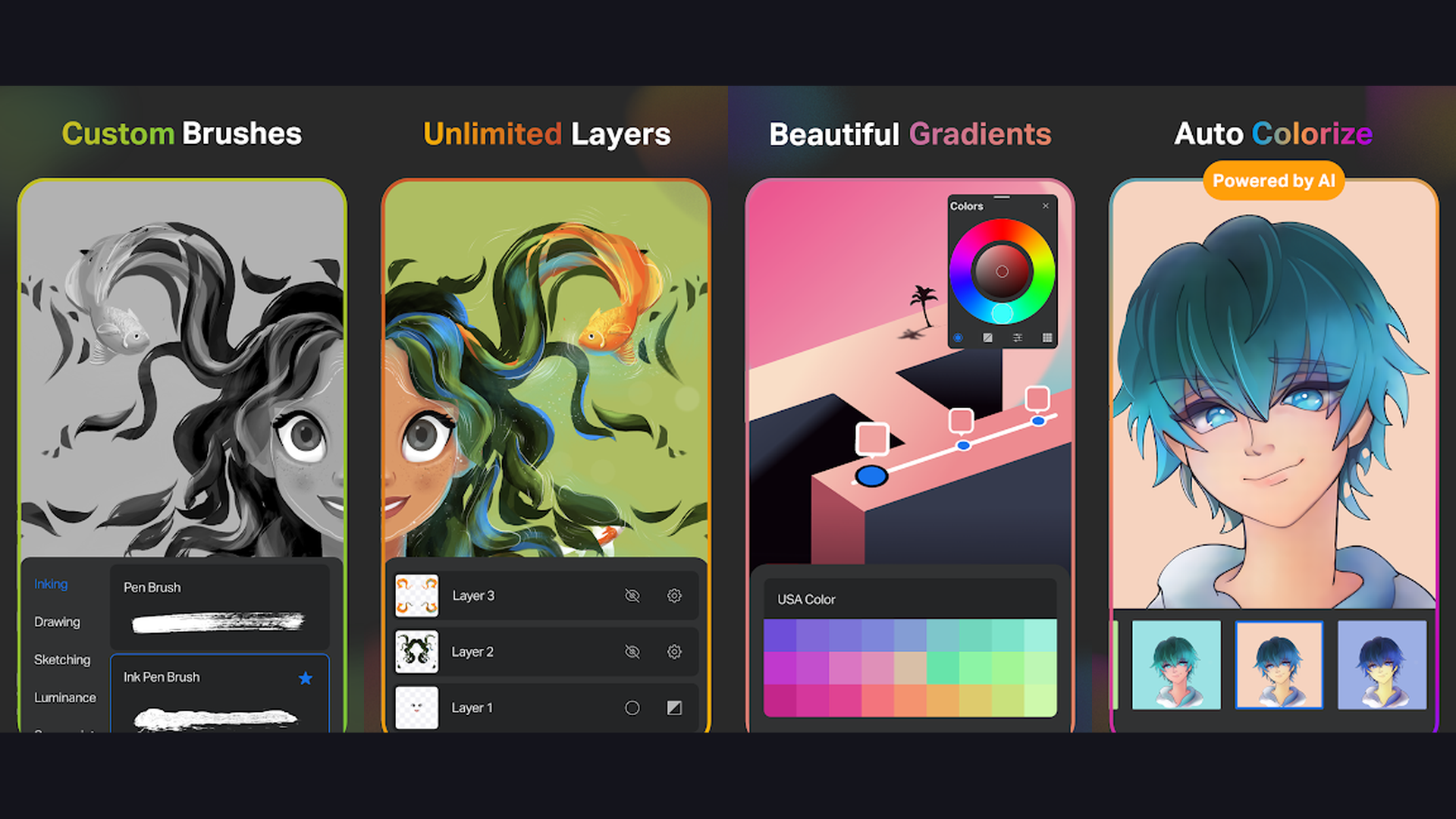
Procreate Pocket is the iPhone version of the industry-leading digital art app, offering a professional-grade painting engine, hundreds of handmade brushes, advanced layer system, 4K canvas support, Animation Assist, and the same powerful rendering engine used by professional illustrators and concept artists worldwide. Procreate Pocket brings the full creative power of Procreate to your iPhone screen. The Valkyrie painting engine delivers incredibly responsive brush strokes with zero latency, making drawing feel natural and immediate even on a phone display. The brush library includes over 200 handmade brushes across categories like sketching, inking, painting, artistic, textures, and abstract, with the ability to create custom brushes or import community brushes. The layer system supports blend modes, clipping masks, alpha lock, reference layers, and group layers for complex compositions. The Animation Assist mode creates frame-by-frame animations with onion skinning. The color system includes disc, classic, harmony, value, and palette modes with unlimited color palettes. The QuickShape automatically perfects hand-drawn shapes. The selection and transformation tools include freehand, automatic, rectangle, and ellipse selection with feathering. Procreate Pocket costs $6.99 (one-time purchase). For iPhone artists wanting the gold standard of mobile digital art, Procreate Pocket is essential. Enhance your art with photo editing tools.

2. ibis Paint X (Rating 4.7)
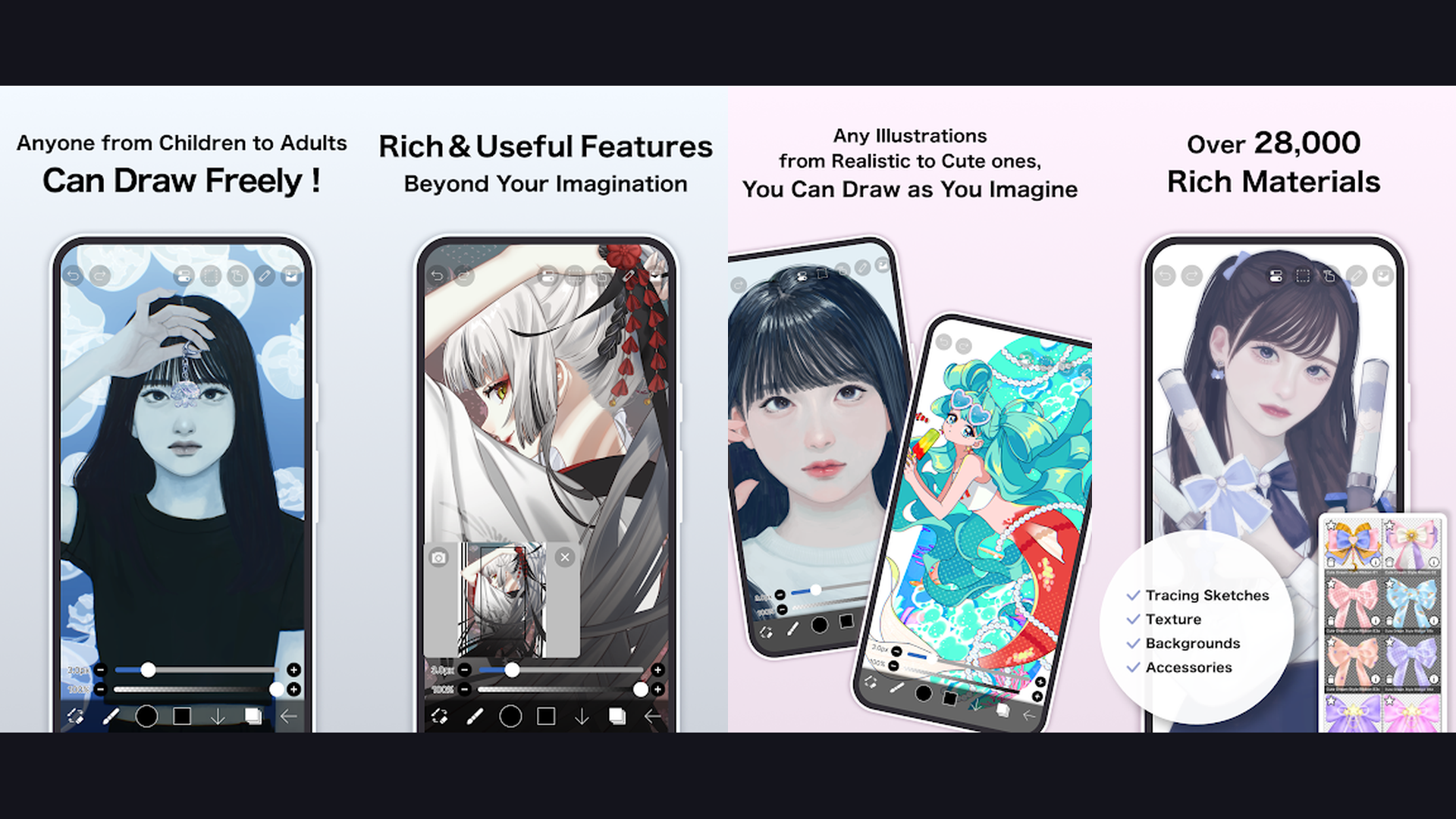
ibis Paint X is the most popular free drawing app worldwide with over 15,000 brushes, 16,000+ tones and screentones, advanced layer management, drawing process video recording, and a thriving social community that makes it the ultimate creative platform for both beginners learning to draw and experienced artists creating manga, illustrations, and digital paintings. ibis Paint X has built the largest mobile art community in the world, and for good reason. The brush engine offers over 15,000 brushes including dip pens, felt pens, flat brushes, fan brushes, calligraphy pens, charcoal, crayons, stamps, and custom brushes with full parameter customization. The layer system supports up to hundreds of layers with 46 blend modes, clipping, alpha lock, and layer folders. The stabilizer smooths your brush strokes for clean line art similar to professional desktop software. The manga and comic creation tools include 16,000+ screentones, panel frames, speech bubbles, and text tools tailored for comic production. The drawing process video automatically records every stroke for sharing timelapse videos of your creation process. The social platform lets you share artwork, watch other artists processes, and learn techniques. ibis Paint X is free with ads (ad-removal from $4.99, Prime membership $9.99/year). For artists wanting the most feature-rich free drawing app, ibis Paint X is unmatched. Create content for entertainment.

3. Adobe Fresco (Rating 4.7)
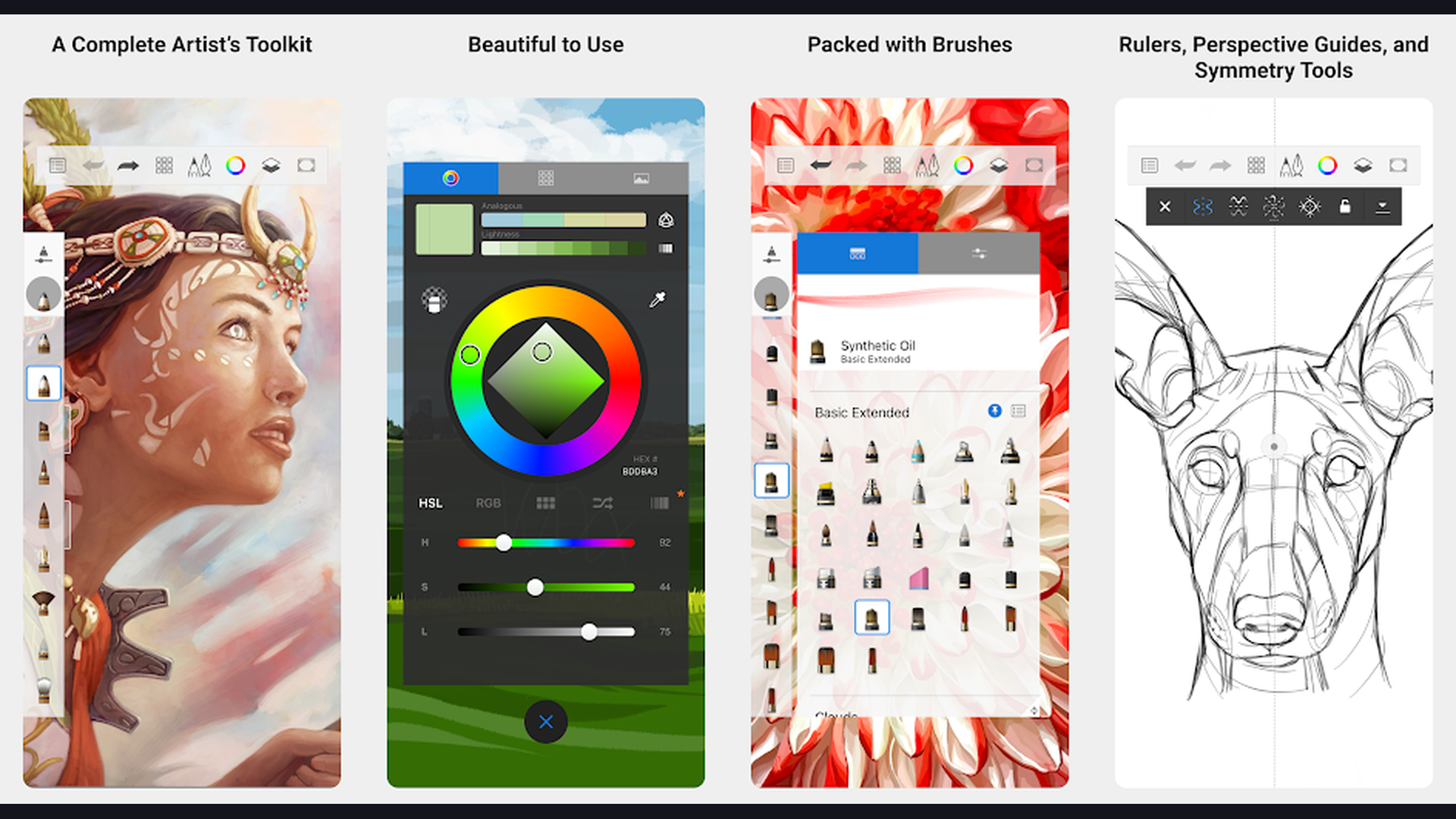
Adobe Fresco is Adobe dedicated drawing and painting app featuring revolutionary Live Brushes that simulate real watercolor and oil paint physics, vector brushes for crisp scalable artwork, over 1,000 Photoshop brushes, and seamless Creative Cloud integration that bridges traditional and digital art. Adobe Fresco represents a breakthrough in digital painting technology. The Live Brushes are the standout feature: watercolor brushes create authentic wet-on-wet blending, color bleeding, and paper absorption effects that look genuinely like real watercolor paintings. The oil paint brushes simulate paint thickness, mixing, and texture with remarkable realism. These are not filters or effects but real-time physics simulations of paint behavior. The Pixel Brushes include the entire Photoshop brush library with full customization. The Vector Brushes create infinitely scalable artwork perfect for logos, character design, and graphic illustration. The layer system supports both raster and vector layers in the same document, a unique capability. The motion features create simple animations from drawings. The Creative Cloud integration synchronizes work with Photoshop and Illustrator for desktop refinement. Adobe Fresco is completely free (Premium features included with Creative Cloud subscription). For artists wanting the most realistic traditional media simulation, Adobe Fresco is unparalleled. Edit results with AI photo editing tools.
4. Concepts (Rating 4.7)
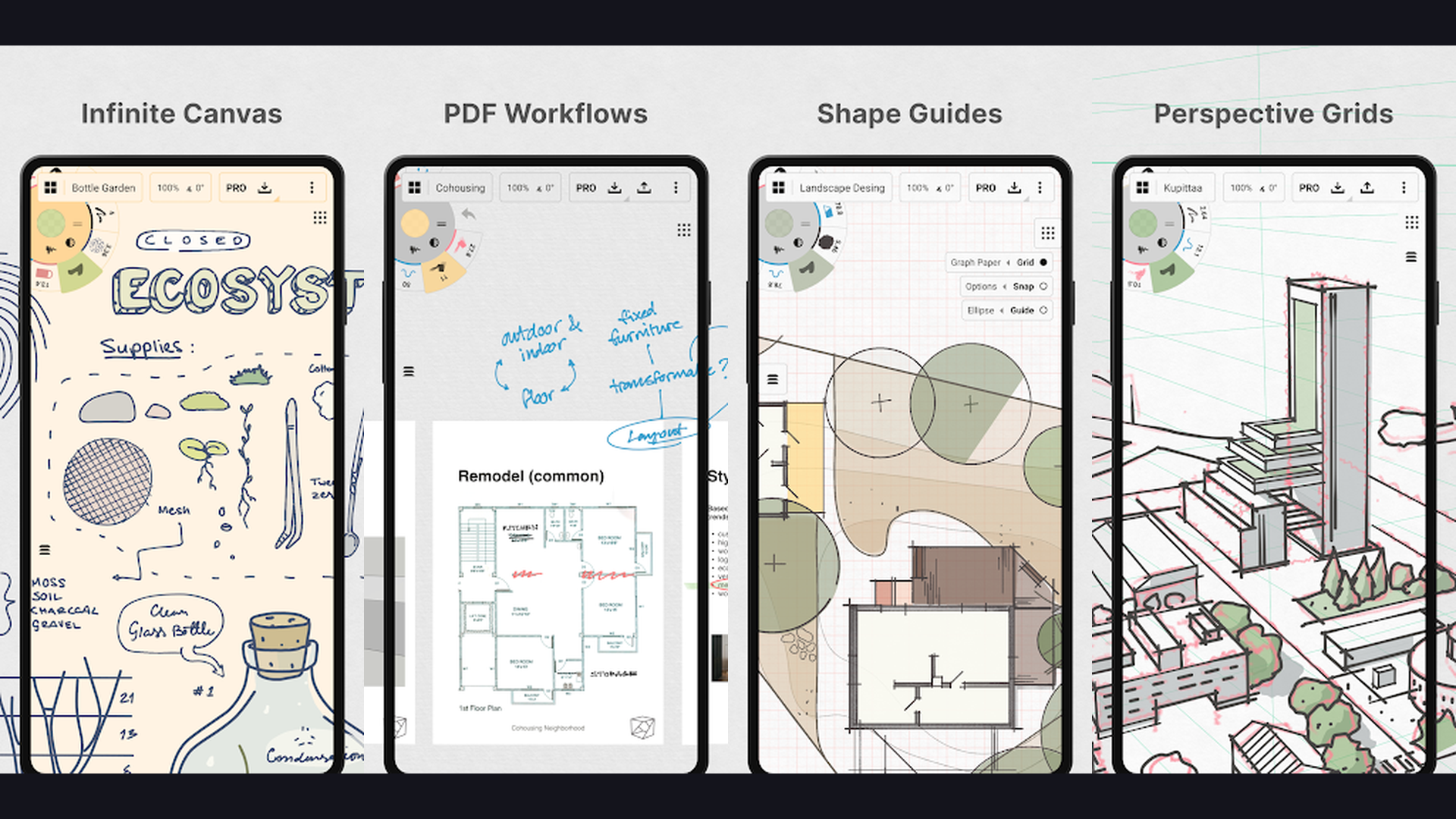
Concepts is a professional-grade infinite canvas sketching and design app built on a vector-hybrid engine, offering infinite zoom, flexible object selection, precision tools, and industry-specific features used by architects, product designers, and concept artists at companies like Disney, Apple, and Philips. Concepts stands apart from typical drawing apps with its vector-based infinite canvas. Every stroke you make is an object that can be selected, moved, resized, recolored, and edited individually at any time, giving you unmatched flexibility in the design process. The infinite canvas has no boundaries: zoom in for fine detail work or zoom out for panoramic compositions. The precision tools include exact measurements, grids, isometric perspectives, and technical drawing modes for architectural and industrial design. The brush engine provides natural-feeling strokes with pressure sensitivity while maintaining vector editability. The COPIC color wheel offers professionally curated color harmonies used by industrial designers. The layer system supports infinite layers with blend modes. The import/export options include SVG, DXF, PSD, PDF, and PNG. The collaboration features enable real-time design review sessions. Concepts is free for basic tools (Everything Subscription from $4.99/month). For designers and architects needing precision vector sketching, Concepts is the professional tool. Design projects with planning tools.
5. MediBang Paint (Rating 4.6)
MediBang Paint is the best free cross-platform comic and manga creation app, offering professional-grade tools including over 100 brushes, 800+ free tones and backgrounds, comic panel templates, cloud-based project storage, and team collaboration features specifically designed for sequential art and illustration. MediBang Paint has earned its reputation as the go-to free app for manga and comic artists. The comic creation tools include panel division with customizable frames, perspective rulers, symmetry tools, and snap-to-line drawing guides. The tone library provides over 800 professional screentones, patterns, and pre-made backgrounds commonly used in manga production. The brush library covers all essential styles: G-pen, mapping pen, turnip pen, round brush, flat brush, and customizable brushes with size, opacity, and spacing controls. The cloud storage synchronizes projects across devices (phone, tablet, PC) so you can start on mobile and finish on desktop seamlessly. The team collaboration features let multiple artists work on the same project with shared resources and files, ideal for manga circles or comic production teams. The layer system supports clipping, merge, and folder organization. MediBang Paint is completely free. For manga and comic artists wanting a dedicated free creation platform, MediBang is perfect. Share comics with entertainment apps.
6. Tayasui Sketches (Rating 4.6)
Tayasui Sketches is the most natural-feeling digital drawing app, meticulously designed to replicate the authentic experience of drawing with real pencils, pens, watercolors, pastels, and oil paints with stunning realism that makes you forget you are drawing on glass. Tayasui Sketches takes a fundamentally different approach from feature-heavy drawing apps. Instead of overwhelming you with thousands of options, it provides a carefully curated set of tools that each feel remarkably like their real-world counterparts. The pencil tool mimics graphite with realistic pressure variation and tilt response. The watercolor brush creates authentic wet media effects with color blending and paper texture interaction. The oil pastel tool simulates the thick, buttery feel of real pastels. The felt pen provides consistent, vibrant ink lines. The acrylic brush creates textured paint strokes. The airbrush produces smooth, soft gradients. The ruler tool enables precise straight lines and geometric shapes. The import feature lets you draw over imported photos. The minimalist interface keeps tools accessible without cluttering the canvas. Tayasui Sketches is free with Pro upgrade ($5.99 one-time). For artists wanting the most authentic traditional media feel, Tayasui Sketches is beautifully crafted. Sketch ideas for academic projects.
7. Infinite Painter (Rating 4.5)
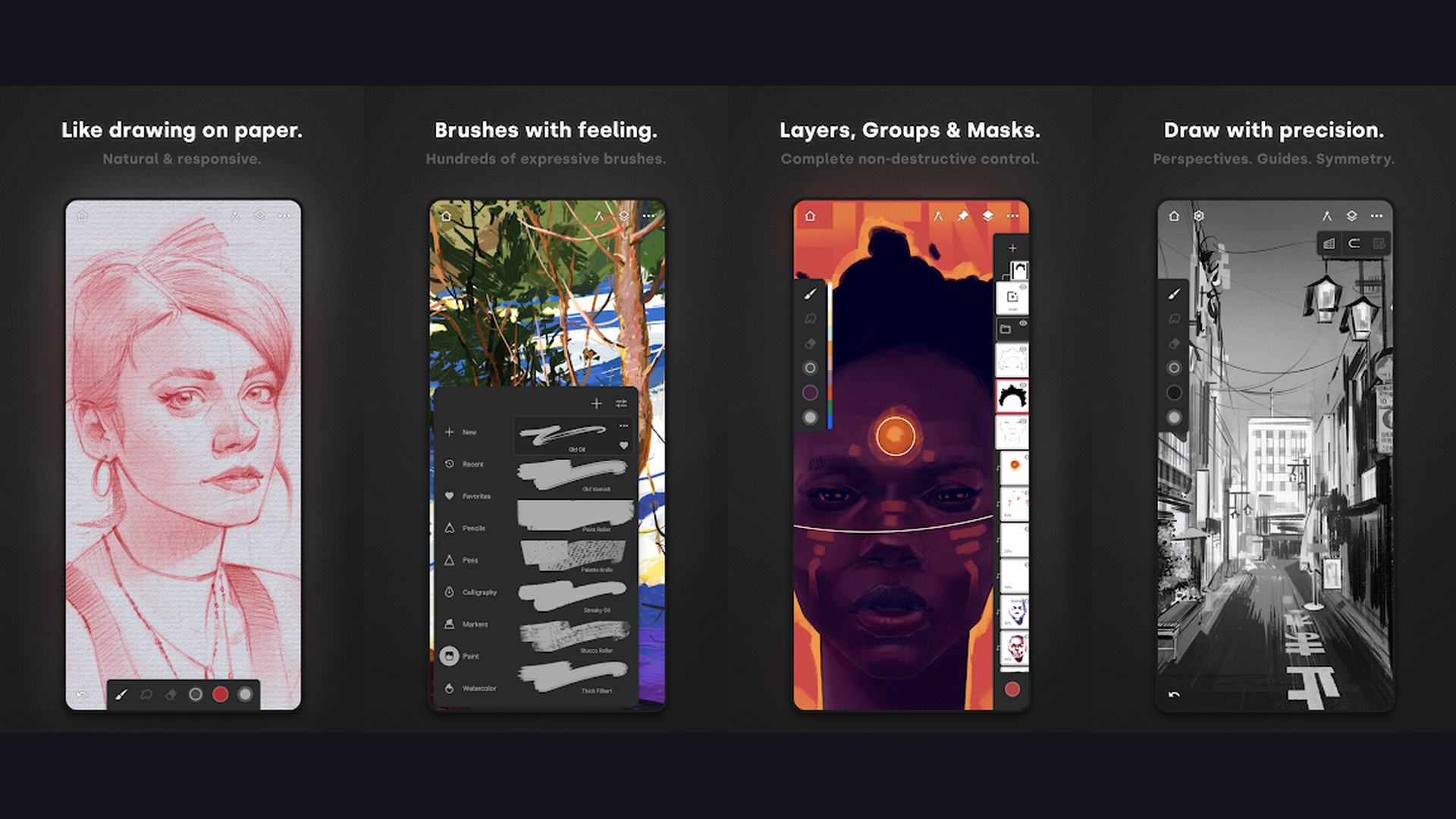
Infinite Painter is the most powerful professional painting app for Android, often called the "Procreate for Android" with over 160 customizable brush presets, advanced perspective guides (1-5 point), infinite layers, gradient mapping, and a professional brush engine that rivals desktop painting software. Infinite Painter delivers the closest experience to Procreate on Android devices. The brush engine offers over 160 presets across categories including pencils, inks, markers, oils, watercolors, and specialty brushes, with every parameter customizable: shape, grain, spacing, scatter, color dynamics, and dual brush. The perspective guide system supports 1-point through 5-point perspective, isometric, fish-eye, and custom perspective grids, making it invaluable for concept art and architectural sketching. The layer system supports unlimited layers with 20 blend modes, clipping masks, and layer groups. The gradient mapping applies color gradients to grayscale artwork for instant mood changes. The selection tools include lasso, magic wand, and polygonal selection with feathering and transformation. The symmetry tools support radial, horizontal, vertical, and custom axis symmetry. The canvas supports up to 8K resolution for print-quality artwork. Infinite Painter costs around $9.99 (one-time purchase). For Android artists wanting a Procreate-level experience, Infinite Painter is the top choice. Design on Android with battery optimization.
8. Clip Studio Paint (Rating 4.4)
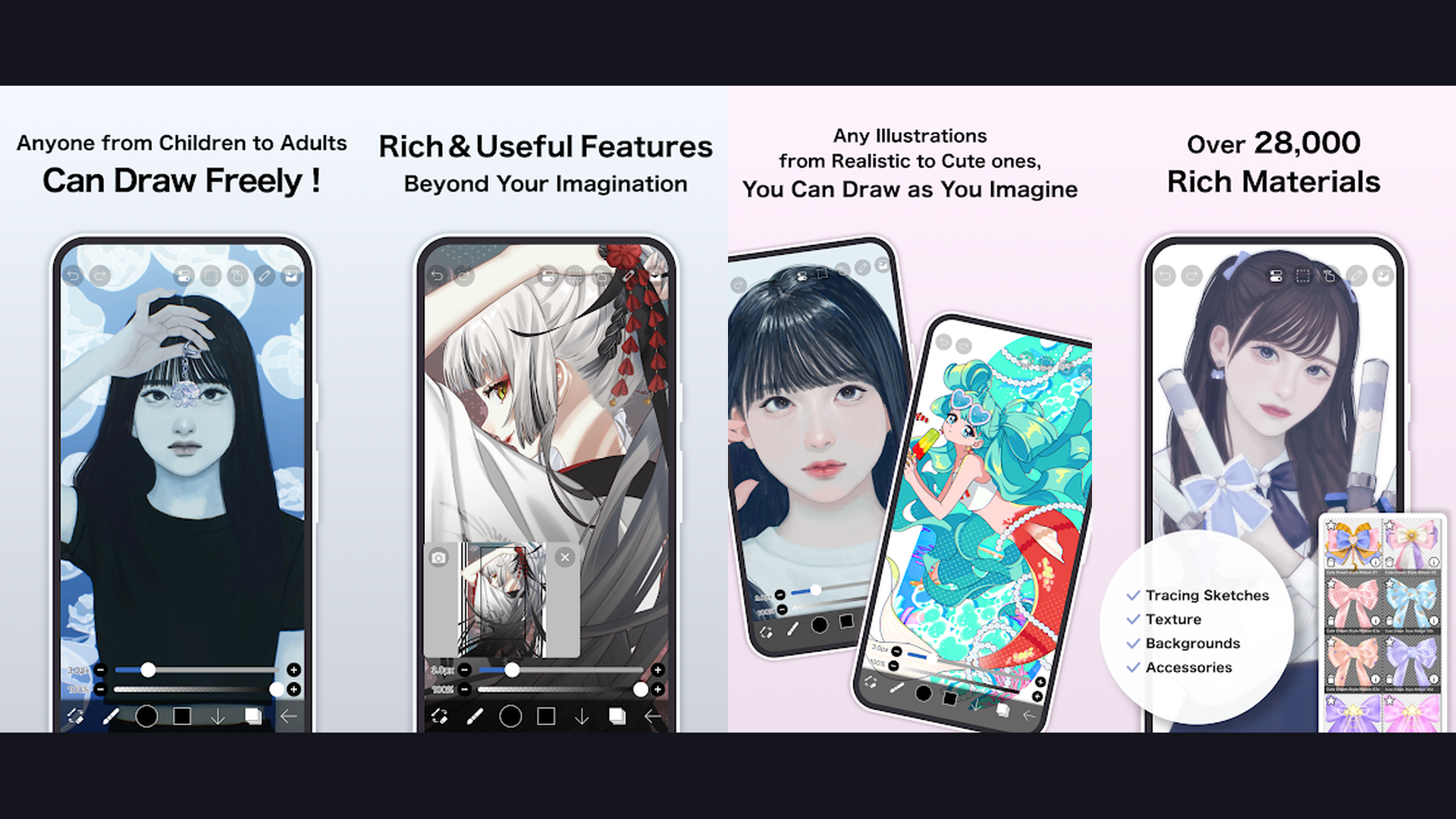
Clip Studio Paint is the industry-standard professional illustration and comic creation software available on mobile, offering advanced vector and raster tools, a comprehensive 3D model posing system, animation timeline, thousands of downloadable assets, and the same professional engine used by manga publishers and animation studios. Clip Studio Paint is the professional standard for manga, comics, illustration, and animation production. The brush engine handles both raster and vector strokes, meaning you can draw vector lines that remain crisp at any zoom level while also painting with raster brushes in the same artwork. The 3D model system provides poseable human figures, objects, and environments as drawing references that can be rendered as line art or used as underdrawing guides. The animation timeline supports hand-drawn frame-by-frame animation with onion skinning, transformation interpolation, and audio synchronization. The CLIP STUDIO ASSETS marketplace offers millions of downloadable brushes, 3D models, image materials, and auto-action scripts shared by the community. The comic tools include professional panel layout, balloon placement, and effect lines. The vector eraser cleanly removes individual strokes. Clip Studio Paint requires a subscription (from $0.99/month for phone). For professional manga artists and animators wanting industry-standard tools on mobile, Clip Studio is the definitive choice. Create portfolios with editing apps.
9. Sketchbook (Rating 4.4)
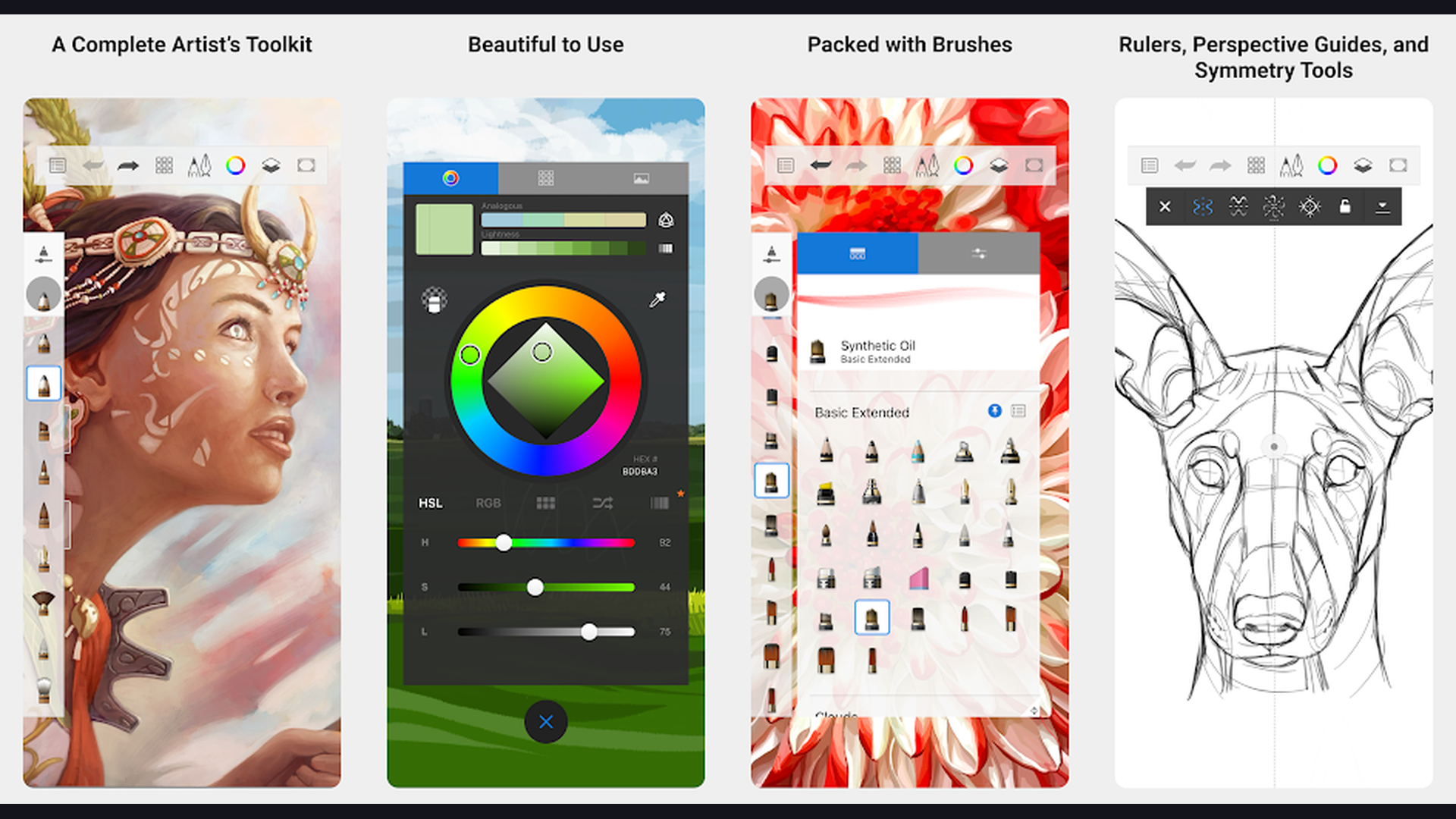
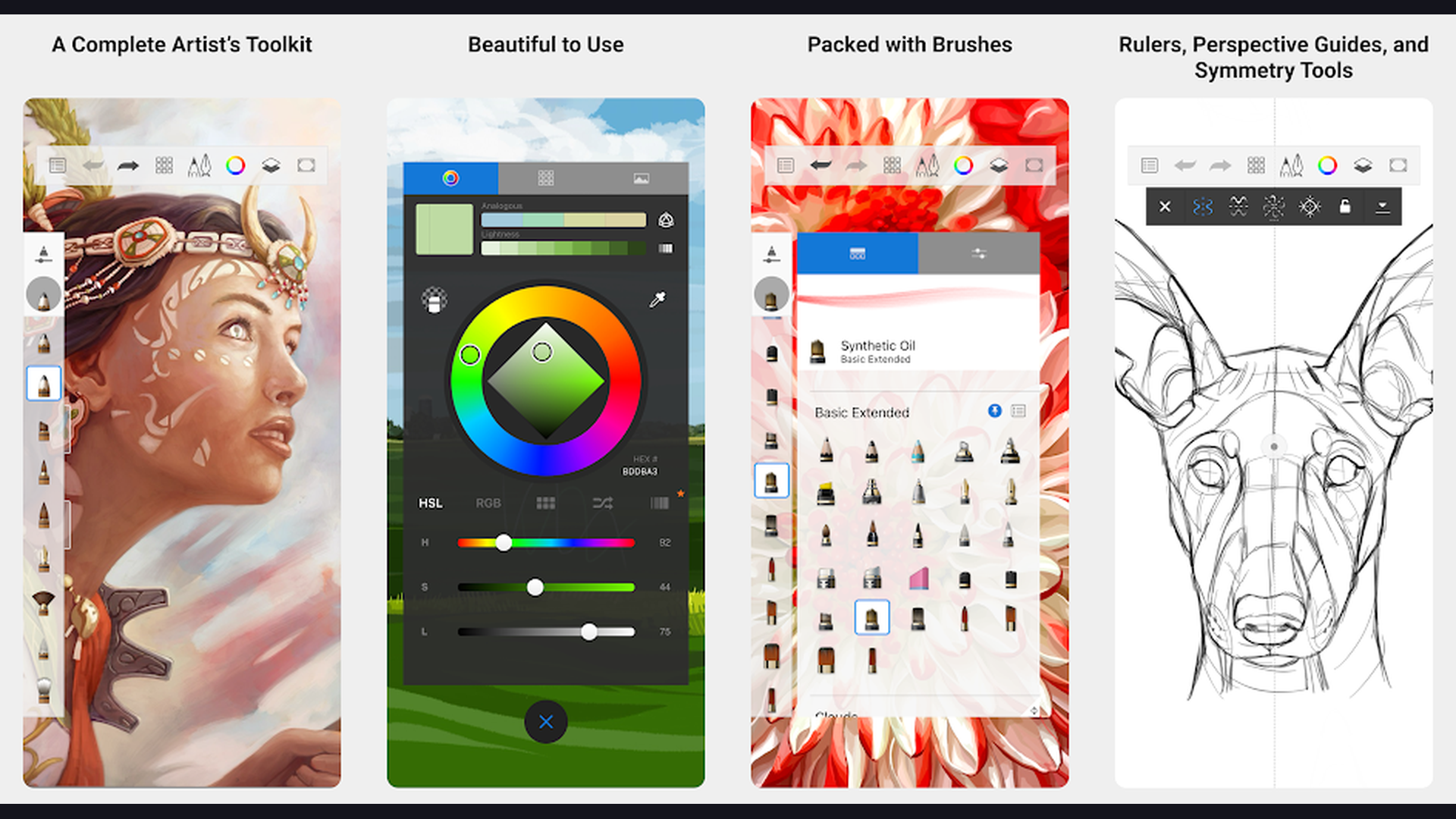
Sketchbook (by Sketchbook Inc, formerly Autodesk) is the cleanest and most intuitive free professional drawing app, offering a distraction-free canvas with over 190 customizable brushes, a professional-grade drawing engine, predictive stroke technology, and a minimalist interface that gets out of your way and lets you focus purely on creating art. Sketchbook philosophy is that the best drawing app is invisible. The interface minimizes to just your canvas, with tools accessible through intuitive quick-access menus. The brush library includes over 190 professional brushes across pencils, pens, markers, airbrushes, and specialty tools, all fully customizable. The Predictive Stroke smooths your lines without eliminating the natural character of your drawing. The radial symmetry tool creates mandala-like patterns with up to 16-fold symmetry. The layer system supports blend modes, opacity, visibility toggling, and layer reordering. The scanning and import features let you photograph traditional sketches and digitize them. The flipbook animation creates simple frame sequences. The color tools include harmony-based color picking and a customizable color library. The ruler tools include French curves, ellipse guides, and straight edges. Sketchbook is completely free with all features unlocked. For artists wanting a clean, professional free drawing experience, Sketchbook is the most generous offering. Share art on social platforms.
10. ArtFlow (Rating 4.3)
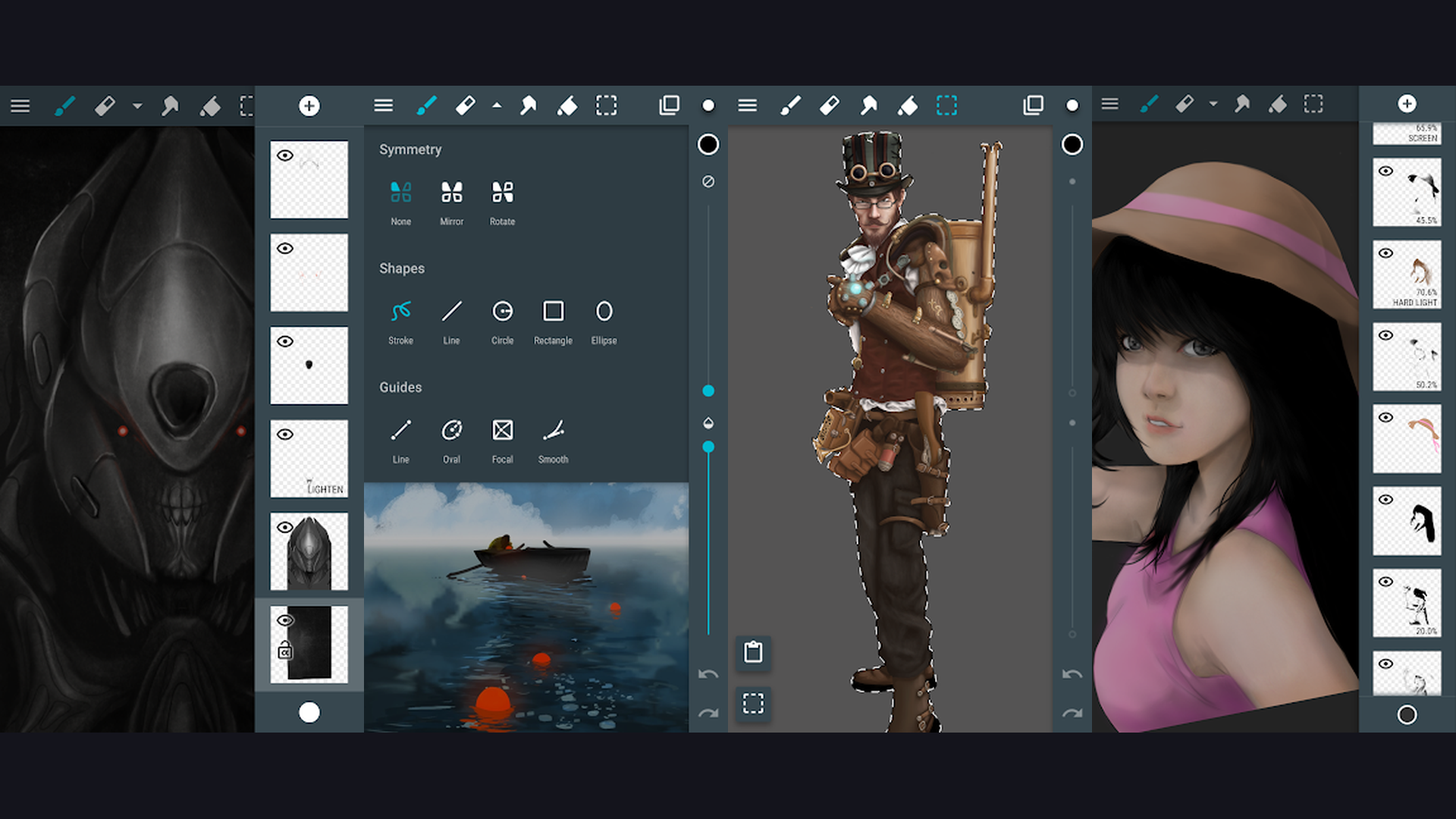
ArtFlow is the best Android-exclusive drawing app for natural sketching and painting, offering GPU-accelerated rendering, over 100 brushes and tools, up to 4096x4096 canvas resolution, 32 layers, CMYK color mixing, and a clean interface designed specifically for the Android touch and stylus experience. ArtFlow is purpose-built for Android, optimized to take advantage of the platform unique capabilities and popular stylus options from Samsung S-Pen, Wacom, and other pressure-sensitive styli. The GPU-accelerated rendering engine ensures smooth brush strokes even on complex, high-resolution canvases. The brush library includes over 100 brushes across painting, sketching, inking, and specialty categories with full customization of size, opacity, spacing, and dynamics. The CMYK color mode is unique among mobile apps, allowing artists to work in print-ready color space. The layer system supports up to 32 layers with blend modes and opacity control. The canvas supports up to 4096x4096 pixels for detailed artwork. The smudge and blur tools blend colors naturally. The fill tool includes tolerance and expansion controls. The undo/redo history saves extensive steps. The PSD export maintains layer structure for desktop editing. ArtFlow is free with a Pro upgrade ($4.99 one-time). For Android-only artists wanting a native, optimized drawing experience, ArtFlow is the smartest choice. Create on Android with battery tips.
11. ArtRage (Rating 4.0)
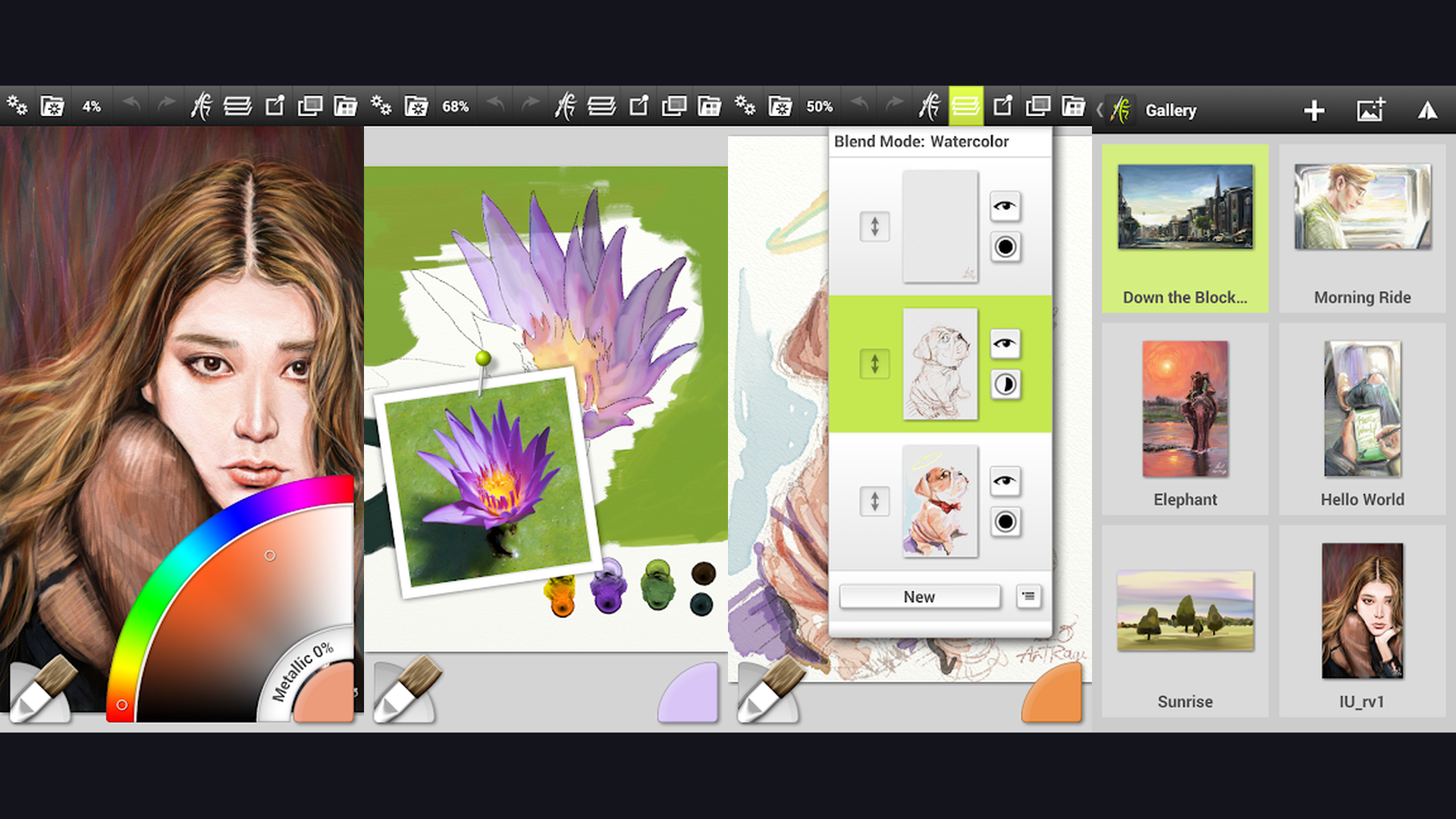
ArtRage is the most realistic traditional art simulation app, faithfully recreating how oil paint mixes on canvas, how watercolor bleeds and dries, how pencils respond to paper grain, and how palette knives push paint around, creating an immersive experience that teaches traditional techniques through digital practice. ArtRage takes realism to an extreme that no other mobile app matches. The oil paint tool simulates paint thickness, mixing, and drying: lay down a thick stroke and drag through it to create realistic paint mixing effects. The watercolor tool creates authentic wet-on-wet blending, color diffusion, and paper buckling. The palette knife pushes and smears virtual paint exactly like a real palette knife on canvas. The pencil tool responds to paper texture and drawing pressure with graphite-like variation. The chalk and crayon tools simulate soft media with realistic blending. The paint tube squeezes out thick globs of paint for impasto technique. The canvas texture affects every tool realistically. The reference image feature pins reference photos to the side of your canvas. The layer system supports blend modes for compositing. The paint mixing palette lets you blend colors before applying them. ArtRage costs around $4.99 (one-time purchase). For traditional artists wanting the most authentic paint simulation, ArtRage is unbeatable. Practice art with creative iPad tools.
12. Krita (Rating 3.9)
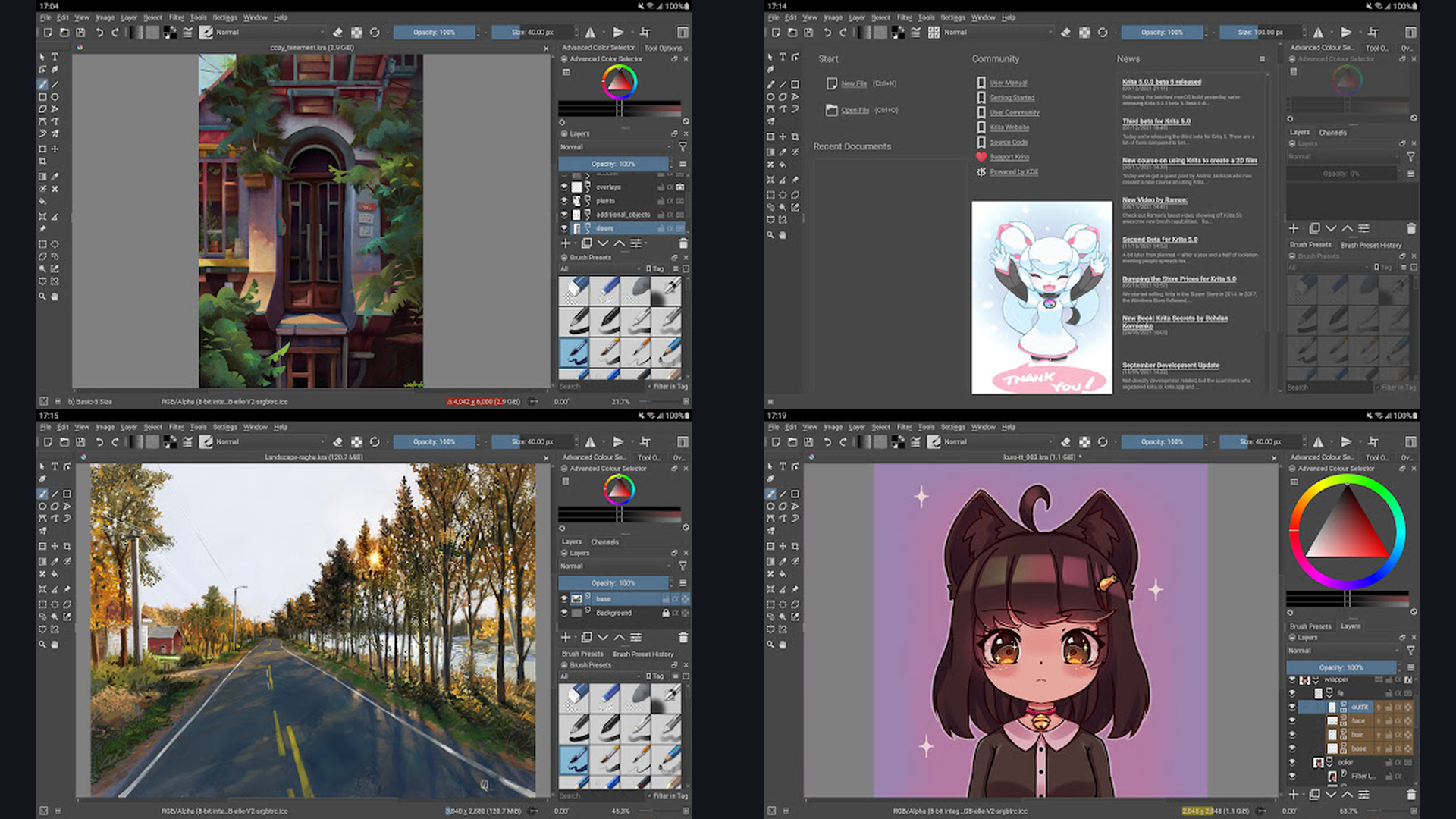
Krita is the most powerful free and open-source professional drawing application, offering a complete illustration and painting studio with advanced brush engines, animation tools, vector drawing, HDR support, Python scripting, and professional-grade features that rival Photoshop for digital painting. Krita is developed by artists for artists, and it shows in every design decision. The brush engine is among the most customizable available: nine brush engines (pixel, smudge, color smudge, shape, quick line, sketch, spray, tangent, and filter) with virtually unlimited parameter combinations. The resource management system organizes brushes, patterns, gradients, and palettes. The animation timeline provides frame-by-frame animation with onion skinning, audio import, and rendering. The vector drawing tools create scalable shapes and text. The HDR painting support creates artwork with extended color range. The layer system supports unlimited layers with masks, groups, and filter layers. The selection tools include bezier, magnetic, and color-range selection. The wrap-around mode creates seamless tileable textures. The Python scripting extensibility automates workflows. The PSD compatibility ensures smooth file exchange with other software. Krita is completely free and open-source. For artists wanting a desktop-class free painting application, Krita is the most powerful option available. Build with open-source tools.
Which Drawing App Should You Choose?
Best for Professional Illustration
- Procreate Pocket - Industry gold standard for iPhone (one-time purchase)
- Clip Studio Paint - Professional standard for manga, comics, and animation
- Infinite Painter - Best Procreate alternative for Android
Best for Beginners
- ibis Paint X - Largest brush library, great community, free
- Sketchbook - Cleanest interface, completely free
- Tayasui Sketches - Most intuitive traditional-feel tools
Best for Manga and Comics
- Clip Studio Paint - Industry standard with 3D models and panel tools
- MediBang Paint - Best free manga creation platform
- ibis Paint X - 16,000+ screentones and comic tools
Best for Realistic Traditional Media
- Adobe Fresco - Revolutionary Live Brushes (watercolor, oil physics)
- ArtRage - Most realistic paint mixing and palette knife
- Tayasui Sketches - Beautiful pencil, watercolor, pastel simulation
Best for Design and Architecture
- Concepts - Infinite vector canvas with precision tools
- Sketchbook - French curves, ellipse guides, ruler tools
Best Free Options
- Sketchbook - All features free, no ads
- MediBang Paint - Completely free professional tools
- Krita - Free open-source with desktop-class features
- Adobe Fresco - Free with Live Brushes included
- ibis Paint X - Free with massive brush library
Digital Drawing Tips for Beginners and Pros
- Start with Large Shapes Before Details - The most common beginner mistake is starting with fine details (drawing an eye, a leaf, a button) before establishing the overall structure. Professional artists begin every piece with large, simple shapes: circles for heads, rectangles for torsos, cylinders for limbs. These rough shapes establish proportions, composition, and gesture. Only after the big shapes look right do you refine them into smaller shapes, then add details, and finally polish. This approach works in every drawing app. Use a large brush at low opacity to block in shapes, then progressively use smaller brushes for refinement. This saves hours of frustration from fixing proportion errors late in the process.
- Use Separate Layers for Each Stage - Layers are the most powerful feature of digital art. Create separate layers for: rough sketch, refined line art, flat colors, shading, highlights, and effects. This keeps each element independent and editable. If your shading looks wrong, you can adjust or redo it without touching your line art. Use clipping masks (available in Procreate, ibis Paint, Clip Studio, and most apps reviewed here) to paint within existing shapes without going outside the lines. Lock transparent pixels to shade existing colors without affecting empty areas. Name your layers to stay organized. This non-destructive workflow is what makes digital art so forgiving compared to traditional media. Plan your layers with organizational tools.
- Learn Brush Pressure Sensitivity - If your device supports a pressure-sensitive stylus (Apple Pencil, Samsung S-Pen, or Wacom stylus), learning to control pressure is transformative. Light pressure creates thin, faint lines. Heavy pressure creates thick, bold strokes. Practice drawing lines that transition smoothly from thin to thick. This dynamic line quality, called "line weight variation," is what separates amateur line art from professional illustration. Most drawing apps let you customize how pressure affects size, opacity, and color. Spend time calibrating these settings for your natural drawing style. Even without a stylus, many apps simulate pressure using stroke speed.
- Use Reference Images Constantly - Professional artists use reference images for every single piece. This is not cheating, it is professional practice. Import reference photos into your canvas (most apps support split-view or picture-in-picture reference) for anatomy, lighting, perspective, color palettes, material textures, and environmental details. Create a reference image library organized by category (poses, hands, fabric, trees, buildings) on your phone. Apps like Clip Studio Paint have built-in 3D reference models. Concepts and Procreate support importing reference images directly onto the canvas. Drawing from reference dramatically accelerates your improvement compared to drawing purely from imagination. Build reference libraries with photo apps.
- Practice Consistent Line Art with Stabilizers - Most professional drawing apps include a stroke stabilizer (called "Streamline" in Procreate, "Stabilizer" in ibis Paint and Clip Studio). This feature smooths your strokes by adding a slight delay and averaging out micro-tremors in your hand movement. For clean line art, set the stabilizer to medium-high values. For loose, expressive sketches, use low or no stabilization. The stabilizer is especially valuable when drawing on a phone screen where fine control is challenging. Infinite Painter, MediBang Paint, and Sketchbook all include adjustable stabilization. Practice drawing long, confident strokes rather than short, scratchy lines.
- Study Color Theory and Use Harmony Palettes - Color choices make or break artwork. Instead of picking colors randomly, learn basic color theory: complementary colors (opposite on the color wheel) create contrast and visual pop, analogous colors (adjacent on the wheel) create harmony and cohesion, and triadic schemes create balanced vibrancy. Most drawing apps include color harmony tools: Procreate has a Harmony color mode, Concepts has a COPIC-based wheel, and ibis Paint offers palette suggestions. Create and save custom palettes for consistency across your artwork. Study the color palettes of artists you admire and try to replicate them. Remember: shadows are not just darker versions of the base color - they shift toward cool (blue/purple) tones, while highlights shift toward warm (yellow/white) tones.
- Flip Your Canvas Regularly - Flipping your canvas horizontally is the most valuable self-critique technique in digital art. After drawing for a while, your eye becomes accustomed to the composition and stops noticing errors. Flipping the canvas reveals asymmetries, proportion problems, and compositional imbalances that are invisible when viewed normally. Every professional drawing app supports canvas flipping (usually a single button or gesture). Make it a habit to flip every few minutes while working. If something looks wrong when flipped, correct it before continuing. This technique catches errors that would otherwise go unnoticed until the piece is finished.
- Export in the Right Format for Your Purpose - Different output formats serve different purposes. Save as PSD (Photoshop) or the app native format to preserve layers for future editing. Export as PNG for web sharing with transparency support. Export as JPEG for smaller file sizes when transparency is not needed. For print, export at 300 DPI minimum in TIFF or PNG format. For vector work in Concepts, export as SVG or PDF to maintain scalability. Many apps support timelapse export to share your creation process on social media. Always save your working file before flattening layers for export. Share your work on social media platforms.
Frequently Asked Questions
What is the best free drawing app?
Sketchbook is the best completely free drawing app with all features unlocked, no ads, and a professional brush library. ibis Paint X is the best free option if you want the largest brush collection (15,000+) and manga tools, though it shows ads in the free version. MediBang Paint is the best free choice specifically for manga and comic creation. Krita is the most powerful free and open-source option with desktop-class features. Adobe Fresco is free with revolutionary Live Brushes for realistic painting.
What is the best Procreate alternative for Android?
Infinite Painter is the closest Procreate equivalent on Android, offering a professional brush engine, advanced perspective guides, and a polished interface. ibis Paint X provides more brushes (15,000+) and community features. Clip Studio Paint offers industry-standard tools for illustration and comics. ArtFlow is a solid Android-exclusive option optimized for the platform. Sketchbook provides a clean, professional free experience. The best choice depends on whether you prioritize painting (Infinite Painter), brushes and community (ibis Paint), comics (Clip Studio), or simplicity (Sketchbook).
Do I need a stylus for drawing apps?
A stylus is not required but dramatically improves the experience. Apple Pencil (for iPad/iPhone) and Samsung S-Pen provide pressure sensitivity that enables line weight variation, a key element of professional illustration. Third-party active styluses are available for most devices. You can draw with your finger on any app reviewed here, and many artists create impressive work finger-drawing, especially on phones. However, for serious illustration work, a pressure-sensitive stylus provides the control and precision that makes digital art feel natural.
Which app is best for manga and comics?
Clip Studio Paint is the industry standard for manga and comic creation, used by professional manga publishers in Japan. It offers panel layout, 3D reference models, vector inking, and animation tools. MediBang Paint is the best free alternative with over 800 tones, comic templates, and cloud collaboration. ibis Paint X offers 16,000+ screentones and comic-specific tools in a free package. For professional manga production, Clip Studio Paint is the definitive choice.
Can mobile drawing apps replace desktop software?
For many artists, yes. Professional illustrators have created gallery-quality artwork, published manga, and produced commercial illustration entirely on mobile devices. Procreate Pocket, Clip Studio Paint, and Infinite Painter provide genuinely professional capabilities. The main limitations compared to desktop software are screen size (larger displays are more comfortable for extended sessions), processing power (very high-resolution canvases with many layers may lag on phones), and keyboard shortcuts (desktop workflows rely heavily on hotkeys). Many professional artists use a hybrid workflow: sketching and painting on mobile, with final refinements on desktop.
How do I choose between too many drawing apps?
Focus on your primary use case. For general digital painting and illustration: try Procreate Pocket (iPhone) or Infinite Painter (Android). For manga and comics: use Clip Studio Paint or MediBang Paint. For realistic traditional media: choose Adobe Fresco or ArtRage. For sketching and concept design: try Concepts or Sketchbook. For maximum free features: start with Sketchbook or ibis Paint X. Download 2-3 apps and spend a week with each before committing. Most offer free trials or free tiers, so there is no financial risk in experimenting.
Final Thoughts
The drawing app landscape in 2026 offers something extraordinary for every artist. Procreate Pocket remains the iPhone gold standard. ibis Paint X delivers 15,000+ brushes for free with a massive community. Adobe Fresco revolutionizes digital painting with Live Brushes. Concepts provides professional vector design tools. MediBang Paint and Clip Studio Paint serve manga and comic artists. Tayasui Sketches offers the most natural traditional media feel. Infinite Painter brings Procreate-level power to Android. Sketchbook gives you everything for free. ArtFlow and ArtRage deliver specialized excellence. Krita provides open-source power. Your phone or tablet is now a complete art studio - all you need to add is practice and imagination. For more creative tools, explore our guides on video recording apps, AI creative assistants, note-taking apps, and travel apps.