
The iPhone has become the most accessible cinema camera in the world. With its advanced sensor technology, computational photography pipeline, and Cinematic Mode capabilities, the right video recording app unlocks professional-grade filmmaking potential that rivals dedicated cameras costing thousands of dollars. Whether you are shooting an independent film, creating social media content, live streaming, or simply capturing family memories, the default Camera app barely scratches the surface of what your iPhone can do.
This guide reviews 12 of the best video recording apps for iPhone in 2026, covering professional cinema cameras, all-in-one editors with recording, time-lapse specialists, and creative video tools. From Blackmagic Camera free ProRes recording to CapCut AI-powered creation tools, these apps transform your iPhone into a complete video production studio. For more iPhone and creative app recommendations, explore our guides on photo editing apps, AI photo editing apps, entertainment apps, travel apps, and iPad creative tools.
Table of Contents
- Blackmagic Camera (Rating 4.8)
- KineMaster (Rating 4.7)
- ProMovie Recorder (Rating 4.7)
- CapCut (Rating 4.6)
- ProCam (Rating 4.6)
- ProShot (Rating 4.4)
- Halide Mark II (Rating 4.4)
- Mavis Camera (Rating 4.4)
- FiLMiC Pro (Rating 3.7)
- Camo (Rating 4.3)
- Hyperlapse from Instagram (Rating 4.5)
- Apple Clips (Rating 4.5)
- Which Video Recording App Should You Choose?
- iPhone Video Recording Tips
- Frequently Asked Questions
1. Blackmagic Camera (Rating 4.8)
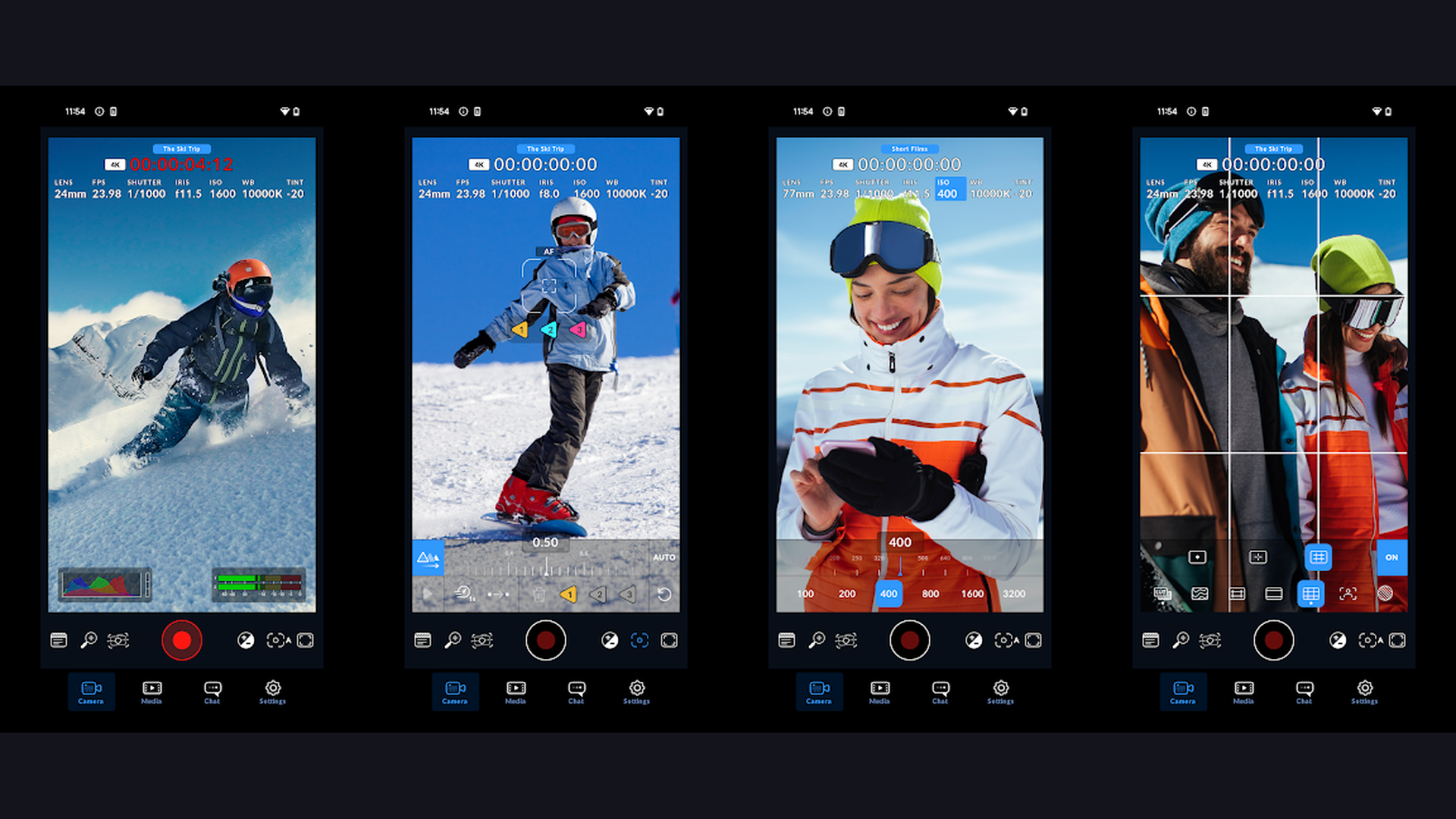
Blackmagic Camera is the highest-rated professional video recording app for iPhone, offering cinema-grade features completely free including 10-bit Apple ProRes recording up to 4K, Apple Log gamma curve, manual controls for ISO/shutter angle/white balance, and seamless integration with DaVinci Resolve via Blackmagic Cloud. Blackmagic Camera has transformed iPhone filmmaking by bringing professional cinema camera controls to your pocket. The app records in industry-standard Apple ProRes codec (ProRes 422 HQ, ProRes 422, ProRes 422 LT, ProRes 422 Proxy) at up to 4K resolution, delivering the same file quality used in Hollywood productions. The Apple Log gamma curve captures maximum dynamic range from the iPhone sensor, preserving highlight and shadow detail for color grading in post-production. The manual controls mirror professional cinema cameras: shutter angle (not just shutter speed), color temperature with green/magenta tint, ISO sensitivity, and manual focus with focus peaking overlay. The monitoring tools include zebras for exposure, false color, histogram, and audio level meters. The multi-camera control feature lets one iPhone act as a director station, controlling multiple iPhones as camera sources on the same network. The Blackmagic Cloud integration uploads footage directly to collaborative projects for remote editing in DaVinci Resolve. Blackmagic Camera is completely free. For serious iPhone filmmakers wanting cinema-grade recording without spending a penny, this is the definitive choice. Edit footage with editing tools.

2. KineMaster (Rating 4.7)
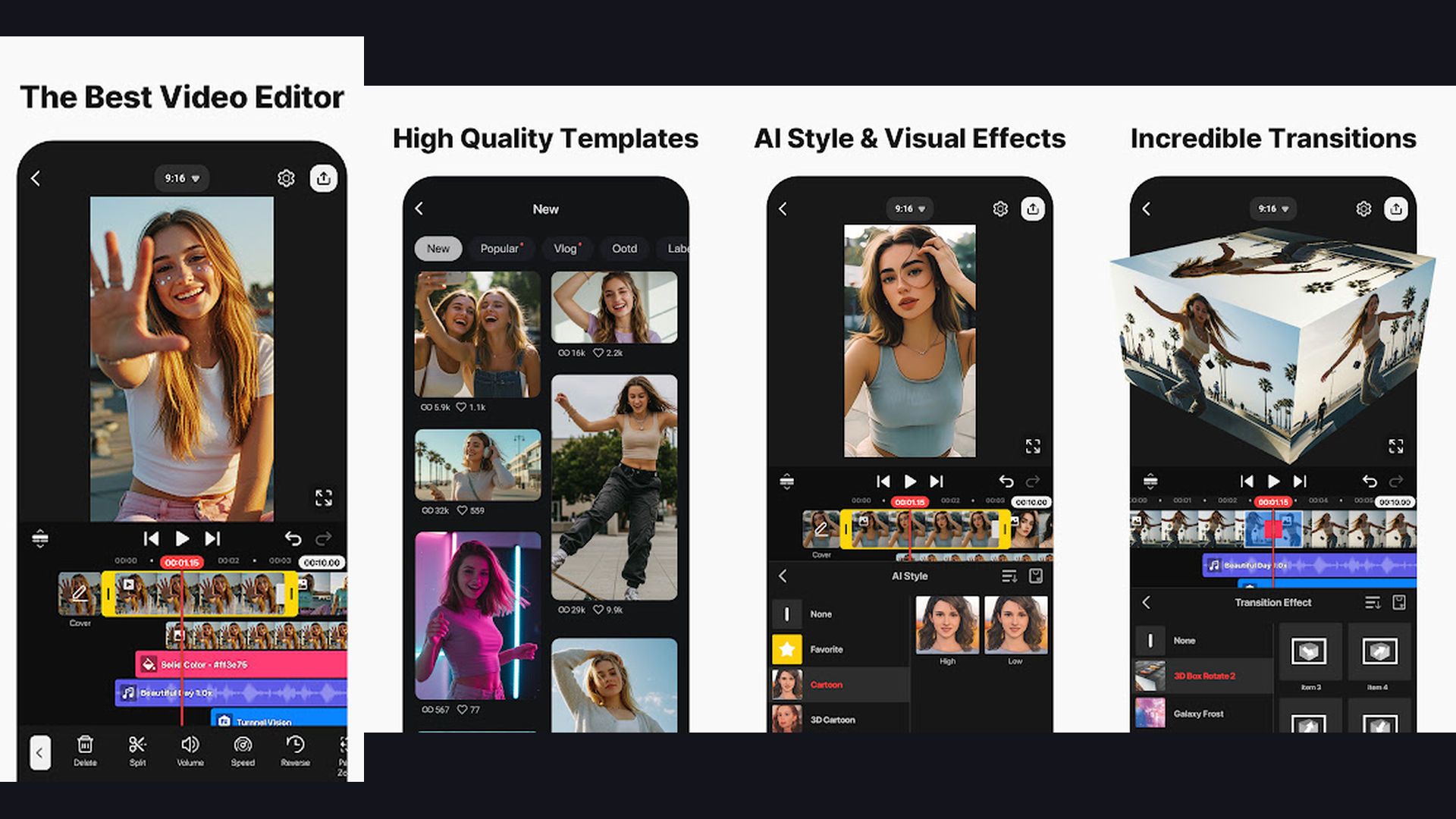
KineMaster is the most powerful mobile video editor with built-in camera recording, offering multi-layer timeline editing, chroma key (green screen), speed control, keyframe animation, audio mixing, and hundreds of effects that let you record, edit, and publish professional videos entirely on your iPhone. KineMaster bridges the gap between recording and editing by providing both capabilities in one app. The recording interface captures video with real-time preview of effects and filters. The editing timeline supports unlimited video, audio, image, sticker, and text layers with precise frame-by-frame control. The chroma key compositing removes green or blue screen backgrounds for professional VFX shots. The speed control includes slow motion (0.125x), fast forward (16x), and reverse playback. The keyframe animation system creates smooth transitions for position, scale, rotation, and opacity. The audio features include voiceover recording, multi-track mixing, beat synchronization, and an extensive music library. The asset store provides thousands of transitions, effects, overlays, fonts, and stickers. The export options include 4K resolution at up to 60fps. KineMaster is free with watermark (Premium from $4.99/month). For creators who want an all-in-one record-and-edit solution, KineMaster excels. Create content for entertainment platforms.

3. ProMovie Recorder (Rating 4.7)
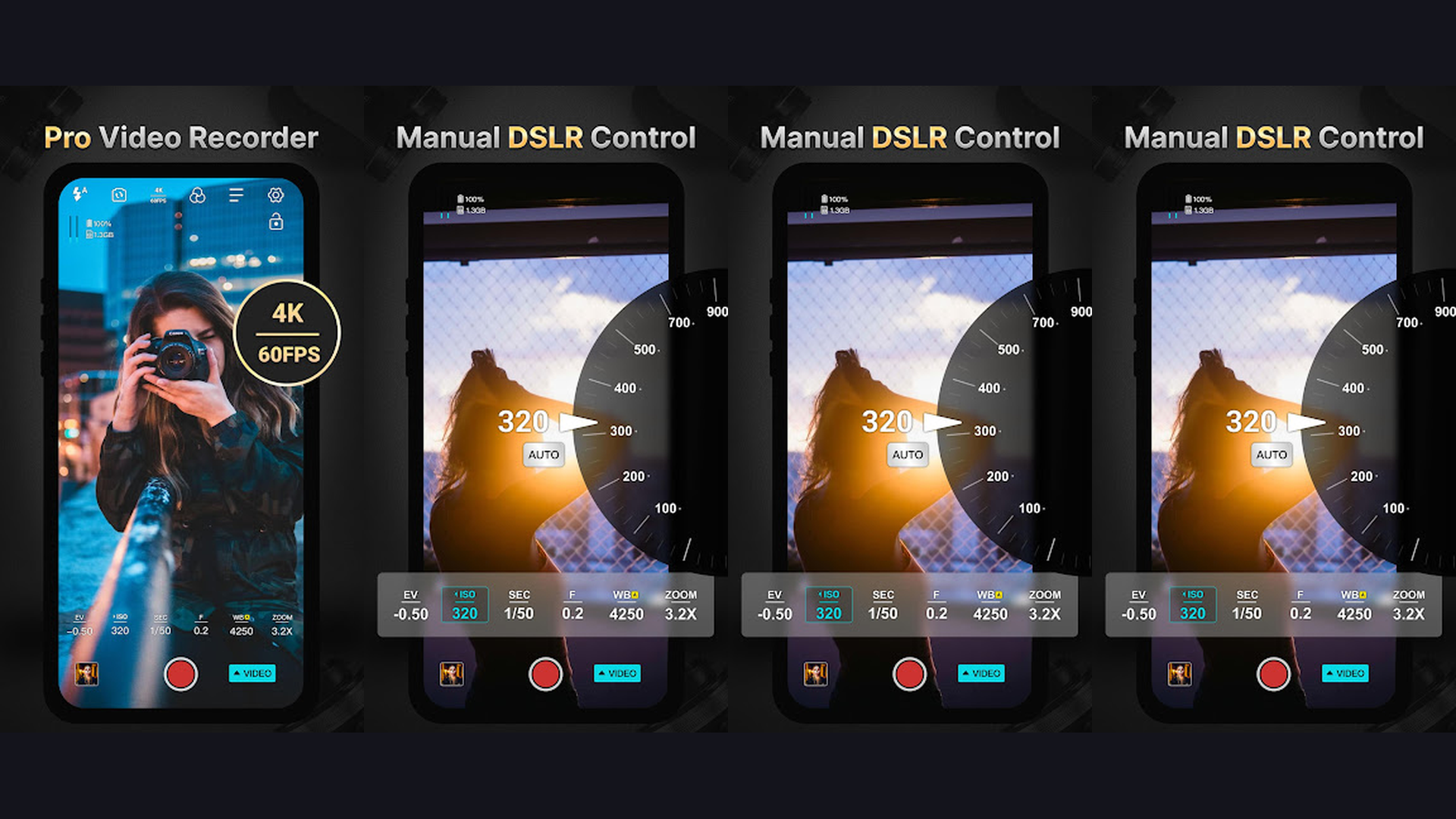
ProMovie Recorder is a focused professional video recording app designed specifically for filmmakers and content creators, offering manual exposure controls, multiple frame rates up to 240fps for slow motion, 4K recording, high-quality audio monitoring, and a clean interface that prioritizes the recording experience. ProMovie Recorder strips away unnecessary complexity to focus on what matters most: capturing excellent video. The manual controls provide precise adjustment of exposure (ISO and shutter speed independently), white balance (preset and custom Kelvin), and focus (manual with focus peaking, tap-to-focus, and continuous autofocus). The frame rate options cover everything from cinematic 24fps, broadcast 25fps and 30fps, smooth 60fps, and slow motion at 120fps and 240fps. The resolution options span from HD 720p to full 4K. The audio monitoring displays real-time audio levels with adjustable input gain, supporting both the built-in microphone and external microphones via Lightning or USB-C. The bitrate control adjusts quality vs file size. The aspect ratio presets include 16:9, 4:3, 1:1, and cinematic 2.39:1. The live histogram and grid overlays assist composition and exposure. ProMovie Recorder costs around $9.99 (one-time purchase). For filmmakers wanting a dedicated, no-nonsense recording app, ProMovie is streamlined and powerful. Pair with photo editing tools.
4. CapCut (Rating 4.6)
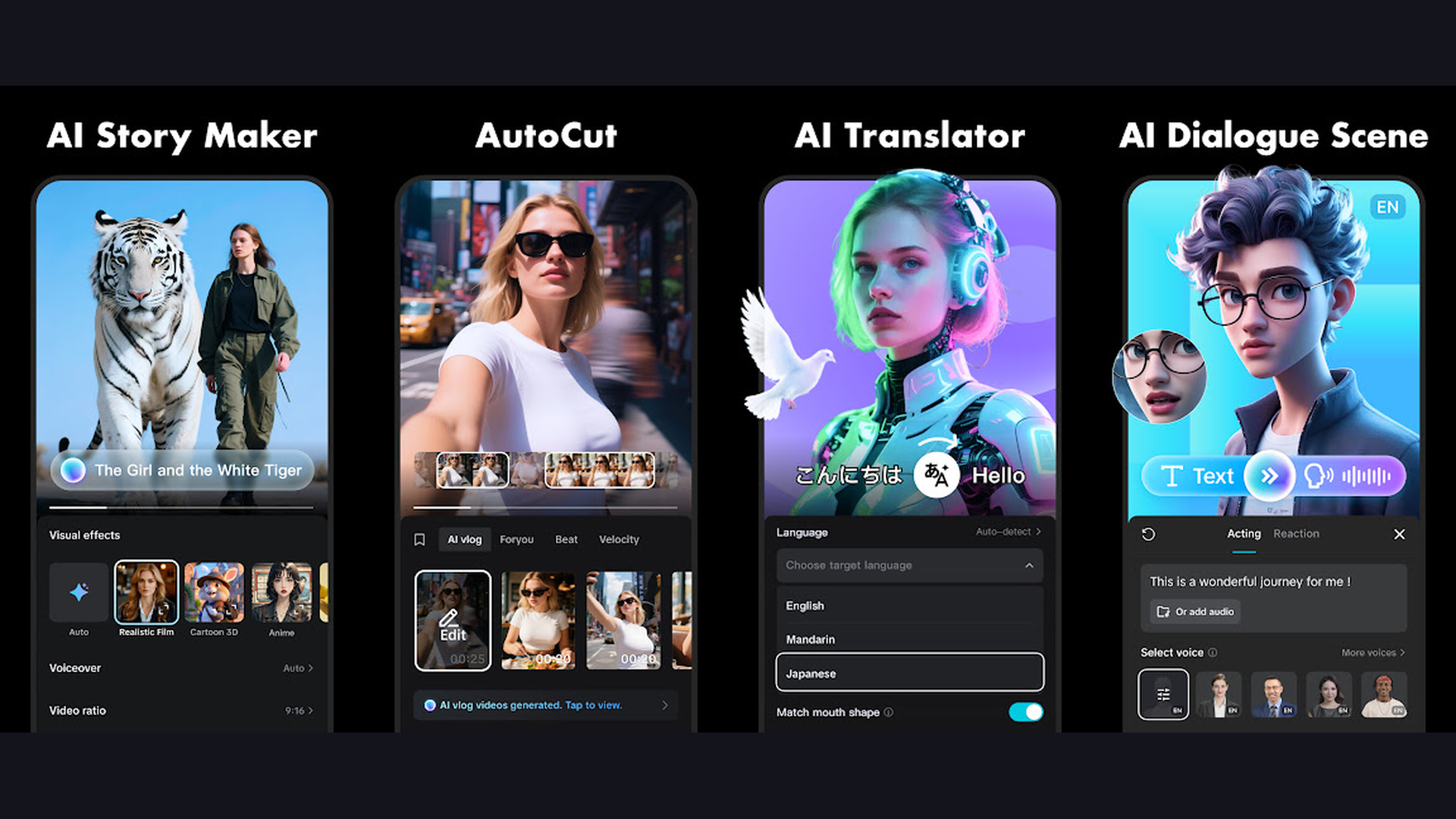
CapCut is the most popular free video editing app with integrated camera recording, offering AI-powered editing tools, cinematic filters, music library integration, text-to-speech, auto-captions, background removal, and TikTok-optimized export that makes it the go-to app for social media video creation on iPhone. CapCut has become the video creation standard for social media thanks to its combination of powerful features and zero cost. The camera function records video with real-time beauty filters, AR effects, and preset cinematic looks. The AI tools include automatic background removal, style transfer (turning video into anime or oil painting), auto-captions with customizable styling, and text-to-speech with multiple voice options. The editing timeline provides multi-track support with transitions, speed curves (custom slow-motion ramps), keyframe animation, and precise trimming. The music library offers a vast collection of trending sounds, effects, and licensed tracks. The template system provides thousands of trending video templates that automatically sync your clips to music. The export supports up to 4K at 60fps with no watermark on the free tier. CapCut is completely free (Pro from $7.99/month). For social media creators wanting the most feature-rich free video creation tool, CapCut is unmatched. Share on entertainment platforms.
5. ProCam (Rating 4.6)
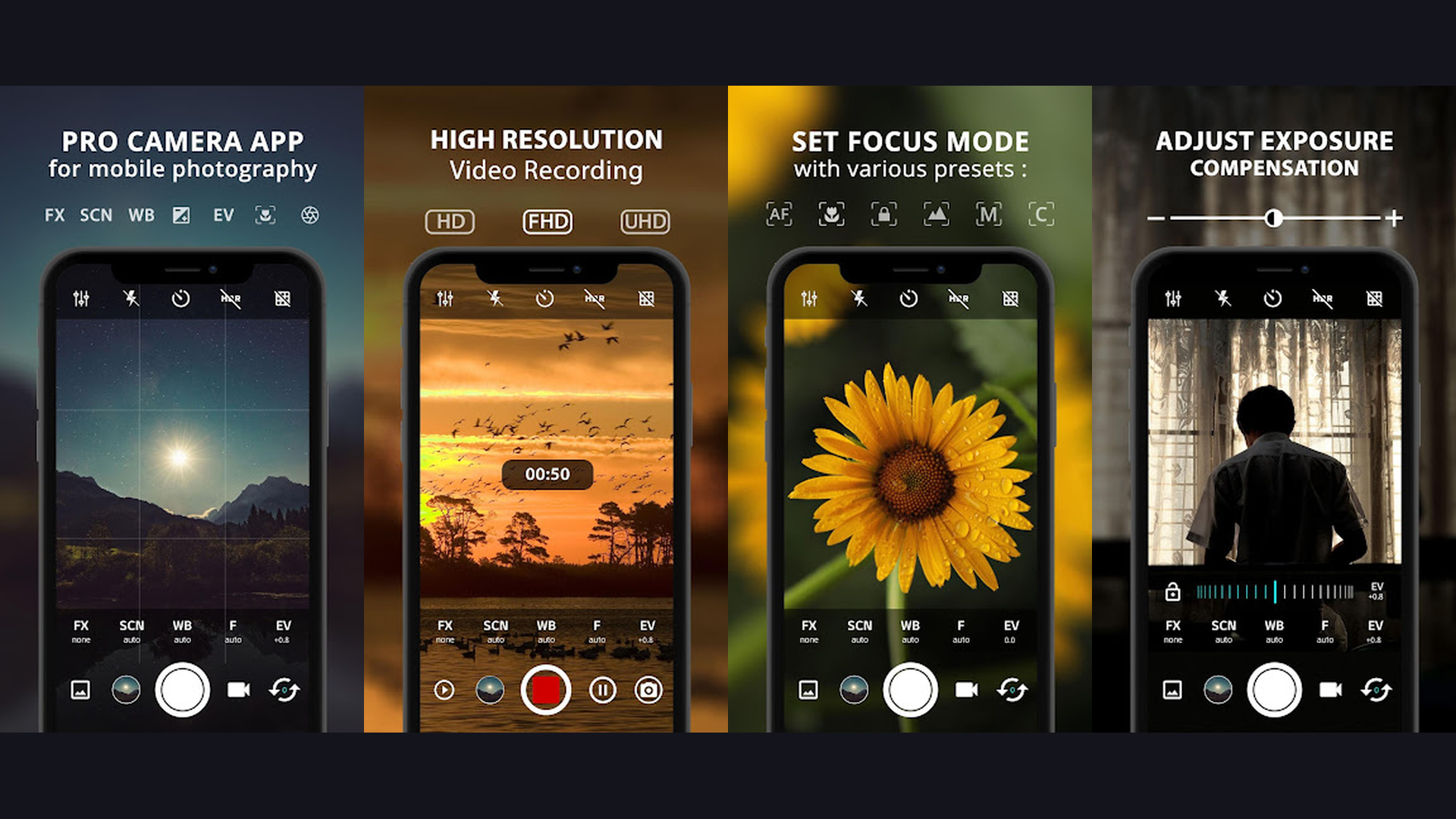
ProCam is the most comprehensive all-in-one camera app for iPhone, providing full manual controls for both photo and video capture, RAW photo recording, 4K video, slow motion, time-lapse, night mode, and a built-in photo/video editor that has been continuously updated for over a decade. ProCam is the veteran all-rounder of iPhone camera apps. The video recording features include manual control over exposure, ISO, shutter speed, focus, and white balance with real-time adjustment during recording. The video resolutions span from 720p to 4K with frame rates from 24fps to 240fps depending on the iPhone model. The slow-motion recording captures at 120fps and 240fps for dramatic video effects. The built-in time-lapse mode creates smooth accelerated videos with adjustable capture intervals. The video stabilization reduces shake for handheld shooting. The photo capabilities are equally impressive: RAW (DNG) capture, manual focus with peaking, bracketing, burst mode, self-timer, and anti-shake. The built-in editor handles both photo and video post-processing with filters, adjustments, cropping, and export options. The night mode captures enhanced low-light footage. ProCam costs around $9.99 (one-time purchase). For users wanting one app that does everything for both photos and videos, ProCam is the most complete solution. Capture memories with photo tools.
6. ProShot (Rating 4.4)
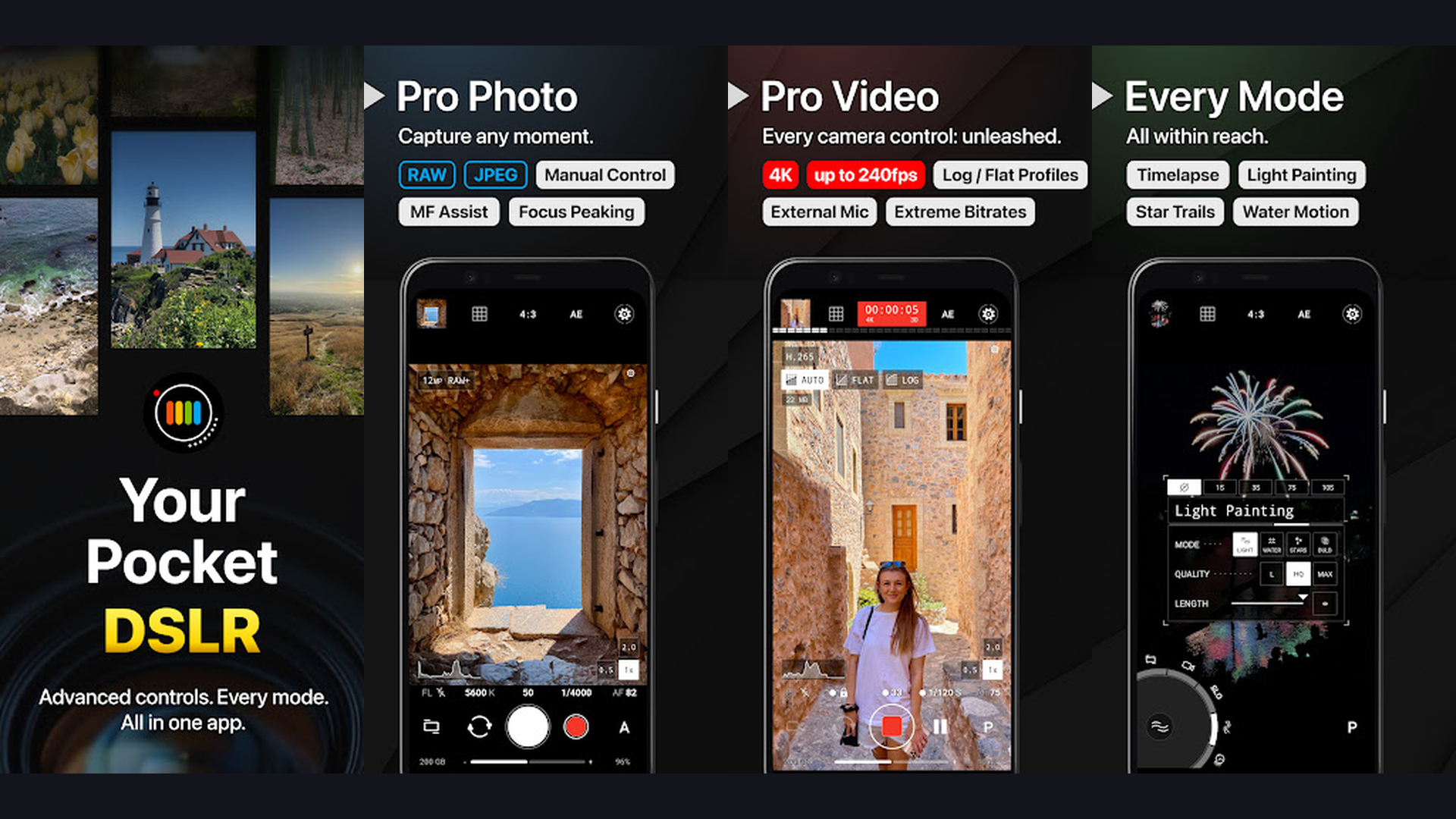
ProShot is a DSLR-inspired camera app that brings traditional camera controls to iPhone video recording, with a familiar interface modeled after professional cameras, offering manual exposure, white balance, focus, ISO, shutter speed, and support for iPhone 16 Camera Control button integration. ProShot distinguishes itself with an interface designed to feel like a real camera rather than a phone app. The controls are laid out similar to a DSLR: mode dial (Auto, Program, Manual, Shutter Priority, Aperture Priority), exposure compensation wheel, and dedicated controls for each parameter. The video recording supports up to 4K resolution with selectable frame rates. The manual focus provides a distance scale with focus peaking overlay. The white balance offers both presets (Daylight, Cloudy, Tungsten, Fluorescent, Flash) and custom Kelvin adjustment. The histogram runs in real-time during recording. The grid overlays include Rule of Thirds, Golden Ratio, and Golden Spiral. The level indicator ensures horizon alignment. The 2024-2025 updates added iPhone 16 Camera Control hardware button support, improved battery efficiency, and enhanced hardware access for newer sensors. The burst mode and timer support creative photography alongside video. ProShot costs around $7.99 (one-time purchase). For photographers transitioning to video who want familiar DSLR-style controls, ProShot feels like home. Learn photography at AI photo apps.
7. Halide Mark II (Rating 4.4)
Halide Mark II is an award-winning professional camera app with thoughtful video recording capabilities, offering gesture-based manual controls, RAW and ProRAW capture, Apple Log video, focus peaking, depth capture, and an elegant interface designed by photographers for photographers. Halide is beloved for its design philosophy: every control is accessible through intuitive gestures without cluttering the viewfinder. Swipe up/down to adjust exposure, swipe left/right for focus, and tap to toggle between auto and manual modes. The video recording supports Apple Log for maximum dynamic range, manual exposure controls, and focus peaking with customizable color overlays. The waveform monitor and histogram provide real-time exposure feedback. The photo capabilities are where Halide truly shines: 48MP full-resolution capture, Apple ProRAW, standard RAW (DNG), depth maps, macro photography, and Process Zero (minimal computational processing for natural-looking images). The Smart HDR toggle lets you choose between computational and optical approaches. The Metal-powered processing pipeline ensures responsive performance. The widget and Shortcuts integration enables quick camera launches. Halide Mark II requires a subscription (from $2.99/month or $11.99/year). For photographers who also shoot video and want the most beautifully designed camera app, Halide is unmatched. Explore creative tools at photo editing apps.
8. Mavis Camera (Rating 4.4)
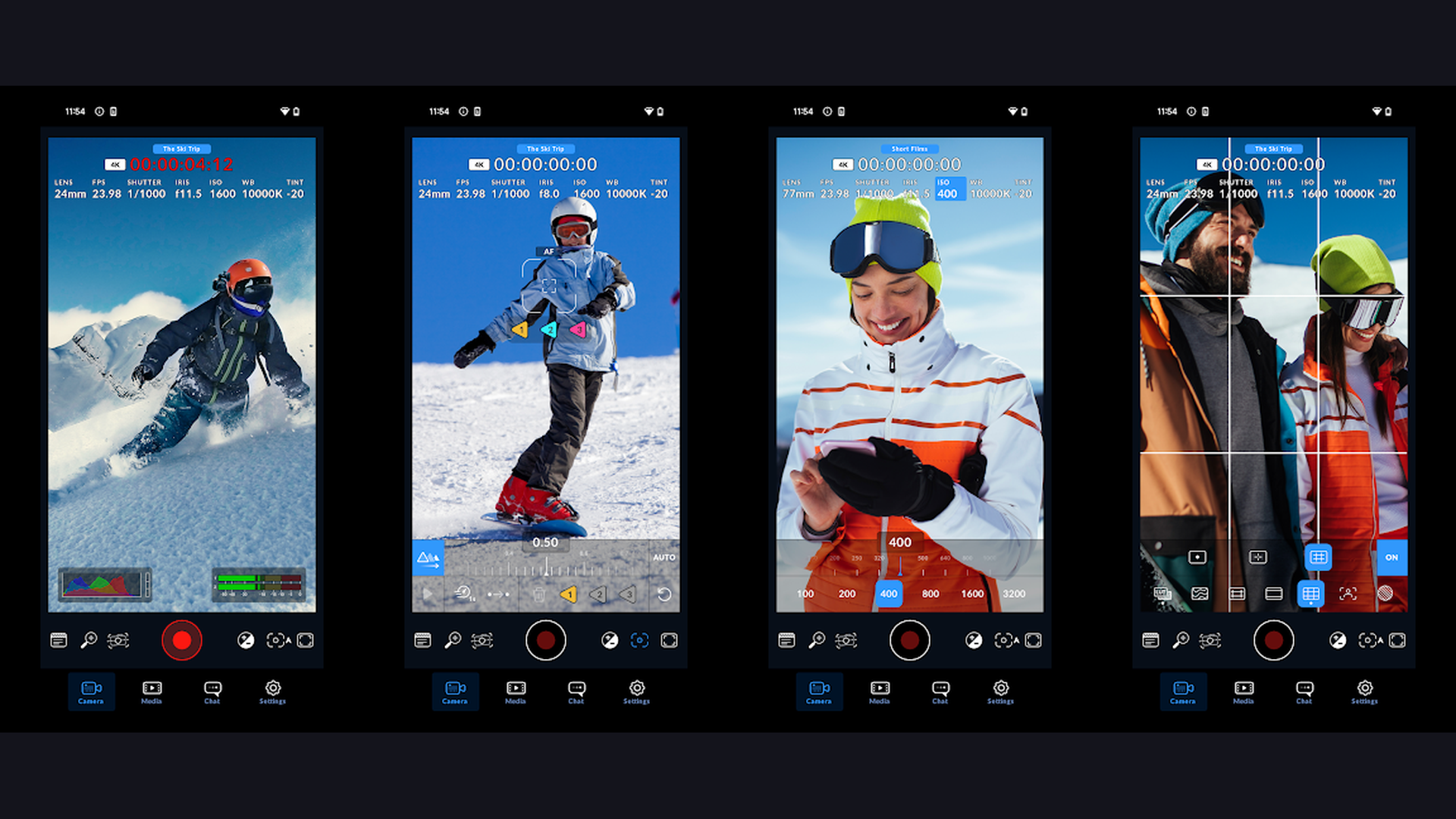
Mavis Camera is a professional-grade video recording app trusted by independent filmmakers, offering Apple Log and ProRes recording, external SSD recording, multi-track audio, live streaming, Frame.io Camera to Cloud integration, vectorscope, waveform monitor, and the most comprehensive monitoring tools on any iPhone camera app. Mavis Camera v7 represents the professional end of iPhone videography. The codec options include Apple ProRes (all variants), HEVC, and H.264 with customizable bitrates. The Apple Log gamma curve preserves maximum dynamic range for post-production color grading. The external SSD recording via USB-C saves directly to external storage, solving the storage limitation for long-form shoots. The multi-track audio recording captures up to four audio channels simultaneously with individual gain control, perfect for interview setups with separate microphones. The monitoring dashboard includes false color overlay, zebra stripes at customizable IRE levels, RGB parade, vectorscope, waveform monitor, and focus peaking. The live streaming capability broadcasts directly to RTMP destinations. The Frame.io Camera to Cloud integration uploads footage in real-time for remote review and approval workflows. Mavis Camera costs around $29.99 (one-time purchase). For professional productions requiring broadcast-level monitoring and workflow integration, Mavis is the industry choice. Process footage with editing solutions.
9. FiLMiC Pro (Rating 3.7)
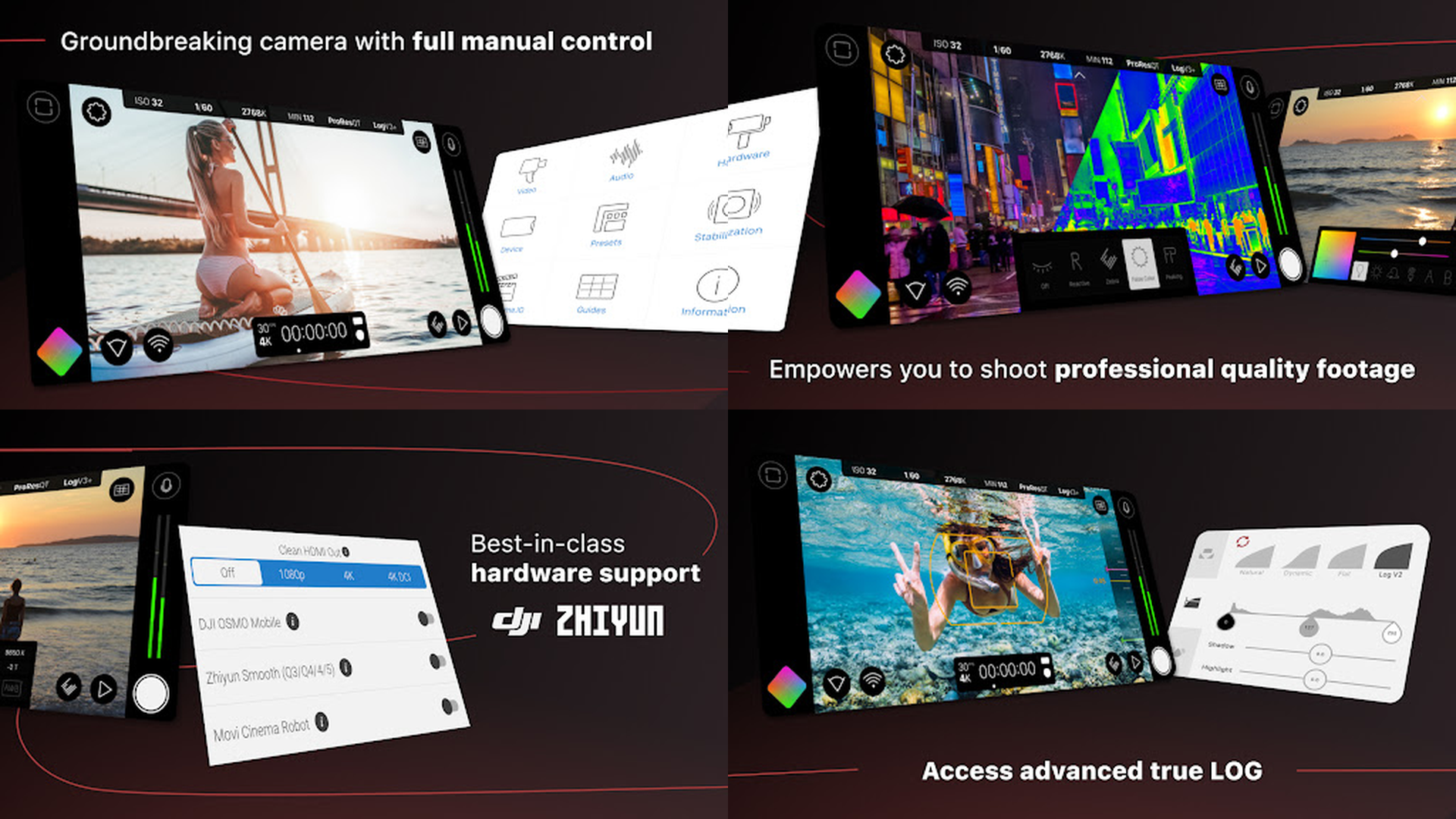
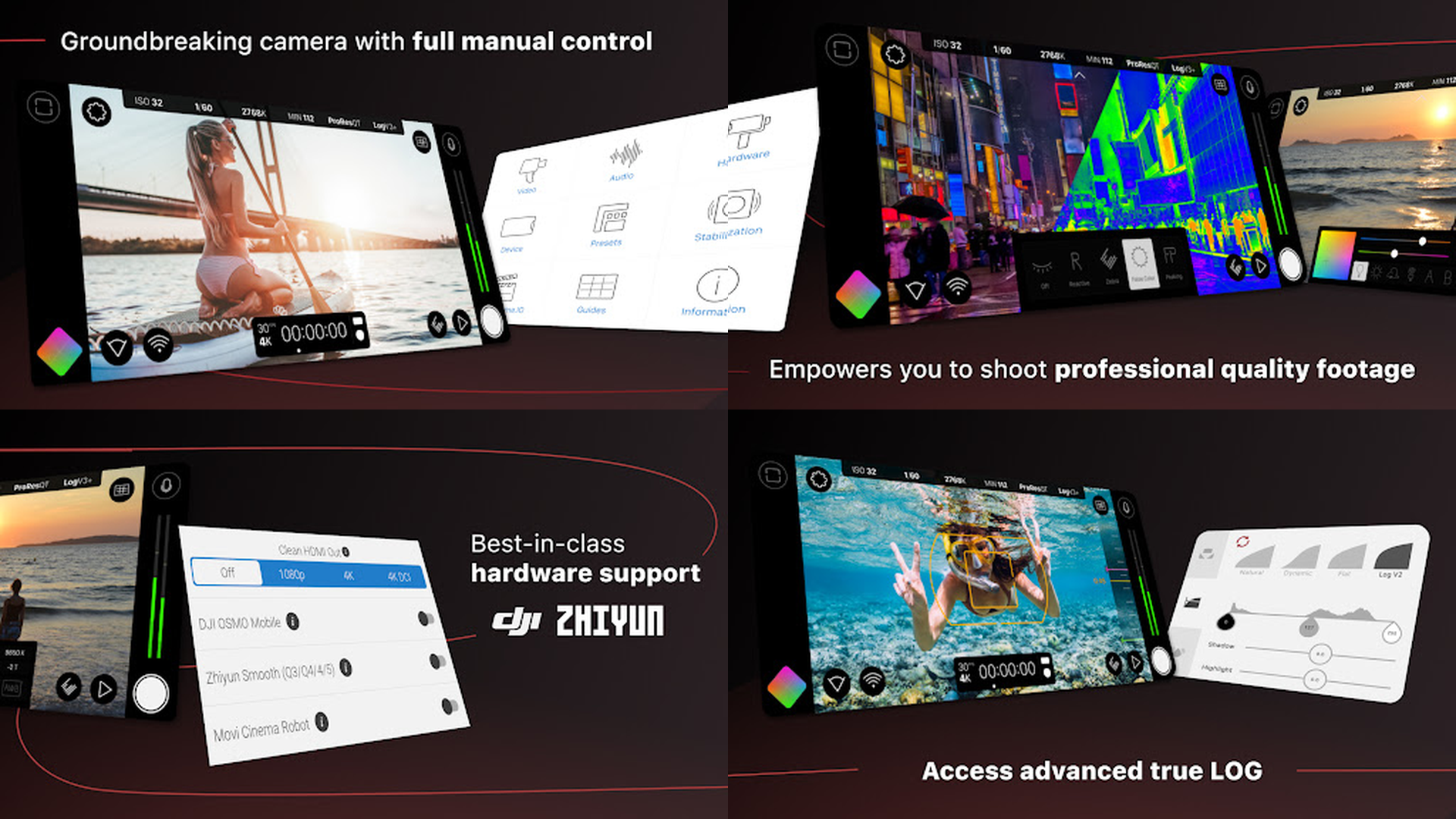
FiLMiC Pro is the pioneering professional video camera app that established iPhone filmmaking as a legitimate medium, offering LOG gamma curves, manual arc-slider controls for focus and exposure, anamorphic desqueeze, LUT preview, frame rates up to 240fps, and a decade of proven reliability in professional productions. FiLMiC Pro wrote the playbook for mobile cinematography. The signature arc-slider interface provides smooth, analog-like control over focus and exposure with adjustable pull speed for cinematic rack focuses and exposure transitions. The LOG V2 and V3 gamma curves capture flat, high-dynamic-range footage optimized for color grading. The flat and dynamic color profiles provide additional tonal options. The anamorphic lens support desqueezes footage from popular mobile anamorphic adapters (Moment, Beastgrip, Moondog Labs) with accurate aspect ratio preview. The LUT preview function applies color grading looks in real-time while recording flat LOG footage. The resolution options go up to 4K with frame rates from 24fps to 240fps. The audio gain control with headphone monitoring ensures clean audio capture. The manual white balance includes kelvin adjustment and custom presets. FiLMiC Pro requires a subscription (from $9.99/month). For filmmakers who pioneered mobile cinema and want a battle-tested app, FiLMiC Pro remains a capable choice. Create cinematic content for travel videos.
10. Camo (Rating 4.3)
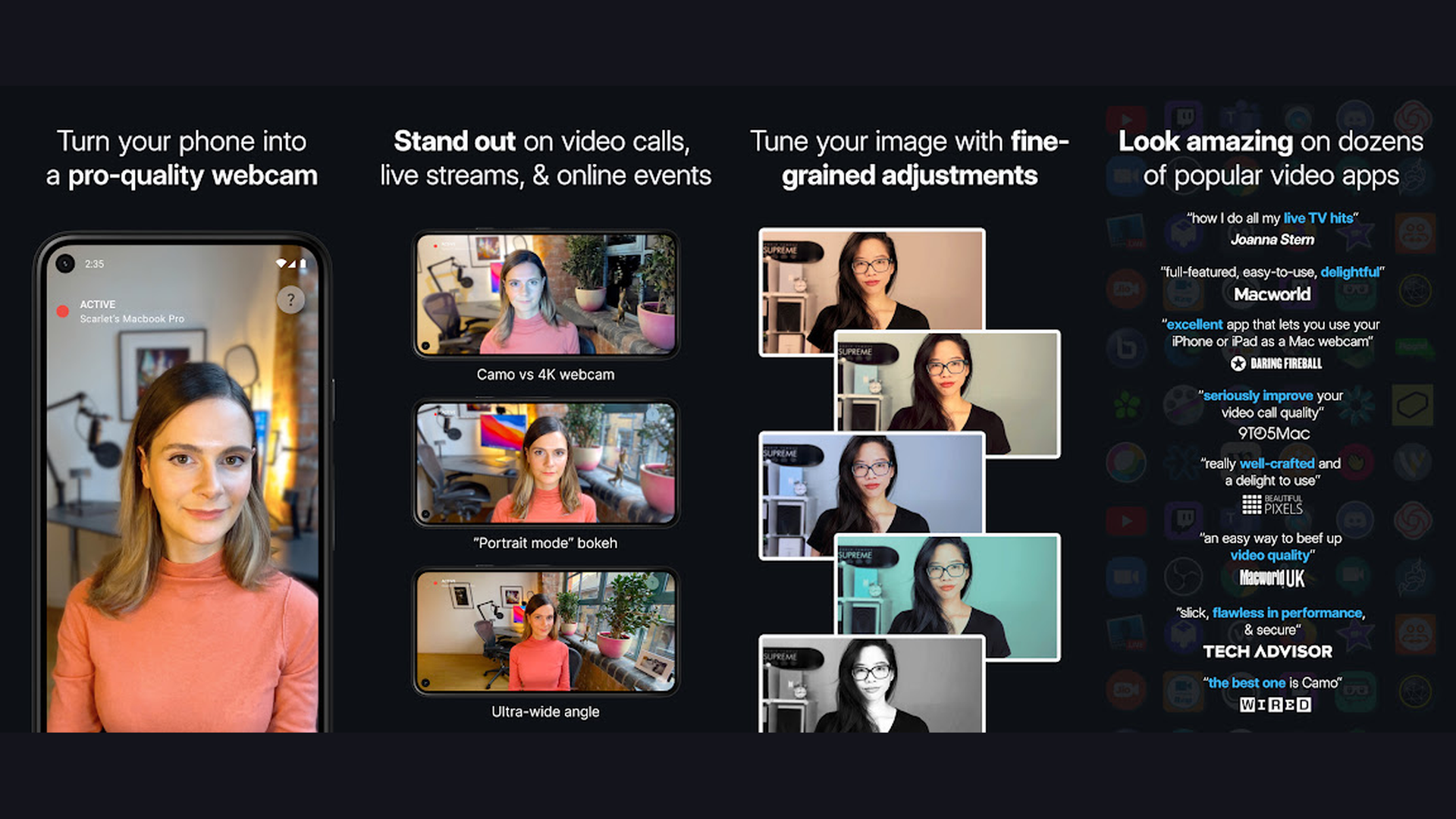
Camo is a unique video recording app that transforms your iPhone into a professional webcam and studio camera, offering real-time background replacement, portrait mode, studio lighting, color correction, and direct output to Mac or PC for video calls, live streaming, and content recording. Camo reimagines what an iPhone camera app can be by focusing on the streaming and video conferencing use case. Connect your iPhone to your computer and Camo provides a dramatically better camera than any built-in webcam. The real-time background replacement removes or replaces your background without a green screen. The portrait mode creates professional depth-of-field blur. The studio lighting options simulate professional lighting setups. The color adjustments fine-tune skin tones, brightness, and contrast in real-time. The zoom and pan controls let you frame shots precisely. The resolution options provide up to 1080p at 60fps to your computer. The standalone recording mode captures video directly on the iPhone with all the same enhancement features. The integration works with Zoom, Teams, Google Meet, OBS, Streamlabs, and virtually every video application. The LUT support applies creative color grades. Camo is free for basic use (Pro from $4.99/month). For remote workers and live streamers wanting the best webcam quality possible, Camo is transformative. Stream content with self-hosted streaming tools.
11. Hyperlapse from Instagram (Rating 4.5)
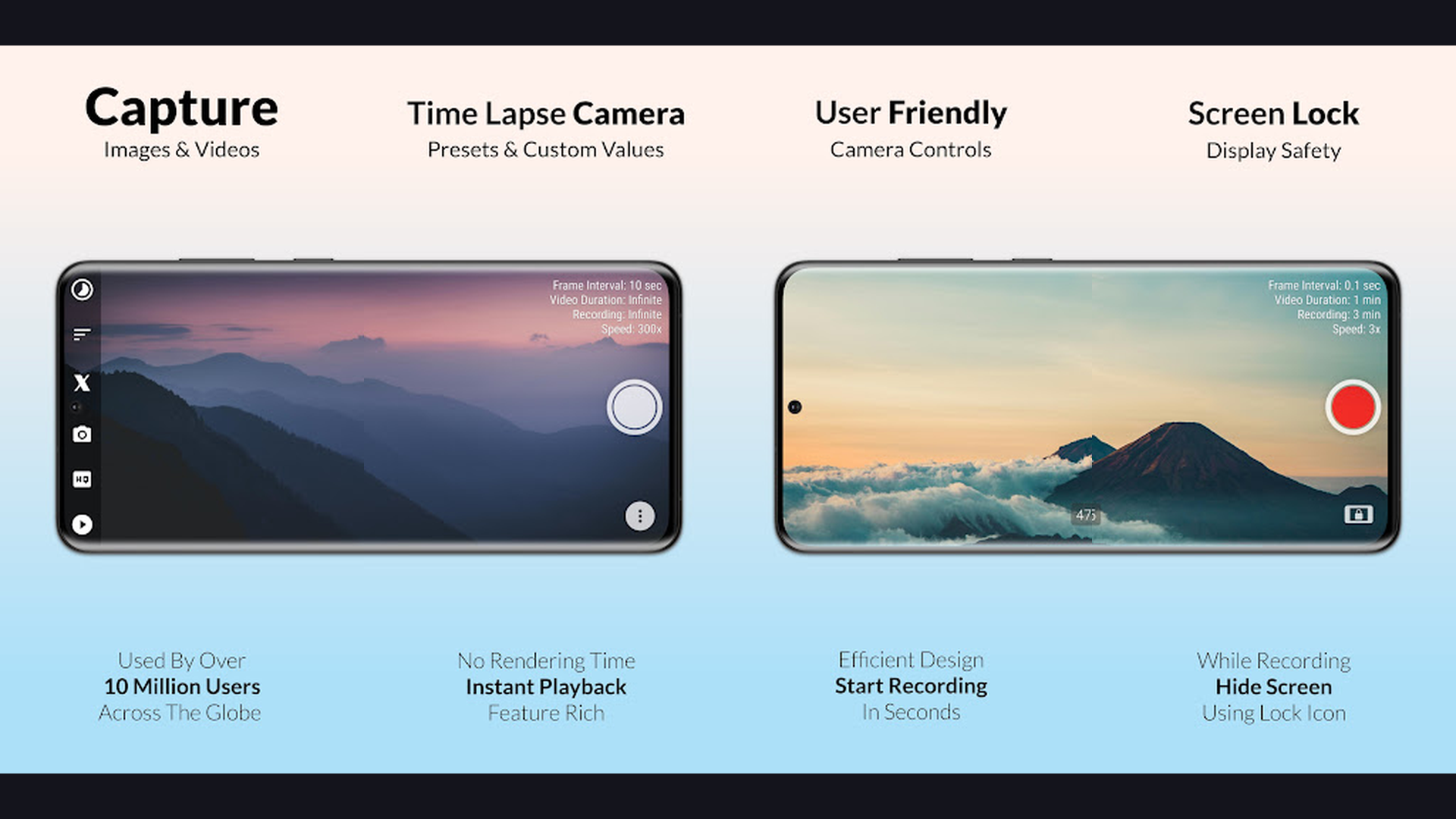
Hyperlapse from Instagram is the best time-lapse video recording app for iPhone, using advanced stabilization technology to create incredibly smooth time-lapse videos at speeds up to 12x, even while walking or moving, with automatic processing that eliminates shake and produces share-ready results. Hyperlapse solves the biggest challenge of time-lapse photography: camera shake over long recording periods. Using advanced computational stabilization (adapted from Microsoft Research technology), Hyperlapse produces buttery-smooth time-lapse videos that look like they were shot on a stabilized rig or gimbal. The speed options range from 1x (normal speed with stabilization) to 12x acceleration, letting you compress hours of footage into seconds. The stabilization works remarkably well even during walking, driving, and other movement that would normally produce unusable footage. The interface is deliberately minimalist: tap to record, choose your speed, and share. The processing happens automatically in the background. The results can be shared directly to Instagram, saved to your camera roll, or exported to other apps. The video quality captures at full HD resolution. Hyperlapse is completely free with no ads or in-app purchases. For anyone wanting beautiful time-lapse videos without a tripod or stabilizer, Hyperlapse is magic. Share travel content on travel platforms.
12. Apple Clips (Rating 4.5)
Apple Clips is Apple own creative video recording app, offering Live Titles (real-time animated captions), Scenes (360-degree immersive backgrounds using LiDAR), AR effects, music integration, poster-style templates, and instant sharing that makes creating fun, polished videos effortless. Apple Clips is the most underrated video recording app on iPhone. The Live Titles feature automatically transcribes your speech in real-time and displays it as animated text overlaid on your video, creating engaging captioned content without manual subtitle editing. The Scenes feature uses the iPhone LiDAR scanner to place you in immersive 360-degree virtual environments, from outer space to underwater worlds. The AR effects include animated stickers, emoji, and labels that track faces and movements in real-time. The poster templates provide stylish title cards and end screens. The music library offers Apple-curated soundtracks that automatically adjust to your video length. The multi-clip timeline lets you combine multiple recordings with transitions. The selfie scene mode blends your selfie camera with background effects seamlessly. The Memoji integration adds your personal animated avatar. The direct sharing to Messages, social media, and AirDrop is instant. Apple Clips is completely free. For casual creators wanting fun, polished videos with zero learning curve, Clips is delightful. Create content for entertainment.
Which Video Recording App Should You Choose?
Best for Professional Filmmaking
- Blackmagic Camera - Best free cinema-grade recording (ProRes, Apple Log, Cloud)
- Mavis Camera - Most comprehensive monitoring tools (vectorscope, waveform)
- FiLMiC Pro - Pioneer of mobile cinema with LOG curves and anamorphic support
Best for Social Media Content
- CapCut - Most powerful free editor with AI tools and TikTok integration
- KineMaster - Best all-in-one record and edit with green screen
- Apple Clips - Fun, effortless creative videos with Live Titles
Best for Manual Camera Control
- ProCam - Most complete all-in-one photo and video camera
- ProShot - DSLR-style interface with iPhone 16 button support
- Halide Mark II - Most elegant gesture-based controls
Best for Specific Use Cases
- ProMovie Recorder - Best focused, no-nonsense recording app
- Camo - Best for webcam and video conferencing
- Hyperlapse - Best for stabilized time-lapse videos
Best Free Options
- Blackmagic Camera - Full ProRes cinema camera, completely free
- CapCut - Full-featured editor and camera, free
- Apple Clips - Creative video maker from Apple, completely free
- Hyperlapse - Time-lapse from Instagram, free with no ads
iPhone Video Recording Tips
- Lock Your Exposure and Focus Before Recording - The single biggest improvement you can make to iPhone video is locking exposure and focus before pressing record. In the native Camera app, long-press on your subject until "AE/AF Lock" appears. In professional apps like Blackmagic Camera and FiLMiC Pro, use manual controls. This prevents the distracting auto-exposure pumping (sudden brightness changes) and focus hunting (momentary blur) that instantly reveal amateur footage. Locked settings create consistent, professional-looking video that matches what viewers expect from quality content.
- Shoot at 24fps for a Cinematic Look - While the iPhone defaults to 30fps (NTSC) or 25fps (PAL), switching to 24fps delivers the cinematic motion cadence that audiences associate with movies and high-end productions. The slight motion blur at 24fps creates a more filmic, less "video-like" quality. Maintain the 180-degree shutter rule by setting shutter speed to 1/48 second (or shutter angle to 180 in Blackmagic Camera). All the professional apps reviewed here support 24fps recording. For social media content, 30fps is fine. For anything aiming for cinematic quality, 24fps is the standard. Learn more about content at AI creative tools.
- Record in Apple Log for Maximum Flexibility - If your iPhone supports Apple Log (iPhone 15 Pro and later), recording in LOG gamma captures the maximum dynamic range from the sensor, preserving detail in both bright highlights and dark shadows that would be permanently lost in standard recording. The footage looks flat and washed-out on screen, but this is by design - it gives you maximum flexibility in color grading during editing. Blackmagic Camera and Mavis Camera both support Apple Log. If you are not planning to color grade, stick with standard profiles for ready-to-share footage.
- Use an External Microphone for Better Audio - Audio quality separates amateur from professional video more than any visual element. The iPhone built-in microphones capture excellent audio for their size, but an external microphone dramatically improves results. For interviews and vlogs: a Rode VideoMic Me-L or Shure MV88 provides directional audio. For lavalier: the Rode Wireless Go II delivers broadcast-quality wireless audio. For podcasting: the Shure MV5C offers studio-quality USB-C recording. Apps like Mavis Camera and FiLMiC Pro provide audio gain control and monitoring. Always monitor audio with headphones during recording.
- Stabilize Your Shots - While iPhone optical image stabilization (OIS) is impressive, additional stabilization transforms video quality. For walking shots: use a smartphone gimbal (DJI OM 7, Insta360 Flow). For static shots: use a small tripod or phone mount. For handheld: tuck your elbows against your body and use both hands. In post-production, Action Mode on newer iPhones provides excellent stabilization at the cost of a slight crop. Hyperlapse uses computational stabilization for time-lapse. Stable footage looks more professional and is more comfortable for viewers to watch. Capture travels with travel photography apps.
- Manage Storage by Choosing the Right Codec - Professional codecs produce better quality but consume storage rapidly. ProRes 422 HQ at 4K uses approximately 21GB per minute. HEVC at 4K 30fps uses approximately 375MB per minute. Choose your codec based on the purpose: for professional projects bound for color grading, use ProRes or Apple Log. For social media content, HEVC provides excellent quality with manageable file sizes. For extended recording sessions (events, lectures), use HEVC at 1080p. Mavis Camera external SSD recording solves storage limitations for professional shoots. Monitor your device with battery management tools.
- Use the Rule of Thirds and Leading Lines - Composition fundamentals apply equally to iPhone video. Enable the grid overlay (available in all professional apps) and place subjects at the intersection points of the thirds grid. Use leading lines (roads, fences, architectural elements) to guide the viewer eye toward your subject. Leave headroom above your subject and lead room in front of moving subjects. Avoid centering everything, which creates static, uninteresting compositions. The grid overlay in ProCam, ProShot, and Halide Mark II helps maintain consistent composition throughout recording.
- Clean Your Lens Before Every Shoot - This seemingly trivial tip is one of the most impactful. iPhone lenses collect fingerprints, oils, and dust throughout the day, creating a subtle haze that reduces contrast, introduces flare, and softens your footage. Clean your lens with a microfiber cloth before every recording session. The difference is immediately visible in the viewfinder: sharper details, better contrast, and reduced lens flare. This takes two seconds and costs nothing, yet many shooters overlook it. For professional shoots, carry a lens cleaning pen or microfiber cloth in your kit.
Frequently Asked Questions
What is the best free video recording app for iPhone?
Blackmagic Camera is the best free professional video recording app, offering cinema-grade features including 10-bit Apple ProRes recording, Apple Log gamma, and DaVinci Resolve integration at absolutely no cost. For social media creation, CapCut provides a complete free recording and editing solution with AI tools. Apple Clips offers fun, creative video making for free. Hyperlapse delivers stabilized time-lapse videos for free with no ads.
Should I record in ProRes or HEVC on iPhone?
Record in ProRes if: you plan to color grade the footage, the project is for professional or commercial use, you have sufficient storage (ProRes uses approximately 6GB per minute at 4K), and you use editing software like DaVinci Resolve or Final Cut Pro. Record in HEVC if: the footage is for social media or personal use, storage is limited, you do not plan extensive color grading, or you are recording long sessions. HEVC provides excellent quality in files 50-100x smaller than ProRes.
Which app is best for shooting short films on iPhone?
Blackmagic Camera is the best overall choice for short films due to its free ProRes recording, Apple Log support, and DaVinci Resolve workflow integration. For filmmakers who need anamorphic lens support and LOG gamma profiles, FiLMiC Pro offers specialized tools. Mavis Camera provides the most comprehensive monitoring tools for crews who need broadcast-level quality assurance during shooting.
Can iPhone video recording apps replace a professional camera?
For many use cases, yes. iPhone video with a professional recording app like Blackmagic Camera or Mavis Camera produces footage that can be intercut seamlessly with footage from cinema cameras. The iPhone 15 Pro and 16 Pro sensor quality, combined with Apple Log and ProRes recording, produces genuinely broadcast-quality results. Independent films, documentaries, and even network television segments have been shot entirely on iPhones. The limitations compared to dedicated cameras are primarily larger sensor sizes (for depth of field), interchangeable lenses, and battery endurance for long shooting days.
Do I need Apple Log for good video on iPhone?
No. Apple Log is a professional tool for maximizing dynamic range during color grading in post-production. If you are not color grading your footage (adjusting colors, exposure curves, and look in editing software), Apple Log footage will look flat and disappointing straight out of camera. The standard SDR and HDR recording profiles produce beautiful, ready-to-share footage. Use Apple Log only if you have a color grading workflow established. For social media and personal videos, standard profiles with apps like CapCut or ProCam produce excellent ready-to-share results.
Which video recording app has the best slow motion?
FiLMiC Pro and ProCam both support recording at up to 240fps for dramatic slow-motion effects. ProMovie Recorder also supports 240fps capture. The native Camera app records 240fps slo-mo by default. For creative slow-motion effects in post-production, KineMaster and CapCut offer speed curves that create variable slow-motion ramps without needing high frame rate source footage. The quality of slow motion depends primarily on your iPhone model, as newer models handle high frame rate recording with better quality.
Final Thoughts
iPhone video recording in 2026 spans from free cinema-grade tools to fun creative apps. Blackmagic Camera delivers Hollywood-level ProRes recording for free. KineMaster and CapCut combine recording with powerful editing. ProMovie Recorder and ProCam provide focused manual camera control. Mavis Camera offers broadcast-level monitoring. FiLMiC Pro brings years of mobile cinema expertise. ProShot and Halide offer elegant creative alternatives. Camo transforms your iPhone into the best webcam available. Hyperlapse and Apple Clips make specialized content creation effortless. Whatever your video goals, these apps ensure your iPhone realizes its full potential as a filmmaking tool. For more creative app recommendations, explore our guides on photo editing, AI assistants for iPhone, VR content creation, and creative productivity tools.