
Adding subtitles and captions to your videos is no longer optional in 2026 — it is essential. Studies show that 85 percent of social media videos are watched without sound, and captioned videos see up to 40 percent higher engagement rates. Whether you are creating content for TikTok, Instagram Reels, YouTube, or professional presentations, the right subtitle app can save you hours of manual captioning work while making your content accessible to a global audience.
In this comprehensive guide, we have tested and ranked the 12 best apps for adding subtitles to videos on Android and iOS. From AI-powered auto-captioning tools like CapCut and Captions AI to professional video editors like KineMaster and Filmora, these apps cover every use case from quick social media clips to polished professional content. If you are also looking to enhance your video production workflow, check out our guide to the best AI apps for video editing and learn how to post Instagram stories without losing quality.
Table of Contents
- InShot (Rating 4.8)
- VN Video Editor (Rating 4.7)
- CapCut (Rating 4.5)
- Subcap (Rating 4.4)
- KineMaster (Rating 4.4)
- AutoCap (Rating 4.4)
- MixCaptions (Rating 4.5)
- Filmora (Rating 4.1)
- Kaptioned (Rating 3.9)
- Captions AI (Rating 4.5)
- VEED (Rating 4.5)
- Subtitle Editor (Rating 3.8)
- Auto Captions vs Manual Subtitles
- Tips for Better Subtitles
- Frequently Asked Questions
1. InShot (Rating 4.8)
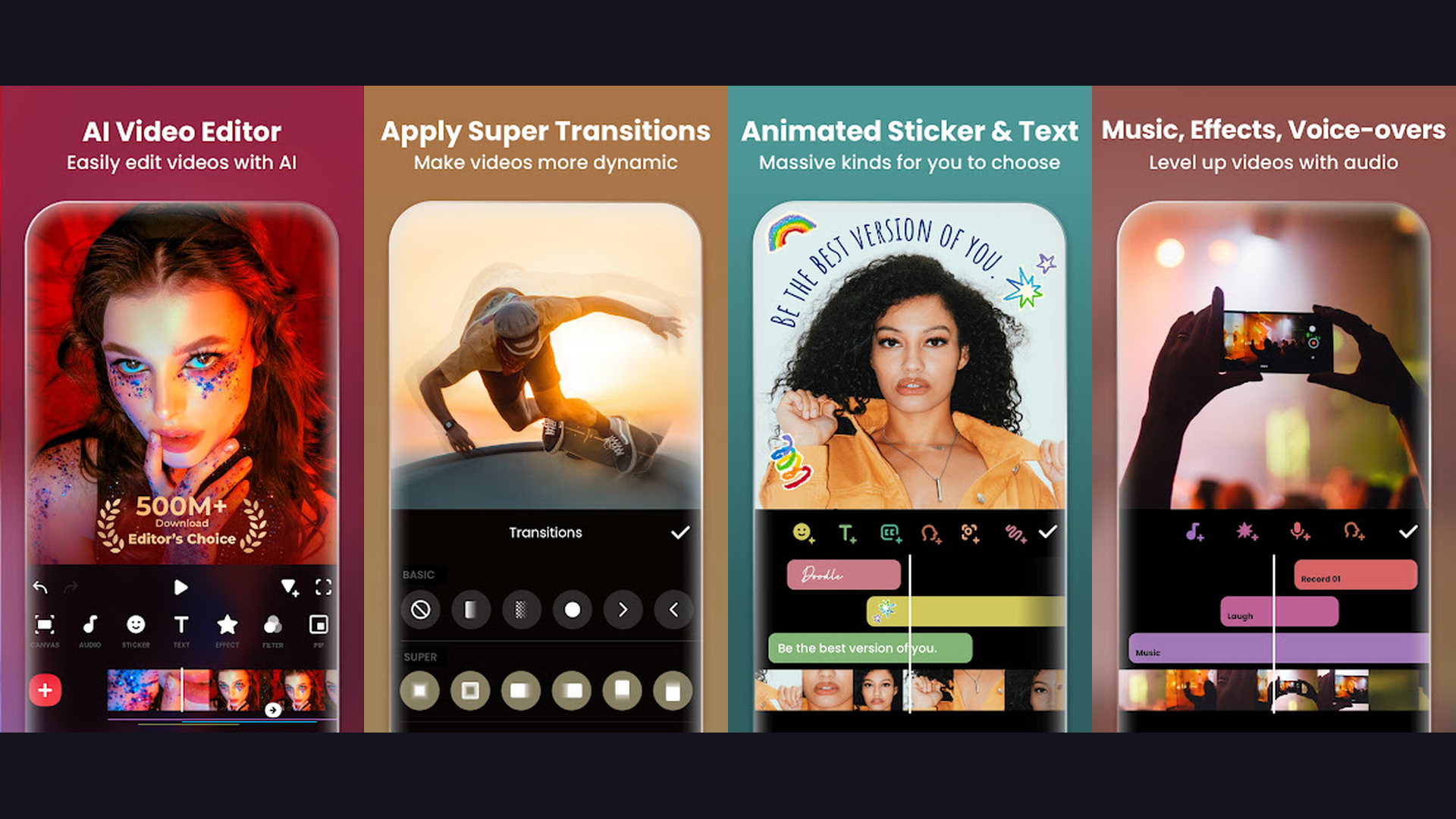
InShot is one of the most popular mobile video editors on the planet, and its subtitle feature is exceptionally well-designed. The app lets you add text captions manually with pixel-perfect positioning, or use the auto-caption feature to generate subtitles from speech automatically. InShot offers dozens of font styles, colors, shadows, and text animations that make your subtitles visually engaging for social media. You can adjust the timing of each subtitle down to the millisecond on the intuitive timeline. Beyond subtitles, InShot provides comprehensive video editing tools including trimming, speed control, filters, music, transitions, and aspect ratio presets for TikTok, Instagram Reels, and YouTube Shorts.


2. VN Video Editor (Rating 4.7)
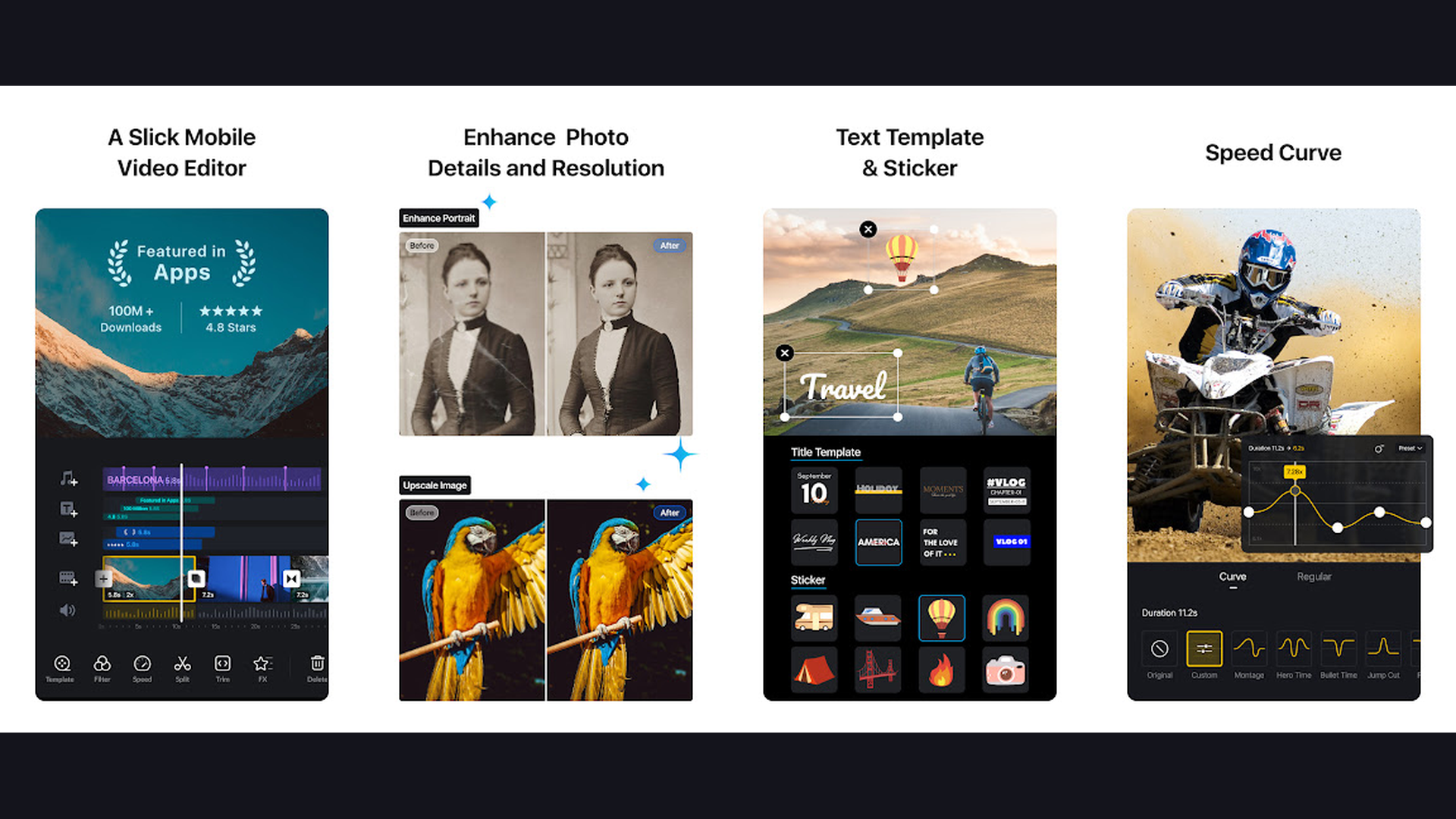
VN Video Editor is a completely free, watermark-free video editor with powerful subtitle capabilities. The app supports auto-captioning powered by AI speech recognition, and you can manually add and edit text overlays with professional typography controls. VN offers a multi-track timeline that gives you desktop-level editing precision on your phone, making it easy to sync subtitles perfectly with dialogue. The font library includes hundreds of styles, and you can customize colors, outlines, shadows, and background boxes for maximum readability. VN also supports keyframe animation for subtitles, letting you create dynamic text that moves, scales, and fades with cinematic flair.
3. CapCut (Rating 4.5)
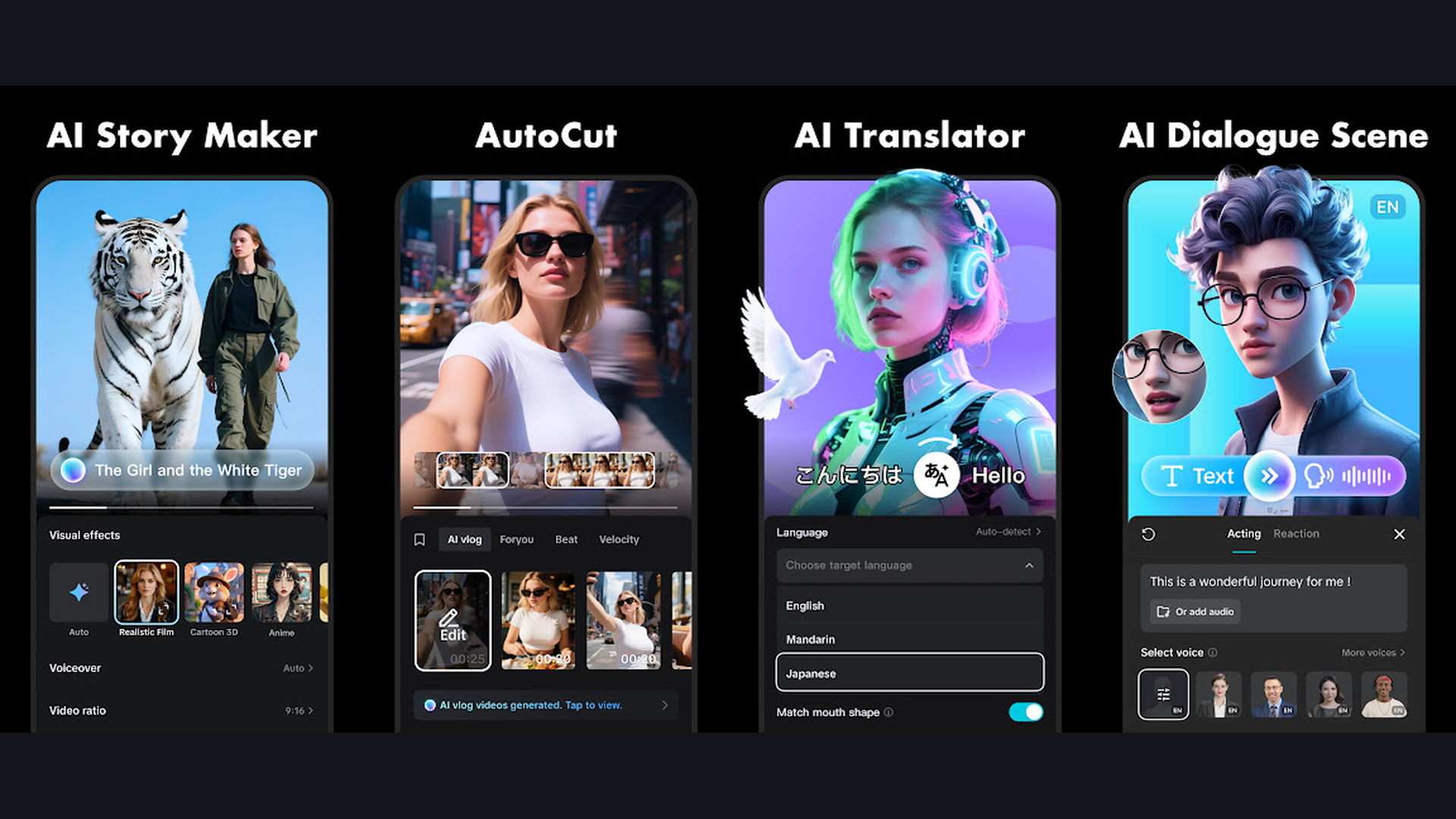
CapCut, developed by ByteDance (the company behind TikTok), is the ultimate auto-caption tool for short-form content creators. Its AI-powered auto-captions feature transcribes speech in over 20 languages with impressive accuracy, even with fast-paced dialogue. Once generated, subtitles are fully editable with options for font style, size, color, animation effects, and word-by-word highlighting that syncs with the speakers voice. CapCut also offers trendy subtitle templates inspired by viral TikTok videos. The app is completely free with no watermarks, and its seamless TikTok integration makes it the go-to choice for creators who want to maximize engagement with captioned content. Learn more about posting quality content on social media.
4. Subcap (Rating 4.4)
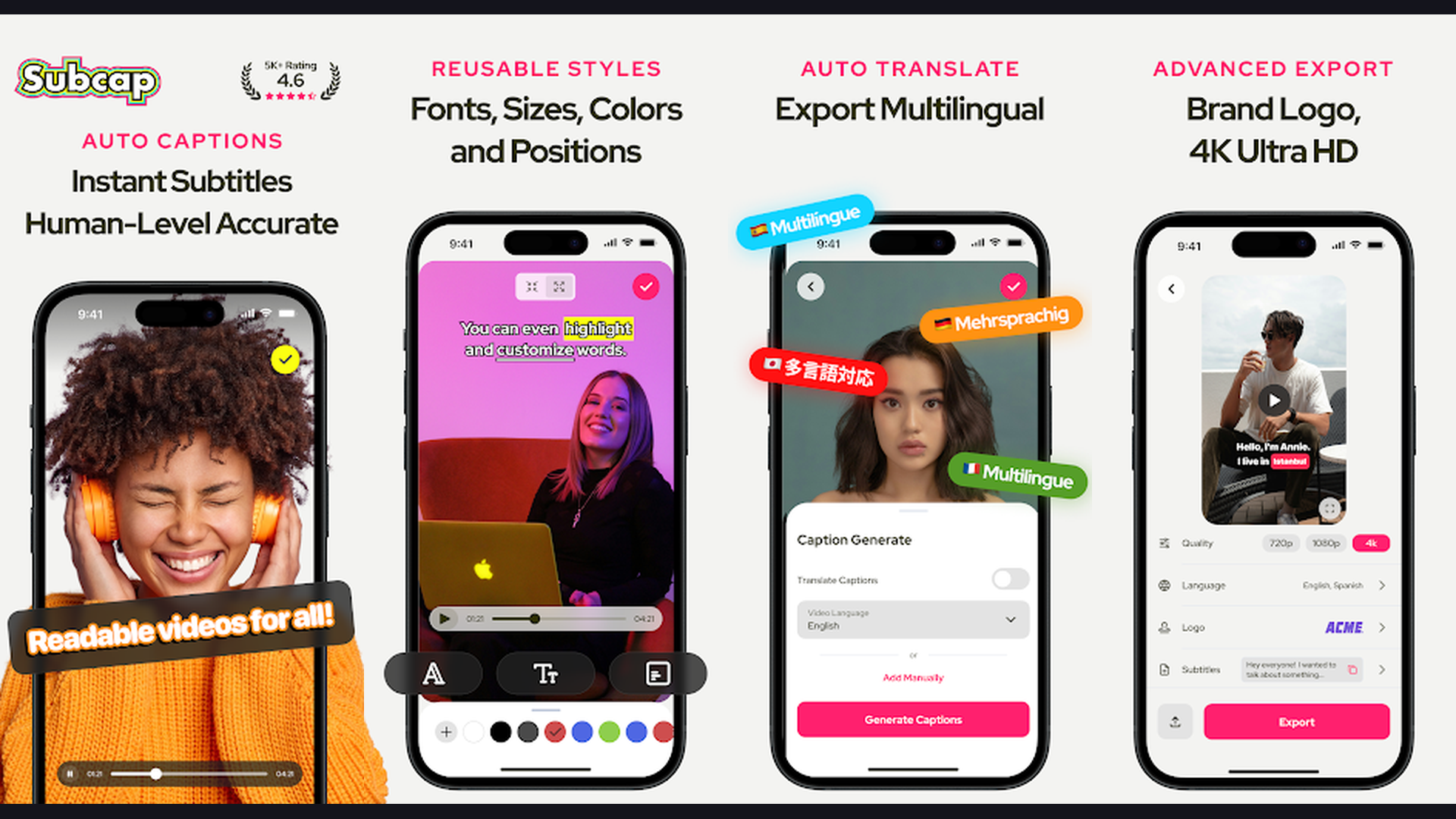
Subcap is a dedicated subtitle app built specifically for auto-captioning. Using advanced AI speech recognition, it transcribes your video audio into perfectly timed subtitles in seconds. The app supports over 50 languages with high accuracy rates, and you can edit any transcription errors directly in the timeline. Subcap offers a wide range of subtitle styles including modern, bold, handwritten, and animated options. The word-by-word highlight feature creates that popular TikTok-style dynamic caption effect. Subcap also works offline for basic editing, and it exports videos in full HD without watermarks on the premium plan. Its focused approach makes it faster and more efficient than general-purpose video editors for pure subtitling tasks.
5. KineMaster (Rating 4.4)
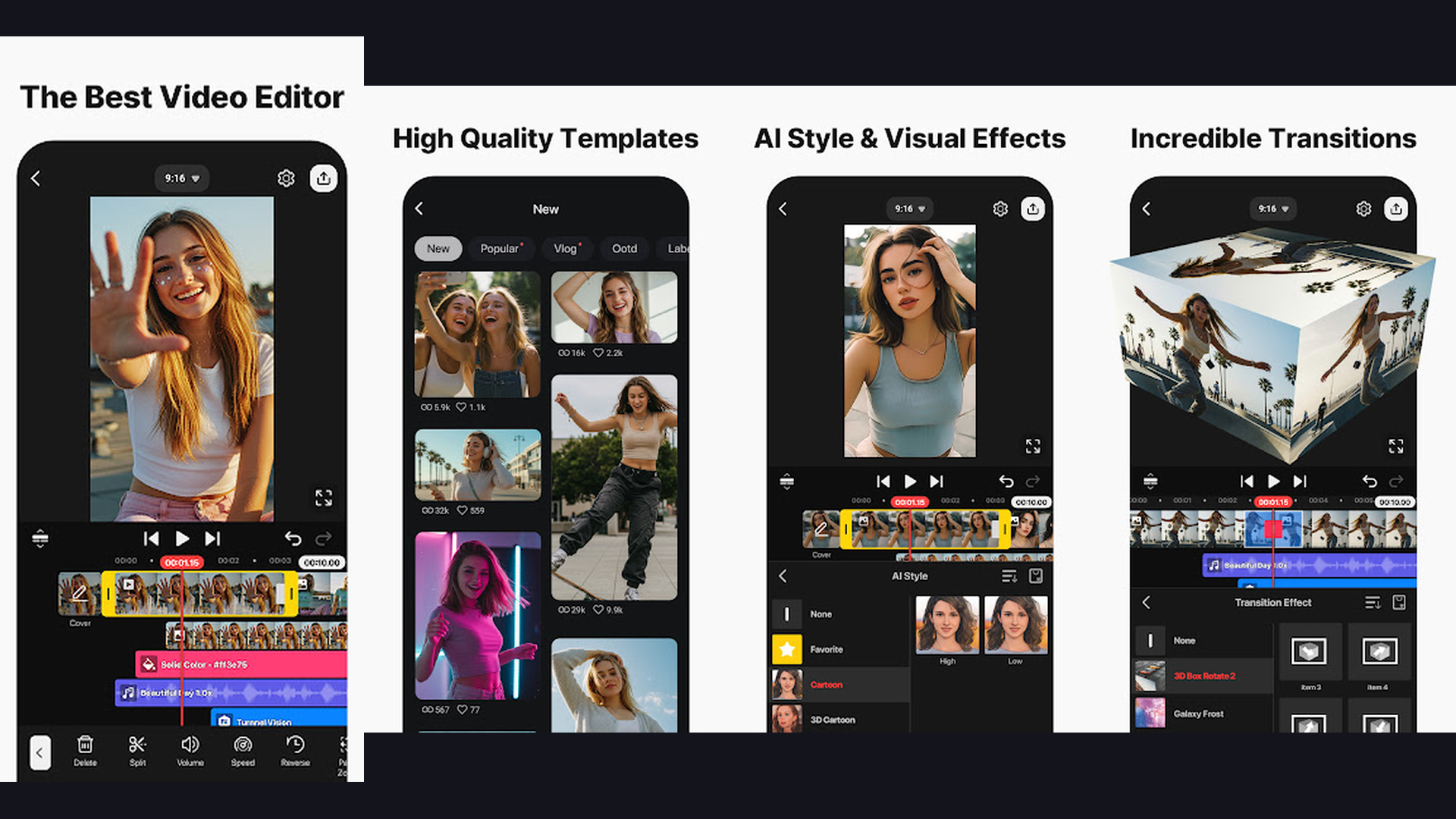
KineMaster is a professional-grade mobile video editor trusted by content creators, filmmakers, and educators worldwide. Its text and subtitle tools offer granular control over every aspect of caption appearance including font, size, color, outline, shadow, opacity, position, and rotation. The multi-layer timeline lets you add subtitles as separate text layers, enabling complex compositions with background shapes and visual effects. KineMaster supports keyframe animation for smooth text transitions and offers chroma key compositing for green screen work. The built-in asset store provides additional fonts, stickers, and transitions. While it requires more learning than simpler apps, KineMaster delivers the most control for users who need pixel-perfect subtitle placement.
6. AutoCap (Rating 4.4)
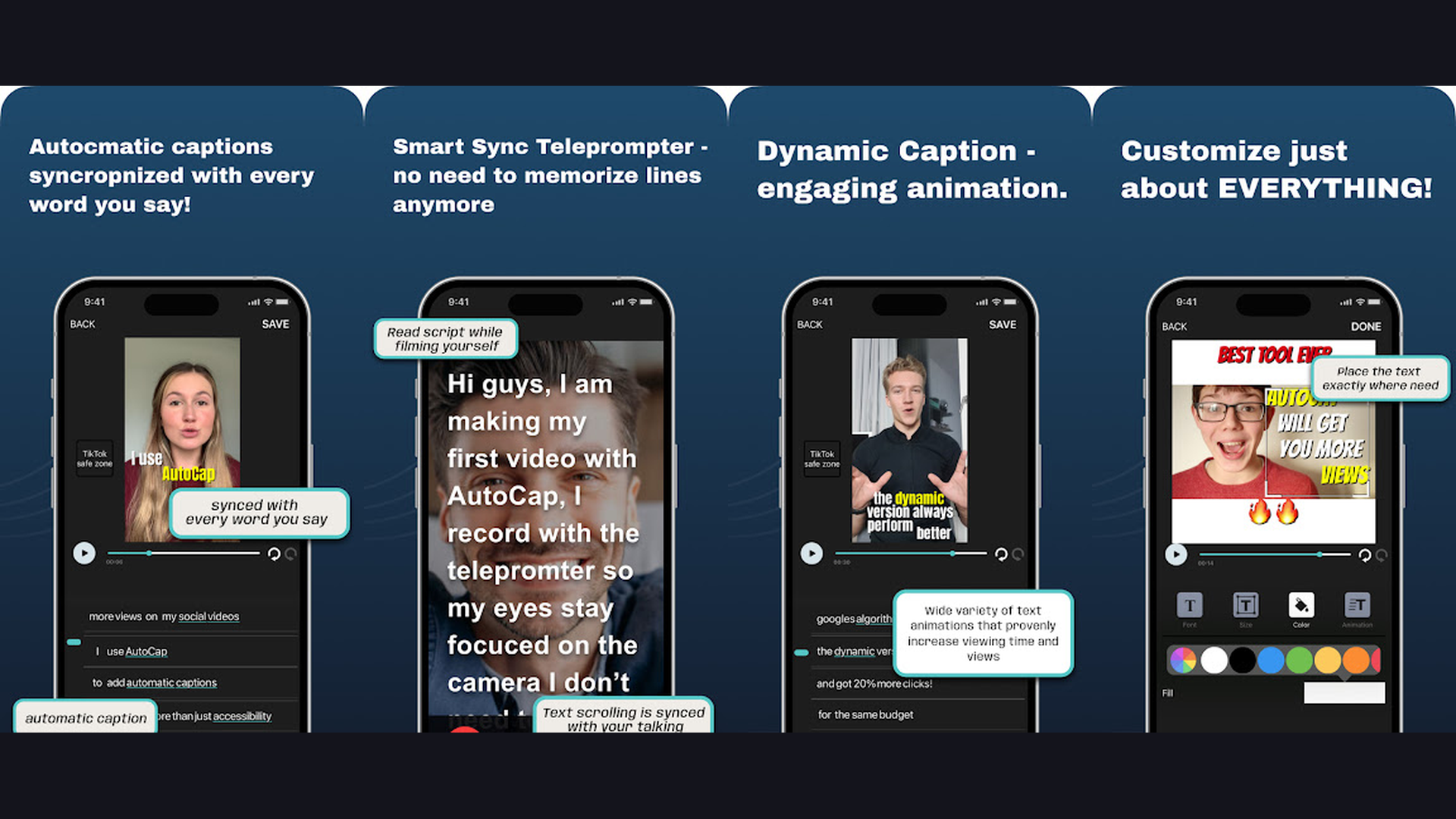
AutoCap is an Android-focused auto-captioning powerhouse that uses advanced speech recognition to add text captions to your videos automatically. The app supports over 100 languages for transcription and offers a variety of animated caption styles that make your text pop on screen. Each generated subtitle can be edited for accuracy and timing directly on the timeline. AutoCap provides word-level timing control, meaning you can configure captions to appear one word at a time for maximum viewer engagement. The app also includes a built-in teleprompter feature, making it useful for recording scripted videos. AutoCap exports in multiple resolutions and aspect ratios optimized for YouTube, TikTok, Instagram, and Facebook.
7. MixCaptions (Rating 4.5)
MixCaptions specializes in fast, accurate automatic video captioning with support for 23 languages. Simply import your video, and the AI engine transcribes the audio into perfectly timed captions within seconds. You can edit the generated text, adjust timing, change fonts and colors, and position subtitles anywhere on screen. MixCaptions offers clean, social-media-ready styles that look great on Instagram Stories, TikTok, and YouTube. The app also supports manual caption entry for users who prefer precise control. One standout feature is the ability to translate captions into different languages, making your content accessible to international audiences. MixCaptions keeps the interface minimal and focused, eliminating the learning curve of full video editors.
8. Filmora (Rating 4.1)
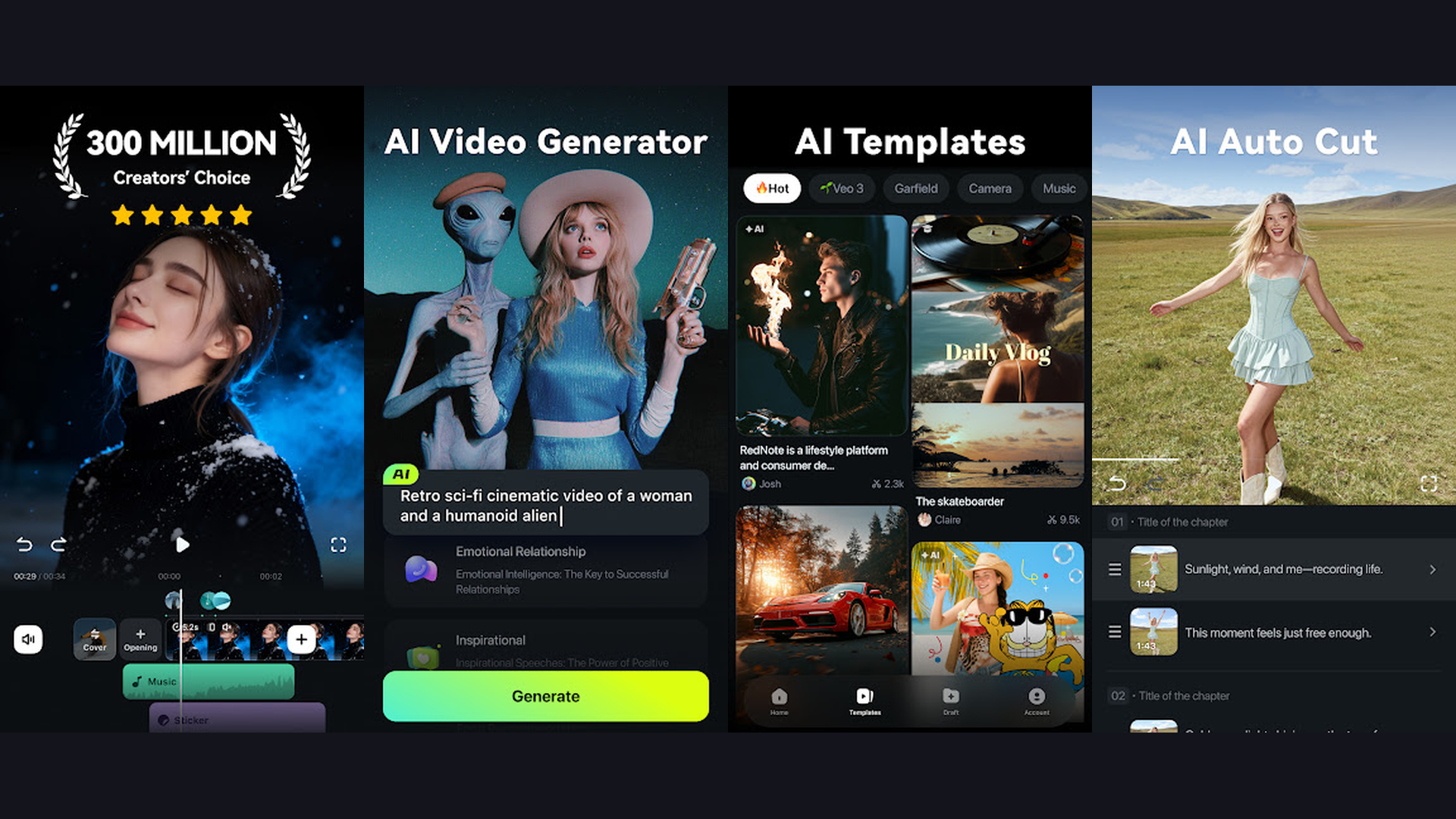
Filmora by Wondershare is a feature-rich video editor with AI-powered auto-captioning that rivals desktop software. The Speech-to-Text feature automatically transcribes audio to subtitles in multiple languages with one tap. Filmora offers an extensive library of text templates, title animations, and lower-third designs for professional-looking captions. The multi-track timeline gives you precise control over subtitle placement and timing, and the built-in text style editor lets you customize every visual property. Filmora also supports SRT subtitle file import and export, making it compatible with professional captioning workflows. Additional features include AI background removal, motion tracking for moving subtitles, and extensive royalty-free music and effects libraries.
9. Kaptioned (Rating 3.9)
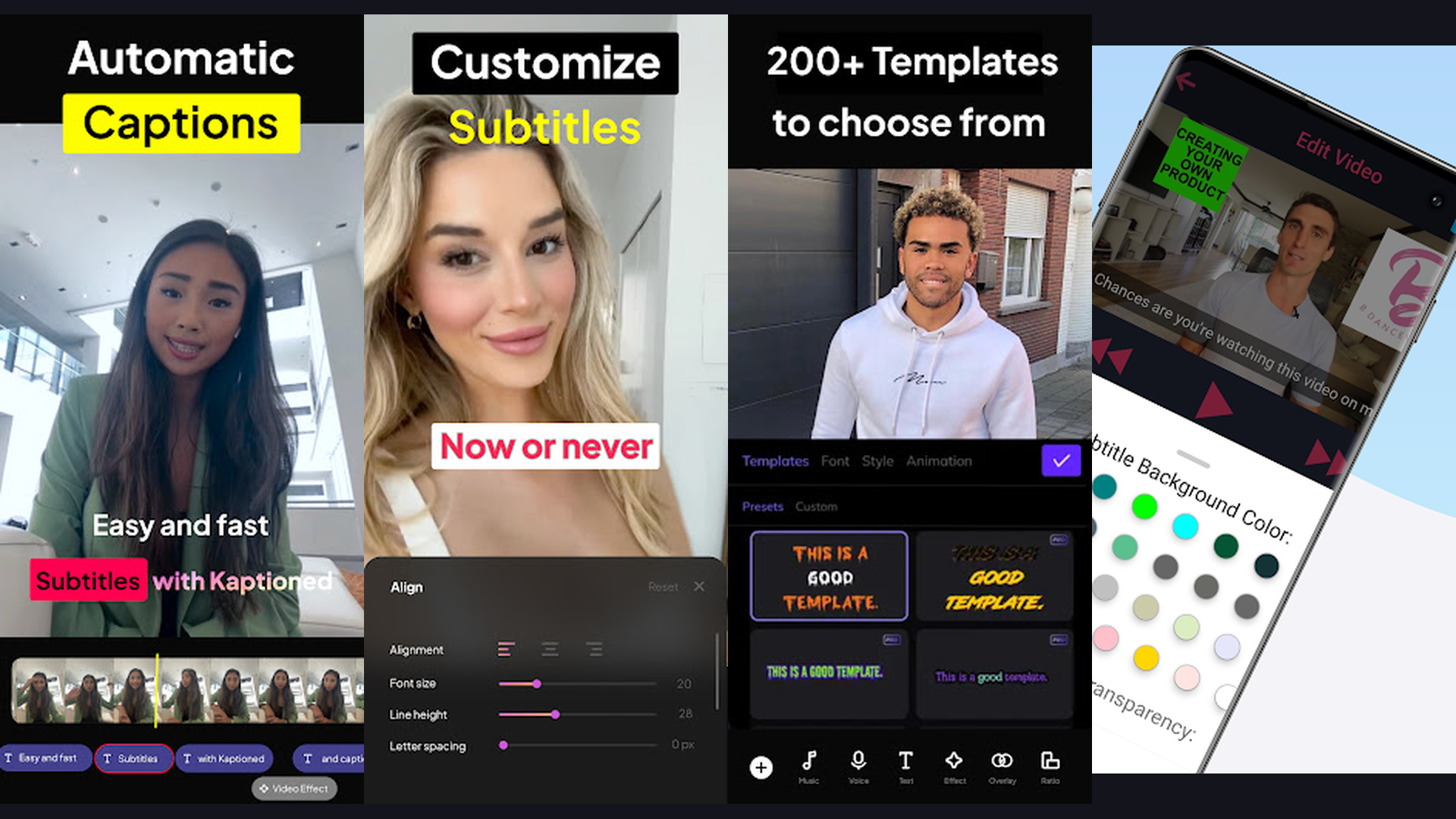
Kaptioned is a speed-focused subtitle generator that prioritizes fast, accurate captioning with minimal effort. The app generates subtitles in 12 languages with high accuracy using on-device AI processing, which means your video audio never leaves your phone. This privacy-first approach sets Kaptioned apart from cloud-based competitors. The app works offline and supports dual-language subtitle display, perfect for language learners or bilingual content. Customization options include fonts, colors, text backgrounds, and positioning. Kaptioned is ideal for users who value privacy and speed over extensive editing features. The straightforward interface makes it one of the fastest apps for getting subtitled videos ready to share.
10. Captions AI (Rating 4.5)
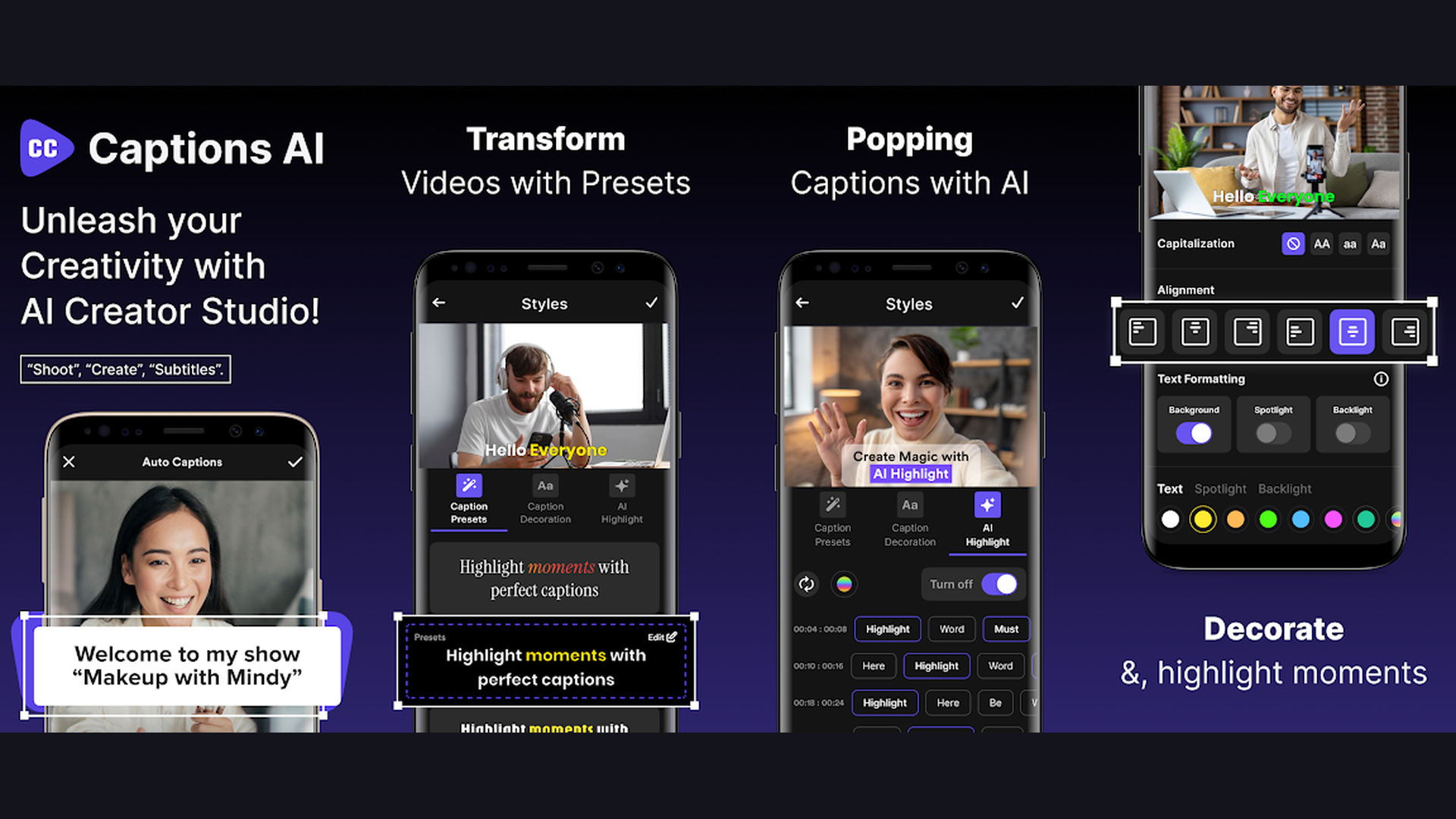
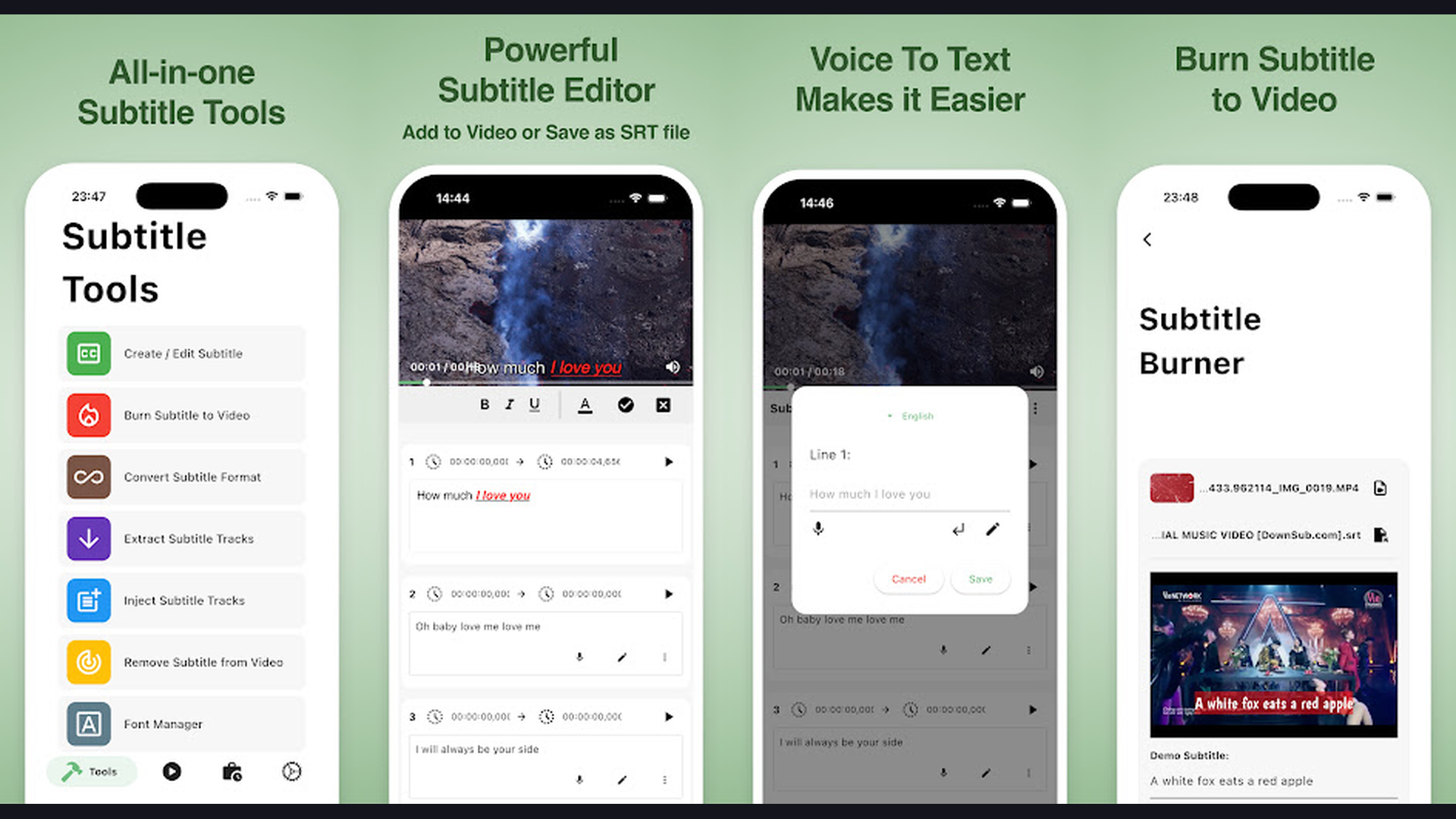
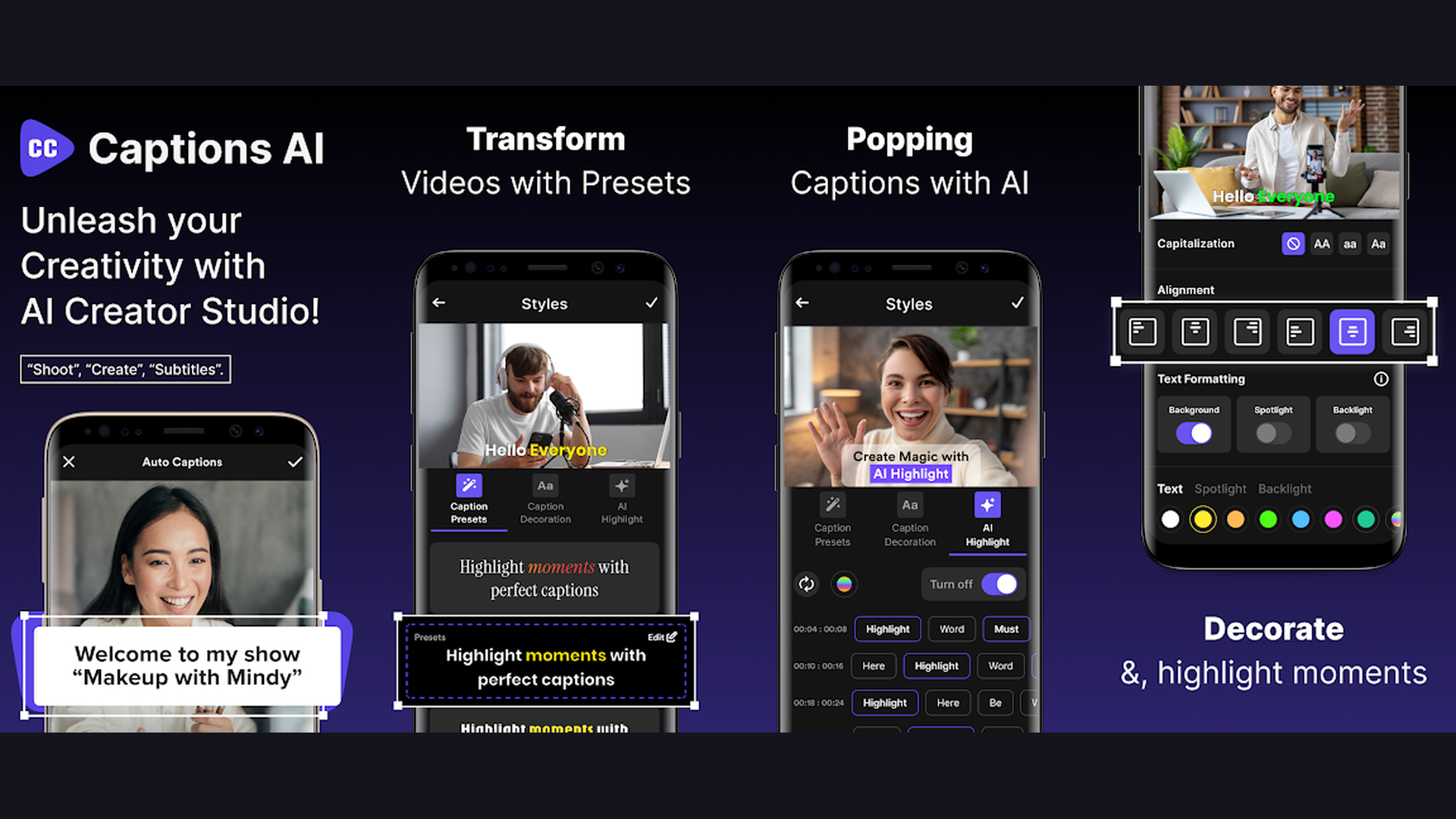
Captions AI (formerly Captions for Talking Videos) is an all-in-one AI video editing app built around making your spoken content look professional. The auto-subtitle feature transcribes your speech with exceptional accuracy and applies beautifully designed caption styles automatically. What makes Captions AI unique is its suite of additional AI tools: eye contact correction keeps you looking at the camera even when reading notes, AI lighting improves dim footage, and the noise removal feature cleans up audio. The app supports over 28 languages and offers real-time translation for subtitles. It is particularly popular among content creators who film talking-head videos for social media and need quick, polished results.
11. VEED (Rating 4.5)
VEED is a professional online video editor with industry-leading auto-subtitle technology. The platform transcribes audio in over 125 languages with one of the highest accuracy rates available, and the generated subtitles are fully customizable with fonts, colors, backgrounds, sizes, and animation effects. VEED supports SRT, VTT, and TXT subtitle file export and import, making it compatible with YouTube, Facebook, and professional captioning standards. The editor also offers text-based video editing where you can edit your video by editing the transcript. While VEED is primarily web-based, the mobile app provides quick subtitle generation and basic editing on the go. It is a favorite among YouTube creators and AI video editors.
12. Subtitle Editor (Rating 3.8)
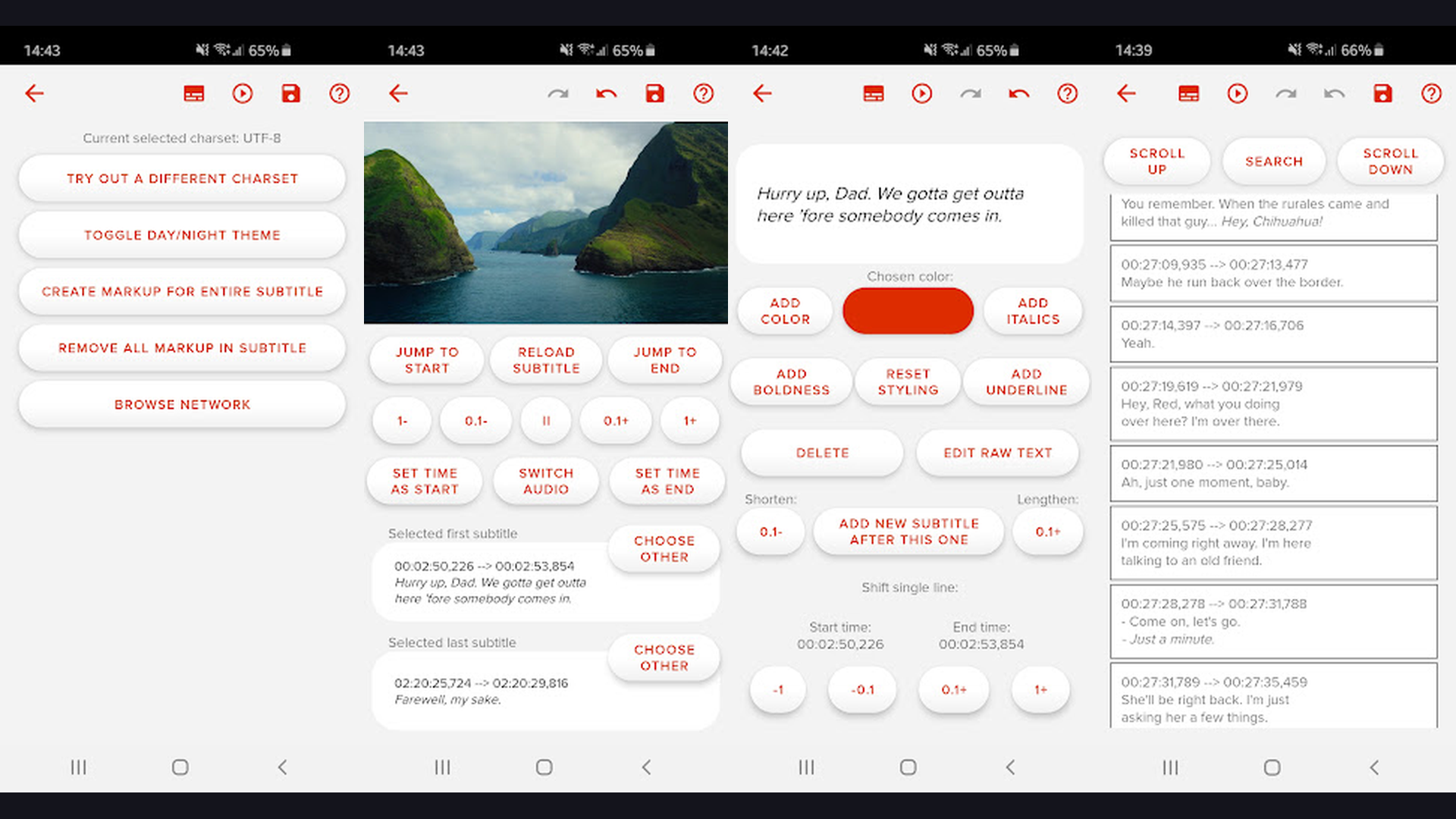
Subtitle Editor is a lightweight Android tool dedicated purely to subtitle file editing. Unlike video editors that include subtitles as a feature, this app focuses exclusively on creating, editing, and syncing SRT subtitle files. You can create subtitles from scratch with precise timestamp controls, edit existing SRT files, merge multiple subtitle tracks, and adjust timing offsets globally. The app supports batch find-and-replace for fixing common transcription errors across entire files. Subtitle Editor is essential for users who work with standard subtitle file formats and need a mobile tool for quick edits without importing to a full video editor.
Auto Captions vs Manual Subtitles: Which Should You Use?
Understanding the difference between auto-generated captions and manual subtitles helps you choose the right approach for your content:
Auto Captions (AI-Powered)
- Best for: Quick social media content, vlogs, talking-head videos, and high-volume creators
- Pros: Saves hours of manual work, generates captions in seconds, supports multiple languages automatically
- Cons: May contain transcription errors (especially with accents, technical terms, or background noise), requires proofreading
- Top apps: CapCut, Captions AI, Subcap, MixCaptions, VEED
Manual Subtitles
- Best for: Professional videos, tutorials, branded content, and videos with specific formatting requirements
- Pros: 100 percent accuracy, full creative control, precise timing, custom styling
- Cons: Time-consuming (10-15 minutes per minute of video), requires good typing speed
- Top apps: KineMaster, InShot, VN Video Editor, Subtitle Editor
The best approach for most creators is a hybrid workflow: use auto-captions for the initial transcription, then manually review and correct errors before publishing. This gives you the speed of AI with the accuracy of human editing.
Tips for Creating Better Subtitles
- Keep Lines Short - Limit subtitles to 2 lines and 42 characters per line maximum. This ensures readability on small mobile displays without covering too much of the video frame.
- Use Contrasting Colors - White text with a dark outline or semi-transparent background box ensures readability against any background. Avoid pure yellow or light colors on bright scenes.
- Match Timing to Speech - Subtitles should appear 0.5 seconds before the speaker starts and disappear 0.5 seconds after they finish. This feels natural and gives viewers time to read.
- Choose Readable Fonts - Sans-serif fonts like Arial, Helvetica, or Montserrat are the most readable at small sizes. Avoid decorative or script fonts for body subtitles.
- Always Proofread Auto-Captions - AI transcription is not perfect. Watch your video with captions enabled and fix any errors before publishing. Common mistakes include homophones, proper nouns, and technical terminology.
- Position Strategically - Place subtitles in the lower third of the frame for standard videos. For TikTok and Reels, position them in the center to avoid being covered by platform UI elements.
- Add Speaker Labels - For videos with multiple speakers, use different colors or add name labels to distinguish who is talking. This greatly improves comprehension for viewers watching without sound.
- Export SRT Files - If you are uploading to YouTube, export your subtitles as SRT files and upload them separately. This enables YouTube to index your caption text for SEO, increasing discoverability. Check our guide on saving and exporting projects for more tips.
Frequently Asked Questions
What is the best free app for adding subtitles?
CapCut is the best completely free subtitle app with no watermarks, offering AI auto-captions in 20+ languages plus professional editing tools. VN Video Editor is another excellent free option with a multi-track timeline and no watermarks. For Android users, AutoCap provides free auto-captioning with impressive animation effects.
Can I add subtitles automatically using AI?
Yes, most modern subtitle apps use AI speech recognition to transcribe your video audio into text automatically. CapCut, Captions AI, Subcap, MixCaptions, VEED, and Filmora all offer one-tap auto-captioning. Accuracy typically ranges from 85 to 95 percent depending on audio clarity, accent, and background noise. Always proofread auto-generated captions before publishing.
Which app supports the most languages?
VEED leads with subtitle support for over 125 languages. AutoCap supports 100+ languages for transcription. Subcap and Captions AI support around 50 and 28 languages respectively. For most users, any of these apps will cover the languages they need. The best language learning apps can help you understand content in additional languages.
Do subtitle apps add watermarks?
CapCut, VN Video Editor, and InShot offer watermark-free exports on their free plans. AutoCap, Subcap, and Kaptioned may include watermarks on free tiers, which are removed with premium subscriptions. KineMaster and Filmora include watermarks on free versions. VEED offers watermark-free exports on paid plans.
Can I export subtitle files separately?
Yes, apps like VEED, Filmora, and Subtitle Editor support exporting subtitles as SRT, VTT, or TXT files. This is useful for uploading separate caption tracks to YouTube, Vimeo, or other platforms that support sidecar subtitle files. Most consumer apps burn subtitles directly into the video (hardcoded), while professional tools offer both options.
Are auto-captions accurate enough for professional use?
Auto-captions in 2026 are significantly more accurate than previous years, with top apps achieving 90 to 95 percent accuracy in ideal conditions (clear audio, standard accent, minimal background noise). However, for professional, legal, or medical content, always proofread and correct auto-generated captions. The hybrid approach of AI-generated captions plus human review delivers the best results for professional use.
Final Thoughts
Adding subtitles to your videos has never been easier thanks to AI-powered auto-captioning. For social media creators who need fast, free subtitles, CapCut and VN Video Editor are unbeatable. Professional creators will appreciate KineMaster and Filmoras granular control, while dedicated captioning apps like Captions AI, Subcap, and MixCaptions offer the best balance of speed and quality. Whatever your workflow, investing time in proper subtitles is one of the highest-impact improvements you can make to your video content. For more content creation tools, explore our guides on camera apps for iPhone, editing selfies on PicsArt, adding shadows in PicsArt, and reminder apps to keep your content schedule on track.