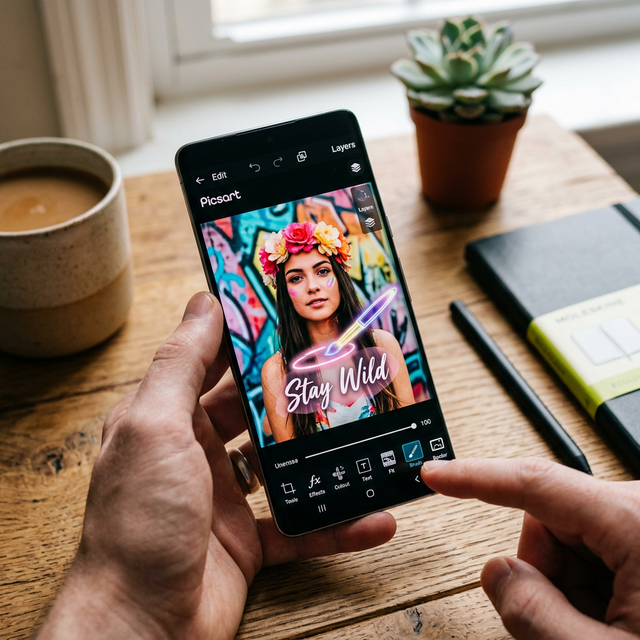
Picsart is arguably one of the most powerful and versatile photo and video editing applications available in 2026. Whether you are crafting social media graphics, removing backgrounds, or applying highly detailed artistic filters, the creative process takes time. If you do not know how to save a project on Picsart properly, you risk losing hours of meticulous design work.
Unlike simple crop-and-filter apps, Picsart projects often involve multiple layers, stickers, text boxes, and complex blending modes. In this comprehensive guide, we will break down exactly how to save your work as an editable draft, how to export your final masterpiece to your device gallery, and how to utilize cloud syncing to ensure your edits are never lost.
1. How to Save as Draft in Picsart
The most important feature for any digital creator is the ability to walk away and return to an edit later. Picsart allows you to save your ongoing work as a draft, preserving all your individual layers and applied effects so you can tweak them another time.
To save a draft in Picsart:
- While editing your photo or design, tap the Download icon (downward-pointing arrow) located at the top of the editing screen.
- Depending on your version, you may alternatively need to tap the Next (arrow pointing right) button.
- Select Save from the pop-up menu, and then choose Save as Draft.
Your project is now securely saved within the app. You can find all your drafts by navigating to your Profile tab and tapping on the "Drafts" folder. For more tips on mastering creative apps, check out our broader Tech and App Guides.
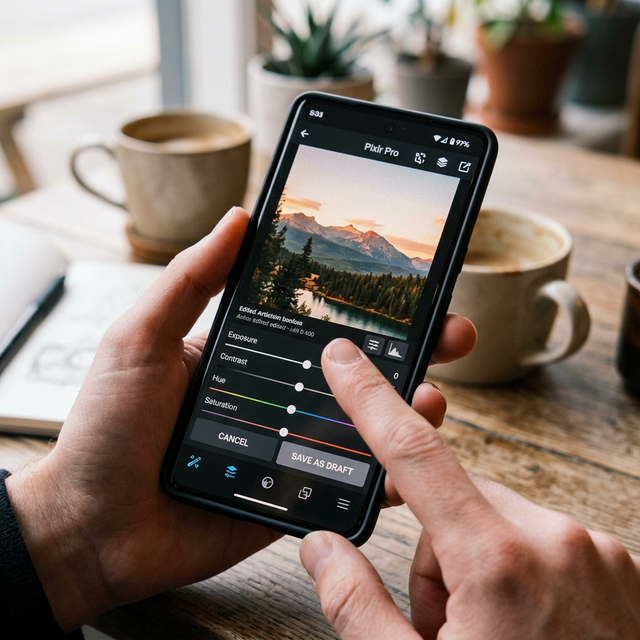
2. Exporting and Saving to Your Device Gallery
Once your editing process is complete and you are ready to share your creation with the world—or simply keep a flattened copy for your personal archives—you will need to save the final image directly to your smartphone gallery or camera roll.
Follow these steps to export your final image:
- When you are completely satisfied with your edit, tap the Next button (the forward arrow) at the top right corner.
- Tap on Save.
- Choose the Save picture on your device option. Your rendered image will immediately download to your phone gallery.
If you encounter issues saving high-resolution images, ensure your mobile device has sufficient storage space. If you are experiencing general device lag or storage limitations, you might want to look into upgrading your hardware. Browse our latest Mobile Phone Reviews for recommendations on devices that handle heavy rendering smoothly.
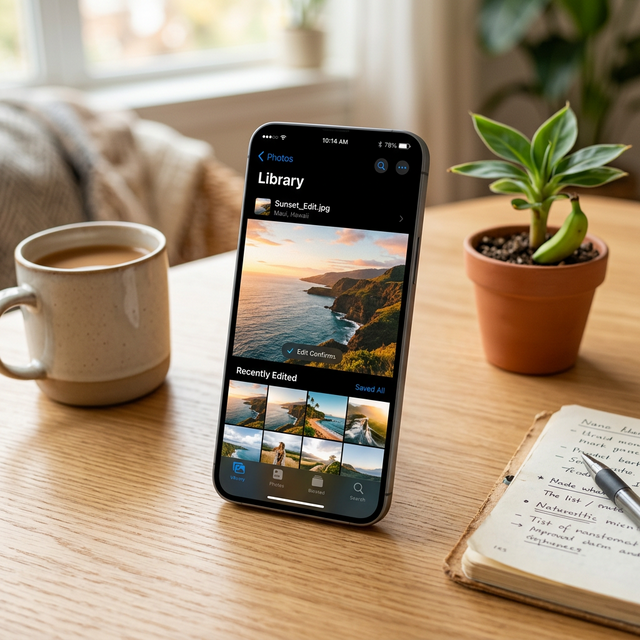
3. Utilizing Picsart Cloud Sync for Cross-Device Saving
If you are a Picsart Gold subscriber, or if you frequently switch between editing on your phone and a tablet, local drafts might not be enough. Saving your projects to the cloud ensures they are backed up and accessible from any device where you are logged into your Picsart account.
To ensure your projects are synced online, verify that you are logged into your registered Picsart account before initiating a save. When creating a project, your drafts can often be configured auto-sync to the cloud, protecting you from accidental app deletion or phone damage.
Cloud syncing relies heavily on a stable network. If you find your drafts failing to upload, it is a good idea to verify your connection speed or try resetting your network settings.

Common Saving Errors and Troubleshooting
Occasionally, you might press save and find the app freezes or fails to export. Here are three quick fixes if you cannot save a project on Picsart:
- Check Premium Assets: If you are using a free account but accidentally added a "Crown" (Premium) sticker or font, the app will block the save until you either subscribe or remove the premium element.
- Clear App Cache: Over time, the temporary files built up by intense editing can cause the app to stutter. Clearing your cache from your phone settings can resolve export hangs.
- Check Permissions: Ensure Picsart actually has permission to read and write to your device storage. Without this permission, the "Save to Gallery" function is impossible.
Conclusion
Learning how to effectively save a project on Picsart is the baseline for professional-quality mobile editing. By understanding the difference between a flattened Gallery export and an editable Draft, you give yourself the flexibility to refine your artwork without starting from scratch. Keep your drafts organized, utilize cloud backups when necessary, and your creative workflow will remain seamless.