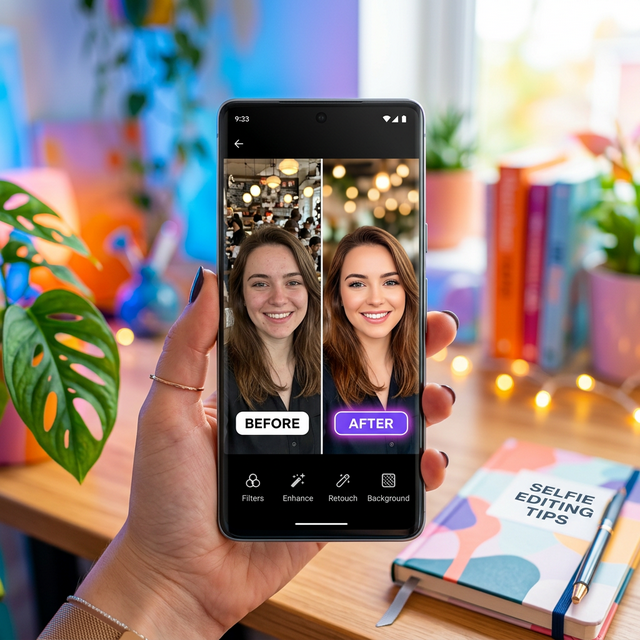
Mastering Mobile Portrait Editing
Taking a great selfie is only half the battle; knowing how to refine it elevates a casual photo into a professional-grade portrait. In 2026, mobile editing has transcended simple color filters. Today, editing apps leverage deep machine learning to analyze facial structures, lighting geometry, and background clutter.
Among the leading mobile editors, PicsArt stands out due to its incredibly aggressive push into AI-assisted tools. Whether you need to subtly remove a blemish or completely transport yourself to a neon-lit cyberpunk city, PicsArt handles it natively on your smartphone.
1. AI Enhance: Instant Lighting and Clarity
The foundation of any good selfie is clear lighting and high resolution. Before you begin aggressively tweaking colors or cutting out backgrounds, you must establish a clean baseline image.
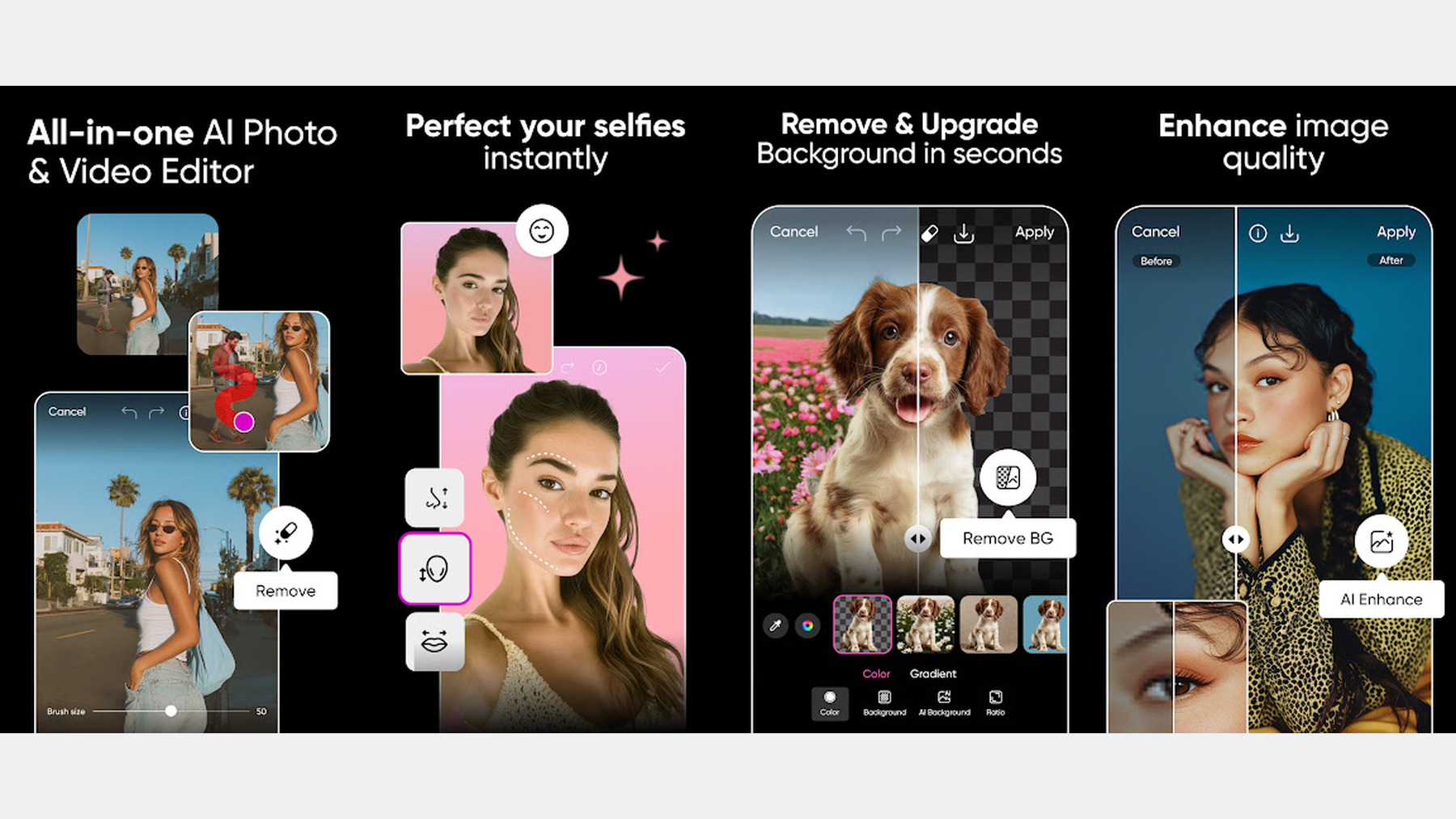
The most powerful baseline feature in the 2026 update is the AI Enhance tool. Located prominently on the bottom toolbar when you open an image, this one-tap button runs a complex neural network over your face. It automatically attempts to:
- Sharpen soft focus areas (especially around the eyes and eyelashes).
- Eradicate digital noise typical of low-light front-facing cameras.
- Upscale the overall resolution, which is highly beneficial if you plan on posting the photo to stories; which is incredibly helpful to ensure you are avoiding excessive compression when posting high-quality Instagram Stories.
2. The Retouch Tool: Flawless Skin Without the Blur
Older beauty apps became notorious for aggressively blurring skin to the point where users looked like plastic mannequins. PicsArt's updated Retouch suite takes a much more surgical approach.
By tapping "Retouch," the app maps your face into distinct zones (forehead, cheeks, chin, eyes). Instead of globally blurring, use the "Blemish Fix" tool to tap away specific acne or stray hairs independently. The "Smooth" slider should be used sparingly—typically keeping it below 30%—to retain natural skin texture and pores. Furthermore, the Retouch suite allows for subtle structural adjustments, but avoiding extreme "face-tuning" ensures the selfie remains authentically you.
3. Removing and Replacing Backgrounds
The setting of your selfie dictates the entire mood of the photo. If your perfect smile happens to be situated in front of a messy bedroom or a crowded street, the Remove Background feature is your smartest solution.
Driven by edge-detection AI, pressing the "Remove BG" button cleanly slices your silhouette away from the environment in seconds. From there, you can choose to leave the background completely transparent (great for digital stickers), blur the original background into a professional "bokeh" effect (simulating a DSLR camera), or insert a completely new AI-generated environment via the text-prompt box.
4. Erasing Unwanted Photobombers
Sometimes you don't want to replace the entire background; you just need to remove a specific distraction, like a stray trash can or an accidental photobomber over your shoulder.
The Remove Object tool allows you to paint roughly over the offending item. PicsArt's generative fill technology will intelligently analyze the surrounding pixels (whether it's a brick wall, grass, or sky) and seamlessly patch the hole left behind once the object is eradicated. You can seamlessly combine this with adding borders in PicsArt for a polished final look.
5. AI Filters and Stylization
Once the technical corrections are finished, you can apply creative flair. Standard color filters are still available, but the AI Art Filters completely redraw your selfie into different artistic mediums (watercolor, cyberpunk, anime, or oil painting). Just remember that heavy filter application can ruin the image if you are looking at it on an uncalibrated screen; especially if you are making fine adjustments on an uncalibrated display type.
Frequently Asked Questions
Are PicsArt's AI tools free to use?
While PicsArt offers a generous free tier with basic editing and standard filters, the advanced AI-driven tools (like unlimited AI Enhance, generative background replacement, and premium Retouch features) are locked behind the PicsArt Gold subscription in 2026.
Can I edit multiple selfies at once?
Standard color and exposure adjustments can be copied and pasted across multiple photos, but AI specific tasks like Retouching and Object Removal must be done individually as the AI must calculate the specific geometry of each unique photo.
Why does my photo lose quality after downloading from PicsArt?
Ensure you are saving the image in the highest possible resolution. When you click the download arrow, look for a settings gear or "Quality" slider. If you are a free user, the app occasionally caps the export resolution to save server load compared to Gold members.
Does PicsArt store my photos?
If you upload your images to the public PicsArt community feed, they are stored on their servers. However, if you simply open an image from your camera roll, edit it, and save it back to your device without clicking "Post," the image data remains local to your device.