
The iPhone has become the most popular filmmaking device in the world, but the native Camera app barely scratches the surface of what the hardware can do. In 2026, third-party video recording apps unlock manual controls, ProRes codecs, Apple Log gamma, slow motion at 240fps, multi-camera setups, and professional monitoring tools that transform your iPhone into a genuine cinema camera.
This guide reviews 12 of the best video recording apps for iPhone in 2026, covering professional cinema cameras, hybrid photo-video tools, video editors with built-in cameras, time-lapse specialists, and teleprompter solutions. Whether you are shooting a feature film, creating YouTube content, recording TikTok videos, or filming professional presentations, there is an app designed for your exact workflow. For more creative tools, check out our guides on reels making apps, content creation apps, AI photo editing apps, and AI assistant apps.
Table of Contents
- Blackmagic Camera (Rating 4.8)
- ProMovie Recorder (Rating 4.7)
- ProCamera (Rating 4.7)
- Cinema P3 Pro Camera (Rating 4.6)
- Pro Camera by Moment (Rating 4.5)
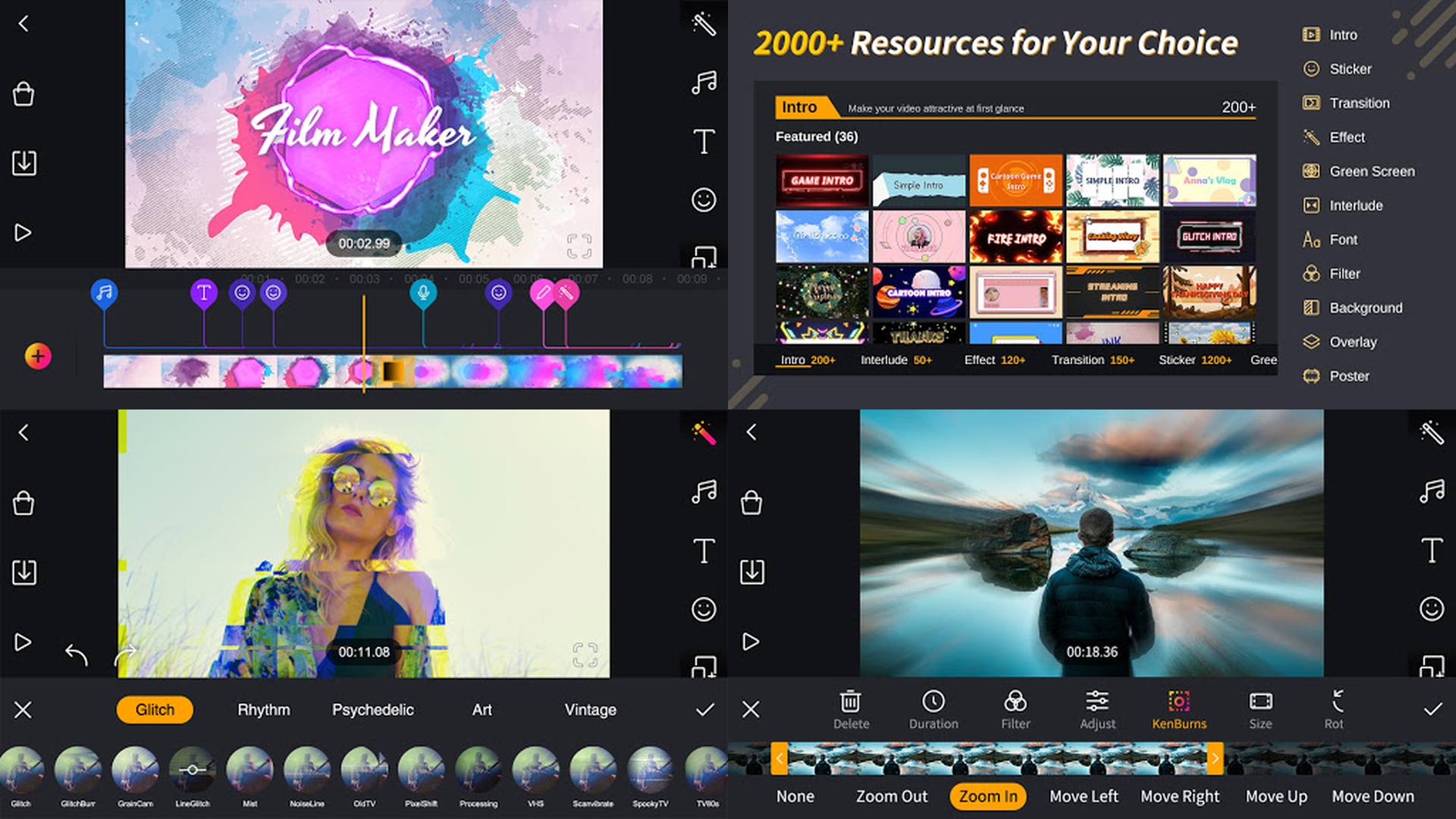
- KineMaster (Rating 4.4)
- Final Cut Camera (Rating 4.3)
- FiLMiC Pro (Rating 4.2)
- iMovie (Rating 4.0)
- Teleprompter Premium (Rating 4.7)
- CapCut (Rating 4.0)
- Hyperlapse from Instagram (Rating 4.0)
- Which Video Recording App Is Right for You?
- iPhone Video Recording Tips and Techniques
- Frequently Asked Questions
1. Blackmagic Camera (Rating 4.8)
Blackmagic Camera is the most powerful free professional video recording app for iPhone, offering cinema-grade controls, ProRes recording, Apple Log, LUT support, and multi-camera workflows that rival dedicated cinema cameras. Developed by Blackmagic Design, makers of industry-standard cinema cameras and DaVinci Resolve, this app brings their professional expertise to iPhone. The interface mirrors Blackmagic cinema cameras with instantly recognizable controls for ISO, shutter angle, white balance, and focus. ProRes recording in 4K delivers broadcast-quality footage with minimal compression. Apple Log gamma curve captures extended dynamic range for maximum flexibility in color grading. Real-time LUT preview lets you see your color grade while recording in Log. Focus peaking overlays highlight in-focus areas with colored outlines. Zebra stripes warn of overexposed regions. The histogram and waveform monitors provide precise exposure information. Multi-camera control lets you connect multiple iPhones on the same network and control them from one device. Direct recording to Blackmagic Cloud syncs footage instantly with DaVinci Resolve projects. Off-speed recording enables slow motion and time-lapse. Blackmagic Camera is completely free. For filmmakers who want cinema-grade video recording without spending anything, Blackmagic Camera is the definitive choice. Create cinematic content with reels apps.
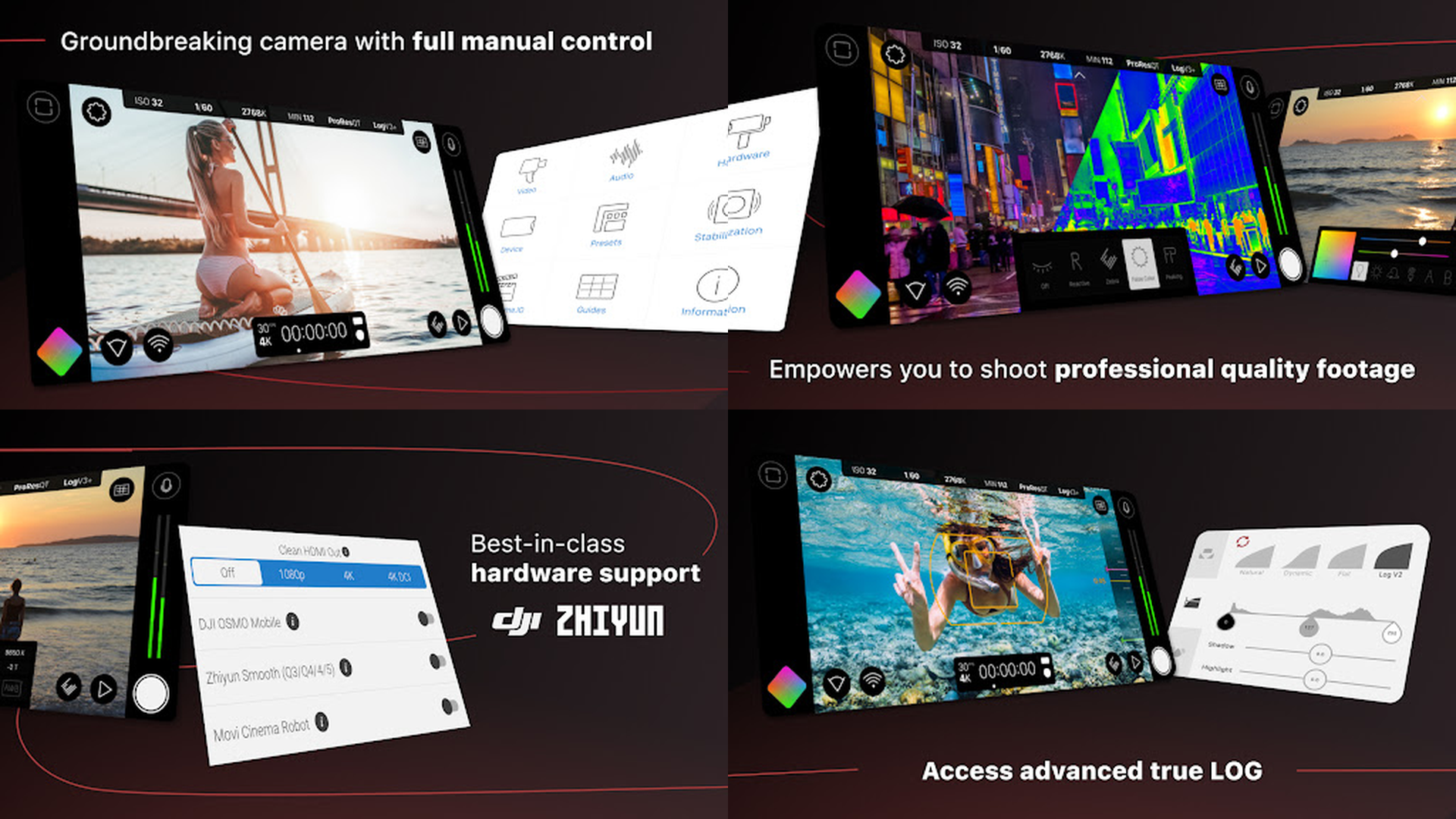

2. ProMovie Recorder (Rating 4.7)
ProMovie Recorder is a feature-rich professional video camera app offering 4K at 120fps, 1080p at 240fps slow motion, comprehensive manual controls, waveform monitors, LUT support, and timecode for serious video production. ProMovie Recorder packs an impressive amount of professional monitoring and recording tools into its interface. The 4K recording at up to 120fps enables stunning slow-motion footage at the highest resolution. Manual controls cover ISO, shutter speed, white balance, focus, and exposure compensation with precise on-screen sliders. The focus peaking overlay shows exactly what is in focus. Zebra stripes display overexposed areas in real-time. The waveform monitor and histogram provide broadcast-level exposure analysis. LUT support lets you apply color looks in real-time while recording in Log or standard profiles. Timecode display ensures professional synchronization in multi-camera productions. External microphone support with gain control delivers professional audio. The anamorphic desqueeze preview works with anamorphic lenses. The clean HDMI output supports external monitors and recorders. ProMovie Recorder is a one-time purchase (around $14.99). For videographers who need high-framerate recording with professional monitoring tools, ProMovie delivers exceptional value.
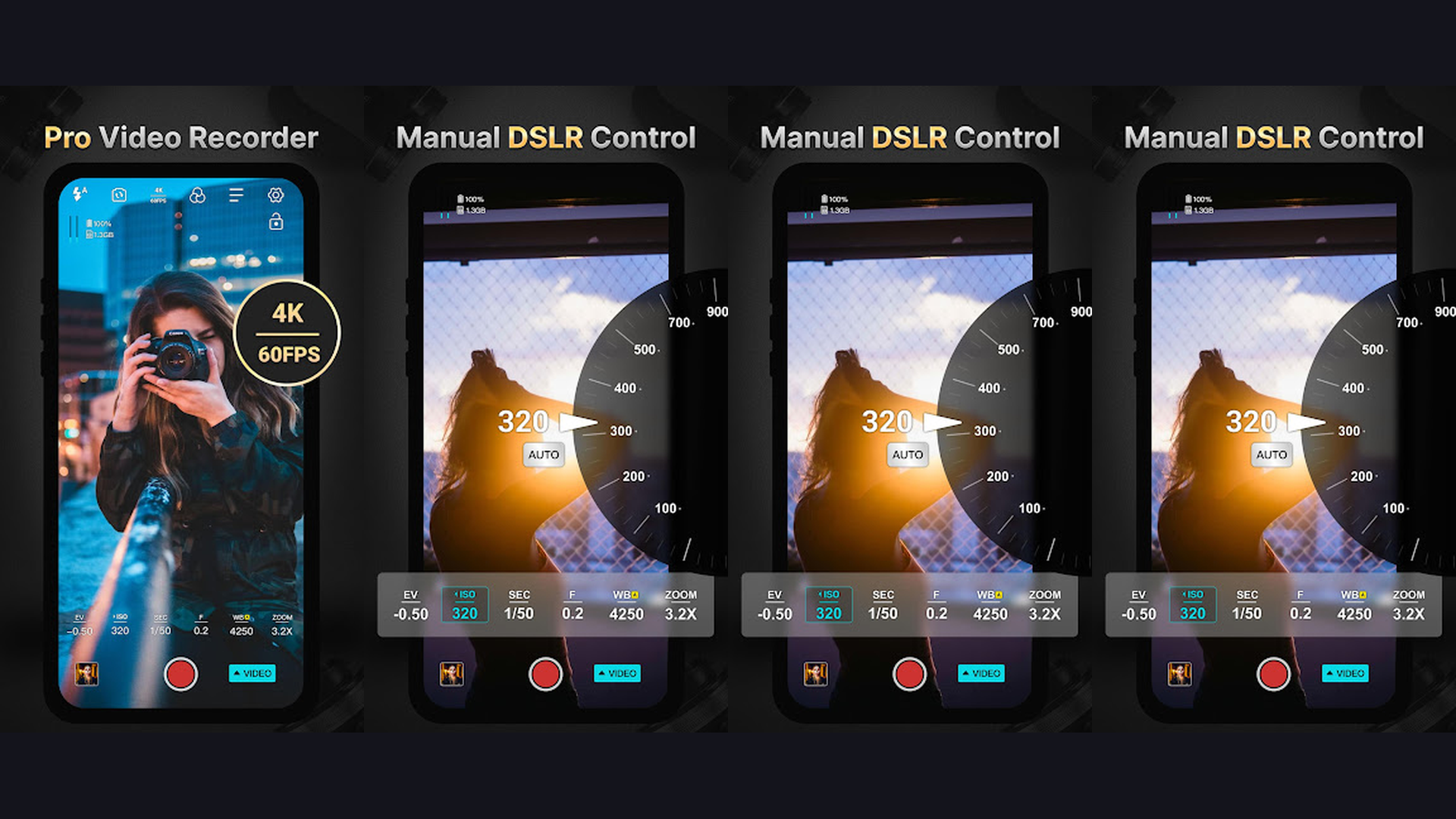
3. ProCamera (Rating 4.7)
ProCamera is a premium all-in-one camera app that excels at both photography and video, offering manual controls, RAW/ProRAW capture, 4K video, slow motion, time-lapse, and an intuitive interface trusted by mobile photographers for over a decade. ProCamera bridges photography and videography seamlessly. Switch between photo and video modes with a swipe. The video mode offers manual control over focus, exposure, shutter speed, ISO, and white balance. 4K recording at 30fps and 60fps captures cinematic footage. Slow-motion recording at up to 240fps in 1080p creates dramatic temporal effects. The time-lapse mode produces smooth accelerated sequences with customizable intervals. The HDR video mode captures extended dynamic range. The audio meter displays input levels for monitoring sound quality. The anti-shake stabilization smooths handheld footage. Apple Watch remote control lets you start and stop recording remotely. ProCamera is a one-time purchase (around $14.99). For iPhone users who want one premium app for both photography and video with intuitive controls, ProCamera is the most polished hybrid solution. Manage your media with organization tools.
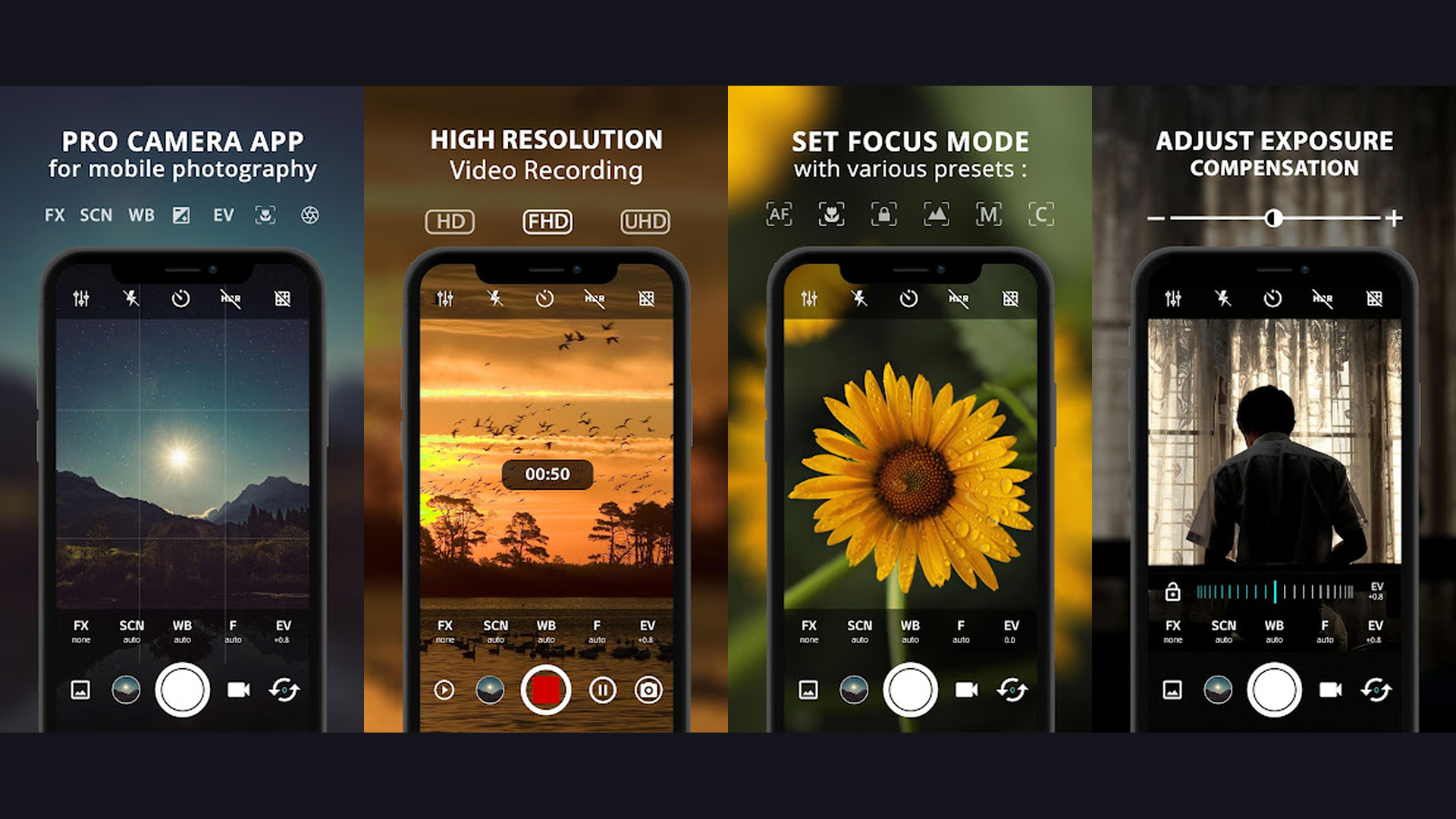
4. Cinema P3 Pro Camera (Rating 4.6)
Cinema P3 is a specialized cinematic video recording app designed for color-critical production, featuring P3 wide color gamut recording, false color exposure, customizable toolsets, and advanced color science for professional colorists. Cinema P3 differentiates itself through deep color science capabilities. The P3 wide color gamut captures a broader range of colors than standard Rec.709, producing more vibrant and accurate footage. False color overlay maps exposure levels to specific colors, providing instant visual feedback about underexposed, properly exposed, and overexposed areas. This tool is essential for maintaining consistent exposure across shots. The customizable interface lets you arrange monitoring tools to match your workflow. Manual controls cover ISO, shutter speed, white balance, focus, and exposure compensation. Focus peaking and zebra stripes provide additional monitoring. The histogram and waveform displays offer precise exposure data. The selectable frame guides show safe areas and aspect ratios. ProRes and HEVC recording options balance quality and file size. Cinema P3 is a one-time purchase (around $9.99). For colorists and filmmakers who prioritize color accuracy and advanced exposure monitoring, Cinema P3 offers unique tools no other app provides.
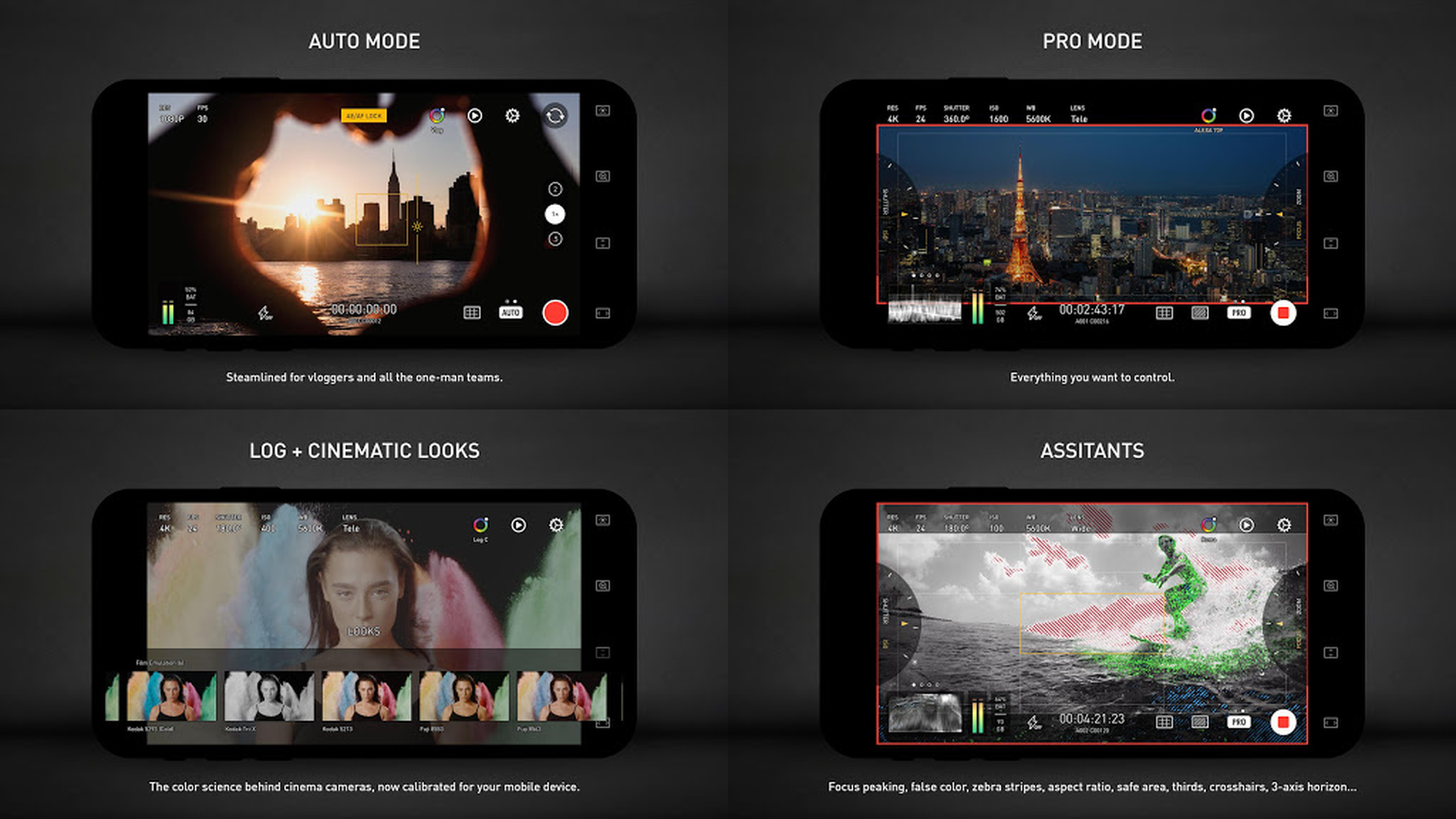
5. Pro Camera by Moment (Rating 4.5)
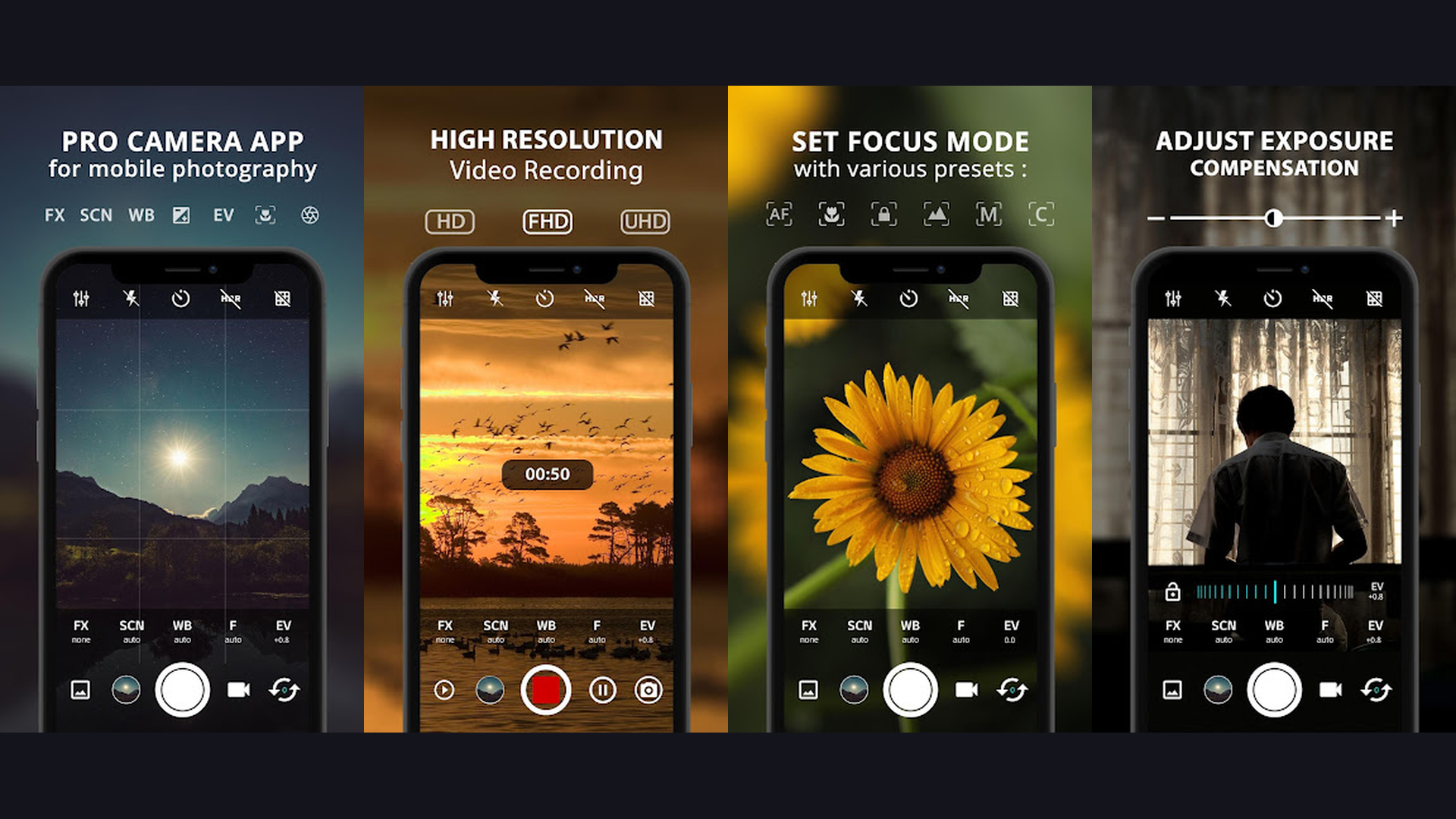
Pro Camera by Moment is a versatile professional camera app with manual video controls, Apple Log, ProRes support, and seamless integration with Moment anamorphic and telephoto lenses for cinematic mobile filmmaking. Built by Moment (known for premium mobile lenses), this app is optimized for their lens ecosystem while working excellently standalone. The video recording features include manual focus, exposure, ISO, shutter speed, and white balance controls with smooth on-screen adjustments. Apple Log captures extended dynamic range for maximum color grading flexibility. ProRes recording delivers broadcast-quality codec options. The lens integration is unique: attach a Moment Anamorphic lens and the app automatically applies the correct desqueeze ratio, showing you the final widescreen result in real-time. The tilt indicator helps keep shots level. The RGB histogram provides detailed color channel analysis. Multiple aspect ratio options include 16:9, 1:1, 9:16, and cinematic 2.39:1. The grid overlays help with composition (rule of thirds, golden ratio). Pro Camera by Moment is a one-time purchase (around $7.99). For Moment lens users and filmmakers who want clean manual controls with anamorphic lens support, this is the ideal companion app. Explore photo editing tools.
6. KineMaster (Rating 4.4)
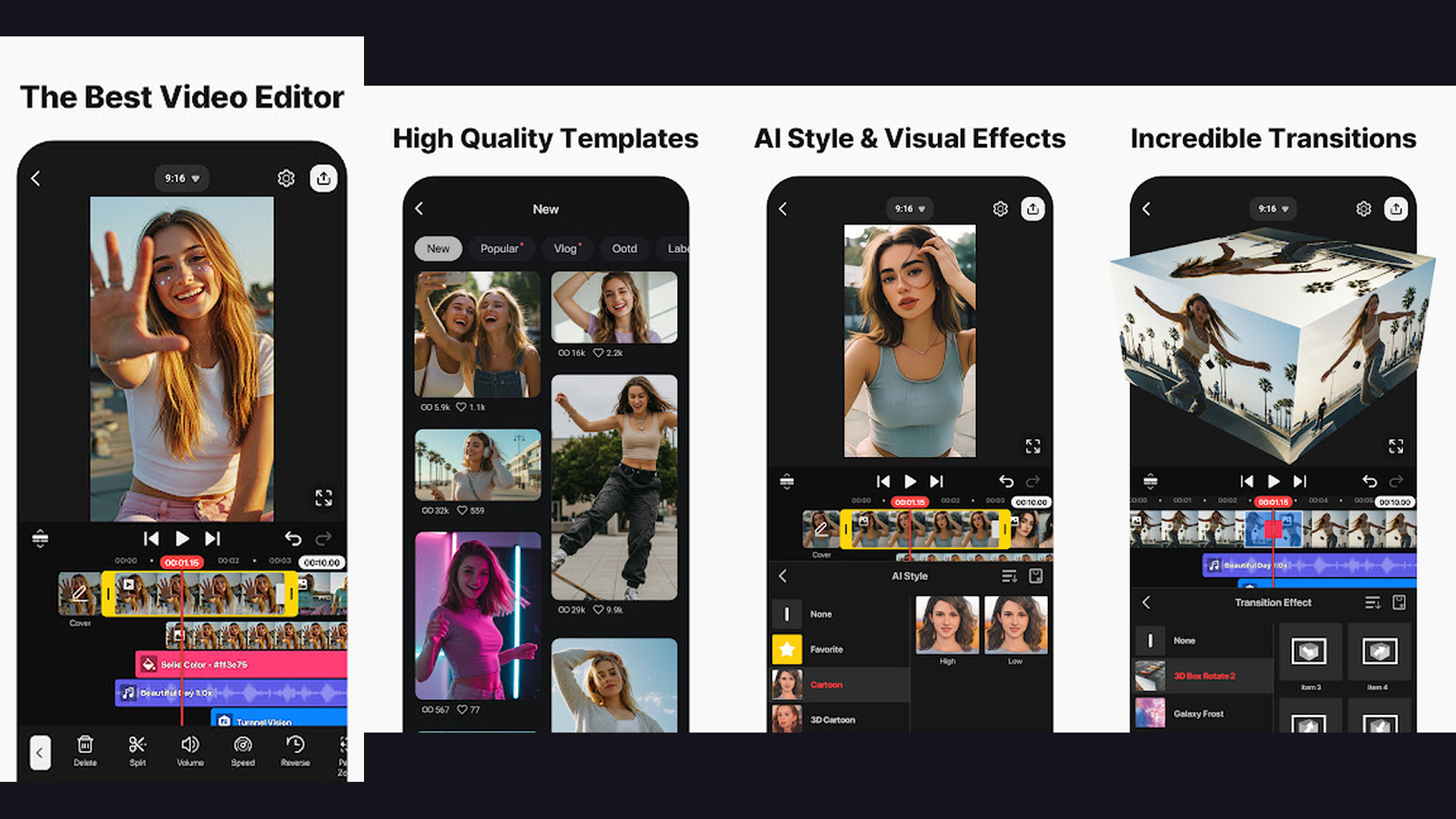
KineMaster is the most powerful mobile video editor with a built-in camera, offering multi-layer timeline editing, chroma key, motion tracking, keyframe animation, and professional effects for creating polished videos entirely on iPhone. While primarily a video editor, KineMaster includes a capable built-in camera for recording directly into your project timeline. The multi-layer timeline supports unlimited video, audio, image, text, and effect layers. The chroma key (green screen) removes backgrounds with precise controls for edge refinement. Motion tracking follows objects through the frame and attaches text or graphics. Keyframe animation controls position, scale, rotation, and opacity over time. The speed control offers 0.25x to 16x adjustment with smooth ramp transitions. The audio mixer provides individual track volume, panning, and envelope control. Built-in transitions, effects, and overlays number in the hundreds. The Asset Store provides additional effects, music, stickers, and fonts. Export options include 4K at 60fps. KineMaster is free with Premium from $4.99/month. For creators who need both recording and professional editing in one app, KineMaster offers the most complete mobile video production suite. Create content for content platforms.

7. Final Cut Camera (Rating 4.3)
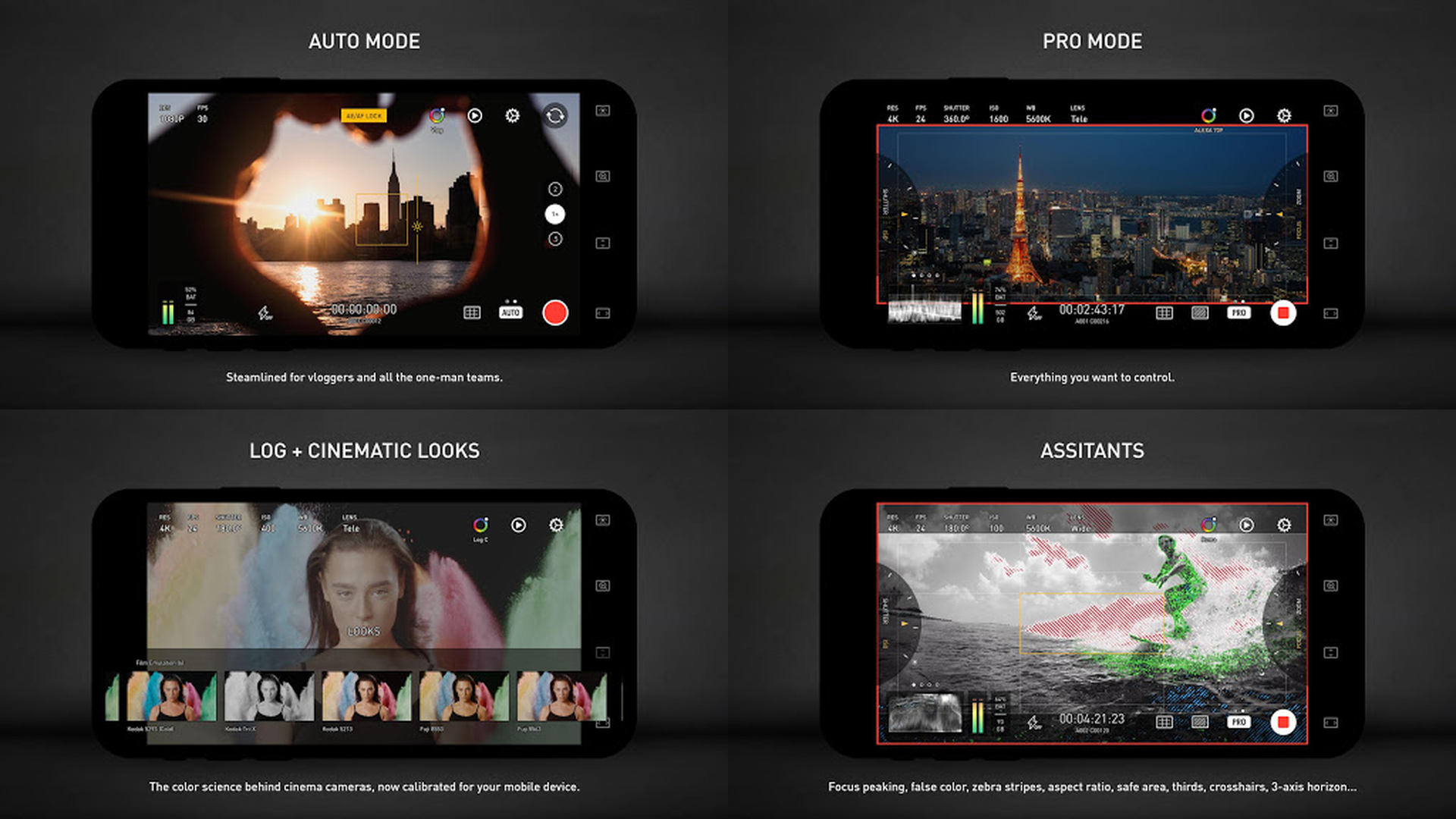
Final Cut Camera is Apple official professional camera app offering manual controls, ProRes recording, Apple Log, multi-cam live switching, and seamless integration with Final Cut Pro on iPad and Mac. As Apple own professional camera app, Final Cut Camera is built specifically for the Apple ecosystem. The multi-cam capability is its standout feature: connect up to four iPhones or iPads on the same Wi-Fi network and control them all from Final Cut Pro on iPad, with live switching between angles during recording. Manual controls cover focus, exposure, ISO, shutter speed, and white balance. ProRes recording captures broadcast-quality footage. Apple Log gamma curve preserves maximum dynamic range. The overexposure indicator warns when highlights are being clipped. The focus peaking overlay shows focus accuracy. The level indicator helps maintain straight horizons. Media capture settings allow customization of resolution, frame rate, and codec. Final Cut Camera is completely free. For Apple ecosystem users who edit with Final Cut Pro and need seamless multi-cam recording, this is the natural recording companion. Browse iPhone productivity apps.
8. FiLMiC Pro (Rating 4.2)
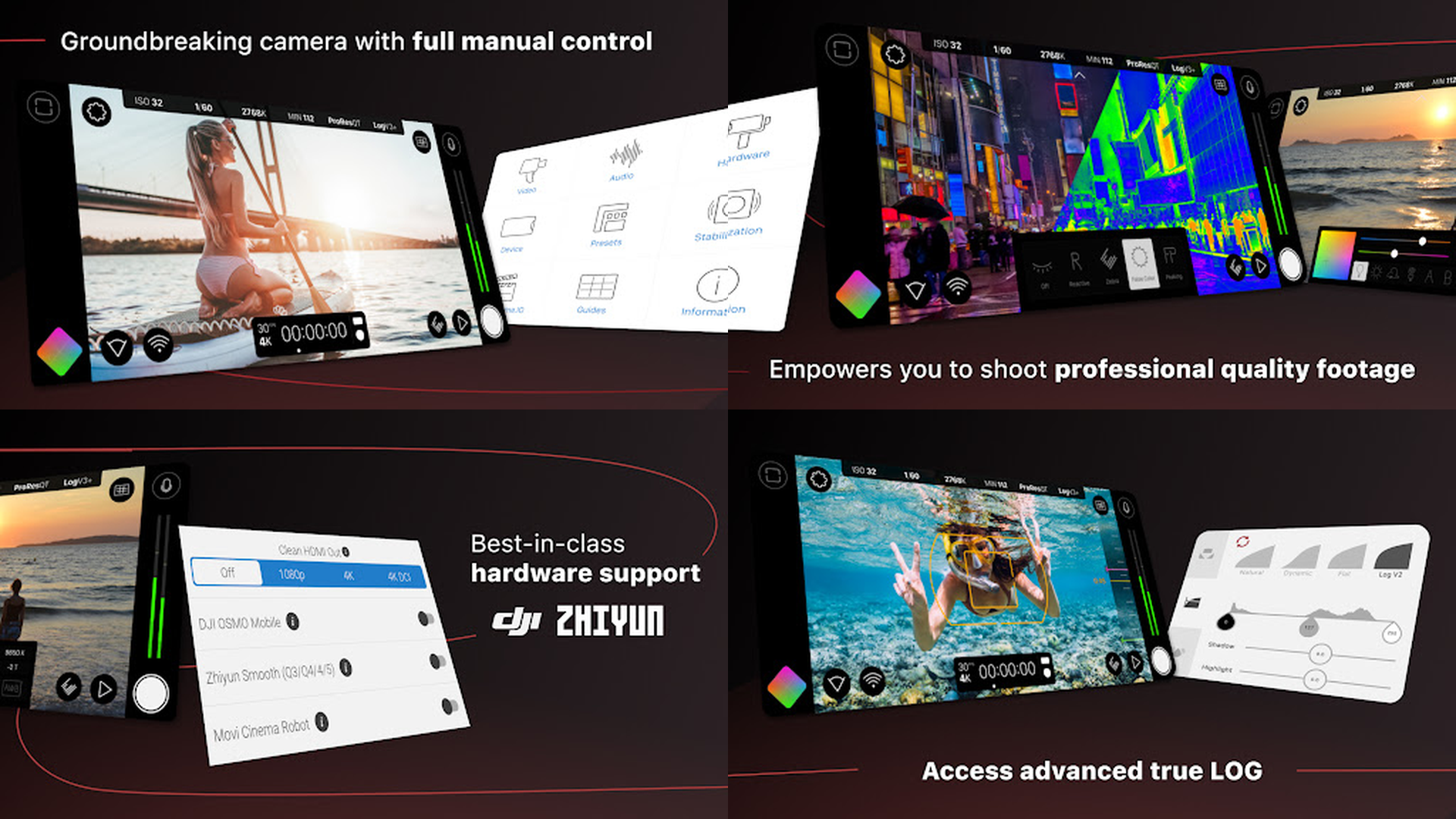
FiLMiC Pro was the original professional video camera app that pioneered mobile filmmaking, offering advanced manual controls, Log gamma curves, high frame rates up to 240fps, and cinematic features that have been used to shoot award-winning films. FiLMiC Pro holds a legendary status in mobile filmmaking. Multiple feature films and documentaries have been shot entirely on iPhones using this app, including the acclaimed Sundance film "Tangerine." The dual arc slider system provides simultaneous control over focus and exposure with intuitive drag gestures. The Pull Focus mode enables smooth rack focus transitions between subjects. Log V2 and V3 gamma curves capture flat, detail-rich footage optimized for color grading in post-production. Frame rates range from 1fps time-lapse to 240fps ultra slow motion. The audio monitoring includes live levels display, headphone monitoring, and external microphone selection. Resolution options span from 720p to full 4K. The analytics HUD displays focus distance, exposure values, white balance temperature, and recording stats. FiLMiC Pro requires a subscription ($49.99/year). For mobile filmmakers who value the pioneering cinema camera app, FiLMiC Pro offers proven filmmaking tools. Perfect for reel creation.
9. iMovie (Rating 4.0)
iMovie is Apple free built-in video editor with recording capabilities, offering Magic Movie automation, Storyboards guided creation, green screen, picture-in-picture, and Hollywood-style trailers for beginners and casual creators. iMovie is pre-installed on every iPhone and provides the easiest path from recording to finished video. The Magic Movie feature automatically assembles clips, photos, and music into a polished video with transitions and effects. Storyboards provide structured templates for common video types: product reviews, cooking tutorials, how-to guides, and travel vlogs. The green screen (chroma key) replaces backgrounds with images or other video. The picture-in-picture mode overlays a second video for reactions or commentary. The split-screen mode places two videos side by side. The trailer templates recreate Hollywood movie trailer styles with dramatic titles and music. The audio tools include voiceover recording, background music, and sound effects. Filters and color adjustments enhance the visual mood. Export directly to social media or save in 4K. iMovie is completely free. For iPhone users who want the easiest possible video creation experience with no learning curve, iMovie is the ideal starting point. Manage projects with planner apps.
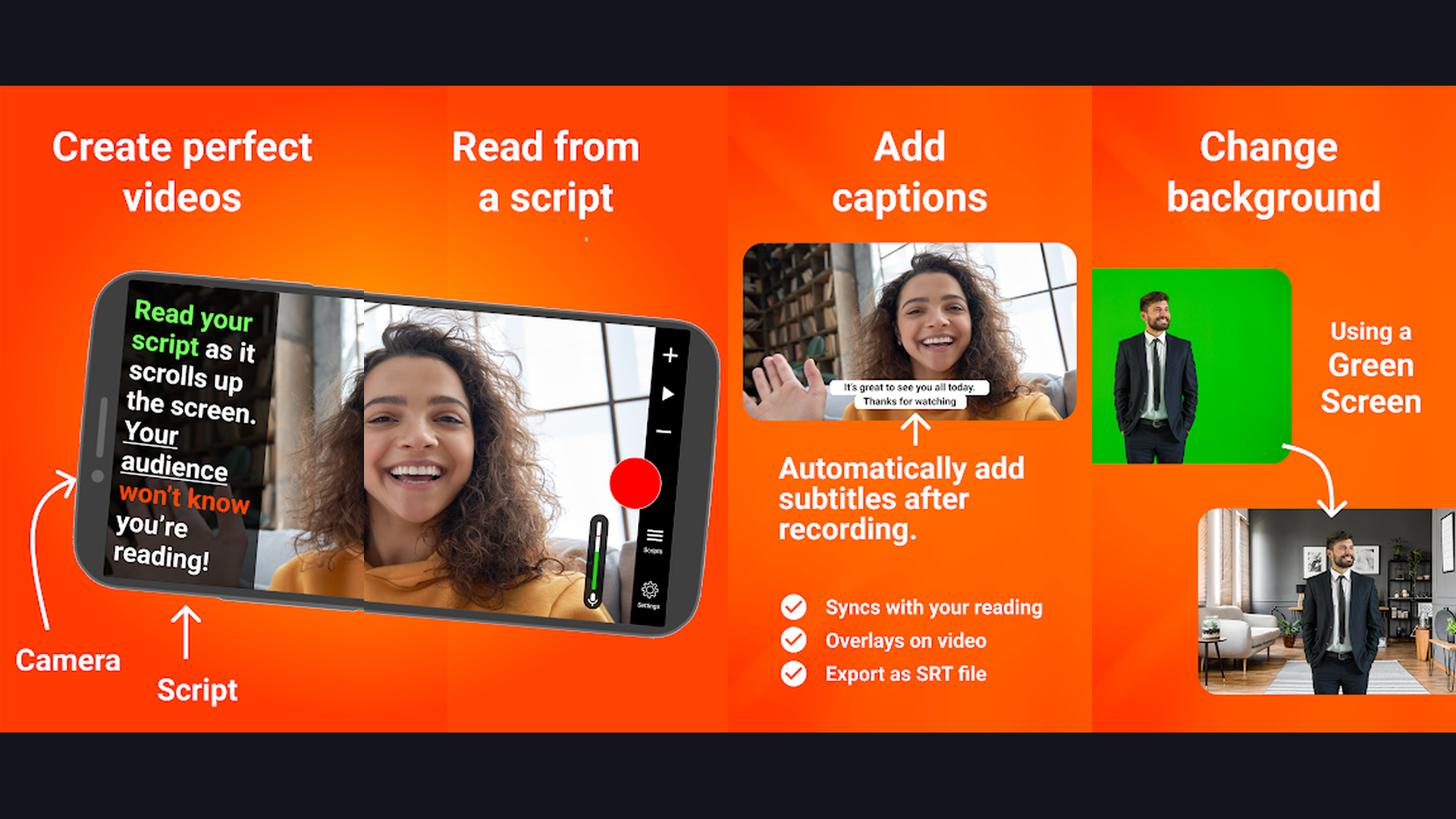
10. Teleprompter Premium (Rating 4.7)
Teleprompter Premium is a professional teleprompter app that scrolls your script while recording video simultaneously, with adjustable speed, mirrored text, remote control, and split-screen preview for polished presentations and YouTube videos. Teleprompter Premium solves a critical problem for video creators: reading a script naturally while looking at the camera. The scrolling text overlays on top of or beside the camera viewfinder, so you read your lines while maintaining eye contact. The scroll speed adjusts in real-time with touch or remote control. The text size, color, and opacity are fully customizable. The mirror mode flips text for use with physical teleprompter beam splitters. The Bluetooth remote compatibility lets you control playback hands-free. Import scripts from text files, clipboard, or type directly. The recording mode captures video while teleprompter scrolls simultaneously. The countdown timer gives you preparation time before recording starts. The practice mode lets you rehearse without recording. Split-screen shows script and camera preview side by side. Teleprompter Premium is a one-time purchase (around $14.99). For YouTubers, presenters, and educators who need to deliver scripted content with natural eye contact, this is an essential recording companion. Great for content creation.
11. CapCut (Rating 4.0)
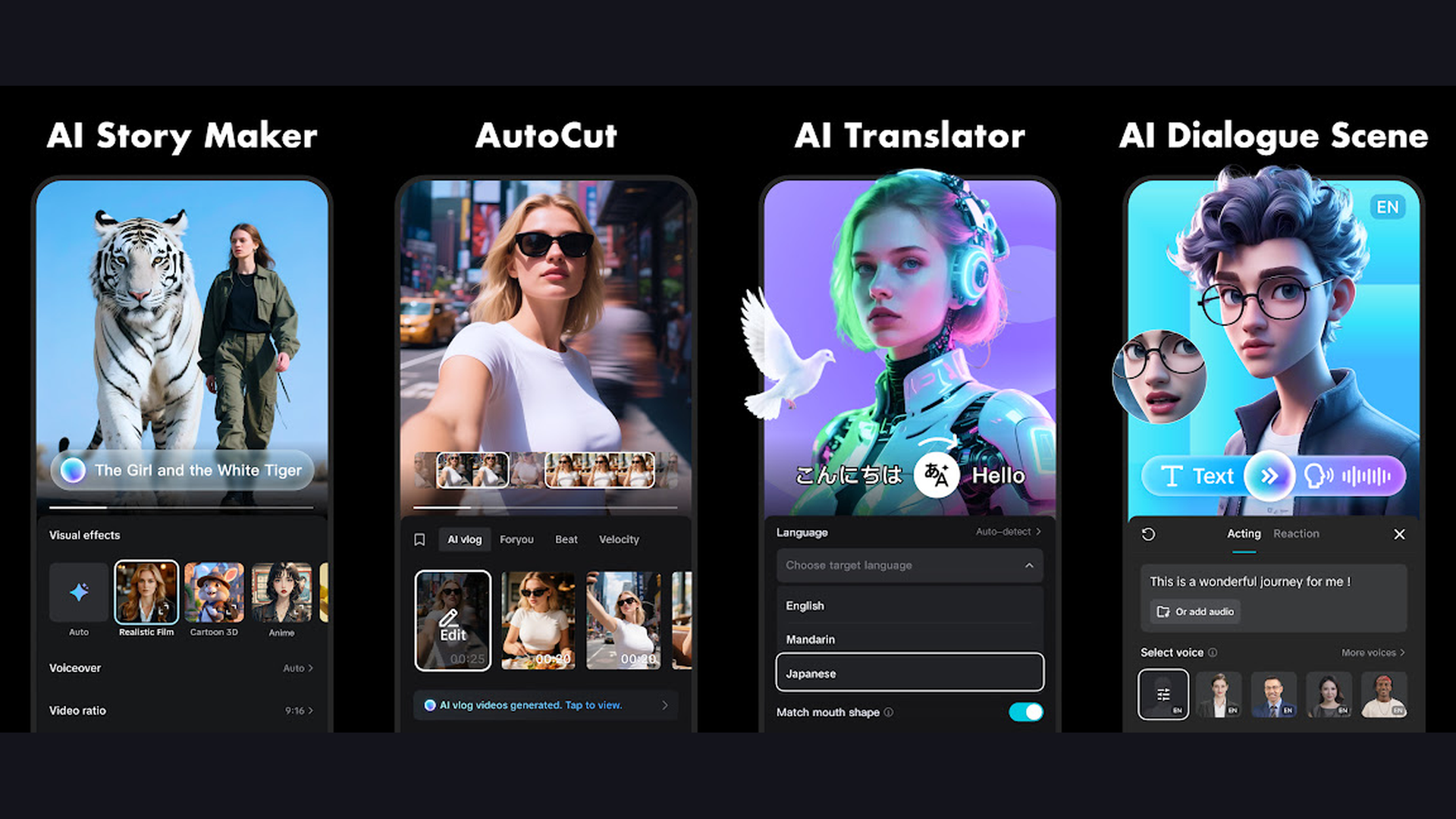
CapCut is the most popular free video editor with built-in camera features, offering AI-powered editing, auto captions, trending effects, music library, green screen, and seamless TikTok integration for social media creators. Made by ByteDance (TikTok parent company), CapCut dominates social media video creation. The built-in camera captures video with real-time filters and effects. The AI auto-caption feature transcribes speech and generates styled subtitles automatically. The AI background removal cuts out subjects without a green screen. The body retouch feature smooths skin and adjusts proportions. The massive effects library stays current with TikTok trends. The royalty-free music library provides thousands of tracks organized by mood and genre. The keyframe animation system enables advanced motion graphics. The speed ramp tool creates smooth transitions between normal and slow-motion speeds. The text templates provide animated titles and lower thirds. Direct export to TikTok, Instagram, and YouTube in optimal formats. CapCut is completely free with Pro from $7.99/month. For TikTok and social media creators who want trending effects and AI-powered editing with camera features, CapCut is the essential app. Discover more video creation tools.
12. Hyperlapse from Instagram (Rating 4.0)
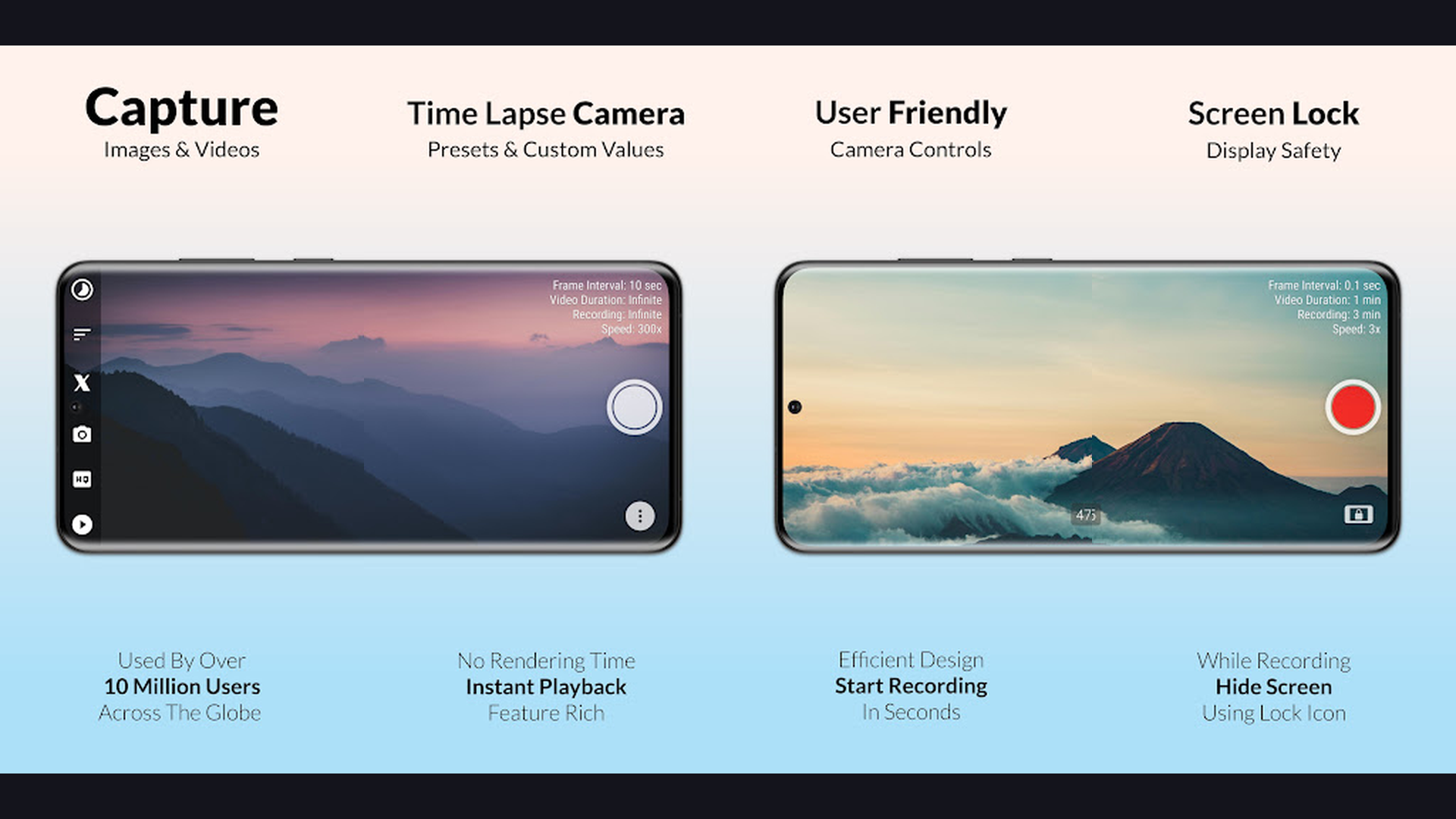
Hyperlapse from Instagram is a specialized time-lapse video app with built-in stabilization technology that produces incredibly smooth accelerated videos from handheld footage, no tripod required. Hyperlapse solves the biggest problem with time-lapse video: camera shake. Traditional time-lapse requires a tripod because even tiny movements become dramatic jerks when footage is accelerated. Hyperlapse uses Instagram proprietary Cinema stabilization technology to smooth handheld footage so effectively that you can walk, ride, or even run while recording a time-lapse. The speed adjustment lets you accelerate video from 1x to 12x normal speed. At 6x, a 30-minute walk becomes a 5-minute stabilized journey video. At 12x, an hour of footage compresses to 5 minutes. The simplicity is deliberate: just point, record, choose your speed, and share. No complicated settings, no manual controls, no learning curve. The stabilization works retroactively on the entire recording. The results are remarkably smooth even from moving vehicles and bicycles. Hyperlapse is completely free. For anyone who wants to create smooth time-lapse videos without a tripod or complicated settings, Hyperlapse is the simplest and most effective solution. Explore more mobile experiences.
Which Video Recording App Is Right for You?
Best for Professional Filmmaking
- Blackmagic Camera - Cinema-grade controls, ProRes, Apple Log, multi-cam (FREE)
- FiLMiC Pro - Pioneering cinema camera app with proven filmmaking pedigree
- Cinema P3 - Best color science with P3 wide gamut and false color
Best Free Options
- Blackmagic Camera - Best free professional camera with ProRes and Log
- Final Cut Camera - Apple free camera with multi-cam and Final Cut Pro integration
- iMovie - Easiest path from recording to finished video
- Hyperlapse - Best free stabilized time-lapse recording
Best for YouTube and Content Creation
- Teleprompter Premium - Script reading while recording with eye contact
- KineMaster - Record and edit in one app with multi-layer timeline
- CapCut - AI captions, trending effects, and TikTok integration
Best for High Frame Rate and Slow Motion
- ProMovie Recorder - 4K at 120fps and 1080p at 240fps
- FiLMiC Pro - Up to 240fps with Log recording
Best for Photography and Video Hybrid
- ProCamera - Premium app for both photos and video
- Pro Camera by Moment - Excellent with Moment lens ecosystem
Best for Time-Lapse
- Hyperlapse - Stabilized time-lapse without a tripod
- ProCamera - Time-lapse mode with manual controls
Best for Social Media
- CapCut - TikTok-optimized with trending effects and AI captions
- KineMaster - Professional editing with social media export presets
iPhone Video Recording Tips and Techniques
- Lock Exposure and Focus Before Recording - The biggest mistake in iPhone video is letting auto-exposure and autofocus hunt during recording. In professional camera apps like Blackmagic Camera or ProMovie Recorder, set your exposure and focus manually before hitting record. In the native Camera app, tap and hold to lock AE/AF. Locked exposure prevents the brightness from shifting when someone walks past a window. Locked focus prevents the distracting focus hunting that makes amateur video immediately identifiable. This single tip will transform your video quality.
- Use the 180-Degree Shutter Rule - For natural-looking motion blur in video, set your shutter speed to double your frame rate. Recording at 24fps? Set shutter speed to 1/48 or 1/50. Recording at 30fps? Use 1/60. Recording at 60fps? Use 1/120. This creates the same motion blur ratio that cinema cameras have used for decades. In bright outdoor conditions, you will need an ND filter (Moment, PolarPro, or Freewell make excellent iPhone ND filters) to achieve the correct shutter speed without overexposing the image. Apps like Blackmagic Camera and FiLMiC Pro display shutter angle (180 degrees) which automatically calculates this for you.
- Record in Apple Log for Maximum Flexibility - If you plan to color grade in post-production, record in Apple Log (available in Blackmagic Camera, Final Cut Camera, Pro Camera by Moment, and FiLMiC Pro). Log footage looks flat and desaturated straight out of the camera, but it preserves maximum dynamic range in highlights and shadows. In post-production using DaVinci Resolve, Final Cut Pro, or LumaFusion, apply a Log-to-Rec.709 LUT as a starting point, then fine-tune the grade. The difference in recoverable detail between Log and standard recording is dramatic, especially in high-contrast scenes with bright skies and deep shadows. Learn editing with editing apps.
- Invest in Audio Quality - Audio quality separates professional video from amateur content more than visual quality does. Viewers will tolerate imperfect visuals, but they immediately click away from poor audio. Get a lavalier microphone (Rode Wireless GO or DJI Mic) for interviews and presentations. Use a shotgun microphone for vlogging. In the recording app, monitor audio levels using the built-in meters (available in Blackmagic Camera, ProMovie, and FiLMiC Pro). Aim for audio peaks between -12dB and -6dB. The Teleprompter Premium app is also excellent for ensuring clean spoken delivery with minimal retakes.
- Stabilize Your Footage - Shaky handheld footage is the fastest way to make video look unprofessional. For the best results, use a gimbal like the DJI OM series or the Insta360 Flow. For budget-friendly stabilization, press your elbows against your body and move smoothly. Walk heel-to-toe for moving shots. In post-production, use the warp stabilizer in editing software. For time-lapse walking shots, Hyperlapse built-in stabilization produces remarkably smooth results without any additional hardware. Many mobile experiences benefit from stable footage.
- Master the Multi-Camera Setup - Both Blackmagic Camera and Final Cut Camera support multi-cam recording using multiple iPhones on the same Wi-Fi network. Position one phone for a wide shot and another for a close-up. Control both from a single device. Cut between angles in editing. This transforms talking-head content (interviews, tutorials, podcasts) from static and boring to dynamic and engaging. The cost of a used iPhone as a dedicated second camera is often less than renting a traditional camera for a single day.
- Use Cinematic Frame Rates Intentionally - Different frame rates create different emotional impacts. 24fps produces the classic cinema look with gentle motion blur, perfect for narrative storytelling and cinematic vlogs. 30fps is the standard for broadcast and web content with slightly smoother motion. 60fps creates ultra-smooth footage ideal for sports, fast action, and footage you plan to slow down to 50% in a 30fps timeline. 120fps and 240fps (available in ProMovie and other apps) create dramatic slow-motion effects. Choose your frame rate based on the emotion and purpose of your content, not just what looks smoothest.
- Always Record a Test Clip First - Before any important recording session, shoot a 10-second test clip and review it immediately. Check exposure, focus, framing, audio levels, and background noise. Verify the correct codec and resolution are selected. Ensure you have sufficient storage space (4K ProRes consumes approximately 6GB per minute). This 30-second habit prevents the heartbreak of discovering problems after an unrepeatable moment has passed. Check storage with phone management tools.
Frequently Asked Questions
What is the best free video recording app for iPhone?
Blackmagic Camera is the best free professional video recording app for iPhone, offering cinema-grade features including ProRes recording, Apple Log, manual controls, focus peaking, zebra stripes, LUT support, and multi-camera control, all completely free with no in-app purchases. Final Cut Camera is the second-best free option, with Apple Log, ProRes, and unique multi-cam live switching with Final Cut Pro. iMovie provides the easiest free recording and editing experience for beginners. Hyperlapse is the best free tool specifically for stabilized time-lapse videos.
Which iPhone video app is best for YouTube?
For YouTube content creation, the best combination is Teleprompter Premium for recording scripted content with natural eye contact, plus either Blackmagic Camera for maximum quality or CapCut for built-in editing and auto-captions. KineMaster is ideal for creators who want to record and edit in a single app. The choice depends on your content type: scripted educational content benefits from a teleprompter, vlogs benefit from stabilized handheld recording with Blackmagic Camera, and short-form content works best with CapCut quick editing and effects.
Should I record in ProRes or HEVC?
ProRes produces the highest quality footage with minimal compression artifacts, ideal for professional productions, color grading, and projects with extensive post-production editing. However, ProRes files are massive: approximately 6GB per minute for 4K ProRes 422 HQ. HEVC (H.265) compresses footage significantly while maintaining good visual quality, producing files roughly 10-20x smaller than ProRes. For social media content, YouTube videos, and projects with minimal color grading, HEVC provides excellent quality with manageable file sizes. Choose ProRes only when you need maximum quality and have sufficient storage and a professional editing workflow.
Can iPhone replace a professional camera for filmmaking?
In 2026, iPhone cameras with apps like Blackmagic Camera and FiLMiC Pro can produce footage that rivals dedicated cinema cameras in many scenarios. The iPhone 15 Pro and 16 Pro support ProRes, Apple Log, 4K at 120fps, and Cinematic Mode with depth-of-field control. Multiple feature films have been shot entirely on iPhone. However, limitations exist: the small sensor produces more noise in low light, depth-of-field control is limited compared to full-frame cameras, and sustained recording generates heat. iPhone excels for documentaries, short films, social media content, and B-roll. For controlled studio environments or extreme low-light conditions, dedicated cameras still hold advantages.
What accessories do I need for professional iPhone video?
Essential accessories for serious iPhone video include: a gimbal stabilizer (DJI OM 7 or Insta360 Flow), a wireless microphone system (Rode Wireless GO II or DJI Mic), an ND filter set for outdoor shooting with proper shutter speed (Freewell or PolarPro), a cage or grip with cold shoe mounts (SmallRig or Moment), and a portable LED light panel for indoor shooting. For the most cinematic results, add Moment anamorphic or telephoto lenses. A portable SSD (Samsung T7) provides expanded storage for ProRes recording. Budget around $200-500 for a complete professional iPhone video kit.
How much storage do I need for 4K video on iPhone?
Storage requirements vary dramatically by codec. HEVC (standard recording) uses approximately 400MB per minute of 4K 30fps video. Apple ProRes 422 uses approximately 6GB per minute of 4K 30fps video, which is 15x more. At 4K 60fps in ProRes, expect roughly 12GB per minute. A typical 10-minute recording session in ProRes 4K consumes 60-120GB. For HEVC recording, the 128GB iPhone provides comfortable storage for daily use. For ProRes recording, the 256GB or 512GB iPhone is recommended, along with an external SSD for offloading footage between sessions. Both Blackmagic Camera and Final Cut Camera support recording to external storage on supported iPhone models.
Final Thoughts
iPhone video recording in 2026 offers capabilities that would have required thousands of dollars in camera equipment just a few years ago. Blackmagic Camera leads as the best free professional option with cinema-grade features. ProMovie Recorder and ProCamera deliver premium manual controls. Cinema P3 offers the most advanced color science. Pro Camera by Moment pairs perfectly with anamorphic lenses. KineMaster provides the most complete record-and-edit solution. Final Cut Camera integrates seamlessly with the Apple ecosystem. FiLMiC Pro brought mobile cinema to the mainstream. iMovie remains the easiest starting point. Teleprompter Premium is essential for scripted content. CapCut dominates social media creation. Hyperlapse delivers effortless time-lapse magic. Whatever your video production needs, there is an iPhone app that elevates your footage from casual to cinematic. For more app recommendations, explore our guides on reels making apps, photo editing apps, planner apps, and student apps.