
Mac users have access to some of the best note-taking apps available on any platform. Whether you need a simple capture tool, a full knowledge management system, a beautiful writing environment, or a handwriting-first digital notebook, the right note-taking app transforms how you organize thoughts, manage projects, and build your personal knowledge base on macOS.
This guide reviews 12 of the best note-taking apps for Mac in 2026, covering all-in-one workspaces, Markdown editors, handwriting apps, writing tools, open-source alternatives, and deep Apple ecosystem integrations. We evaluate each app specifically for the Mac experience, considering native performance, macOS features, and how well it leverages Apple hardware. For more productivity tools, explore our guides on digital planner apps, graduate student apps, language learning apps, and content creation apps.
Table of Contents
- Notion (Rating 4.6)
- Microsoft OneNote (Rating 4.6)
- Bear (Rating 4.6)
- Craft (Rating 4.5)
- GoodNotes (Rating 4.5)
- Notability (Rating 4.5)
- Apple Notes (Rating 4.1)
- Obsidian (Rating 4.0)
- Ulysses (Rating 4.0)
- NotePlan (Rating 4.0)
- Joplin (Rating 3.9)
- Evernote (Rating 3.6)
- Which Note App Is Right for You?
- Mac Note-Taking Tips
- Frequently Asked Questions
1. Notion (Rating 4.6)
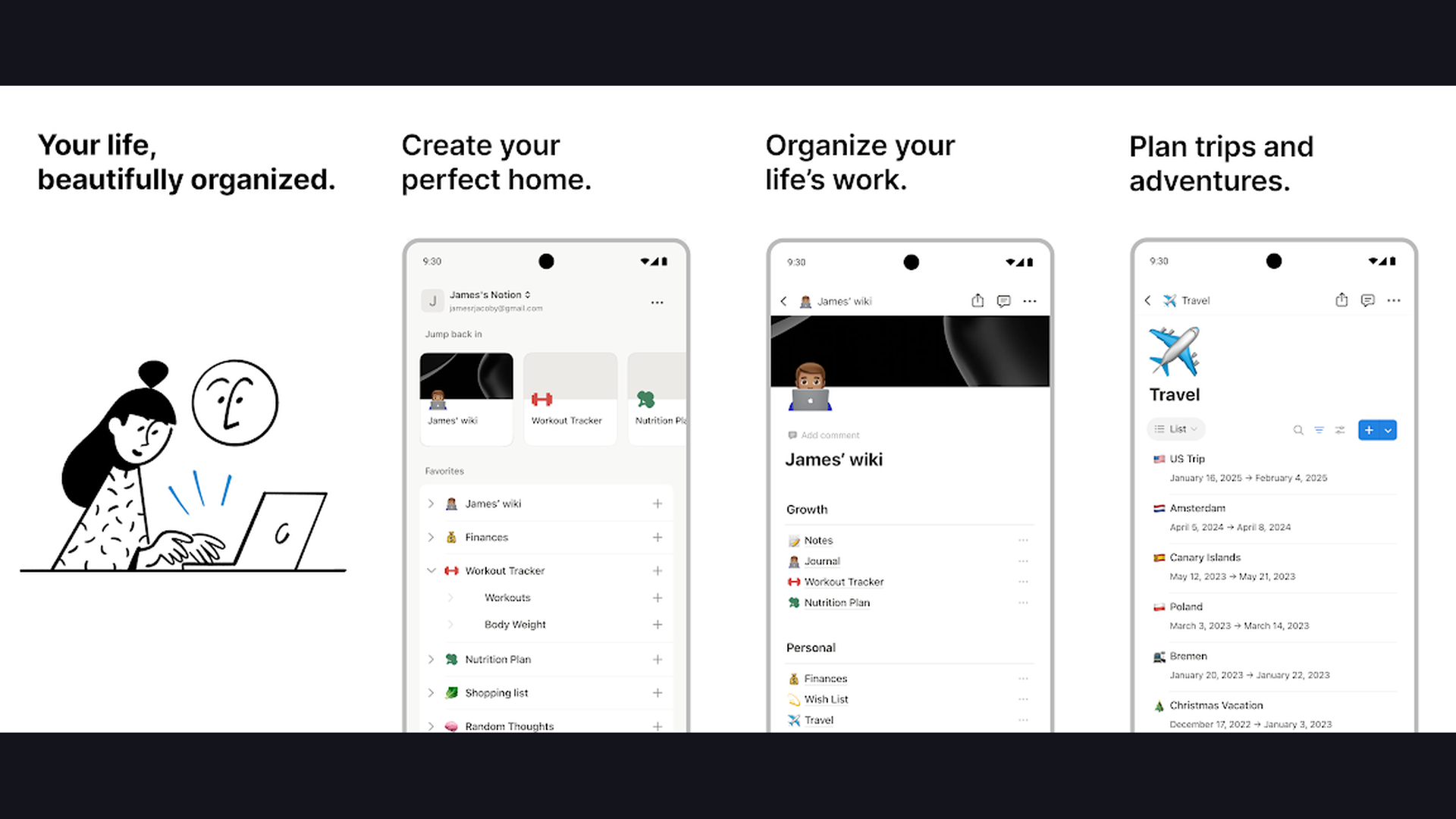
Notion is the most versatile all-in-one workspace for Mac, combining notes, databases, tasks, wikis, and AI writing into a single powerful platform. Notion is far more than a note-taking app; it is a complete productivity system. On Mac, the native app delivers a smooth, fast experience with full keyboard shortcut support and Command+K quick navigation. Create notes with rich text, code blocks, mathematical equations, and embedded media. Build interconnected databases that function as spreadsheets, kanban boards, timelines, or galleries. The block-based editor lets you drag and rearrange content intuitively. Notion AI assists with writing, summarizing, translating, and brainstorming directly within your notes. Templates cover everything from meeting notes to project management to personal journals. The relational databases let you link information across pages, creating a connected knowledge system. Real-time collaboration supports simultaneous editing with teammates. The web clipper saves articles and content from Safari or Chrome. Notion is free for personal use, Plus from $10/month. For Mac users who want a single app that replaces separate tools for notes, tasks, databases, and project management, Notion is unmatched in flexibility. Explore more planning tools.


2. Microsoft OneNote (Rating 4.6)
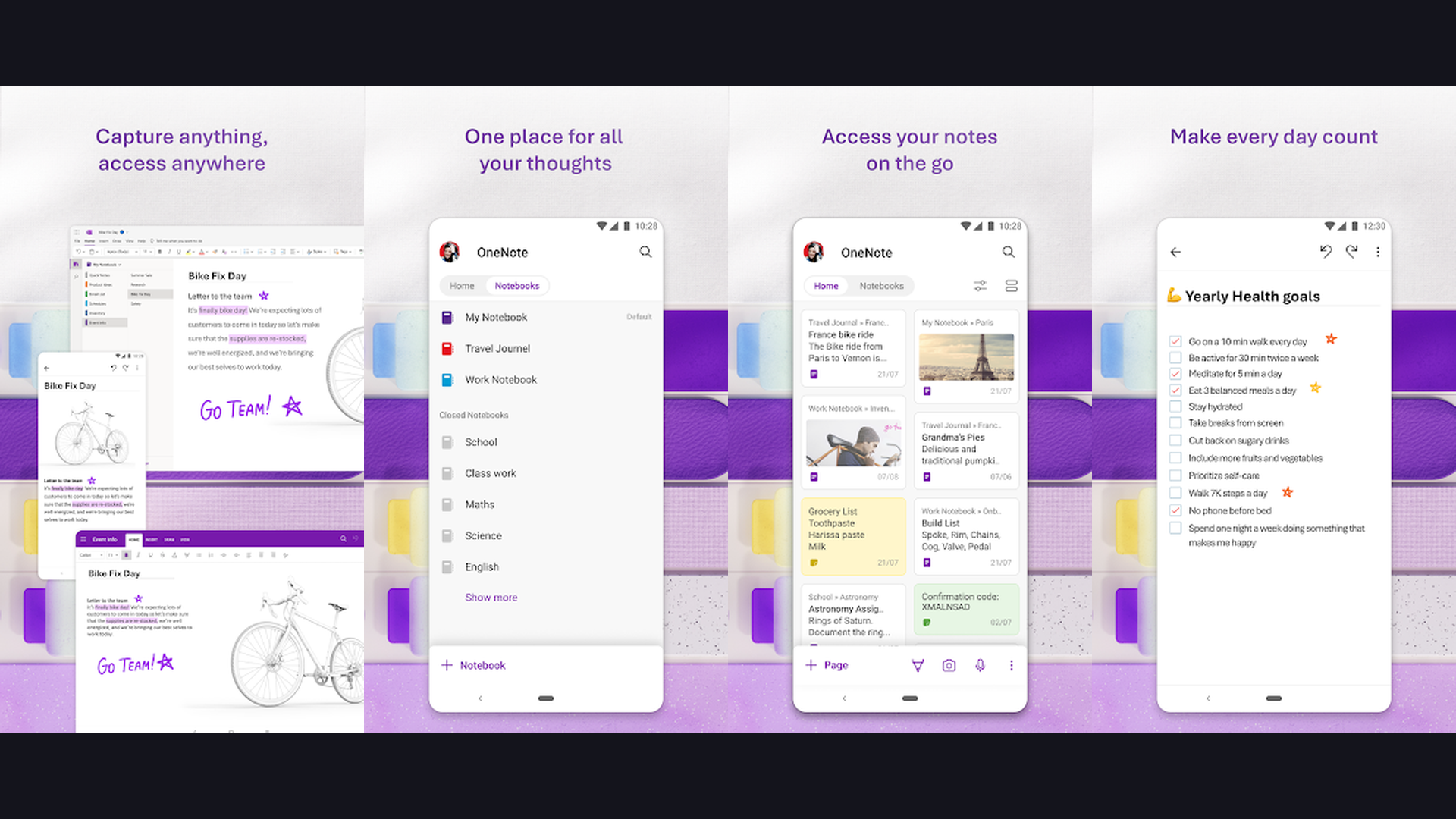
Microsoft OneNote is a free, cross-platform note-taking powerhouse with an infinite canvas, handwriting support, and deep integration with the Microsoft 365 ecosystem. OneNote on Mac provides a familiar notebook-style organization with sections and pages that mirrors how physical notebooks work. The infinite canvas lets you type, write, and draw anywhere on the page without the constraints of a linear document. Handwriting recognition converts Apple Pencil or trackpad input into searchable text. The OCR technology makes text in images and PDFs searchable. Audio recording with synced notes means you can record a lecture or meeting while typing notes, and clicking any note jumps to that exact moment in the recording. Integration with Microsoft 365 means emails from Outlook, tasks from To Do, and files from OneDrive connect seamlessly. Real-time co-authoring lets multiple people edit the same notebook simultaneously. The Mac app supports dark mode and runs natively on Apple Silicon for optimal performance. OneNote is completely free. For Mac users in Microsoft 365 environments who want a free, feature-rich digital notebook, OneNote is the obvious choice.
3. Bear (Rating 4.6)
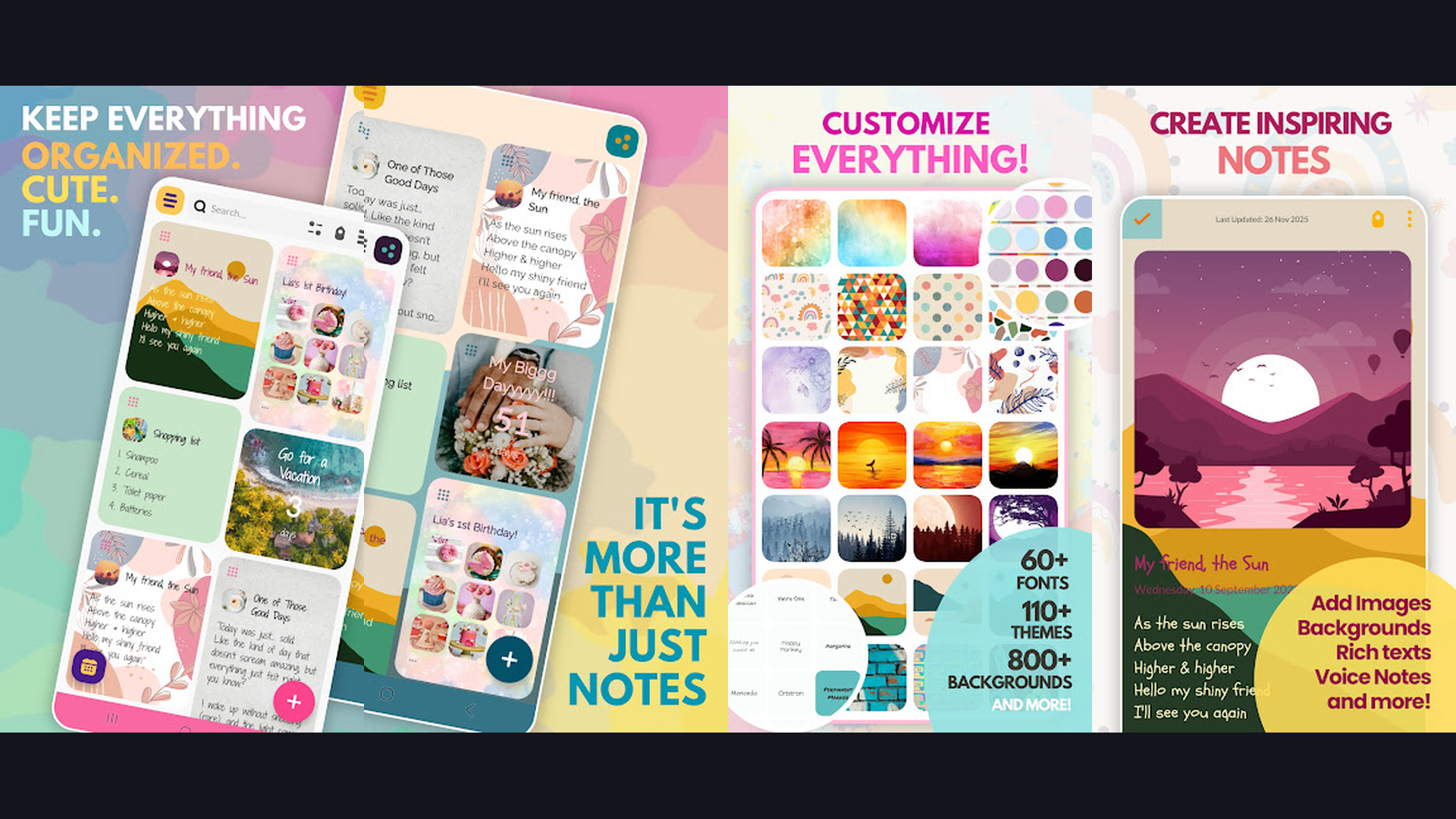
Bear is a beautifully designed, Apple-native Markdown note-taking app that prioritizes clean writing with a tag-based organization system and gorgeous typography. Bear is built exclusively for Apple platforms (Mac, iPhone, iPad), and it shows. The Mac app feels perfectly at home in macOS with native performance, system-wide Quick Note integration, and a design aesthetic that matches Apple own apps. Bear uses Markdown for formatting, but renders it inline so headings, bold text, links, and code appear formatted as you type. The tag-based organization system (using hashtags within notes) is brilliant: it creates a flexible, non-hierarchical organization that lets notes belong to multiple categories simultaneously. The editor themes range from light to dark to solarized, and the typography options are exceptional. Bear supports tables, task lists, code syntax highlighting, and mathematical notation. The Focus Mode hides the sidebar for distraction-free writing. iCloud sync ensures notes are identical across all your Apple devices instantly. Bear is free with Bear Pro from $2.99/month. For Mac users who value beautiful design, clean Markdown writing, and native Apple performance, Bear is the most elegant note-taking experience available. Pair with language apps for multilingual notes.
4. Craft (Rating 4.5)
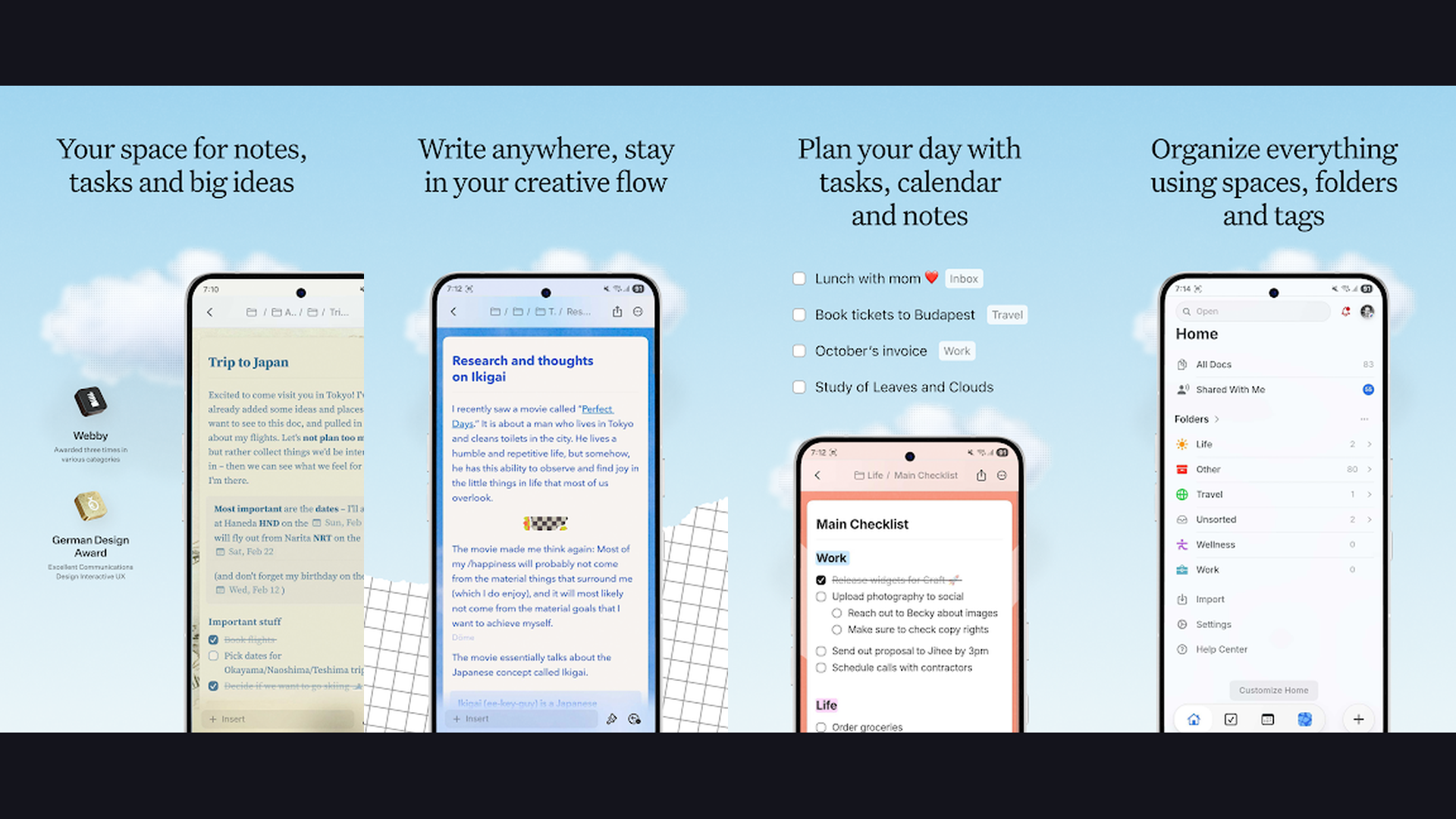
Craft is a stunning block-based document and note-taking app designed natively for Apple platforms, with real-time collaboration, AI writing assistance, and visually polished output. Craft stands out with its exceptionally beautiful interface. Every note and document created in Craft looks publication-ready without any extra effort. The block-based editor supports text, images, code, toggles, and nested pages with smooth drag-and-drop rearrangement. Document sharing creates gorgeous web pages with a single click, perfect for sharing meeting notes, proposals, or documentation. Craft AI assistant helps with writing, editing, summarizing, and generating content. The Daily Notes feature provides a structured journal for daily thoughts and tasks. The backlinks and mentions system connects related notes into a knowledge graph. The Apple ecosystem integration is deep: Siri Shortcuts, Spotlight search, Share Sheet, and widgets. The Mac app runs natively on Apple Silicon and supports Split View, Stage Manager, Quick Note, and Focus modes. Craft is free for personal use, Pro from $5/month. For Mac users who want visually stunning notes with native Apple design and easy sharing, Craft creates the most beautiful documents of any note app.
5. GoodNotes (Rating 4.5)
GoodNotes is the leading handwriting note-taking app for Mac and iPad, turning your Apple Pencil handwriting into searchable, organized digital notebooks with AI-powered features. GoodNotes excels at bridging the gap between handwriting and digital notes. On Mac with iPad Sidecar, you can write with Apple Pencil on your iPad while the notes appear on your Mac screen. The handwriting recognition AI converts your writing into searchable text, so you can find handwritten notes by typing keywords. The AI Summarize feature condenses lengthy handwritten notes into key points. The shape recognition tool turns rough sketches into clean geometric shapes. Import and annotate PDFs, lecture slides, and documents with highlighting, underlining, and margin notes. The notebook templates include ruled, grid, dotted, and specialty templates for music, Cornell notes, and planners. The Collaboration feature lets multiple people annotate the same document in real time. GoodNotes universal app runs natively on Mac, iPad, and iPhone with iCloud sync. GoodNotes is free (limited notebooks) or full version one-time purchase $9.99. For Mac users who prefer handwriting and need to annotate PDFs and documents, GoodNotes is the definitive choice. Track study progress with graduate student apps.
6. Notability (Rating 4.5)
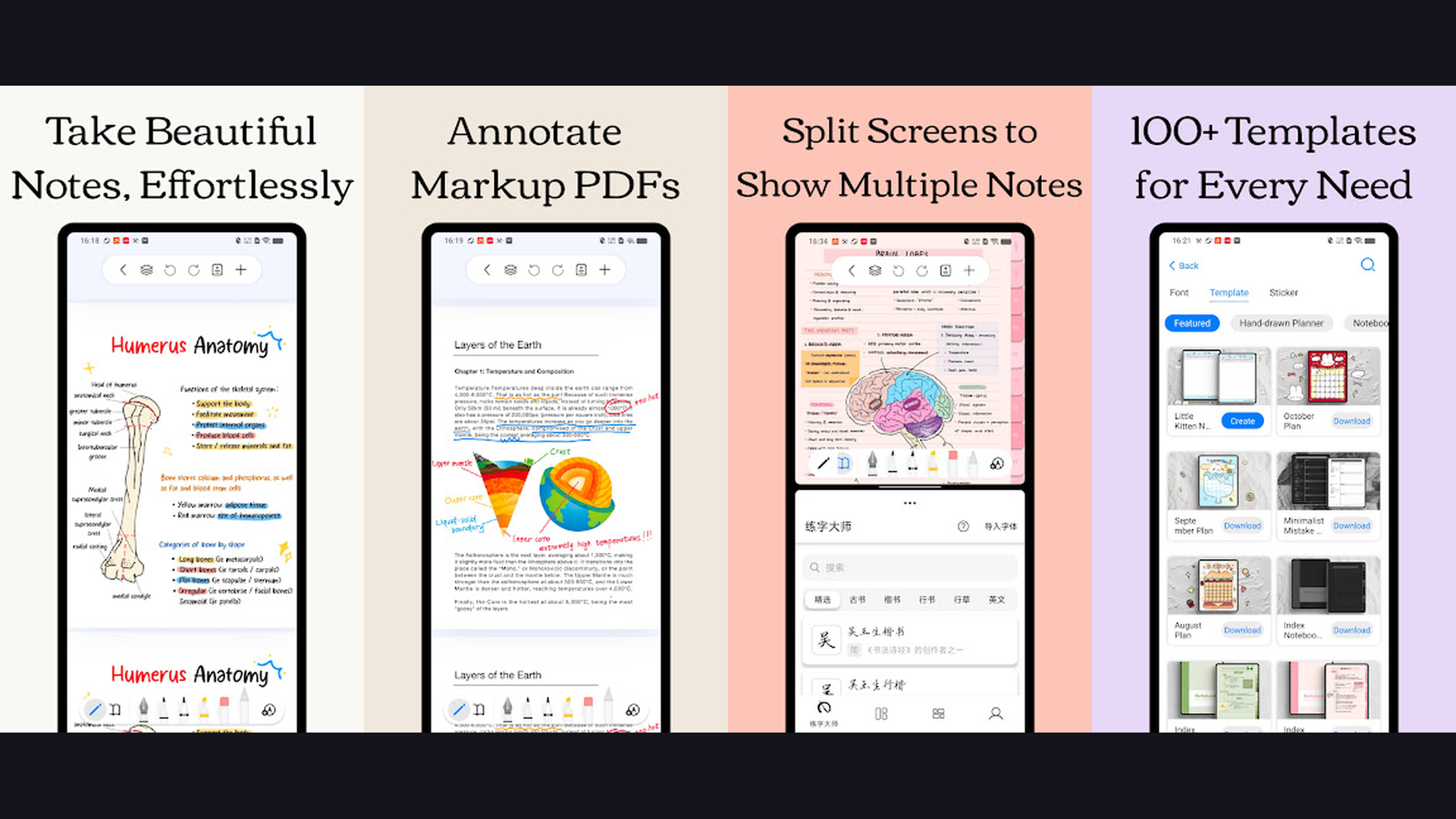
Notability is a powerful note-taking app that uniquely combines handwriting, typing, audio recording, and AI study features, making it ideal for Mac students and professionals who attend lectures and meetings. Notability signature feature is synchronized audio recording: record a lecture or meeting while taking handwritten or typed notes, and later tap any note to hear exactly what was being said at that moment. This audio-visual syncing is revolutionary for students and meeting-heavy professionals. The AI study features are new in 2025-2026: the AI generates personalized quizzes from your notes, creates summaries of lengthy content, and identifies key concepts for review. The Multi-Note feature lets you view and edit two notes side by side. The Math Conversion feature converts handwritten equations into typed mathematical notation. Import and annotate PDFs, PowerPoints, and images. The Sticker system adds visual markers and organization. The iCloud sync keeps notes identical across Mac, iPad, and iPhone. Notability is free (limited) or full subscription $14.99/year. For Mac users who need audio-synced note-taking with handwriting and AI study features, Notability uniquely combines these capabilities.
7. Apple Notes (Rating 4.1)
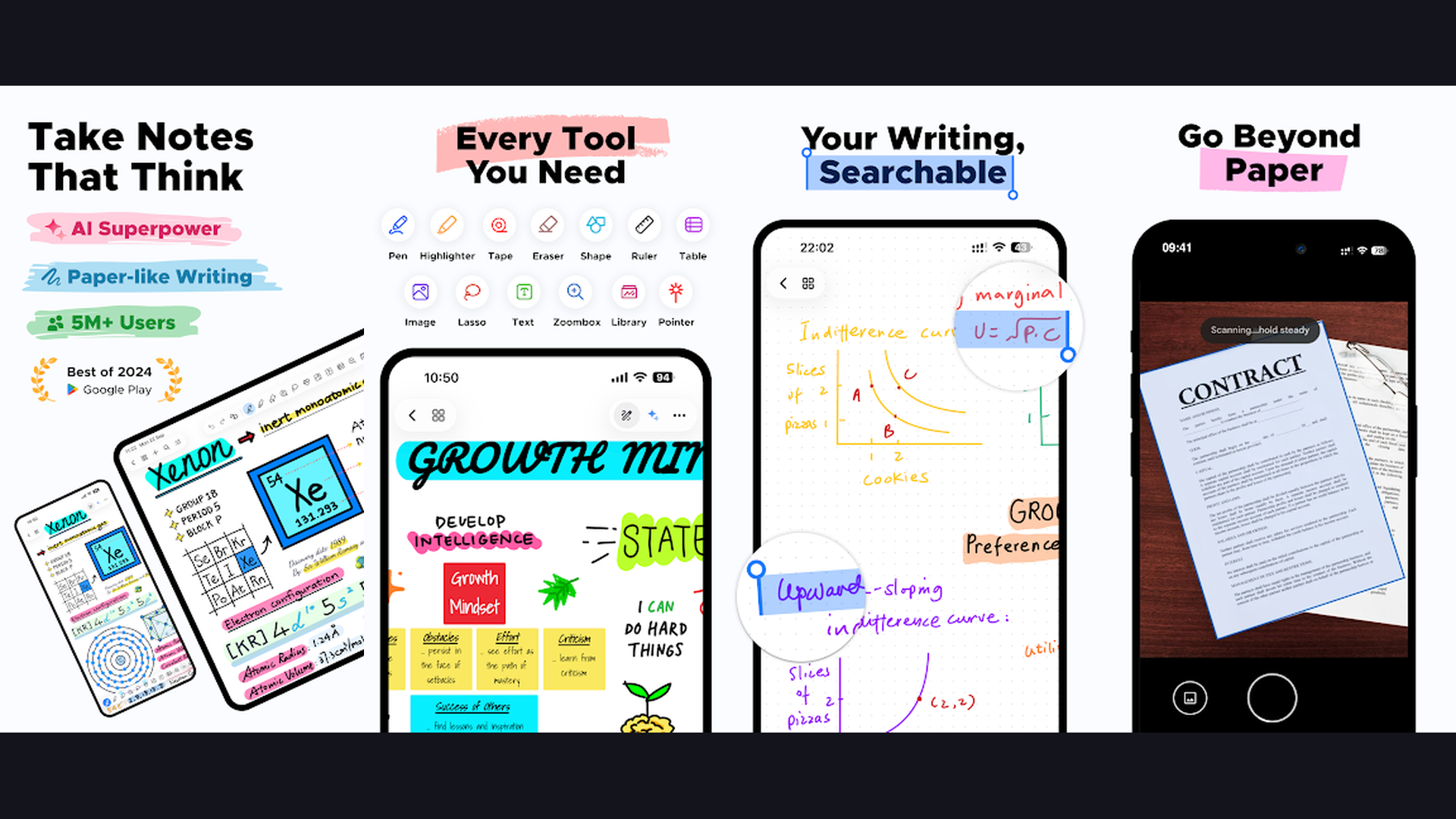
Apple Notes is the built-in, free note-taking app that comes with every Mac, offering seamless iCloud sync, Quick Note integration, and increasingly powerful features including AI transcription and summarization. Apple Notes has evolved dramatically from a simple text pad into a capable note-taking system. On Mac, it integrates deeply with macOS: the Quick Note feature (hot corner or keyboard shortcut) lets you create a note from anywhere without leaving your current app. The tagging system organizes notes with hashtag-based categories. Smart Folders automatically collect notes matching specific criteria. Collaborative notes let you share and co-edit with other Apple users in real time. The scanning feature on iPhone creates perfectly cropped document scans that sync instantly to Mac. Apple Intelligence AI features include live audio transcription during meetings and automatic summarization of lengthy notes. Link notes to specific web pages, emails, or apps for contextual reference. Tables, checklists, sketches, and rich formatting cover most note-taking needs. Apple Notes is completely free and pre-installed on every Mac. For Mac users who want a zero-cost, always-available note app with deep macOS integration, Apple Notes is the easiest starting point. Browse wellness apps for balanced productivity.
8. Obsidian (Rating 4.0)
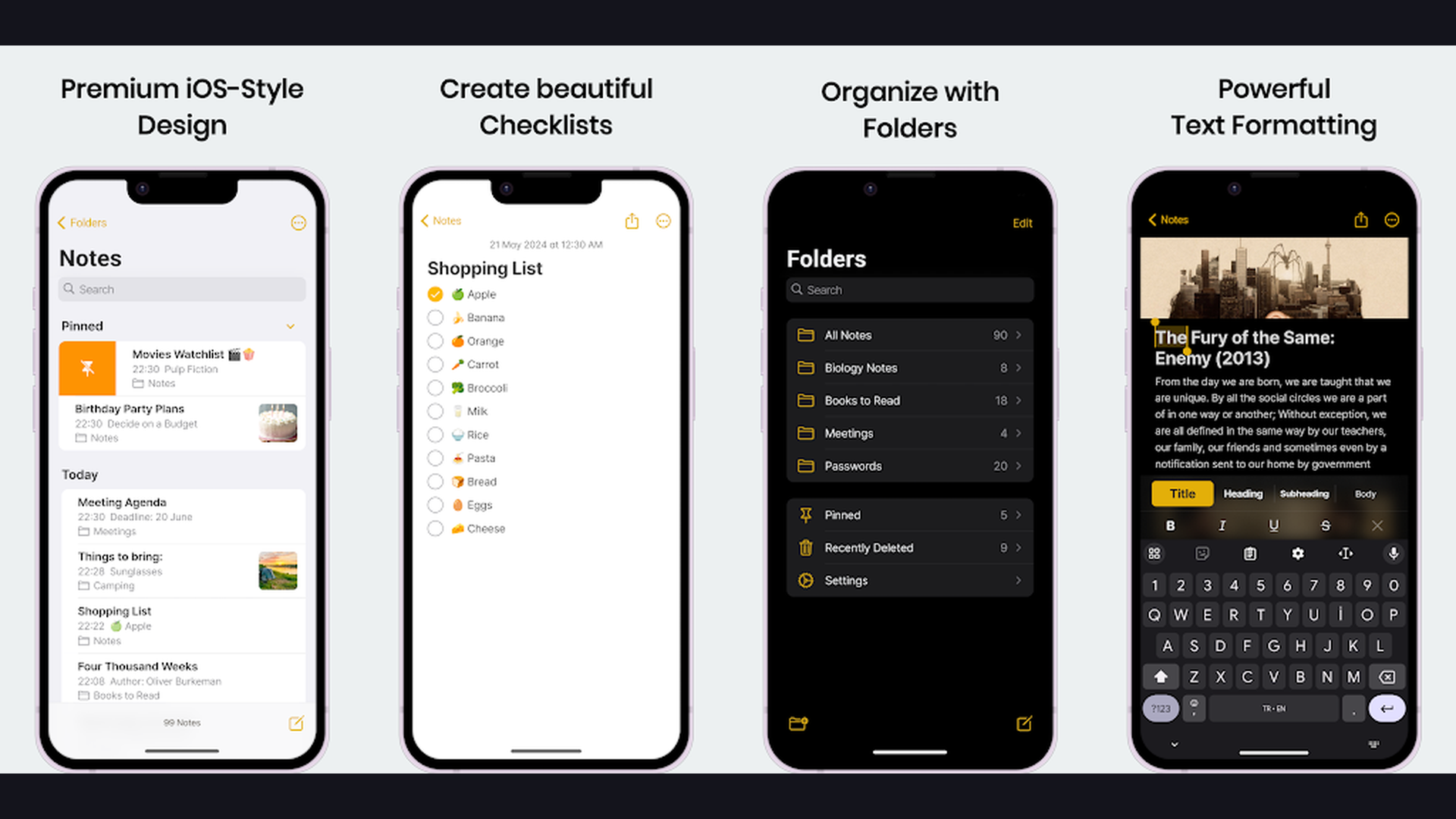
Obsidian is a powerful knowledge management tool for Mac that stores notes as local Markdown files and uses bidirectional linking to create a personal knowledge graph, or second brain. Obsidian philosophy is fundamentally different from cloud-based note apps. Your notes are stored as plain Markdown files in a folder on your Mac. This means you own your data completely, your notes are never locked in a proprietary format, and they will remain readable decades from now. The bidirectional linking system lets you connect notes by simply typing [[note name]], creating a web of interconnected knowledge. The Graph View visualizes all your note connections as an interactive network map. The plugin ecosystem is massive with over 1,500 community plugins covering everything from Kanban boards to spaced repetition flashcards to calendar integration. The Canvas feature provides an infinite whiteboard for visual thinking. The Dataview plugin turns your notes into a queryable database. Obsidian runs entirely locally and is extremely fast even with thousands of notes. Optional Obsidian Sync provides end-to-end encrypted cloud synchronization. Obsidian is free for personal use, commercial license $50/year. For Mac power users who want local-first note storage, bidirectional linking, and infinite customization, Obsidian is the most powerful knowledge management system. Related: financial tools for tracking investments alongside notes.
9. Ulysses (Rating 4.0)
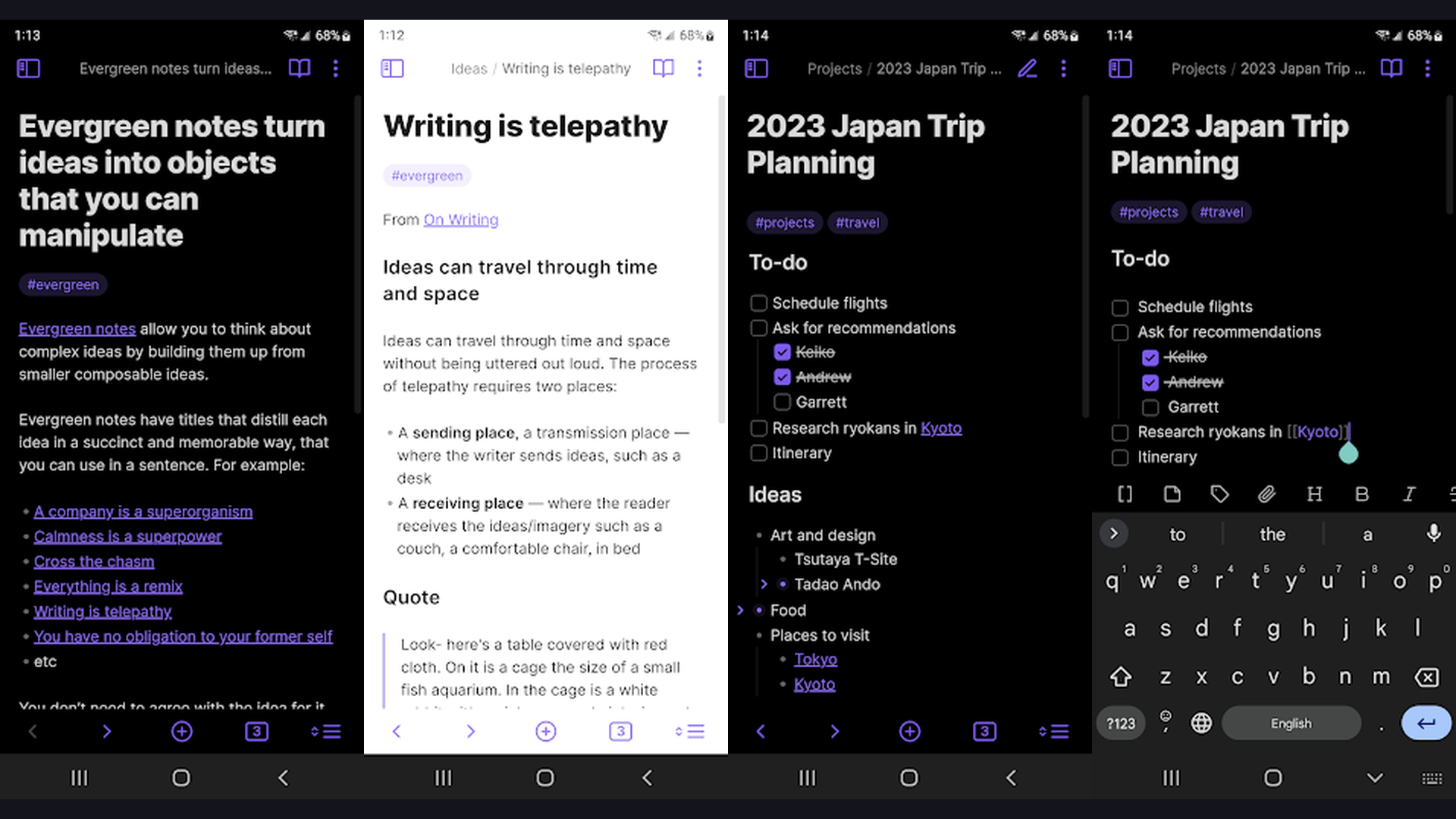
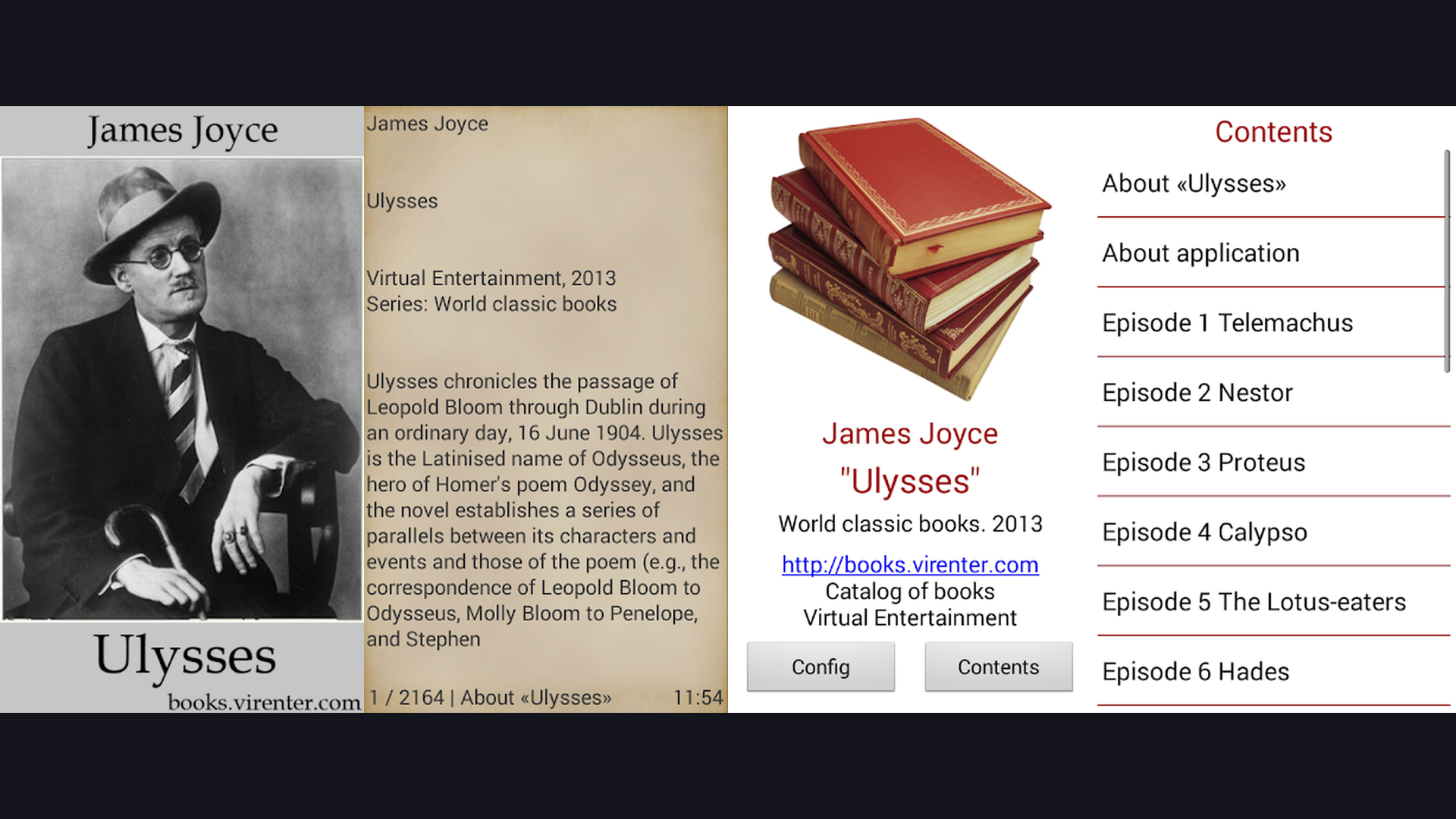
Ulysses is a premium writing app designed specifically for serious writers on Mac, offering a distraction-free Markdown editor with library management, publishing tools, and seamless Apple ecosystem integration. Ulysses is not a general note-taking app; it is built for people who write professionally: bloggers, journalists, novelists, academics, and technical writers. The Markdown XL syntax extends standard Markdown with annotations, comments, and footnotes. The Library organizes all your writing in a hierarchical structure with groups, filters, and keywords. The distraction-free fullscreen mode with customizable themes eliminates everything except your words. Writing goals track word count, character count, reading time, and sentences per document or across projects. The publishing feature lets you export directly to WordPress, Ghost, Medium, or Micro.blog with one click, maintaining all formatting. Export to PDF, DOCX, EPUB, and HTML with fully customizable styles. The Glue Sheet feature combines multiple documents into a single manuscript for long-form projects. iCloud sync across Mac, iPad, and iPhone. Ulysses is $5.99/month or $49.99/year. For Mac writers who need a premium, focused writing environment with direct blog publishing, Ulysses is the writers app of choice.
10. NotePlan (Rating 4.0)
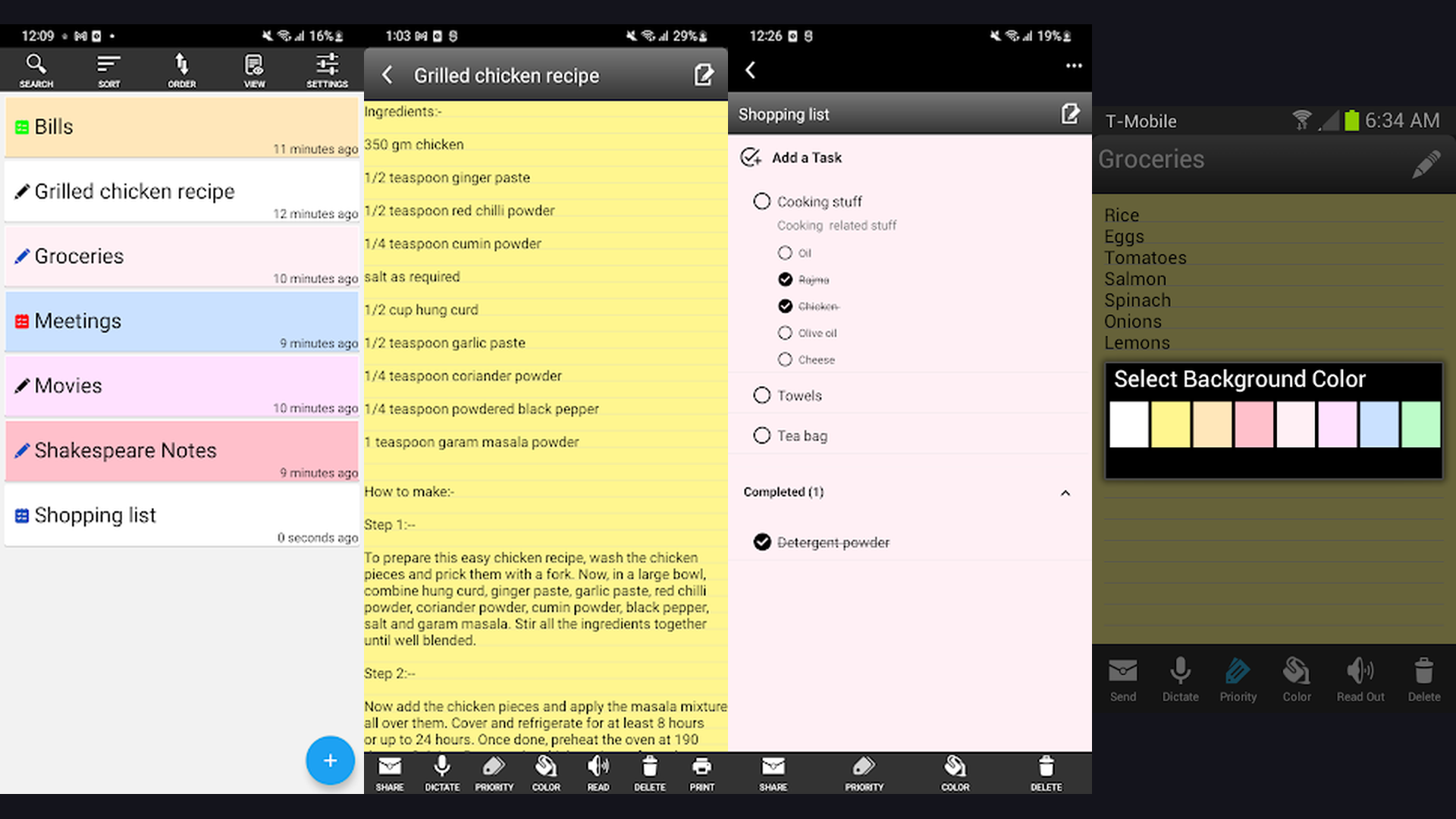
NotePlan is a Mac-native app that uniquely combines Markdown notes, task management, and calendar integration in a single unified interface. NotePlan key innovation is treating notes, tasks, and calendar events as interconnected, not separate. The Daily Journal shows your calendar events alongside tasks and freeform notes, creating a complete picture of each day. Tasks can be created within any note and automatically appear in your task views. The calendar integration pulls events from Apple Calendar and displays them inline with your daily notes. Markdown support includes wiki-style linking between notes, creating a connected knowledge base. The Review feature lets you reflect on past daily notes and reschedule incomplete tasks. Timeblocking lets you drag tasks onto your calendar to schedule focused work periods. The Synced Lines feature creates bi-directional task references: completing a task in one location marks it complete everywhere it appears. NotePlan stores notes as plain text files locally and syncs via iCloud. NotePlan is from $9.99/month or $99.99/year. For Mac users who want notes, tasks, and calendar in one unified daily planning system, NotePlan provides the most integrated experience. Use with digital planners for complete organization.
11. Joplin (Rating 3.9)
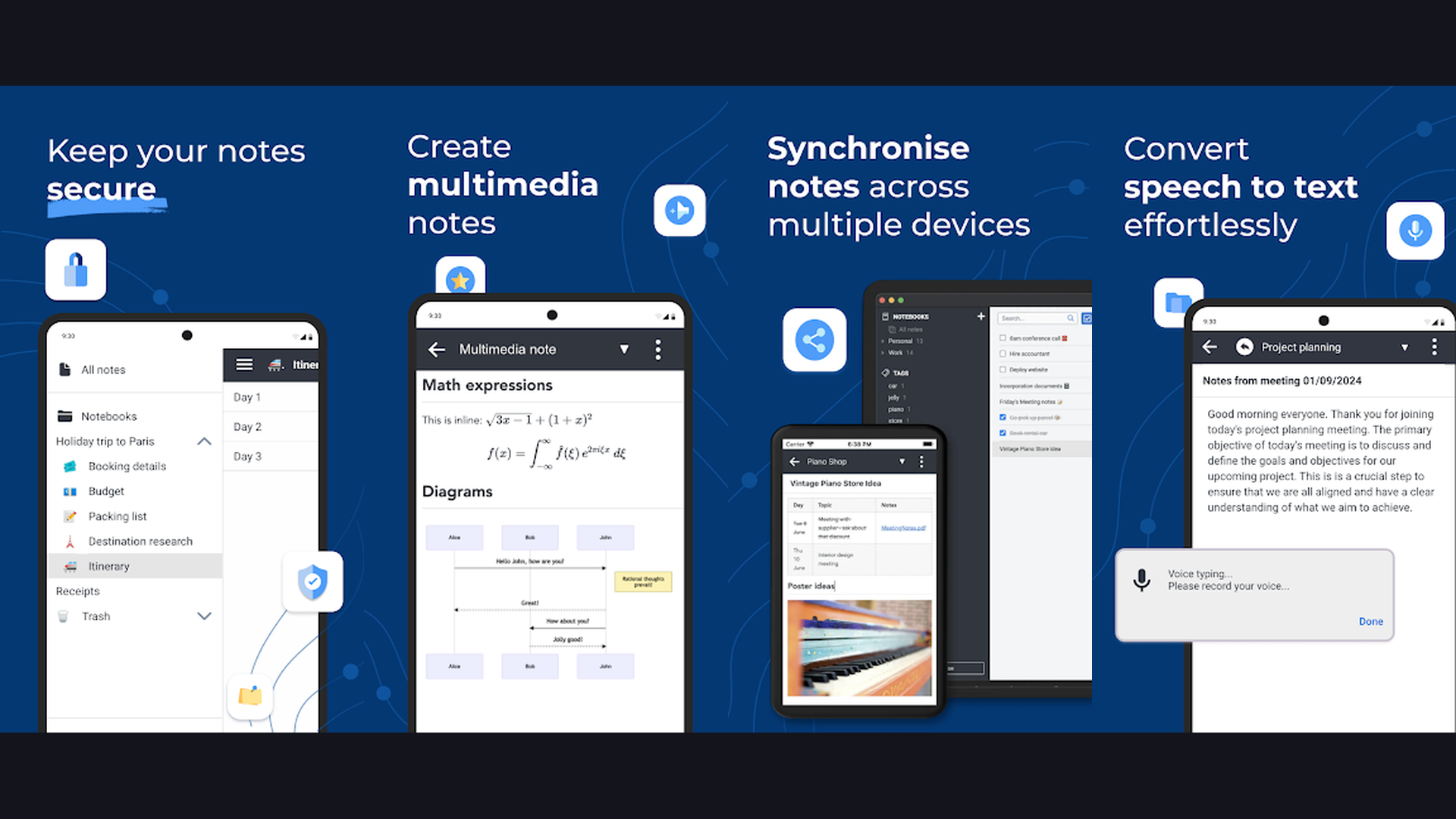
Joplin is a free, open-source note-taking app for Mac that prioritizes privacy and data ownership with end-to-end encryption and synchronization through your own cloud storage. For Mac users concerned about privacy and vendor lock-in, Joplin is the ideal choice. The open-source codebase is auditable and transparent. Notes are stored in open Markdown format, so your data is never trapped in a proprietary system. End-to-end encryption ensures that even your cloud sync provider cannot read your notes. Synchronization supports Dropbox, OneDrive, Nextcloud, WebDAV, and the optional Joplin Cloud service, giving you complete control over where your data lives. The rich text editor supports Markdown with a split-view preview. The Web Clipper extension for Safari and Chrome saves web pages directly to Joplin. Notebook organization with sub-notebooks creates a clean hierarchy. Tags provide cross-notebook categorization. The plugin system extends functionality with features like backlinks, note history, and custom themes. Joplin is completely free and open-source. For privacy-conscious Mac users who want encrypted, open-source note-taking with full data ownership, Joplin is the most trustworthy option available.
12. Evernote (Rating 3.6)
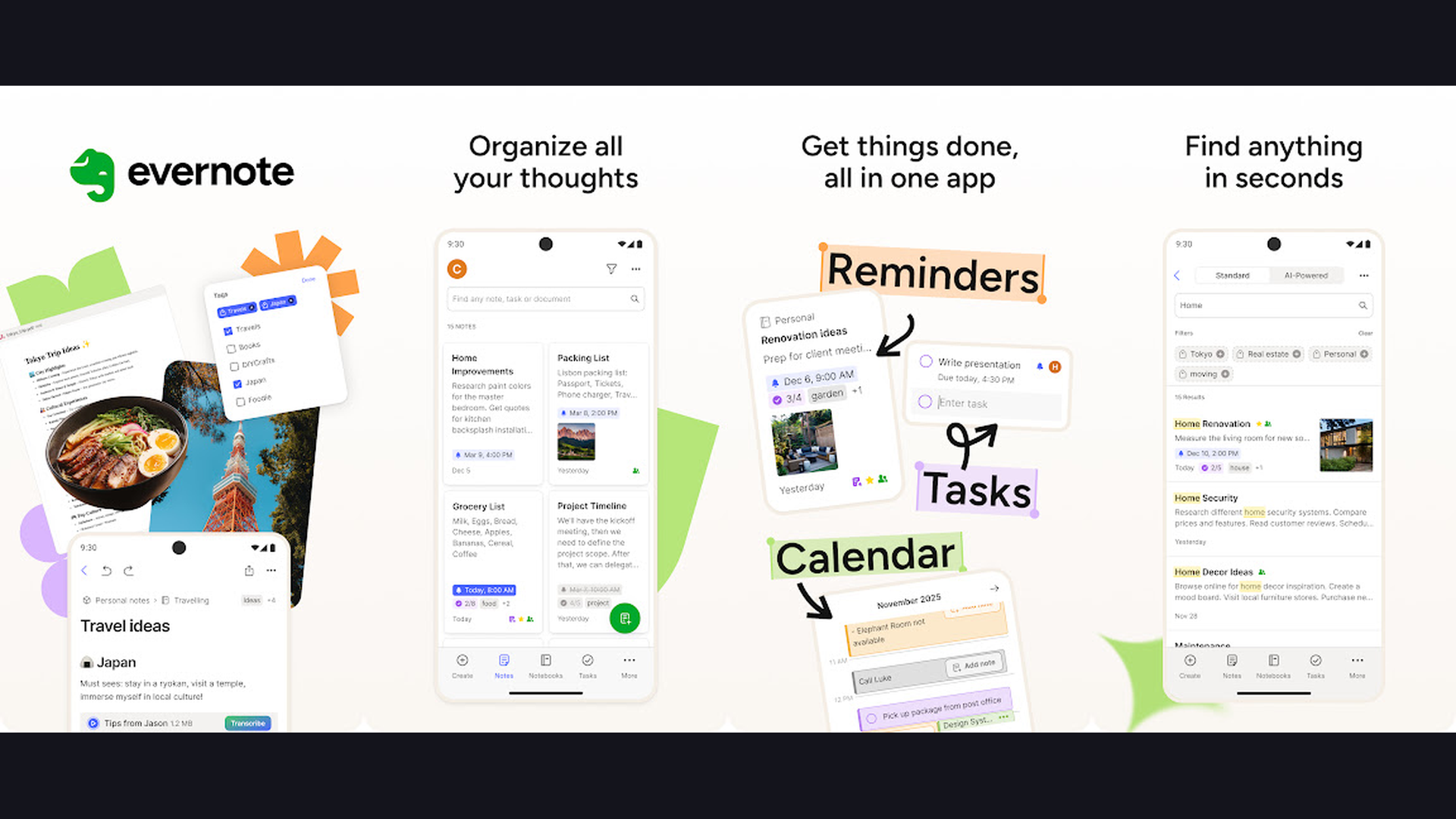
Evernote is a veteran note-taking and organization platform that has evolved into a comprehensive productivity suite with tasks, calendar, web clipping, and powerful search across all note types. Evernote pioneered digital note-taking and remains feature-rich despite increased competition. The Mac app is significantly faster and smoother following the complete rebuild. The search capabilities are industry-leading: Evernote searches inside PDFs, images, handwritten notes, office documents, and scanned business cards. The Web Clipper saves entire articles, simplified text, bookmarks, or screenshots from any webpage. The document scanner on mobile creates searchable PDFs that sync to Mac. Tasks with due dates, reminders, and recurring schedules are integrated directly within notes. The calendar widget connects to Google Calendar and shows upcoming events alongside relevant notes. Templates cover meeting notes, project plans, habit trackers, and more. The Spaces feature organizes shared team knowledge. The Filtered Notes widget surfaces relevant notes based on context. Evernote is free (limited) or Personal from $14.99/month. For Mac users who need powerful cross-format search, web clipping, and a comprehensive organizational hub, Evernote experience and search depth remain unmatched. Explore student apps for academic note-taking.
Which Note App Is Right for You?
Best All-in-One Workspace
- Notion - Notes, databases, tasks, wikis, and AI in one platform
- Evernote - Notes, tasks, calendar, web clipping, and powerful search
Best for Writers
- Ulysses - Premium distraction-free writing with direct blog publishing
- Bear - Beautiful Markdown editor with tag-based organization
- Craft - Stunning block-based documents with easy sharing
Best for Knowledge Management
- Obsidian - Bidirectional linking, knowledge graph, local-first storage
- Notion - Relational databases and interconnected workspaces
Best for Handwriting
- GoodNotes - Best handwriting recognition, PDF annotation, digital notebooks
- Notability - Audio-synced handwriting with AI study features
Best Free Options
- Apple Notes - Pre-installed, free, deep macOS integration, AI features
- OneNote - Completely free, infinite canvas, Microsoft 365 integration
- Joplin - Free, open-source, encrypted, full data ownership
- Obsidian - Free for personal use, local Markdown files
Best for Daily Planning
- NotePlan - Notes, tasks, and calendar in one unified daily view
Mac Note-Taking Tips
- Use Quick Note for Instant Capture - macOS Quick Note (hot corner or Globe+Q) creates a note from any app without switching context. This works with Apple Notes natively, but apps like Obsidian and Notion have similar quick-capture features through menu bar utilities or keyboard shortcuts. The key is reducing friction between having a thought and capturing it. Set up a hot corner or keyboard shortcut for your primary note app so capturing takes under 2 seconds.
- Master Keyboard Shortcuts - Mac note-taking becomes dramatically faster with keyboard shortcuts. Learn Command+N (new note), Command+Shift+F (search all notes), Command+K (insert link), and app-specific shortcuts. In Obsidian, Command+O opens the quick switcher. In Notion, Command+P opens search. In Bear, Command+1/2/3 toggles headings. Investing 30 minutes learning shortcuts saves hours of mouse-clicking over time.
- Link Notes Together - Whether you use Obsidian bidirectional links, Notion page mentions, or Bear note links, connecting related notes creates a personal knowledge graph that becomes more valuable as it grows. When taking notes on a new topic, always ask: what existing notes relate to this? Creating those links means you will rediscover relevant context when you return to any connected note later.
- Use Spotlight and Raycast for Note Search - macOS Spotlight indexes Apple Notes content, making notes searchable from anywhere with Command+Space. Third-party launchers like Raycast offer integrations with Notion, Obsidian, and Bear for even faster note searching. You should be able to find any note in under 5 seconds. If you cannot, your organization system needs improvement.
- Sync Across Apple Devices - One of the biggest Mac advantages is the Apple ecosystem. Apps like Bear, Craft, Apple Notes, GoodNotes, Notability, and Ulysses sync seamlessly via iCloud. Capture a thought on your iPhone, develop it on your iPad with Apple Pencil, and finalize it on your Mac. Cross-platform apps like Notion, Obsidian, and OneNote also sync across devices but through their own cloud services. Use navigation apps while noting travel ideas on the go.
- Choose Your Note Format Wisely - Markdown files (Obsidian, Bear, Joplin, Ulysses) are future-proof and portable. Proprietary formats (Evernote, Notion, OneNote) offer richer features but lock your data. Consider your long-term needs: if you might switch apps in 5 years, Markdown-based apps make migration trivial. If you need advanced features like databases or audio syncing, proprietary formats may be worth the trade-off.
- Use Templates for Repetitive Notes - Meeting notes, daily journals, project briefs, and weekly reviews follow the same structure. Create templates in your note app so you start with the right structure instead of a blank page. Notion, Obsidian, Craft, and Evernote all have robust template systems. This consistency makes notes easier to write, more useful to review, and simpler to search.
- Review and Process Your Notes Regularly - Notes are only valuable if you return to them. Schedule a weekly review (Friday afternoon or Sunday evening) to process your inbox, organize uncategorized notes, and review recent captures. Use the time to link related notes, add tags, and archive completed project notes. This habit prevents note-taking apps from becoming digital junk drawers. Track habits with wellness apps.
Frequently Asked Questions
What is the best free note-taking app for Mac?
Apple Notes is the best free option for most Mac users because it is pre-installed, deeply integrated with macOS, and increasingly powerful with AI features. Microsoft OneNote is completely free with robust features including an infinite canvas and audio recording. Obsidian is free for personal use and offers the most powerful knowledge management capabilities. Joplin is free, open-source, and privacy-focused. For most casual note-takers, Apple Notes is sufficient; for power users, Obsidian or OneNote provides more advanced features at no cost.
Which Mac note app is best for students?
Notability is the best for lecture-based learning because of its synchronized audio recording: record the lecture while taking notes, and later tap any note to hear what was said at that moment. GoodNotes excels for handwritten notes and PDF annotation. Obsidian is excellent for building a connected knowledge base across courses. OneNote free tier with section/page organization mirrors physical notebooks. For students with Apple Pencil and iPad, GoodNotes or Notability with Mac sync provides the best handwriting-to-Mac workflow.
Should I use Notion or Obsidian on Mac?
Use Notion if you need collaboration, databases, project management, and an all-in-one workspace. Notion excels when notes intersect with tasks and teamwork. Use Obsidian if you prioritize data ownership, privacy, offline access, bidirectional linking, and building a personal knowledge base. Obsidian stores files locally as plain Markdown. Notion requires internet for most features and stores data on their servers. Many power users use both: Obsidian for personal knowledge and Notion for team collaboration.
Is Apple Notes good enough for serious note-taking?
Apple Notes has improved dramatically and now handles most note-taking needs including tags, smart folders, collaboration, scanning, checklists, tables, and AI transcription. It is genuinely good enough for personal notes, meeting notes, and general organization. However, it lacks features power users need: Markdown support, bidirectional linking, advanced databases, plugins, web publishing, and fine-grained export options. If you need these capabilities, Bear, Obsidian, Notion, or Craft are better choices.
What is the best Markdown note app for Mac?
Bear is the most elegant Markdown editor for Mac with beautiful inline rendering and tag-based organization. Ulysses is the best Markdown app for professional writers with library management and direct blog publishing. Obsidian is the most powerful Markdown app for knowledge management with bidirectional linking and plugins. Joplin is the best free open-source Markdown option. All four store notes as Markdown, ensuring your content remains portable and future-proof regardless of which app you eventually choose.
Can I use these Mac note apps on iPhone and iPad?
All 12 apps in this guide have iOS companion apps. Apple-native apps (Bear, Craft, Apple Notes, GoodNotes, Notability, Ulysses, NotePlan) sync via iCloud with instant, seamless synchronization across Mac, iPhone, and iPad. Cross-platform apps (Notion, Obsidian, OneNote, Evernote, Joplin) use their own sync services and also work on Android. Bear, Craft, Ulysses, and NotePlan are Apple-exclusive with no Android or Windows versions. If cross-platform compatibility is important, choose Notion, Obsidian, OneNote, Evernote, or Joplin.
Final Thoughts
The Mac note-taking landscape in 2026 offers exceptional options for every workflow. Notion leads as the most versatile all-in-one workspace. OneNote delivers a feature-rich free experience. Bear provides the most elegant Markdown writing. Craft creates the most beautiful documents. GoodNotes and Notability dominate handwriting and annotations. Apple Notes offers zero-cost, deep macOS integration. Obsidian provides the most powerful knowledge management with local-first storage. Ulysses is the professional writer favorite. NotePlan uniquely combines notes, tasks, and calendar. Joplin delivers privacy-focused, open-source note-taking. Evernote remains the most experienced organizer. Choose based on your primary need: writing, knowledge building, handwriting, collaboration, or simplicity. For more Mac and productivity tools, explore our guides on digital planners, student apps, content creation, and language learning.