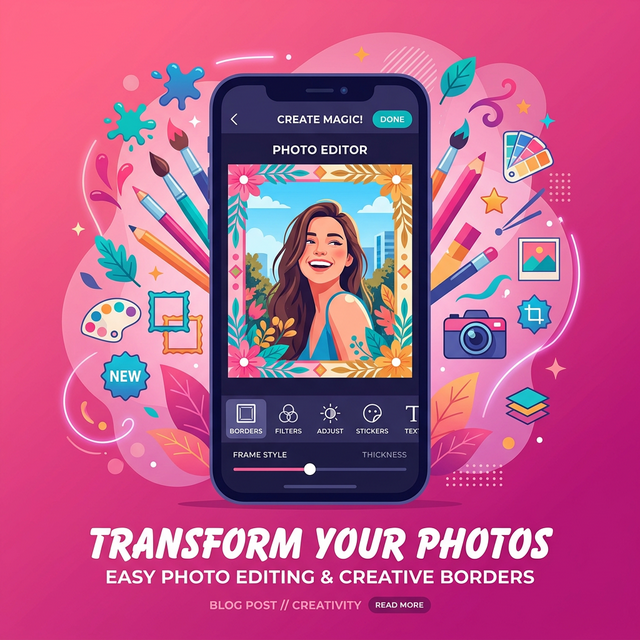
Why Add Borders to Your Photos?
Borders can transform an ordinary photo into a polished, professional-looking image. Whether you're creating content for Instagram, designing graphics for social media, or simply enhancing your personal photo collection, borders add a finishing touch that draws attention and creates visual structure.
PicsArt is one of the most popular photo and video editing apps in 2026, with over 150 million monthly active users. It offers multiple tools for adding borders — from simple line borders and decorative frames to creative border masks and text outlines. This guide covers every method available.
Method 1: Adding a Simple Border
Step-by-Step Instructions
- Open PicsArt and tap the + (plus) button to start a new project.
- Select the photo you want to edit from your gallery.
- Scroll through the bottom toolbar and tap "Border".
- A border will appear around your photo with adjustment options.
- Use the Outer slider to adjust the outer border width.
- Use the Inner slider for a secondary inner border.
- Tap the color swatch next to each slider to change the border color.
- Adjust the Radius slider to round the corners of your border.
- Toggle Outside/Inside to position the border without covering (or slightly covering) the edges of your photo.
- Tap Apply when satisfied.
Customization Options
- Color: Choose from a full spectrum of colors for both inner and outer borders.
- Width: Adjust the thickness from thin lines to bold frames.
- Radius: Create rounded corners for a softer, modern look.
- Opacity: When using "Inside" mode, adjust the opacity of the inner border overlay.
Method 2: Adding Decorative Frames
Using PicsArt's Frame Tool
- Open your photo in PicsArt.
- Scroll through the bottom menu and tap "Frame".
- Browse the extensive library of decorative frames organized by categories (Vintage, Modern, Holiday, etc.).
- Tap on a frame to preview it on your photo.
- Use pinch-to-zoom to resize your photo within the frame.
- Tilt or rotate the photo if needed.
- Tap Apply to finalize.
Frame Categories
- Classic: Simple, elegant frames for portrait and landscape photos.
- Artistic: Watercolor effects, torn paper edges, and painted styles.
- Seasonal: Holiday-themed frames for Christmas, Valentine's Day, etc.
- Minimalist: Clean, modern frames for professional-looking images.
Method 3: White Border with Shadow Effect
Create the Instagram-Popular Look
The white border with shadow effect is hugely popular on social media. Here's how to create it in PicsArt:
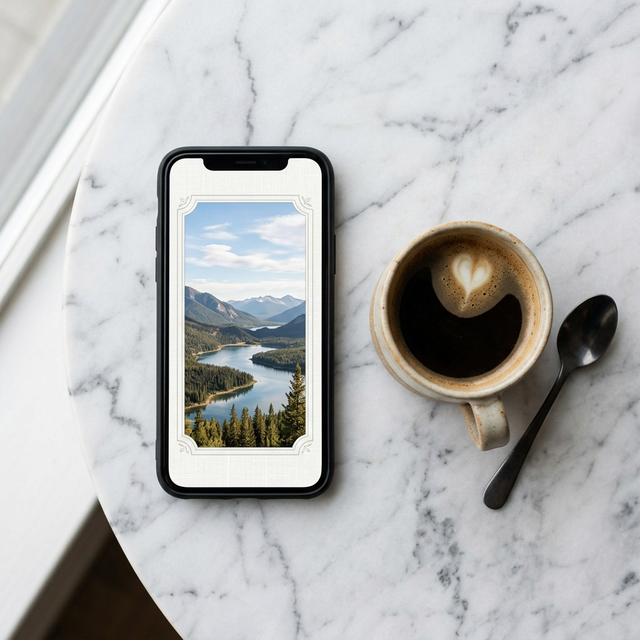
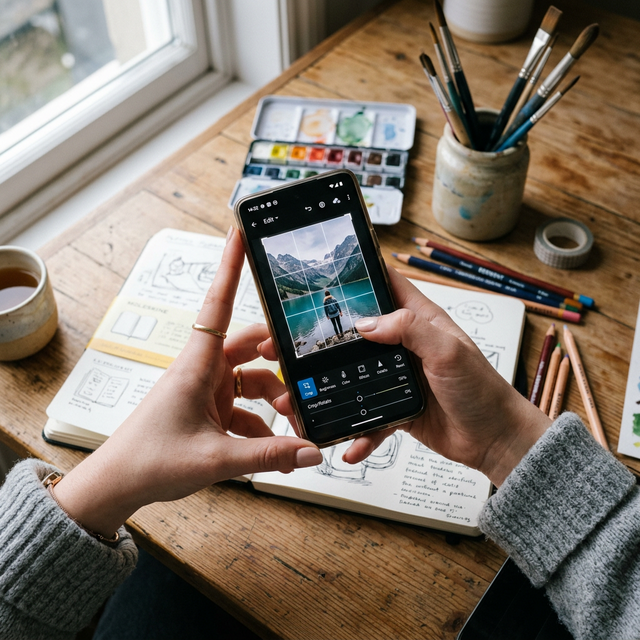
- Open your photo in PicsArt.
- Tap "Fit" from the toolbar.
- Select "Shadow".
- Choose white as the background/border color.
- Adjust Opacity to control the shadow intensity.
- Adjust Blur for soft or sharp shadow edges.
- Fine-tune the horizontal and vertical position of the shadow.
- Tap the checkmark to apply.
Method 4: Border Masks
Artistic Border Effects
Border masks add creative, artistic borders like fade-outs, vignettes, and texture overlays:
- Open your image in PicsArt.
- Scroll through the toolbar and tap "Mask".
- Select the "Border" section.
- Choose a border mask design from the options.
- Adjust the hue of the mask to match your photo's color scheme.
- Use the flip option for different orientations.
- Use the Eraser Tool to remove parts of the mask that cover your subject.
- Tap Apply to confirm.
Method 5: Adding Borders Around Text
Text Outline/Stroke Effect
- Open your image and tap "Text" to add text.
- Type your desired text and style it.
- With the text selected, look for "Stroke" or "Outline" in the text options.
- Choose a color for the text border.
- Adjust the thickness using the slider.
- Tap Apply.
This is perfect for creating eye-catching titles, watermarks, and social media captions. If you want to learn more photo editing tips, explore our related tutorials at how to unpin a post on Instagram for managing your social media presence.
Comparison: PicsArt Border Methods
| Method | Best For | Difficulty | Premium Required |
|---|---|---|---|
| Simple Border | Clean, uniform borders | Easy | No |
| Decorative Frames | Artistic, themed photos | Easy | Some frames |
| White Border + Shadow | Instagram-style photos | Easy | No |
| Border Masks | Creative artistic effects | Medium | Some masks |
| Text Outline | Text graphics & titles | Easy | No |
PicsArt vs. Other Photo Editors for Borders
| Feature | PicsArt | Canva | Snapseed | Adobe Express |
|---|---|---|---|---|
| Simple Borders | ✅ | ✅ | ✅ | ✅ |
| Decorative Frames | ✅ (Large Library) | ✅ | ❌ | ✅ |
| Border Masks | ✅ | ❌ | ❌ | ❌ |
| Text Outlines | ✅ | ✅ | ❌ | ✅ |
| AI Tools | ✅ | ✅ | Limited | ✅ |
| Price | Free / Gold $11.99/mo | Free / Pro $12.99/mo | Free | Free / Premium |
Tips for Better Borders in PicsArt
Match Your Border to Your Content
- Use white borders for a clean, modern Instagram aesthetic.
- Use black borders for dramatic, cinematic photos.
- Use decorative frames for holiday or themed content.
- Use transparent borders with soft edges for a professional portfolio look.
Consider Aspect Ratios
When adding borders, be mindful of the final aspect ratio. Instagram posts work best at 1:1 (square), while stories use 9:16 (vertical). Adjust your border width to maintain the ideal ratio for your target platform. For more app recommendations, check our best apps for Samsung Galaxy S23 Ultra.
Frequently Asked Questions (FAQ)
Is PicsArt free to use for borders?
Yes, PicsArt's basic border and frame tools are free. Some premium frames and masks require a PicsArt Gold subscription ($11.99/month). The simple border tool, text outline, and white border with shadow are all available for free.
Can I add borders to videos in PicsArt?
PicsArt primarily focuses on photo editing for borders. However, you can add frames and overlays to video content using PicsArt's video editing tools, though the options are more limited than for photos.
How do I save my bordered photo in high quality?
After applying your border, tap Next (arrow icon) in the top right corner. Select "Save" and choose the highest resolution option. PicsArt saves images in high quality by default. Make sure your device has enough storage — learn how to optimize your phone's battery while editing.
Can I create custom border colors?
Yes, PicsArt offers a full color picker for borders. You can choose from preset colors, use the color wheel, or input specific hex color codes for precise matching.
Do borders change my photo's resolution?
Adding "Outside" borders increases the overall image dimensions slightly. "Inside" borders overlay on top of your existing photo without changing the file dimensions. For the best editing experience, use a phone with a quality display — learn about display types.