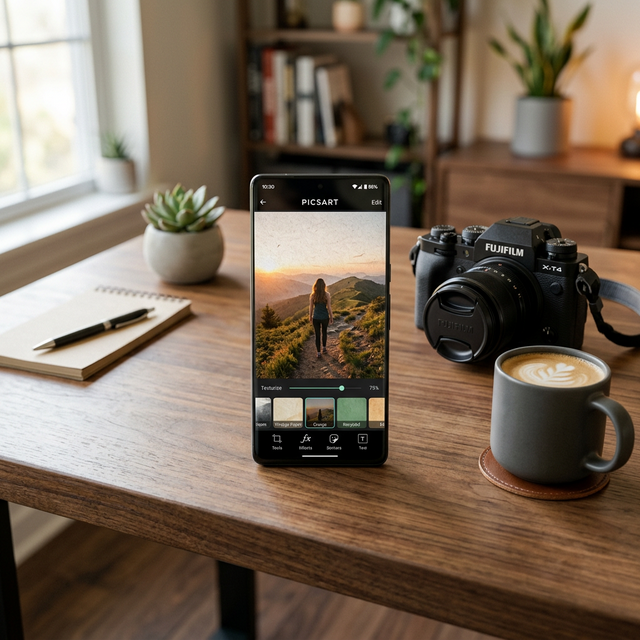
Mastering Depth and Detail in Picsart 2026
Adding texture is one of the most effective ways to transform a flat, digital photo into a tactile work of art. In 2026, Picsart remains the leading choice for mobile creators due to its intuitive layering system and vast library of overlays. Whether you are aiming for a vintage film grain, a rugged paper feel, or a futuristic metallic sheen, mastering textures with the modern Picsart AI tools is a must for any digital artist. Much like optimizing your mobile hardware with the right mobile RAM for 2026, using the right editing techniques can significantly boost your creative output.
Textures provide a sense of realism and emotion that simple color filters cannot match. This guide will walk you through three professional methods to integrate textures into your edits seamlessly.
Method 1: Using Official Texture Masks
The "Masks" menu in Picsart is the most straightforward way to apply predefined textures. These are often used to create subtle atmospheric effects or distressed looks.
- Open your project in the Picsart editor on your smartphone.
- Navigate to the "Mask" tool in the bottom toolbar.
- Select the "Texture" category to browse hundreds of high-resolution options updated for 2026.
- Tap on a texture (e.g., "Texture 6" or "Grainy") to see a live preview.
- Use the Opacity slider to control the intensity and the Eraser tool to remove the texture from focal points like faces or text.
Method 2: Custom Texture Overlays and Blending
For more control, you can import your own texture images. This is ideal if you have high-quality assets or if you're editing photos for professional use, such as showcasing a OnePlus 9 or other flagship devices in a lifestyle shot. In 2026, Picsart's layering engine handles high-resolution 8K textures with ease.
- Tap the "Add Photo" icon and select your texture file.
- Resize the texture so it completely covers your base photo.
- Locate the Blend tool. This is where the magic happens.
- Experiment with Multiply (perfect for dark, gritty textures), Screen (for light dust and scratches), or Overlay (for high-contrast styles).
- Adjust the Opacity to blend the texture naturally into the background.
Method 3: Advanced AI-Assisted Texture Mapping
New in the 2026 Picsart update is the AI Texture Mapper. This tool uses depth sensing to apply textures realistically around objects rather than just as a flat overlay. If you've been researching OLED technology benefits, you'll appreciate how these high-contrast textures pop on modern mobile screens.
The AI recognizes the 3D planes within your 2D photo, ensuring that a "cracked paint" texture, for instance, follows the contours of a wall or a person's jacket. This level of precision was previously only possible in desktop software like Photoshop.
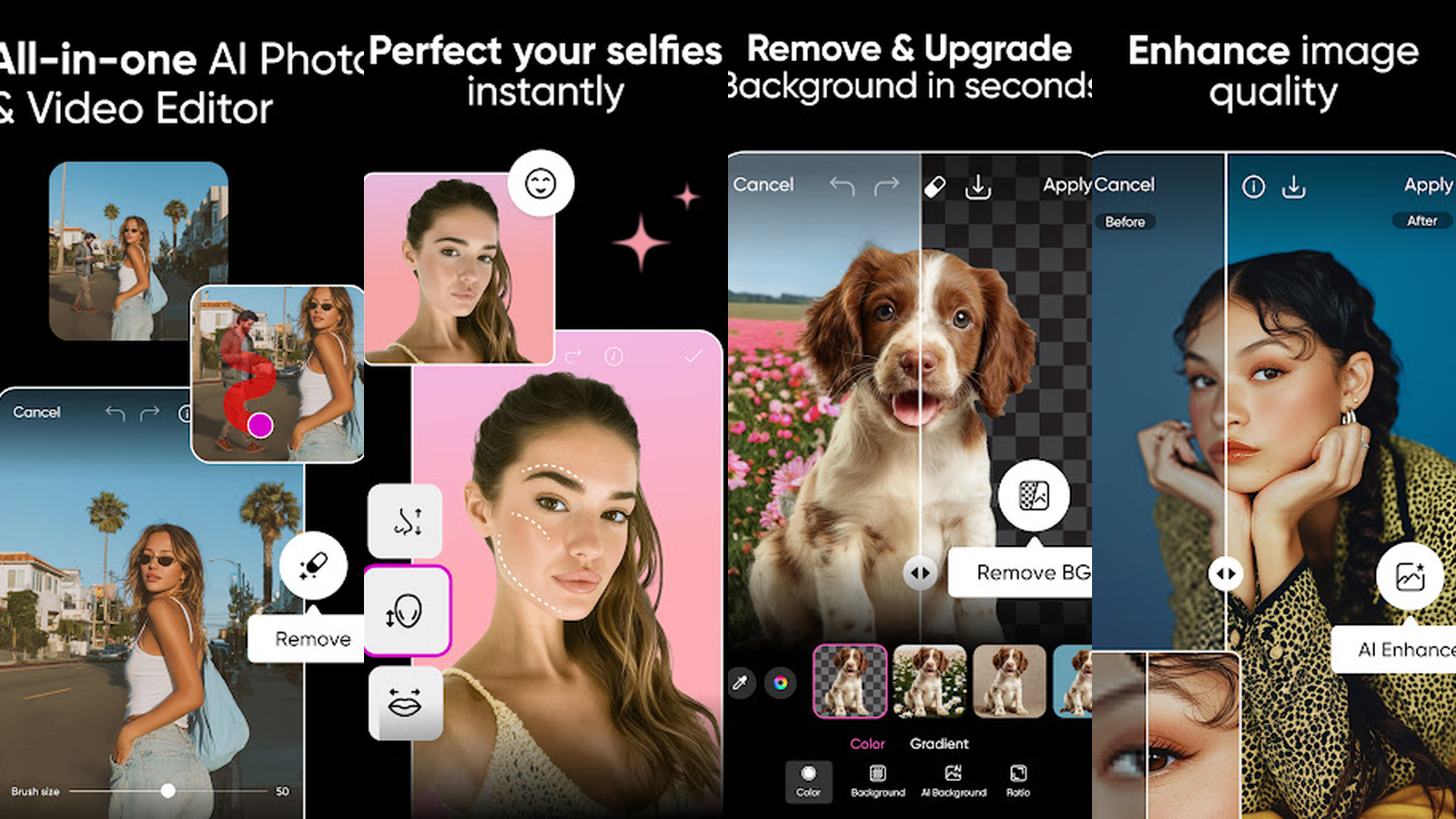
Pro Tips for High-Performance Editing
- Stacking Textures: Don't limit yourself to one. Try stacking a subtle grain texture on top of a heavy paper mask for a complex, professional look.
- Masking is Key: Always use the erase or mask tool to keep the subject of your photo clear. A face covered in paper texture often looks accidental rather than artistic.
- Color Correction: After adding a texture, you may need to re-adjust your brightness and contrast. High-quality displays, such as those on the Xiaomi 15, will reveal every detail, so fine-tuning is essential.
Common Texture Types in 2026
| Texture Type | Best Use Case | Recommended Blend Mode |
|---|---|---|
| Film Grain | Vintage / Nostalgic photography | Overlay / Soft Light |
| Dust & Scratches | Analog film simulation | Screen / Lighten |
| Crumpled Paper | Graphic design / Posters | Multiply / Darken |
| Brushed Metal | Tech / Industrial aesthetics | Overlay / Hard Light |
Frequently Asked Questions (FAQ)
Where can I find free textures in Picsart?
Picsart has a built-in library under the "Mask" and "Stickers" sections. You can also search for "Texture" in the search bar within the "Add Photo" menu to find community-contributed 2026 assets.
Can I add my own high-resolution textures?
Yes. You can import any JPG or PNG from your device. For the best results in 2026, use 4K or 8K textures to avoid pixelation on high-density smartphone screens.
Why does my photo look blurry after adding texture?
This usually happens if the texture image is low resolution. Check your source file or ensure your device has enough RAM to handle high-resolution layers without downscaling.
Is the AI Texture Mapper available for everyone?
The AI Texture Mapper is part of the 2026 Picsart Pro suite. Free users can still use the traditional layering and blending methods described in Method 2.
How do I save my textured photo without losing quality?
Always export in PNG or high-quality JPEG format. If you're using financial apps or need to reactivate an Easypaisa account to pay for a subscription, ensure your internet connection is stable before final rendering.