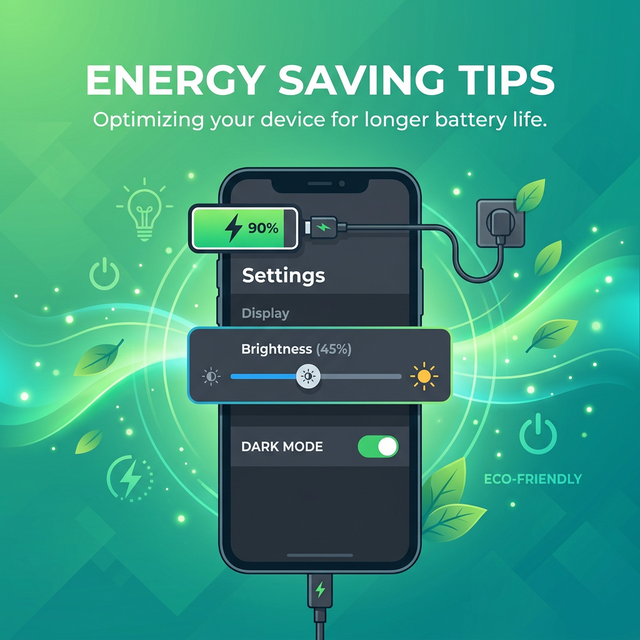
Why Screen Settings Matter for Battery Life
Your phone's display is the single biggest battery consumer, often accounting for 30–50% of total power usage. In 2026, with larger screens, higher refresh rates, and brighter panels than ever, optimizing your screen settings is the most impactful way to extend battery life. Simple adjustments to brightness, dark mode, refresh rate, and screen timeout can add hours of extra usage to your day.
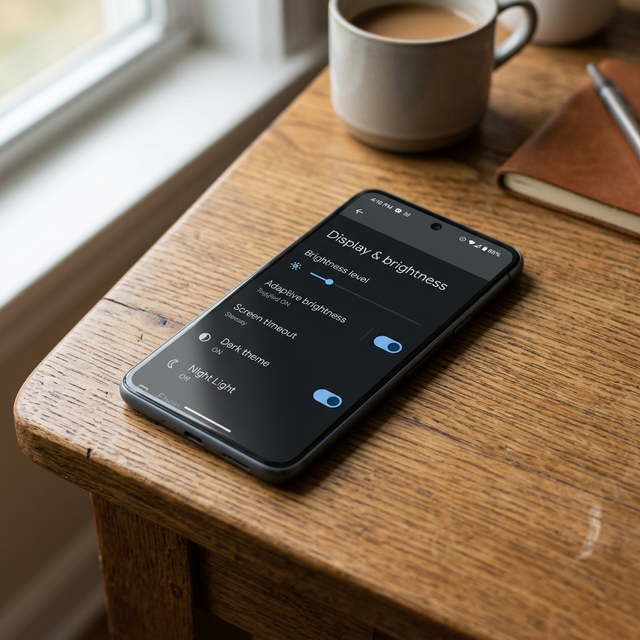
Whether you're using an Android phone or an iPhone, these tips apply across all modern devices. For more ways to monitor your battery, check out our guide on apps to check mobile battery health.
Lower Your Screen Brightness
Use Adaptive Brightness
Adaptive brightness (also called Auto-Brightness) uses your phone's ambient light sensor to automatically adjust the display brightness based on your surroundings. This prevents your screen from running at full brightness indoors, saving significant battery power.
- Android: Go to Settings → Display → toggle Adaptive Brightness on.
- iPhone: Go to Settings → Accessibility → Display & Text Size → toggle Auto-Brightness on.
Manually Reduce Brightness
Even with adaptive brightness enabled, manually sliding the brightness bar lower can yield additional savings. If you're indoors or in a dimly lit environment, you can comfortably use your phone at 20–40% brightness instead of the 60–80% that adaptive mode might set.
Impact on Battery Life
Reducing brightness from 100% to 50% can extend screen-on time by approximately 30–40%. Going from 100% to 25% can nearly double your screen time.
Enable Dark Mode
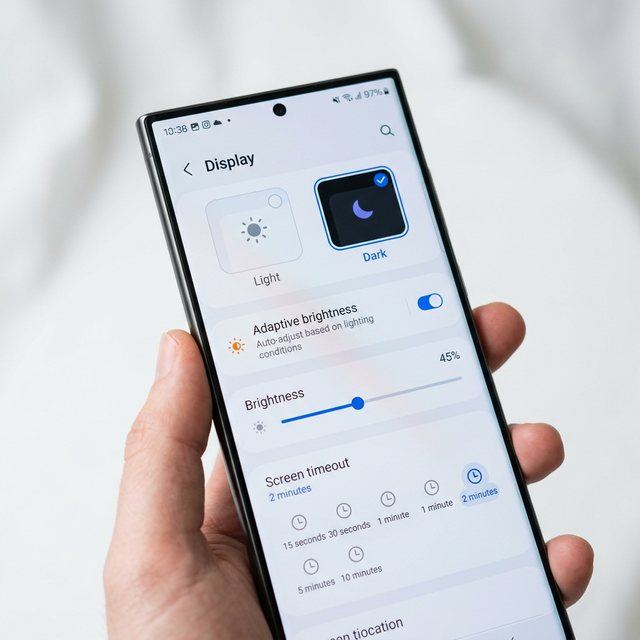
How Dark Mode Saves Battery
Dark mode's impact on battery depends heavily on your display technology:
- OLED/AMOLED Displays: Black pixels are completely turned off, consuming zero power. Dark mode can reduce display power consumption by up to 42% at full brightness.
- LCD Displays: The backlight stays on regardless of pixel color, so dark mode offers minimal battery savings (usually less than 5%).
Most flagship and mid-range phones in 2026 use OLED or AMOLED displays, including devices from Samsung, Google Pixel, and Apple. To understand different display technologies, read our comprehensive guide on what is display type.
How to Enable Dark Mode
- Android: Go to Settings → Display → toggle Dark Theme.
- iPhone: Go to Settings → Display & Brightness → select Dark.
Scheduling Dark Mode
Both Android and iOS allow you to schedule dark mode to activate automatically at sunset and deactivate at sunrise, giving you the best of both worlds — vivid colors during the day and battery-saving dark mode at night.
Lower Your Screen Refresh Rate
Understanding Refresh Rate
Many modern phones feature 90Hz, 120Hz, or even 144Hz refresh rates for smoother scrolling and animations. While visually appealing, higher refresh rates consume significantly more battery power than the standard 60Hz.
How to Adjust Refresh Rate
- Android: Go to Settings → Display → Screen Refresh Rate → select 60Hz or Standard.
- iPhone (ProMotion): Go to Settings → Accessibility → Motion → toggle Limit Frame Rate to cap at 60Hz.
Battery Savings from Lower Refresh Rate
Switching from 120Hz to 60Hz can save 10–15% of battery over a full day of heavy usage. If you primarily browse text-based content, read emails, or use messaging apps, you won't notice a significant difference at 60Hz.
Reduce Screen Timeout Duration
Why Screen Timeout Matters
Screen timeout controls how long your display stays on after you stop interacting with your phone. A shorter timeout means the screen turns off faster, reducing wasted battery. Setting it to 15 or 30 seconds instead of the default 1–2 minutes can make a noticeable difference over a full day.
How to Change Screen Timeout
- Android: Go to Settings → Display → Screen Timeout → select 15 seconds or 30 seconds.
- iPhone: Go to Settings → Display & Brightness → Auto-Lock → select 30 Seconds or 1 Minute.
Disable Always-On Display
The Cost of Always-On Display
Always-On Display (AOD) keeps essential information like time, date, and notifications visible even when your phone is locked. While convenient, AOD can drain your battery up to 4x faster than a completely off screen.
How to Disable AOD
- Samsung: Go to Settings → Lock Screen → toggle off Always On Display.
- Google Pixel: Go to Settings → Display → toggle off Always show time and info.
- iPhone 14 Pro and later: Go to Settings → Display & Brightness → toggle off Always On Display.
Comparison: Screen Settings and Battery Impact
| Setting | Default | Optimized | Estimated Battery Savings |
|---|---|---|---|
| Brightness | 70–100% | 25–40% (adaptive) | 30–40% more screen time |
| Dark Mode (OLED) | Off (Light mode) | On (Dark mode) | Up to 42% display savings |
| Refresh Rate | 120Hz | 60Hz | 10–15% daily savings |
| Screen Timeout | 1–2 minutes | 15–30 seconds | 5–10% daily savings |
| Always-On Display | On | Off | 5–12% daily savings |
Additional Display Tips for Maximum Battery Life
Use a Darker Wallpaper
On OLED screens, a pure black wallpaper means the pixels displaying the wallpaper are completely off. This can save a small but measurable amount of battery throughout the day.
Reduce Animations and Transitions
Both Android and iOS let you reduce or disable system animations. This slightly reduces GPU usage and can contribute to better battery performance.
- Android: Enable Developer Options and set Window animation scale, Transition animation scale, and Animator duration scale to 0.5x or Off.
- iPhone: Go to Settings → Accessibility → Motion → toggle Reduce Motion.
Disable Smooth Display Features
Features like "Smooth Display" or "Motion Smoothness" on Samsung and other brands are essentially the same as high refresh rate toggles. Make sure these match your desired refresh rate setting. For detailed specifications on Samsung processors that power these features, read our article on Samsung Exynos processors.
Battery-Saving Screen Settings by Phone Brand
Samsung Galaxy
Samsung devices offer "Power Saving Mode" that automatically limits refresh rate, brightness, and background activity. You can find it under Settings → Battery and Device Care → Battery → Power Saving. Looking for affordable Samsung options? Check out the best affordable smartphones in Pakistan.
Google Pixel
Pixel phones include "Battery Saver" and "Extreme Battery Saver" modes. Battery Saver dims the screen, reduces refresh rate, and limits background activity. Go to Settings → Battery → Battery Saver.
iPhone
Apple offers "Low Power Mode" which reduces screen brightness, limits refresh rate on Pro models, and pauses background downloads. Enable it from Settings → Battery → Low Power Mode, or add it to Control Center for quick access.
Xiaomi
Xiaomi phones feature "Battery Saver" under Settings → Battery & Performance. MIUI also offers a "Reading Mode" that reduces blue light and slightly lowers power consumption.
Frequently Asked Questions (FAQ)
Does dark mode really save battery?
Yes, but only on phones with OLED or AMOLED screens. On these displays, dark mode can reduce display power consumption by up to 42% at full brightness. On LCD screens, the savings are minimal.
Should I use adaptive brightness or manual brightness?
Use adaptive brightness as a baseline — it does a good job most of the time. For maximum savings, manually lower the brightness further when you're in dim environments.
Is it worth reducing refresh rate to 60Hz?
If battery life is a priority, yes. The visual difference between 60Hz and 120Hz is noticeable for gaming and scrolling, but for everyday tasks like texting, email, and social media, 60Hz is perfectly comfortable.
Does screen resolution affect battery life?
Yes. Some Samsung phones let you switch between FHD+ and QHD+ resolution. Using FHD+ instead of QHD+ reduces the number of pixels rendered, saving about 5–8% battery per day. To understand how display technology impacts overall performance, see our guide on display types explained.
Can I automate screen settings based on battery level?
Yes! Both Android and iOS activate battery saver modes that automatically adjust screen settings when your battery drops below a certain threshold. You can also use automation apps like Tasker on Android to create custom rules.