Instagram's pin post feature allows you to showcase up to three posts at the top of your profile grid. While pinning posts is a great way to highlight your best content, there comes a time when you need to refresh your profile and unpin a post on Instagram. Whether you want to replace outdated promotions, swap in a new Reel, or simply reorganize your profile, this comprehensive guide covers everything you need to know about unpinning posts on Instagram in 2026.
What Does Pinning a Post on Instagram Mean?
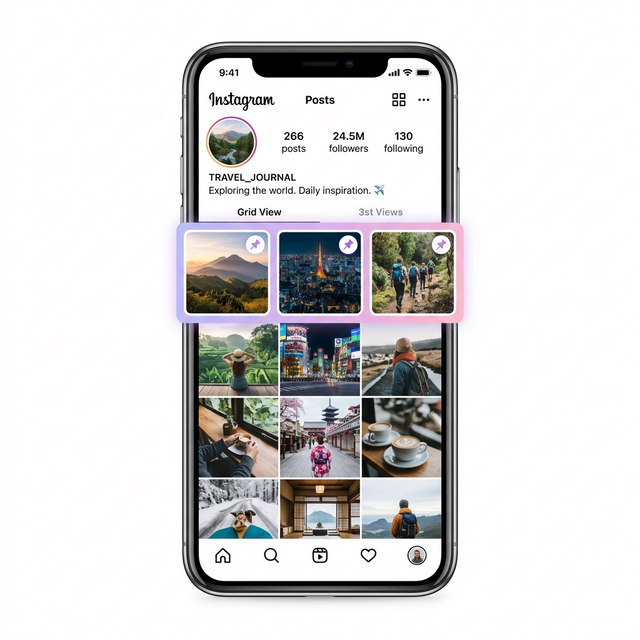
Before diving into how to unpin, let's quickly understand the pin feature. When you pin a post on Instagram, it moves to the very top of your profile grid, regardless of when it was originally posted. Pinned posts display a small pushpin icon in the upper-right corner so visitors immediately know which content you've chosen to highlight.
Key Facts About Instagram Pinned Posts in 2026
- You can pin up to 3 posts at a time (photos, videos, or Reels).
- Pinned posts remain at the top until you manually unpin them.
- The feature is available on both Android and iOS devices.
- Pinning or unpinning does not affect your post's engagement metrics or reach.
- It works on personal accounts, creator accounts, and business accounts alike.
How to Unpin a Post on Instagram – Step-by-Step Guide
Unpinning a post on Instagram is straightforward and takes less than 10 seconds. Here's how to do it on any device:
Step 1: Open Instagram and Go to Your Profile
Launch the Instagram app on your smartphone. Tap the profile icon located in the bottom-right corner of the screen to navigate to your profile page.
Step 2: Locate the Pinned Post
Scroll through your profile grid and find the post you want to unpin. Pinned posts sit at the very top of the grid and are marked with a small 📌 pin icon in the top-right corner of the thumbnail.
Step 3: Open the Post
Tap on the pinned post to open it in full view. This will display the post along with its caption, likes, and comments.
Step 4: Tap the Three-Dot Menu
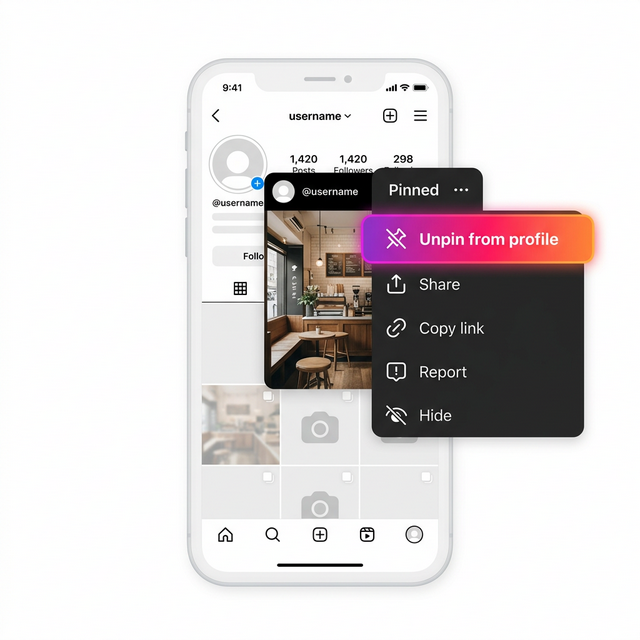
In the upper-right corner of the post, tap the three-dot icon (⋮) or the "…" menu. This opens a list of options for that specific post.
Step 5: Select "Unpin from Your Profile"
From the menu that appears, tap "Unpin from your profile". The post will immediately return to its original chronological position in your feed. The pin icon will disappear and the post will no longer be prioritized at the top of your grid.
How to Unpin a Reel on Instagram
The process for unpinning a Reel is identical to unpinning a regular post. Instagram treats pinned Reels and pinned photos/videos the same way. Simply navigate to the Reel on your profile, tap the three-dot menu, and select "Unpin from your profile". Your Reel will return to its original position in the Reels tab and the main grid. If you're someone who loves exploring new apps, check out our guide on the best apps for teens in 2026.
Why You Might Want to Unpin Posts on Instagram
There are several strategic reasons to unpin content from your Instagram profile. Understanding when to refresh your pinned posts can optimize your profile's impact:
Keeping Your Profile Fresh and Relevant
If you pinned a seasonal promotion, an event announcement, or a trending topic, it's important to unpin it once the content is no longer timely. Stale pinned posts can give visitors the impression that your account is inactive or outdated.
A/B Testing Content Strategy
Swapping pinned posts allows you to test which content resonates most with profile visitors. You can track profile visits and follower growth while rotating different pinned posts to see what converts best.
Making Room for Newer Content
Since Instagram limits you to three pinned posts, you'll need to unpin existing posts before you can pin new ones. This is especially useful after launching a new product, service, or important update. For helpful tips on keeping your digital life secure while managing social accounts, read about Zryly.com cybersecurity app.
How to Pin a Post on Instagram (Quick Refresher)
If you've just unpinned a post and want to pin a different one, here's a quick refresher:
- Go to your Instagram profile.
- Select the post you want to pin.
- Tap the three-dot menu (⋮) in the top-right corner.
- Choose "Pin to your profile".
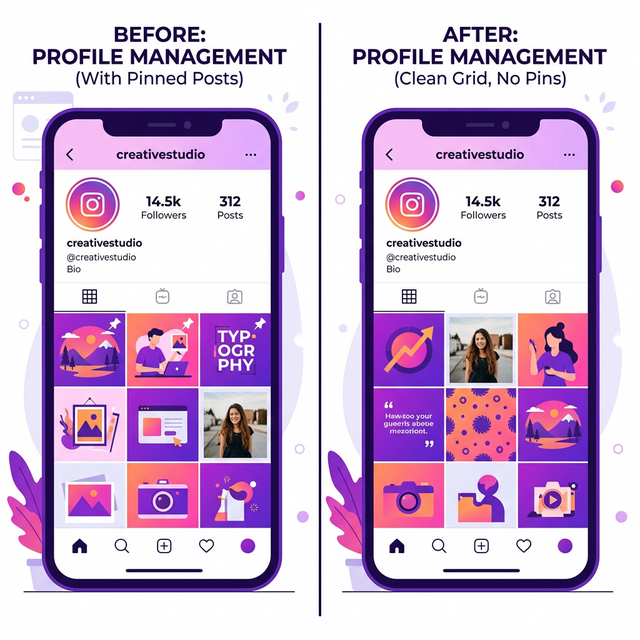
- The post moves to the top of your grid with a 📌 icon.
Remember, you can only have a maximum of three pinned posts at any given time. If you already have three pinned, you'll need to unpin one before pinning a new post.
Instagram Pinned Posts vs. Stories Highlights: What's the Difference?
Many users confuse pinned posts with Stories Highlights. While both features let you showcase content on your profile, they work very differently:
| Feature | Pinned Posts | Stories Highlights |
|---|---|---|
| Location | Top of profile grid | Below bio, above grid |
| Content type | Photos, Videos, Reels | Stories only |
| Maximum | 3 pinned posts | Unlimited highlights |
| Engagement | Likes and comments visible | View count only |
| Permanence | Until manually unpinned | Until manually removed |
Tips for Managing Pinned Posts Like a Pro in 2026
Now that you know how to pin and unpin posts, here are some expert-level strategies to maximize the impact of your pinned content:
Use Pinned Posts to Tell Your Brand Story
Arrange your three pinned posts to create a visual narrative. For example, use the first pin for an introduction video, the second for your best-selling product, and the third for a customer testimonial. For more on managing your mobile experience efficiently, explore our guide on apps to check mobile battery health.
Rotate Pinned Content Seasonally
Update your pinned posts every month or at the start of each campaign. This signals to visitors that your profile is actively maintained and always has something new to offer.
Pin High-Performing Reels
Reels generally get more reach than static posts on Instagram. Pinning your top Reels ensures new visitors see your most engaging video content immediately, increasing watch time and follows.
Include a Call to Action (CTA)
Pin posts that include a strong CTA, such as "Link in bio," "Shop now," or "DM us for details." This turns your Instagram profile into a mini landing page. If you're interested in staying connected even in areas with poor reception, check out using Wi-Fi calling to improve connectivity.
Common Issues When Unpinning Posts on Instagram
While the unpinning process is usually seamless, here are some issues users occasionally encounter and how to fix them:
"Unpin" Option Not Showing
If you don't see the "Unpin from your profile" option in the three-dot menu, make sure your Instagram app is updated to the latest version. The pin feature requires Instagram version 240.0 or later. Visit the Google Play Store or Apple App Store to update.
Post Not Returning to Original Position
After unpinning, the post should return to its original chronological spot in your grid. If it doesn't appear immediately, try closing and reopening the app or pulling down to refresh your profile.
Can't Pin New Posts After Unpinning
This usually happens due to a temporary glitch. Force close the Instagram app, clear its cache (on Android), and restart. You should then be able to pin new posts without any issues. Need help managing your account security? Our article on how to delete your Easypaisa account provides useful tips on account management.
Can You Unpin Posts on Instagram Desktop?
As of 2026, the ability to pin and unpin posts is only available on the Instagram mobile app (Android and iOS). The desktop version of Instagram and the web browser interface do not currently support the pin/unpin feature. Meta, Instagram's parent company, has not announced plans to bring this feature to desktop, so you'll need to use the mobile app for all pinning and unpinning actions.
Frequently Asked Questions (FAQs)
Can I unpin all three posts at once?
No, Instagram does not offer a bulk unpin option. You need to unpin each post individually by opening it, tapping the three-dot menu, and selecting "Unpin from your profile."
Does unpinning a post delete it?
Absolutely not. Unpinning simply removes the post from the top of your profile grid. The post, along with all its likes, comments, and engagement, remains on your profile in its original chronological position.
Will my followers be notified when I unpin a post?
No, Instagram does not send any notification to your followers when you pin or unpin a post. The changes are visible only on your profile grid.
Can I re-pin a post after unpinning it?
Yes! You can re-pin any post at any time. Simply open the post, tap the three-dot menu, and select "Pin to your profile." There are no limits on how many times you can pin and unpin the same post.
Does unpinning affect my Instagram algorithm ranking?
No, unpinning a post has no effect on how the Instagram algorithm ranks your content. The algorithm evaluates engagement, relevancy, and timeliness independently of whether a post is pinned or not. For additional insights on managing apps on your device, explore the best VPN apps for privacy and security.
Final Thoughts
Unpinning a post on Instagram is a simple but powerful profile management tool. By regularly updating your pinned content, you ensure that your Instagram profile always reflects your latest and best work. Whether you run a business account, a creator profile, or a personal page, mastering the pin and unpin feature gives you full control over the first impression you make on every visitor.
Keep experimenting with different combinations of pinned posts to find what resonates best with your audience in 2026. A well-curated profile grid can significantly boost engagement, attract new followers, and strengthen your personal or brand identity on the platform.