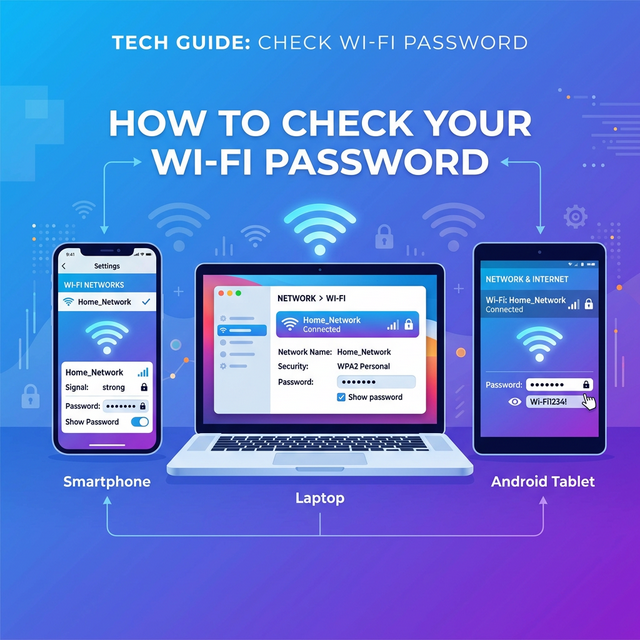
Why You Might Need to Check Your Wi-Fi Password
Forgetting your Wi-Fi password is one of the most common frustrations in 2026. Whether you need to connect a new device, share access with a guest, or troubleshoot your network, knowing how to retrieve your saved Wi-Fi password is essential. The good news is that every major platform — Android, iOS, Windows, and macOS — stores your Wi-Fi credentials securely and lets you view them with a few simple steps.
This comprehensive guide covers every method available in 2026 to check your Wi-Fi password, from built-in settings to advanced command-line techniques. If you're looking for ways to improve your wireless connectivity, check out our article on using Wi-Fi calling to improve connectivity.
How to Check Wi-Fi Password on Android
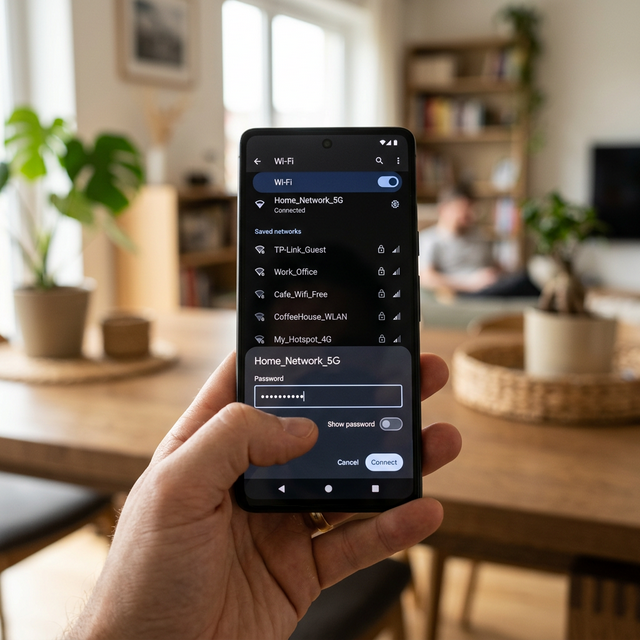
Android has made viewing saved Wi-Fi passwords increasingly easy with recent updates. Here are the methods available in 2026.
Method 1: Using Android Settings (Android 10+)
This is the simplest and most widely supported method for checking your Wi-Fi password on Android devices running version 10 or later.
- Open the Settings app on your Android phone.
- Navigate to Network & Internet → Wi-Fi (or Connections → Wi-Fi on Samsung devices).
- Tap on the connected Wi-Fi network name.
- Tap the Share button or the QR code icon.
- Verify your identity using fingerprint, face recognition, or PIN.
- Your Wi-Fi password will appear below the QR code in plain text.
Method 2: Viewing Saved Networks
To find the password for a Wi-Fi network you've previously connected to but aren't currently using:
- Go to Settings → Network & Internet → Wi-Fi.
- Scroll down and tap Saved Networks (or Manage Networks).
- Select the desired network from the list.
- Tap Share and authenticate to reveal the password.
Method 3: Samsung Galaxy QR Code Method
Some Samsung Galaxy devices (Android 10–13) display a QR code instead of the password text. You can scan this QR code with Google Lens to extract the password:
- Go to Settings → Connections → Wi-Fi.
- Tap the gear icon next to the network → QR Code.
- Screenshot the QR code and open it in Google Lens or Google Photos.
- The password will be revealed in the scanned results.
If you're curious about the Samsung processors powering these devices, read our guide on Samsung Exynos processors.
How to Check Wi-Fi Password on iPhone
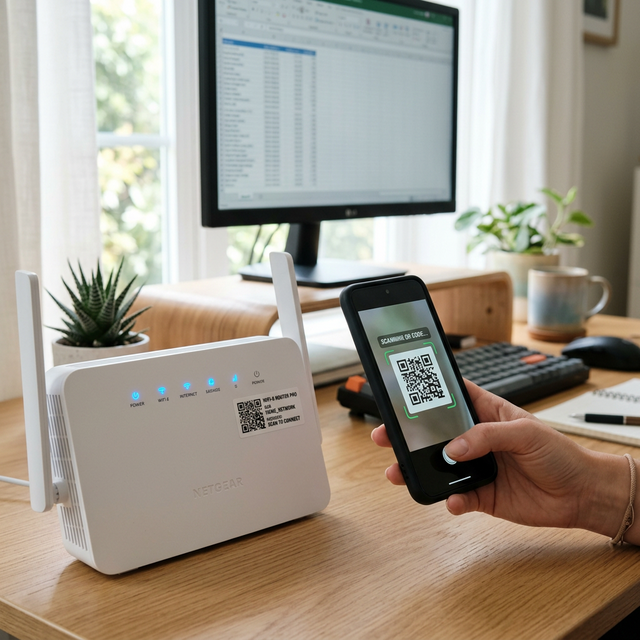
Apple has made it easier than ever to view and share Wi-Fi passwords on iPhone. Here are the current methods for 2026.
Method 1: iOS Settings (iOS 16+)
- Open the Settings app on your iPhone.
- Tap Wi-Fi.
- Tap the info (i) button next to the connected network.
- Tap the Password field.
- Authenticate with Face ID, Touch ID, or your device passcode.
- The password will be displayed and you can copy it.
Method 2: Viewing Previously Connected Networks
- Go to Settings → Wi-Fi.
- Tap Edit in the upper-right corner.
- Authenticate with Face ID, Touch ID, or passcode.
- Browse the list of previously joined networks.
- Tap info (i) next to any network and then tap Password.
Method 3: Using the Passwords App (iOS 18+)
Starting with iOS 18, Apple introduced a dedicated Passwords app that stores all your credentials including Wi-Fi passwords:
- Open the Passwords app (swipe down on the home screen and search for it).
- Authenticate with Face ID or Touch ID.
- Tap the Wi-Fi category.
- Select the network you want and tap the password field to reveal it.
How to Check Wi-Fi Password on Windows
Windows 10 and Windows 11 offer multiple ways to find saved Wi-Fi passwords, from graphical settings to command-line tools.
Method 1: Windows 11 Settings
- Open Settings → Network & Internet → Wi-Fi.
- Click Manage known networks.
- Select the Wi-Fi network you want.
- Click View next to the Wi-Fi security key to reveal the password.
Method 2: Windows 10 Network Properties
- Open Settings → Network & Internet → Status.
- Click Network and Sharing Center.
- Click your Wi-Fi network name next to "Connections."
- Click Wireless Properties → Security tab.
- Check the Show characters box to reveal the password.
Method 3: Using Command Prompt (All Windows Versions)
This powerful method works on both Windows 10 and Windows 11 and can reveal passwords for any saved network:
- Open Command Prompt as Administrator.
- Type:
netsh wlan show profilesand press Enter to list all saved networks. - For a specific network, type:
netsh wlan show profile name="YOUR_NETWORK_NAME" key=clear - Look under Security Settings → Key Content to find the password.
How to Check Wi-Fi Password on Mac
macOS provides two main methods for viewing saved Wi-Fi passwords.
Method 1: System Settings (macOS Ventura and Later)
- Click the Apple menu → System Settings.
- Click Wi-Fi in the sidebar.
- Click Advanced (or the three-dot menu next to a saved network).
- Click Copy Password or hover to reveal it.
- Authenticate with your macOS user password or Touch ID.
Method 2: Keychain Access
- Open Keychain Access from the Utilities folder (or search via Spotlight).
- Search for the Wi-Fi network name.
- Double-click the network entry.
- Check Show Password and authenticate with your Mac password.
How to Check Wi-Fi Password from Your Router
If none of the device-specific methods work, you can always access your router's admin panel to find or change the Wi-Fi password. This method is universal and works from any connected device.
- Open a web browser and type your router's IP address — usually
192.168.1.1or192.168.0.1. - Log in with the router's admin credentials (check the sticker on your router for defaults).
- Navigate to Wireless Settings or Wi-Fi Security.
- Your Wi-Fi password will be displayed in this section.
Popular router brands like TP-Link, Netgear, and ASUS also offer companion mobile apps that let you view and manage your Wi-Fi password directly from your phone.
Comparison of Wi-Fi Password Retrieval Methods in 2026
| Method | Platform | Difficulty | Requires Admin | Shows All Saved Networks |
|---|---|---|---|---|
| Settings → Wi-Fi → Share | Android 10+ | Easy | No | Yes |
| Settings → Wi-Fi → Password | iOS 16+ | Easy | No | Yes |
| Passwords App | iOS 18+ | Easy | No | Yes |
| Manage Known Networks | Windows 11 | Easy | No | Yes |
| Network Properties | Windows 10 | Medium | No | No (current only) |
| Command Prompt (netsh) | Windows 10/11 | Advanced | Yes | Yes |
| Keychain Access | macOS | Medium | No | Yes |
| Router Admin Panel | Any Device | Medium | Yes | N/A |
Tips for Managing Your Wi-Fi Password
Use a Strong Password
A strong Wi-Fi password should be at least 12 characters long and include a mix of uppercase letters, lowercase letters, numbers, and special characters. Protect your network from unauthorized access — learn more about cybersecurity in our guide to the Zryly.com cybersecurity app.
Use WPA3 Security
In 2026, WPA3 is the latest and most secure Wi-Fi encryption standard. Make sure your router supports WPA3 and that it's enabled in your wireless settings for maximum protection.
Change Your Password Regularly
It's a good practice to update your Wi-Fi password every few months, especially if you've shared it with many people. After changing it, you'll need to reconnect all your devices with the new credentials.
Use a Password Manager
Consider storing your Wi-Fi password in a trusted password manager. This ensures you never lose access and can easily share it securely. Apps like 1Password and LastPass support storing Wi-Fi credentials.
Troubleshooting Common Issues
Can't See the Password on Android
If the password isn't showing below the QR code, your Android version may be too old. You need Android 10 or later. If your phone is rooted, apps like WiFi Password Viewer from the Google Play Store can help. To extend your phone's battery while using these tools, consider adjusting screen settings to extend battery life.
Command Prompt Says "Run as Administrator"
Right-click on Command Prompt and select "Run as administrator" to use the netsh command. Without admin privileges, Windows won't reveal saved passwords.
Router Admin Panel Not Loading
Try both 192.168.1.1 and 192.168.0.1. If neither works, open Command Prompt and type ipconfig — the "Default Gateway" address is your router's IP.
Frequently Asked Questions (FAQ)
Can I see saved Wi-Fi passwords on any Android phone?
You need Android 10 or later to view Wi-Fi passwords through Settings. Older versions require root access or third-party apps.
Does Apple show Wi-Fi passwords on all iPhones?
Wi-Fi password viewing requires iOS 16 or later. If you're using an older version, you'll need to update your iPhone to access this feature. If you're experiencing NFC issues with your iPhone, check our iPhone 15 Pro NFC troubleshooting guide.
Is it legal to view my own Wi-Fi password?
Yes, viewing passwords for Wi-Fi networks you own or are authorized to use is completely legal. However, attempting to access networks without permission is illegal in most jurisdictions.
Can I find the Wi-Fi password without being connected?
Yes! On Android, iOS, Windows, and macOS, you can view passwords for previously saved networks that you are not currently connected to.
Will resetting my phone erase saved Wi-Fi passwords?
Yes, a factory reset will erase all saved Wi-Fi passwords. Make sure to note them down before resetting. On iOS, passwords saved to iCloud Keychain will be restored when you sign back into your Apple ID. On Android, passwords synced with your Google account may also be recovered.