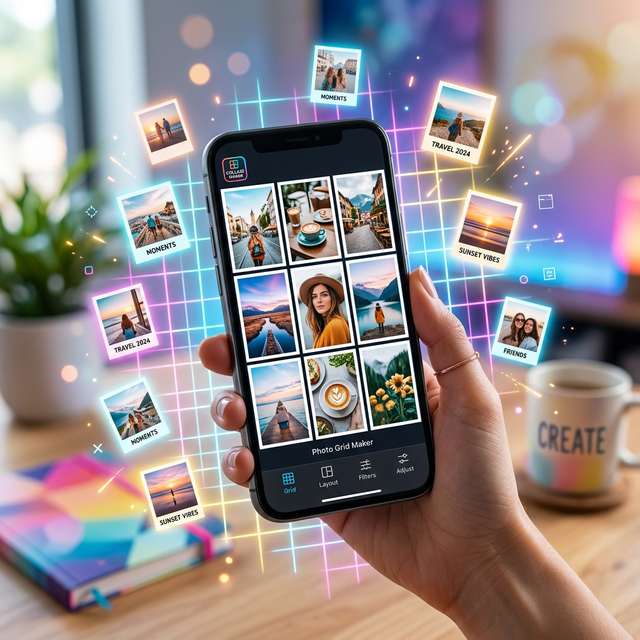
Why Use Grids in Your Edits in 2026?
Grids are fundamentally important in both photography and graphic design. In 2026, social media feeds are dominated by structured photo dumps and meticulously aligned typography. A grid can serve two primary purposes: acting as a template to hold multiple images (a collage) or acting as a visual guide to ensure a single image obeys compositional rules like the Rule of Thirds.
Because accurate alignment requires steady hands and a quick interface, having a modern device is incredibly beneficial. Mobile data connectivity also plays a role in downloading heavy creative assets—read up on how fast connections are transforming apps in our Mobile Networks 1G to 5G Guide. Today, we will explore exactly how to harness both types of grids using Picsart.
Method 1: Creating a Photo Collage Grid
The most common request is trying to fit three or four different photos onto a single canvas. Picsart has a dedicated, powerful grid maker built right into its core menu.
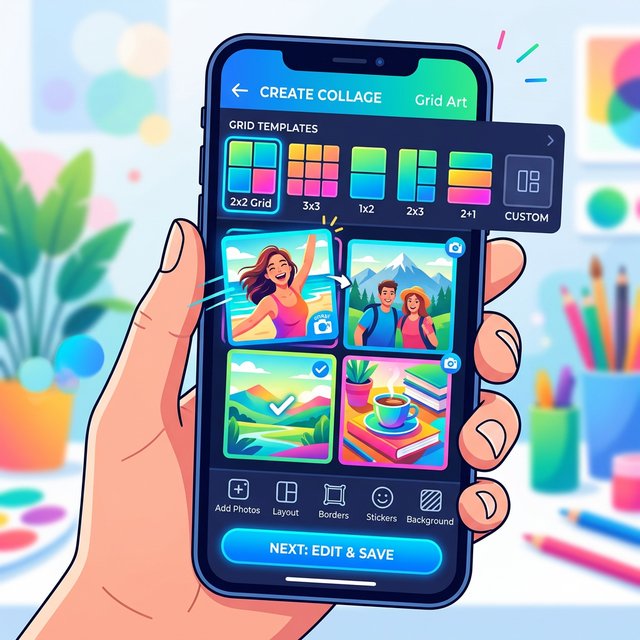
Step 1: Open the Collage Tool
Launch the Picsart app. Instead of tapping a single photo to edit, look closely at the main landing page. Under the "Collage" category header, tap the "Grids" option. This takes you into the layout selector rather than the standard editor.
Step 2: Select Your Images
Your camera roll will immediately pop up. Tap up to 10 photos you wish to include in your grid. As you tap them, Picsart will dynamically generate a layout preview at the top of the screen based on how many photos you've selected.
Step 3: Customize Layout and Borders
Once you enter the collage editor, you’ll see various layout templates (e.g., 3x3 squares, vertical strips, uneven blocks) running along the bottom toolbar. Select your favorite layout. From there, you can adjust the border thickness, border color, and the overall aspect ratio—perfect for sizing the image specifically for an Instagram Story versus a Square post.
Pro Tip: If you're building a highly stylized collage, combining a grid layout with stylish frame outlines makes your photos pop. See our tutorial on How to Add a Border in Picsart to merge these skills.
Method 2: Drawing Manual Alignment Grids
What if you don't want a collage? What if you are editing a single photograph and want to overlay a 3x3 grid line system to help you crop perfectly or align text? While Picsart lacks a permanent toggle-able "ruler" tool, you can create one manually in just a few seconds.
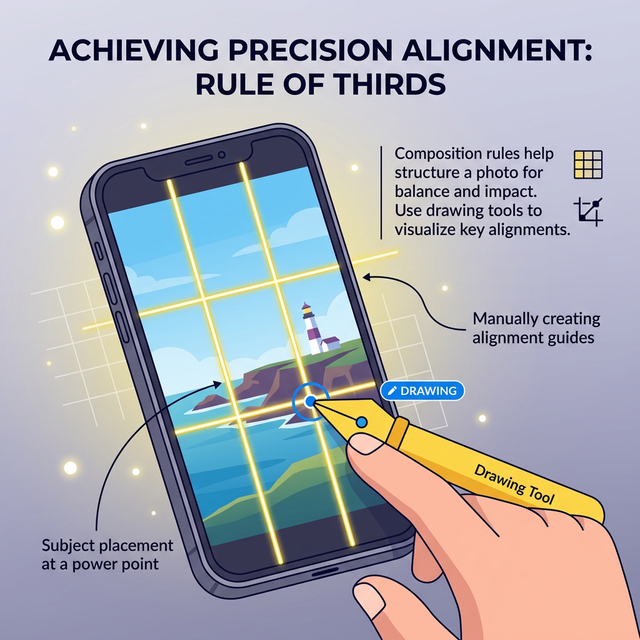
Step 1: Open Your Image and Select Draw
Load your target image into the classic Picsart editor. Scroll the bottom menu entirely to the right and select the "Draw" tool (the paintbrush icon).
Step 2: Use the Shape Tool for Lines
Inside the drawing workspace, tap the "Shapes" icon located on the bottom toolbar. Select the straight diagonal line. Decrease the thickness slider so it is thin and unobtrusive. Set the color to neon green or bright pink—something highly visible against your photo.
Step 3: Draw Your Grid Over the Image
Drag your finger across the screen to create two horizontal and two vertical dividing lines. This acts as a temporary alignment grid! You can now drop text and stickers precisely where you want them. Once everything is aligned perfectly, simply tap the "Undo" arrow at the top to delete the colored lines before saving the final image.
If you're editing and creating graphics that incorporate 3D elements, be sure to also check out our highly popular guide on How to Add a Drop Shadow in Picsart.
Frequently Asked Questions
Is there a way to turn on a permanent snap-to-grid camera in Picsart?
Picsart’s built-in camera function does not always display a 3x3 rule-of-thirds grid by default. It is highly recommended to use your phone’s native camera app (which almost always features a grid toggle in the settings) to take the photo, and then import it into Picsart later.
Can I make the collage grid lines transparent?
Yes. If you are creating a collage using the "Grids" tool, navigate to the "Border" slider on the bottom menu. Drag the thickness all the way down to 0, which entirely removes the dividing lines, mashing your photos seamlessly against one another.
Is the Collage maker free?
The vast majority of the static grid layouts are entirely free. Picsart does offer some stylized, premium templates marked with a crown icon that require a Gold subscription to unlock.
Why did my collage become blurry?
When you combine 5 to 10 photos into a single canvas, the app compresses the original files so the final grid isn't gigabytes in size. If you notice severe quality loss, try selecting photographs that are all similar in pixel density before laying them into the grid.