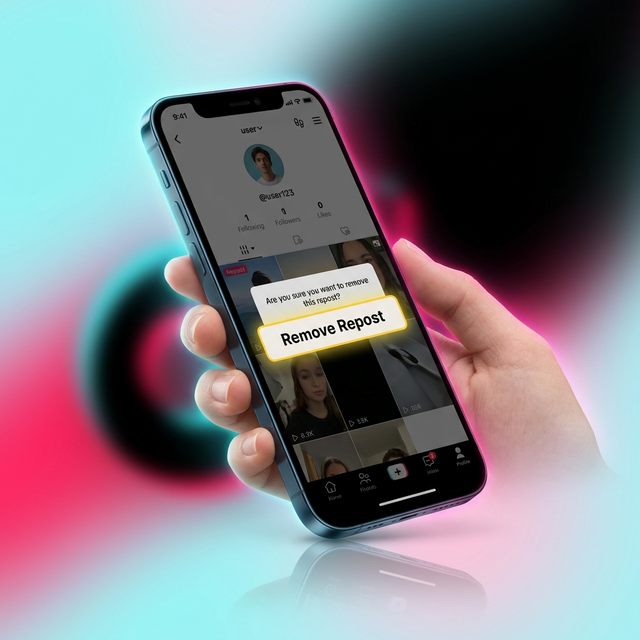
If you have ever reposted a TikTok video and later wanted to undo it, you are not alone. Whether you accidentally shared something, changed your mind, or simply want to clean up your profile, knowing how to delete a repost on TikTok is essential. This complete 2026 guide walks you through every method available, from removing a single repost to bulk-deleting all of them at once.
What Is a Repost on TikTok?
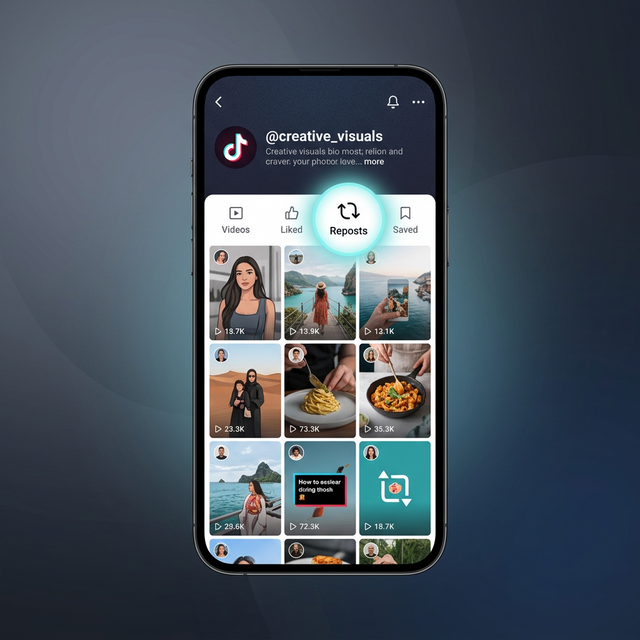
A repost on TikTok works much like a retweet on X (formerly Twitter). When you repost a video, it gets shared directly to your followers through their For You feed. The original creator keeps full credit, and your profile picture appears alongside the reposted content. Reposts do not show up on your main profile grid. Instead, they appear in a dedicated Reposts tab on your profile page, marked by the two circular arrows icon.
Key characteristics of TikTok reposts include:
- They amplify the original content to your followers without re-uploading
- You can add an optional comment when reposting
- They remain on your profile indefinitely until you manually remove them
- You can only repost videos from the For You feed, not from profile pages or the Discover tab
How to Delete a Single Repost on TikTok (Step-by-Step)
Removing a single repost takes less than 30 seconds. Follow these steps on your iPhone or Android device:
Step 1: Open TikTok and Go to Your Profile
Launch the TikTok app on your phone and tap the Profile icon in the bottom-right corner of the screen to navigate to your profile page.
Step 2: Tap the Reposts Tab
On your profile, look for the set of tabs below your bio. Tap the two circular arrows icon to open your Reposts tab. This section displays every video you have previously reposted.
Step 3: Select the Video You Want to Remove
Browse through your reposted videos and tap on the specific video you want to unrepost. The video will open and start playing.
Step 4: Tap the Share Button
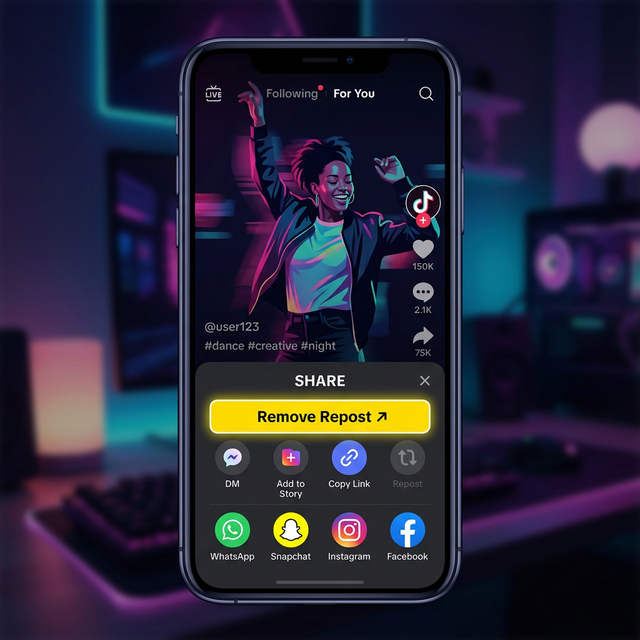
Once the video is playing, tap the Share button (the arrow icon on the right side of the screen). This opens the share menu with all available sharing options.
Step 5: Tap Remove Repost
In the share menu, you will see a yellow Remove Repost button. Tap it to instantly remove the video from your reposts. TikTok may ask you to confirm your choice. Once confirmed, the video will no longer appear in your followers For You Pages as a repost from your account.
Alternative Method: Remove Repost via Activity Center
TikTok also provides an alternative route through your account settings. This method is useful if you cannot find the reposted video in your Reposts tab:
- Open TikTok and go to Settings and Privacy by tapping the three-line menu icon on your profile
- Navigate to Activity Center
- Select History
- Find the video you want to un-repost
- Tap Share, then select Remove Repost
Important Things to Know Before Deleting Reposts
Before you start removing reposts from your profile, keep these points in mind:
- No notification sent: When you remove a repost, your followers will not receive any notification. The original creator will also not be notified.
- Original video stays intact: Deleting your repost does not delete the original video. It only removes your shared version from your followers feeds.
- Cannot edit comments: You cannot edit the comment on a repost after sharing it. The only way to change it is to remove the repost and create a new one with an updated comment.
- No auto-expiration: TikTok reposts remain on your profile indefinitely until you manually remove them. They do not expire or disappear on their own.
How to Delete All Reposts on TikTok at Once
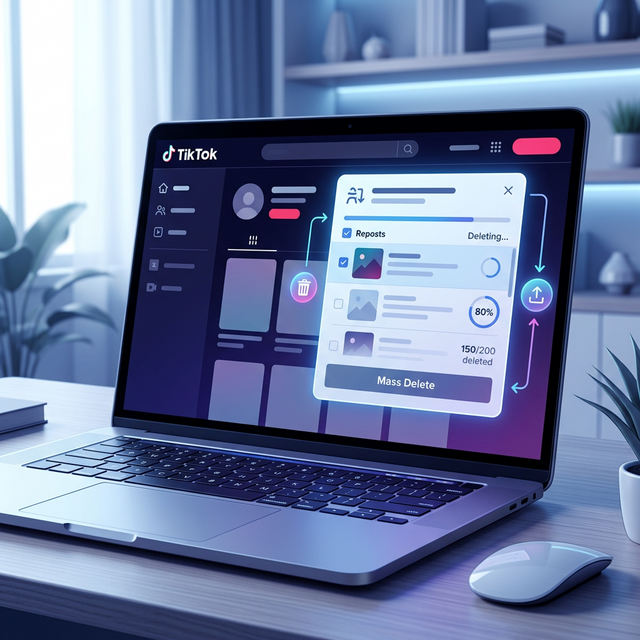
TikTok does not currently offer a built-in feature to mass-delete all your reposts simultaneously. However, several third-party solutions can help you clear your repost history efficiently:
Browser Extensions for Desktop
Chrome browser extensions like ClearTok and TikTok All Reposted Videos Remover can automate the bulk deletion process. These tools work by accessing TikTok through your desktop browser and removing reposts one-by-one at high speed. For example, ClearTok can reportedly delete 100 reposts in about 3 minutes compared to the 45 minutes it would take manually.
Third-Party Mobile Apps
For iOS users, apps like UnRepostAll offer a one-tap solution to clear all reposts at once. These apps connect to your TikTok account and handle the deletion process automatically. Always exercise caution with third-party apps and review their privacy policies before granting access to your account.
Contact TikTok Support
If you prefer an official route, you can contact TikTok support through their online reporting form to request bulk deletion of all reposted videos. While TikTok may not currently have a streamlined process for this, they have been known to assist users with such requests.
Why You Might Want to Delete TikTok Reposts
There are several practical reasons to clean up your TikTok repost history:
- Profile curation: Keeping only relevant reposts helps maintain a focused and professional-looking profile, especially for business and professional accounts
- Privacy concerns: Reposts reveal your browsing interests to your followers. Removing them helps you control what others see about your content preferences
- Accidental reposts: It is easy to accidentally tap the repost button while scrolling through your For You page
- Outdated content: Videos that were relevant when you reposted them may no longer reflect your interests or current trends
Repost vs. Duet vs. Stitch: Understanding the Difference
TikTok offers multiple ways to share and interact with other users content. Understanding the difference helps you choose the right option:
| Feature | Repost | Duet | Stitch |
|---|---|---|---|
| Creates new content | No | Yes | Yes |
| Appears on your grid | No | Yes | Yes |
| Can be deleted | Yes (unrepost) | Yes (delete video) | Yes (delete video) |
| Shows in followers feed | Yes | Yes | Yes |
| Requires recording | No | Yes | Yes |
How to Stop Others from Reposting Your Videos
If you are a content creator who wants to prevent others from reposting your TikTok videos, you can adjust your privacy settings:
- Open TikTok and go to your Profile
- Tap the three-line menu icon in the top right corner
- Select Settings and Privacy
- Go to Privacy
- Find the Repost option and toggle it off
This setting prevents all other users from reposting any of your published videos. It gives you complete control over how your content gets distributed across the platform.
Frequently Asked Questions
Can I see who reposted my TikTok video?
TikTok does not send notifications when someone reposts your video. However, you may see increased views and engagement on the original video when it gets reposted by accounts with large followings.
Will removing a repost affect the original video?
No. Removing your repost has zero effect on the original video. It stays published on the creators profile with all its views, likes, and comments intact.
Can I repost the same video again after removing it?
Yes. You can find the video again on your For You page and repost it with a new comment. There is no restriction on re-reposting content you previously removed.
Does deleting a repost notify my followers?
No. TikTok does not send any notification to your followers when you remove a repost. The video simply stops appearing in their feeds.
Why cant I find the Reposts tab on my profile?
The Reposts tab only appears if you have previously reposted at least one video. If you have never used the repost feature, this tab will not be visible on your profile. Also, make sure your TikTok app is updated to the latest version.
Final Thoughts
Deleting a repost on TikTok is a simple process once you know where to look. Whether you need to remove a single accidental share or clear your entire repost history, this guide has covered every method available in 2026. For single removals, the Share menu method takes just a few taps. For bulk cleanup, third-party browser extensions offer the fastest solution.
Remember that managing your reposts is an important part of maintaining your TikTok presence. Just like you would curate your posts on any social media platform, keeping your repost tab organized reflects your personal brand and ensures your followers see only the content you genuinely want to share.
For more guides on mastering your favorite apps and mobile technology, explore our blog for the latest tips and tutorials updated for 2026.