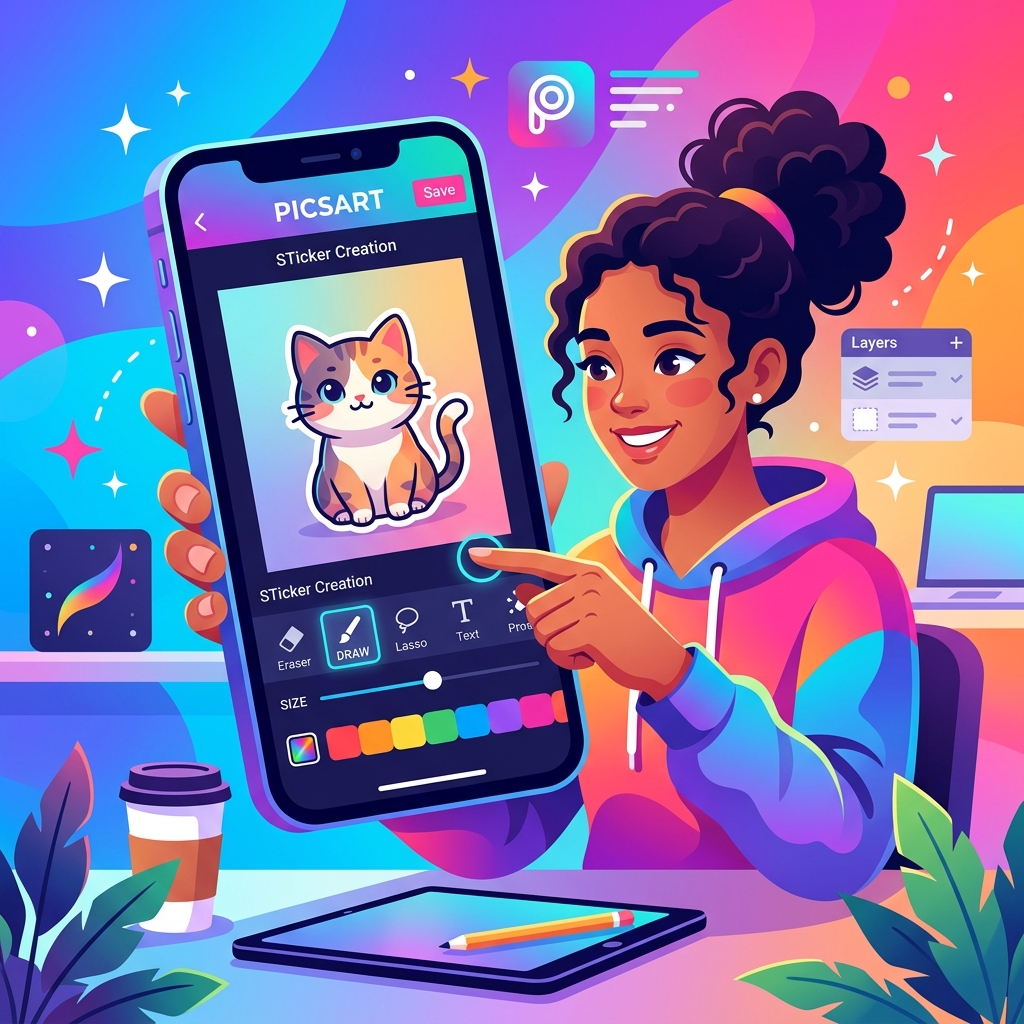
PicsArt is one of the most powerful photo editing and creative design apps available in 2025. One of its most loved features is the ability to create custom stickers from your own photos. Whether you want to make a WhatsApp sticker of your pet, build a personal emoji pack, or craft stickers for Instagram Stories, PicsArt makes the process surprisingly simple. This complete guide covers how to make a sticker on PicsArt from scratch, step by step, on both Android and iOS devices.
What You Need Before Making a Sticker on PicsArt
Before diving into the sticker creation process, make sure you have the latest version of PicsArt installed. The app is available for free on the Google Play Store and the Apple App Store. You will also need a clear photo of the subject you want to turn into a sticker. High-contrast images with a simple background work best for quick and accurate cutouts.
PicsArt offers a free tier with generous tools for sticker creation. A PicsArt Gold subscription unlocks advanced AI enhancements and additional effects, but all core sticker-making features are available for free.
How to Make a Sticker on PicsArt Step by Step
Follow these steps to create your first custom sticker using PicsArt on your mobile device.
Step 1 - Open PicsArt and Start a New Project
Launch the PicsArt app on your phone. Tap the large plus (+) icon at the bottom center of the home screen. This opens the media picker. Under the Photos section, tap All Photos and select the image you want to use as the base for your sticker. The photo will open in the PicsArt editor.
Step 2 - Remove the Background Using the Cutout Tool
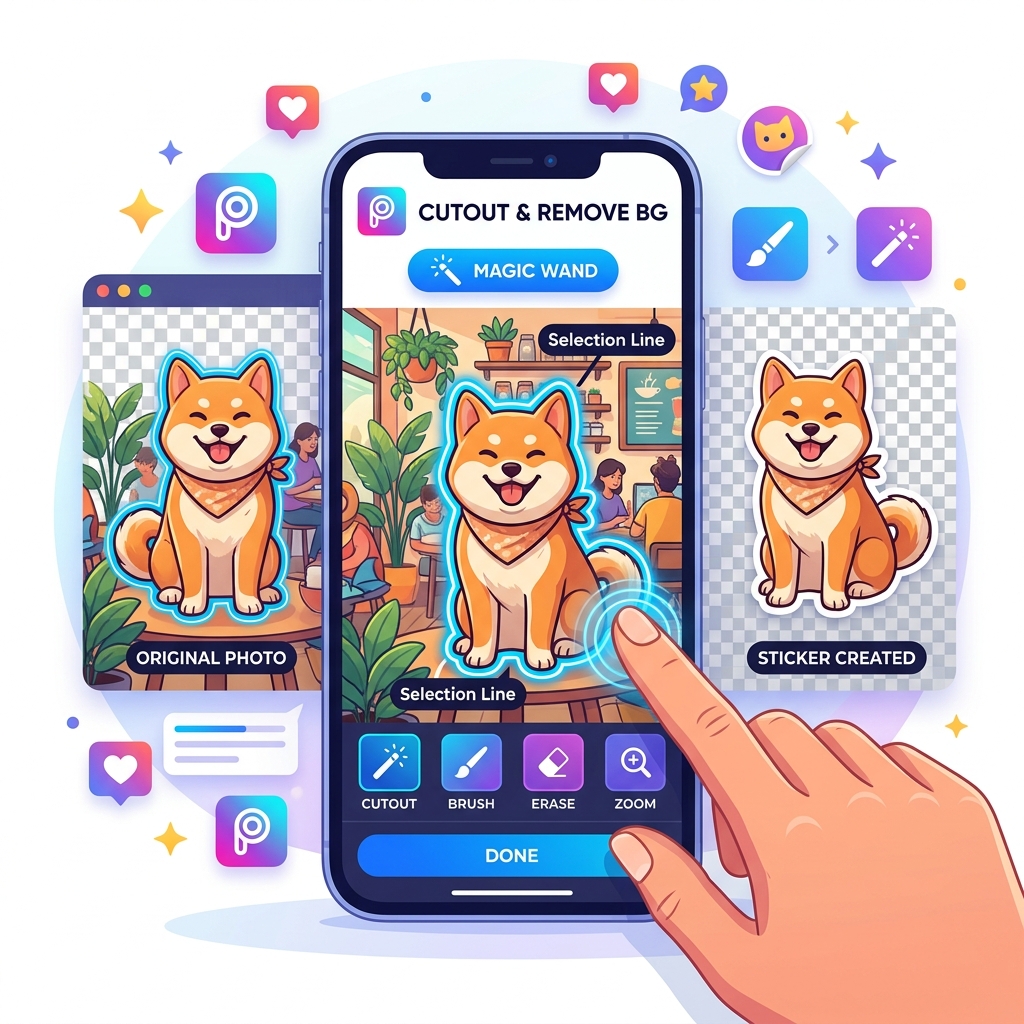
This is the most important step in making a sticker. In the bottom toolbar, scroll right until you find the Cutout tool (it may also appear as Remove BG in some versions). Tap it to access background removal options:
- Auto Remove BG: PicsArt AI automatically detects and removes the background in seconds. This works great for portraits and animals.
- Select Subject: AI highlights the main subject. You can refine edges using the erase or restore brush.
- Manual Cutout: Use the brush tool to manually paint over areas you want to keep or erase. This is ideal for complex or detailed subjects.
Once you are happy with the selection, tap Apply. Your subject is now isolated on a transparent background, which is exactly what a sticker needs.
Step 3 - Customize Your Sticker Design
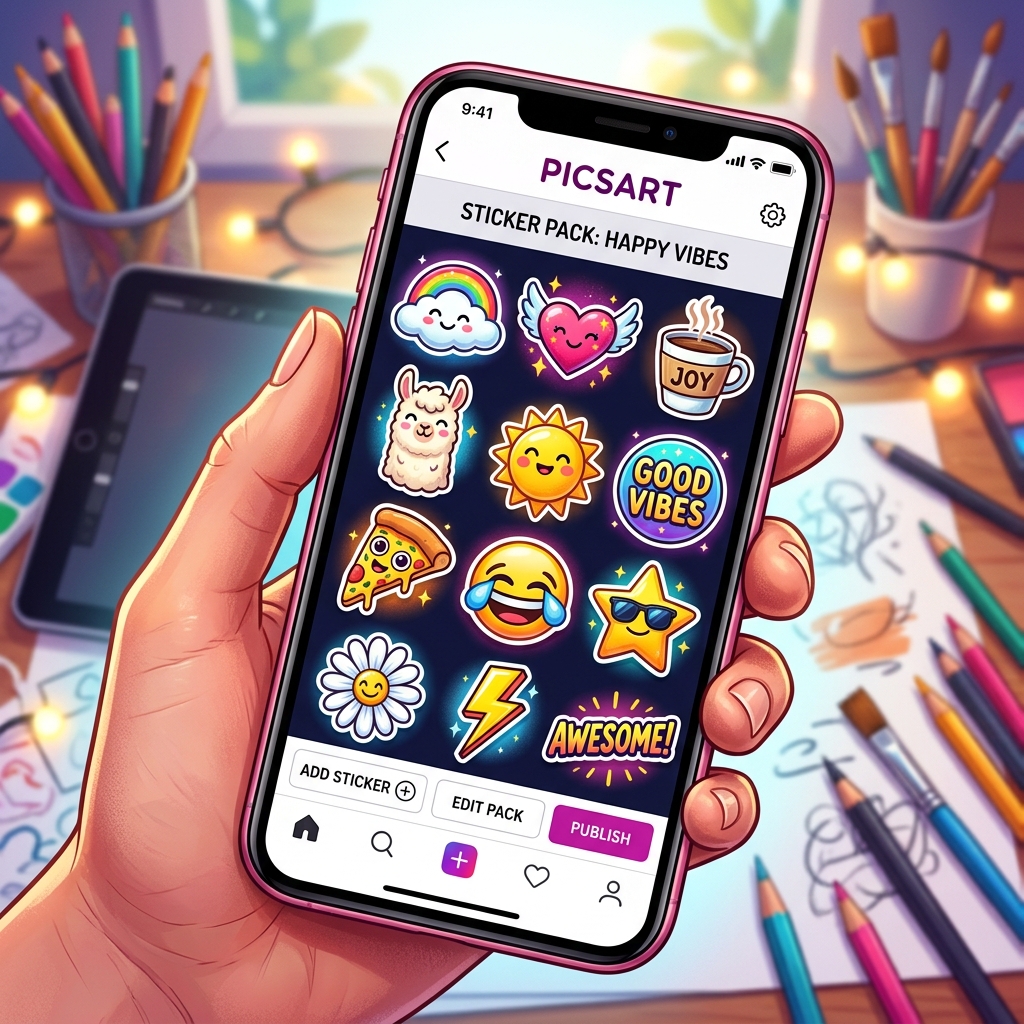
Now that the background is removed, you can customize your sticker to make it look polished and unique. Here are the key tools to use:
- Outline or Border: Tap the Sticker Effects option and choose Outline. A white border gives your sticker that classic die-cut physical sticker look. Adjust thickness to your preference.
- Shadow: Apply a soft drop shadow to add depth and make your sticker stand out on any background.
- Adjust Colors: Use the Adjust tool to fine-tune brightness, contrast, saturation, and warmth so the sticker looks vibrant and engaging.
- Add Filters: Tap Fx to apply creative filters. Go for bold, pop-art, or cartoon-style filters for a fun sticker aesthetic.
- Add Text: You can overlay text labels or captions on your sticker using PicsArt text tool. Choose a fun font and bright color.
If you plan to use the sticker on a dark background, a white outline is highly recommended. For transparent or colorful backgrounds, a drop shadow works better.
Step 4 - Save Your Sticker to the PicsArt Sticker Library
Once your sticker design is ready, tap Next in the top-right corner. On the save screen, you will see a toggle labeled Sticker. Make sure this toggle is turned ON before saving. This saves your cutout directly to your personal sticker library inside PicsArt, so you can use it again in future projects without recreating it.
You can also toggle Free-to-Edit if you want to share your sticker with the broader PicsArt community so others can remix it.
Finally, tap Save to download the image as a transparent PNG to your phone gallery, or tap Post to publish it to your PicsArt profile. PNG format preserves the transparent background, which is essential if you plan to use the sticker in messaging apps like WhatsApp or Telegram.
How to Use Your Custom Sticker in PicsArt Projects
After saving, your sticker is ready to use in any new PicsArt project. Here is how to access it:
- Open a new project or photo in PicsArt.
- Tap the Sticker icon in the bottom toolbar.
- In the sticker panel, tap the My Stickers tab or look for your profile folder.
- Tap your saved sticker to place it on the canvas.
- Resize, rotate, and position it as needed using pinch and drag gestures.
This makes it extremely easy to build a personal sticker pack across multiple projects without any additional effort.
How to Export PicsArt Stickers to WhatsApp
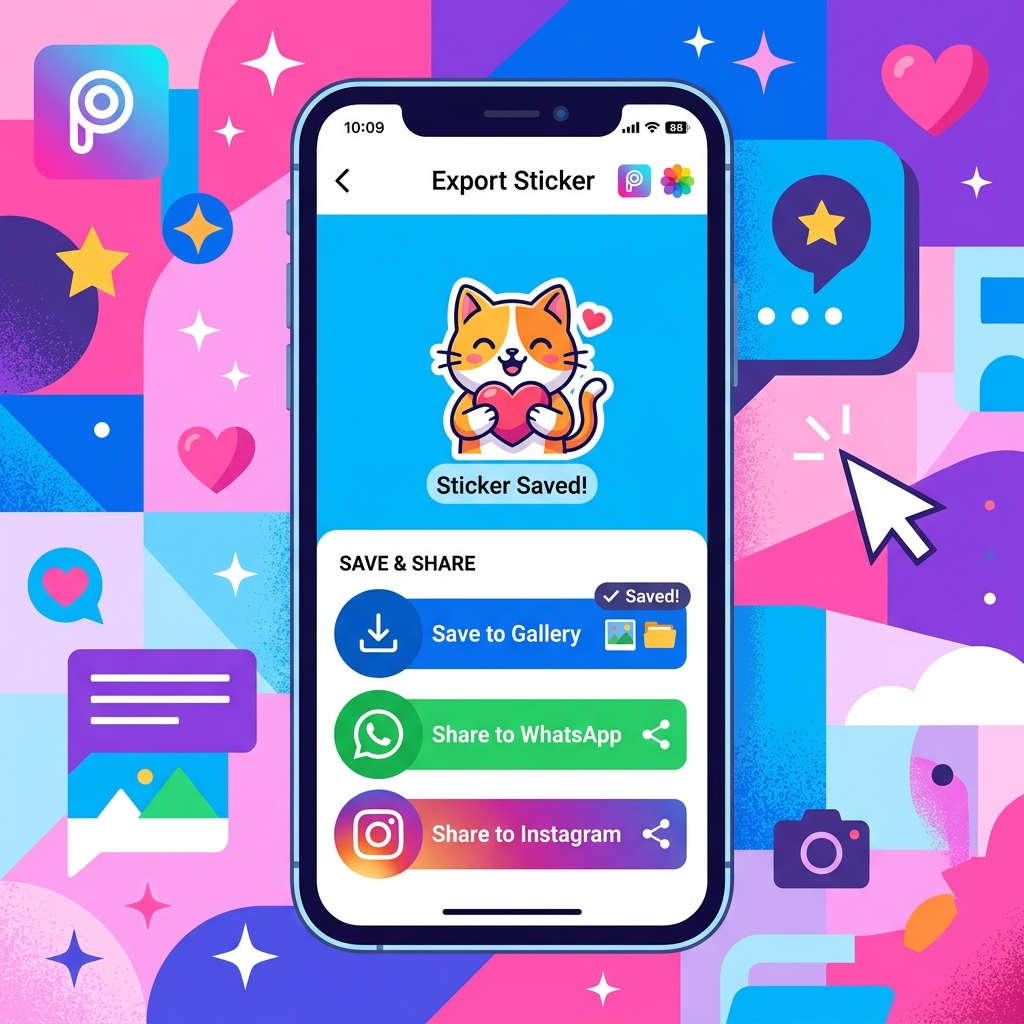
To use your PicsArt sticker in WhatsApp, you need to save the sticker as a transparent PNG and then import it using a sticker maker app. Here is the simplest workflow:
- Save the sticker from PicsArt as a PNG (ensure transparent background).
- Download a WhatsApp Sticker Maker app such as Sticker Maker.
- Import your PNG sticker into the app, create a sticker pack, and send it to WhatsApp.
- Your custom sticker will now appear in your WhatsApp sticker library.
For Instagram Stories, simply open the saved PNG from your gallery and use it as an image overlay in the Instagram Stories editor.
Tips and Tricks for Making Better Stickers on PicsArt
- Use high-resolution photos: A clear, sharp photo gives the AI cutout tool more detail to work with, resulting in cleaner sticker edges.
- Shoot against a plain background: If you are taking a photo specifically for a sticker, use a single-color wall or backdrop. This makes background removal faster and more accurate.
- Zoom in to refine edges: After auto-removal, pinch to zoom in and use the eraser or restore brush at maximum zoom level to clean up any fringe or missed areas.
- Use the cartoon or sketch filter: Stickers often look better with a slightly illustrated aesthetic. Try the Cartoonizer in PicsArt Fx effects for a fun look.
- Create themed sticker sets: Save multiple stickers from the same photoshoot using a consistent outline color and filter so your set looks cohesive.
PicsArt Sticker vs Physical Sticker Printing
If you love your PicsArt sticker creation and want a physical version, services like StickerMule allow you to upload your transparent PNG and order die-cut printed stickers. This is a great option for branding, events, or gifting.
For digital sticker creation on a desktop, PicsArt is also available as a web app at picsart.com, which offers a larger canvas and more precise mouse control for detailed cutouts.
Frequently Asked Questions About PicsArt Stickers
Can I make stickers on PicsArt for free?
Yes. All core sticker creation tools including the Cutout tool, Remove BG, outline effects, and sticker library are available in the free version of PicsArt. Gold subscription features like advanced AI tools are optional but not required for basic sticker making.
How do I save a PicsArt sticker as a PNG with transparent background?
After completing your cutout, tap Next and choose Save. PicsArt automatically saves cutouts as PNG files that preserve transparency when the Sticker toggle is enabled. Make sure to check PNG format if you have an option to choose the file type.
Can I use PicsArt stickers in Telegram?
Telegram has its own sticker creation bot called @Stickers. You simply send your transparent PNG image to the bot and follow the instructions to add it to a new Telegram sticker pack. Your PicsArt-created PNG works perfectly for this.
What is the best size for a PicsArt sticker?
For WhatsApp stickers, the recommended size is 512x512 pixels. For Telegram stickers, 512px on the longest side with transparent background is required. PicsArt exports stickers at the original image resolution, so start with a high-resolution photo for best results.
Final Thoughts
Making a sticker on PicsArt is one of the most creative and rewarding things you can do with your smartphone photos. The combination of the AI-powered background remover, rich customization tools, and a personal sticker library makes PicsArt the top choice for sticker creation in 2025. Start with a photo you love, apply the cutout tool, add an outline, and save it to your library. Within minutes you will have a professional-quality custom sticker ready to share on WhatsApp, Telegram, Instagram, and beyond.
If you are looking for other powerful mobile apps for creative editing and photo enhancement, explore our reviews on MobileKishop for the best tools available on Android and iOS in 2025.