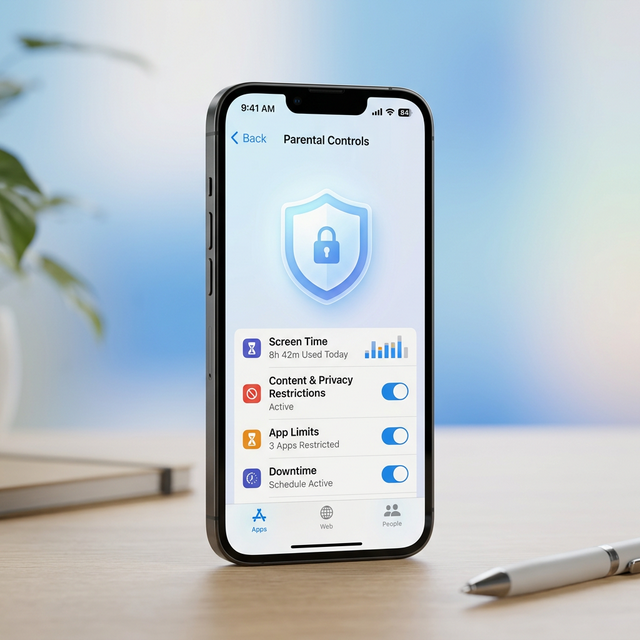
Protecting yourself or your children from explicit content on iPhones is easier than ever in 2026. Apple's built-in iOS tools — combined with a few smart strategies — can effectively block pornographic websites, apps, and search results. This step-by-step guide covers every method available to block porn on iPhone using native settings, DNS-level filtering, and trusted third-party apps.
Why Blocking Adult Content on iPhone Matters
In 2026, children as young as 8 have access to smartphones. According to recent studies, over 70% of teenagers have encountered explicit content online accidentally. Whether you are a parent safeguarding your child device or an adult managing your own screen habits, Apple provides powerful built-in tools to restrict inappropriate content across Safari, apps, and Siri searches.
Method 1: Use Screen Time Content Restrictions (Built-In)
Apple Screen Time is the most effective built-in method to block adult websites and explicit content on any iPhone running iOS 17 or later (including iOS 18 and iOS 19 in 2026).
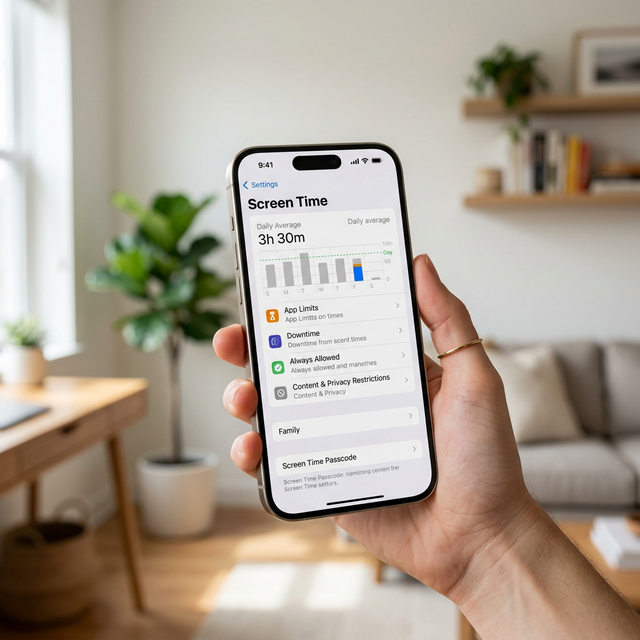
Step 1: Enable Screen Time
- Open Settings on your iPhone.
- Tap Screen Time.
- If not already enabled, tap Turn On Screen Time and follow the prompts.
- Choose This is My iPhone or This is My Child iPhone depending on the situation.
Step 2: Set a Screen Time Passcode
- Inside Screen Time, tap Use Screen Time Passcode.
- Create a 4-digit passcode that is different from your lock screen passcode.
- This prevents anyone from changing the restrictions without authorization.
Step 3: Enable Content and Privacy Restrictions
- Go to Settings then Screen Time then Content and Privacy Restrictions.
- Toggle Content and Privacy Restrictions to ON.
- Enter your Screen Time passcode when prompted.
Step 4: Block Adult Websites
- Tap Content Restrictions (or App Store, Media, Web, and Games on newer iOS versions).
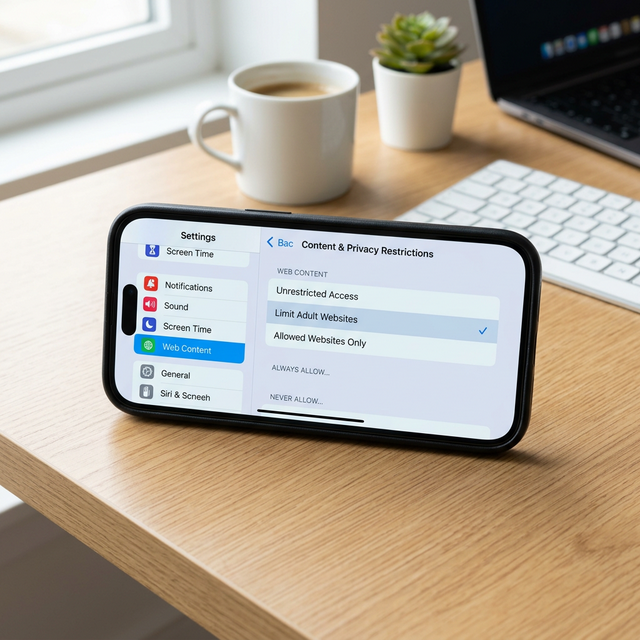
- Tap Web Content.
- Select Limit Adult Websites to automatically block most known pornographic sites in Safari and all supported browsers.
- For maximum protection, choose Only Approved Websites and manually whitelist safe sites.
Step 5: Add Specific Sites to Never Allow
Even with Limit Adult Websites enabled, you can manually add specific URLs to the Never Allow list for extra protection.
- Under Web Content, scroll to Never Allow.
- Tap Add Website and enter the URL of any site you want to block permanently.
Method 2: Restrict Explicit Content in Apps and Media
Beyond web browsing, explicit content can appear in music, movies, TV shows, books, and app downloads. Here is how to lock those down:
- Go to Content Restrictions.
- Set Music, Podcasts, News to Clean.
- Set Movies to an appropriate age rating (e.g., PG-13 or lower).
- Set TV Shows to an appropriate rating.
- Set Apps to 12+ or lower to prevent downloading explicit apps.
Method 3: Disable Siri Explicit Search Results
Siri can return explicit web content and language in search results. To prevent this:
- Go to Content Restrictions.
- Under Siri, turn off Web Search Content.
- Turn off Explicit Language.
This prevents Siri from displaying adult search results or using profanity in responses.
Method 4: Prevent App Store Downloads
Block the installation of browsers or apps that bypass Safari restrictions:
- Go to Content and Privacy Restrictions.
- Tap iTunes and App Store Purchases.
- Set Installing Apps to Do Not Allow.
- Set Deleting Apps to Do Not Allow to prevent removal of parental control apps.
Method 5: Use DNS-Level Blocking
For network-wide protection that works across all apps and browsers, configure a family-safe DNS on your iPhone:
Option A: CleanBrowsing DNS
- Go to Settings, Wi-Fi and tap the info icon next to your connected network.
- Tap Configure DNS, Manual.
- Remove existing DNS entries and add: 185.228.168.168 and 185.228.169.168
- Tap Save.
Option B: OpenDNS FamilyShield
Use these DNS servers for automatic adult content filtering: 208.67.222.123 and 208.67.220.123.
Note: DNS settings only apply to Wi-Fi. For cellular data filtering, you will need a configuration profile or a third-party app.
Method 6: Use Family Sharing for Parental Control
If you are setting up an iPhone for your child, Apple Family Sharing lets you manage Screen Time settings remotely:
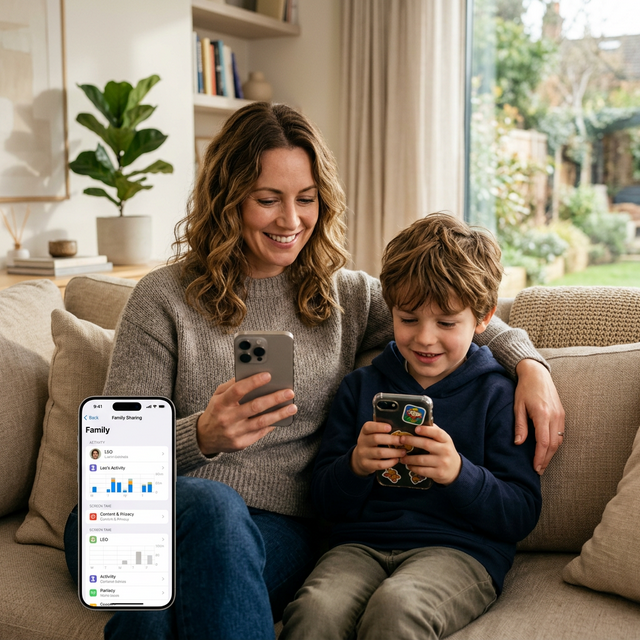
- Open Settings, Your Name, Family Sharing.
- Add your child Apple ID to your family group.
- Tap your child name and then Screen Time.
- Enable Content and Privacy Restrictions and configure web content, app limits, and communication controls from your own device.
This way, your child cannot override the restrictions without your approval.
Method 7: Third-Party Parental Control Apps
While Apple built-in tools are robust, third-party apps offer additional monitoring and filtering features:
1. Bark
Bark monitors texts, emails, YouTube, and 30+ social media platforms for signs of cyberbullying, explicit content, and online predators. It sends alerts to parents rather than fully blocking content, giving a balanced approach.
2. Qustodio
Qustodio provides real-time website filtering, app blocking, YouTube monitoring, and location tracking. Its web filter specifically categorizes and blocks adult content across all browsers.
3. BlockerX
Specifically designed to block pornographic content, BlockerX uses AI-powered detection to filter explicit websites and images in real time. It works alongside Screen Time for layered protection.
4. OurPact
OurPact allows parents to instantly block internet access, set screen time schedules, and manage app usage remotely. It is particularly effective for younger children devices.
Method 8: Lock Safari Settings with a Configuration Profile
For advanced users or organizations managing multiple devices, Apple Configuration Profiles (via Apple Configurator or an MDM solution) can enforce web content filters at the system level. This method is tamper-proof and the user cannot remove the profile without the administrator password.
Quick Summary: Best Methods to Block Porn on iPhone
| Method | Best For | Effectiveness |
|---|---|---|
| Screen Time Content Restrictions | All users | Excellent |
| Restrict App Downloads | Children devices | Very Good |
| DNS-Level Blocking | Wi-Fi networks | Very Good |
| Family Sharing | Parents managing kids | Excellent |
| Third-Party Apps | Advanced monitoring | Very Good |
| Configuration Profiles | Schools and organizations | Excellent |
Frequently Asked Questions
Can I block porn on iPhone without Screen Time?
Yes. You can use DNS-level filtering (CleanBrowsing or OpenDNS) or install third-party apps like BlockerX or Bark. However, Screen Time remains the most comprehensive built-in solution.
Does Limit Adult Websites block all porn sites?
It blocks most known adult websites automatically. However, no filter is 100% perfect. Adding specific URLs to the Never Allow list and combining with DNS filtering provides the strongest protection.
Can my child turn off Screen Time restrictions?
Not without the Screen Time passcode. As long as you set a separate passcode (not the device lock code), only you can modify or disable the restrictions. Using Family Sharing adds another layer since changes require parental approval.
Do these methods work on iPads too?
Yes. All the methods described in this guide work identically on iPads running iPadOS 17 or later.
Final Thoughts
Blocking pornographic content on an iPhone in 2026 is a multi-layered process. The most effective approach combines Screen Time Content Restrictions with DNS-level filtering and, for children devices, Family Sharing for remote management. No single method provides 100% protection, but layering these strategies significantly reduces the risk of accidental or intentional exposure to explicit material.
Start with the built-in iOS tools as they are free, powerful, and take less than 5 minutes to configure. For enhanced monitoring, consider adding a trusted parental control app like Bark or Qustodio alongside Apple native protections.