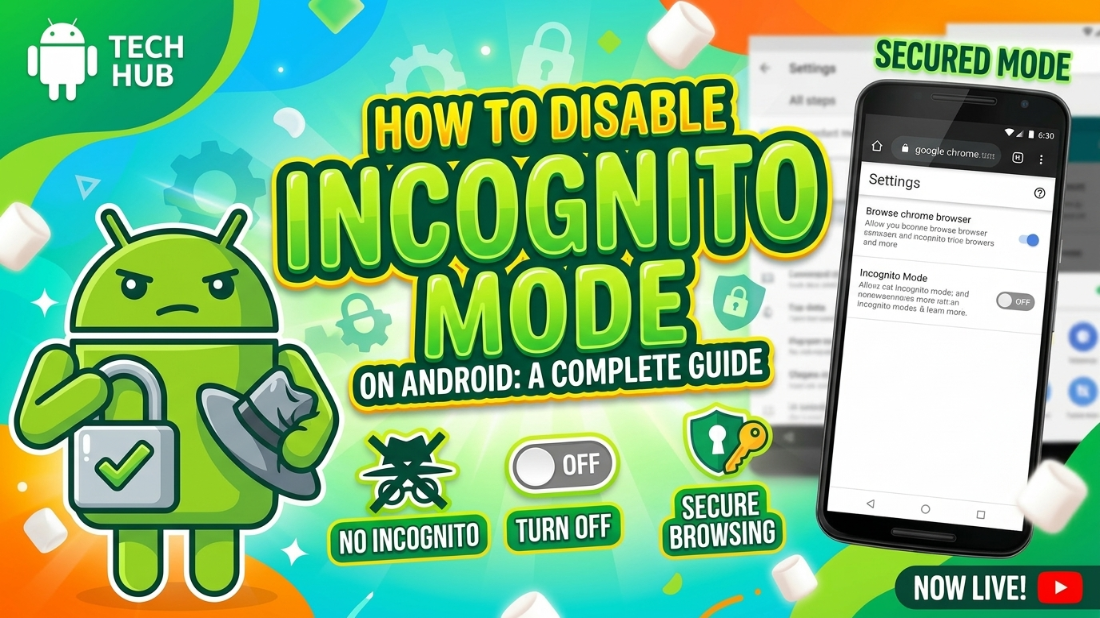
Understanding Incognito Mode and Why You Might Want It Disabled
Incognito mode, or private browsing, is a widely used feature in web browsers like Google Chrome. It prevents the browser from saving your browsing history, cookies, site data, or information entered in forms. While this is fantastic for personal privacy when sharing a device, it can be problematic for parents or administrators who need to monitor web traffic and ensure safe browsing habits for young users.
Unlike on desktop platforms where you can easily alter registry settings or command lines to disable private browsing entirely, the Android operating system restricts deep level browser modifications for security reasons. However, there are still several highly effective methods to restrict or completely block incognito mode on any Android device.
Method 1: Using Google Family Link (Recommended)
The safest and most integrated way to disable incognito mode on an Android device is by utilizing Google’s official parental control application, Google Family Link. When a child account is managed through Family Link, Google Chrome automatically enforces safe browsing rules and completely disables the ability to open incognito tabs.
- Step 1: Download the Google Family Link app on the parent device.
- Step 2: Set up a child Google account on the target Android device.
- Step 3: Link the child account to your Family Link dashboard.
- Step 4: Once properly linked, open Google Chrome on the child device. You will immediately notice that the "New Incognito Tab" option in the browser menu is completely removed or grayed out.
This method not only disables private browsing but also allows you to block mature websites and monitor screen time natively.
Method 2: Third-Party App Blockers and Tools
If Family Link is not an option, you can rely on robust third-party parental control software or specialized app blockers. Applications such as Qustodio, Norton Family, or Kaspersky Safe Kids operate by utilizing Android accessibility and VPN services to monitor and override browser behaviors.
Specific apps like Incoquito (available via third-party repositories) are designed exclusively for this purpose. When installed, these tools run in the background and immediately close any incognito tab the moment it is opened. To set this up:
- Step 1: Install a reputable parental control suite from the Google Play Store.
- Step 2: Grant the necessary Device Administrator and Accessibility permissions.
- Step 3: In the app settings, enable "Web Filtering" or strictly block unmonitored browsers.
Disabling Private Mode on Other Browsers (Firefox, Edge)
If you successfully block Google Chrome incognito mode, a clever user might simply download another browser to bypass restrictions. It is essential to manage other browsers as well. Browsers like Mozilla Firefox and Microsoft Edge also have private modes.
To combat this, the best practice is to restrict app installations. Using whichever parental control method you setup in Method 1 or 2, you can require administrative approval before any new application is downloaded from the Play Store. By ensuring Chrome is the only accessible browser and it is locked down, you secure the entire device landscape against unmonitored web traffic.
Important Privacy and Security Considerations
While disabling private browsing is a powerful tool for monitoring safety, it is equally important to balance security with trust, especially regarding older teens or employees. Over-monitoring can lead to workarounds like factory resetting the device or booting into safe mode. Ensure you maintain open communication regarding why these restrictions are in place and establish clear digital boundaries.
Conclusion
Disabling incognito mode on Android requires a different approach than desktop computers due to mobile system restrictions. By leveraging Google Family Link for a seamless native block, or utilizing specialized third-party application monitors, you can effectively prevent private browsing and ensure a transparent, safe mobile web environment for yourself, your family, or your organization.