
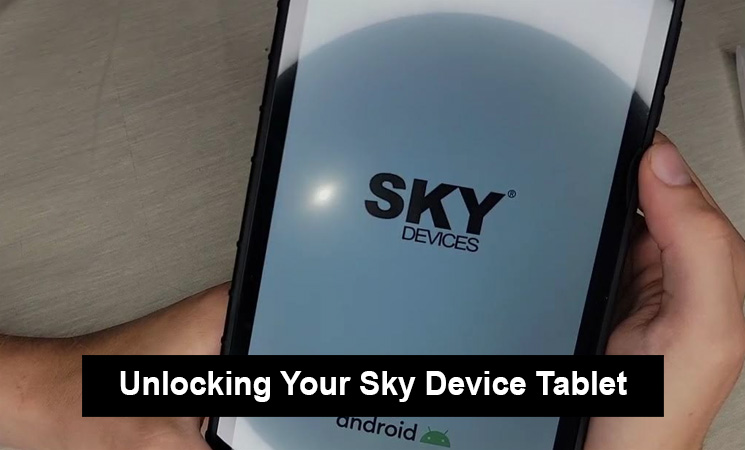
Sky Device tablets, like other Android devices, can sometimes become locked due to various reasons such as forgotten passwords, patterns, or even potential software glitches. If you’re facing such an issue, there are several methods you can try to unlock your tablet. Before attempting any method, ensure you’ve backed up your data, as some methods may erase the tablet’s content.
1. Unlocking via Google Account (For older Android versions – 4.4 and below):
When you input the wrong pattern or PIN multiple times, older Android systems might provide an option to unlock using your Google account:
- After multiple failed attempts, you’ll see a message that you have made several unsuccessful attempts.
- Click on the option “Forgot Pattern” or “Forgot Password” that appears at the bottom.
- You’ll be prompted to enter the Google account credentials that you used on this device.
- Once authenticated, you can reset the pattern or PIN.
Note: If you don’t remember your Google account details, you can recover them using the Google account recovery process on another device.
2. Factory Reset Using Recovery Mode:
A factory reset will wipe all data on your tablet, including apps, settings, and personal files like photos. This method is most effective but should be used as a last resort:
- First, ensure your tablet is completely powered off.
- Press and hold the ‘Volume Up’ button and the ‘Power’ button simultaneously.
- Once the Sky Device logo appears, release both buttons.
- In the Android system recovery menu that appears, use the ‘Volume Down’ button to navigate through options.
- Highlight ‘Wipe data/factory reset’ and select it using the ‘Power’ button.
- Confirm the reset by selecting ‘Yes’.
- After the process is complete, choose ‘Reboot system now’.
3. Android Device Manager (Find My Device):
This is a Google service that can be used to manage and track Android devices:
- On a different device or computer, navigate to the Find My Device website.
- Sign in with the Google account you used on your locked Sky Device tablet.
- Once logged in, you’ll see an interface with a map and devices associated with your account.
- Click on the locked device. You’ll see options like “Ring,” “Lock,” and “Erase.”
- Choose “Lock.” This will allow you to set a new temporary password.
- Use the new password to unlock your Sky Device tablet.
4. Third-party Software:
There are several software options available online claiming to help unlock Android devices:
- Programs like dr.fone – Screen Unlock (Android) or iMyFone LockWiper (Android) are known to assist users in such situations.
- Typically, these software options will guide you through a step-by-step process. Some might require enabling USB debugging, which might be a challenge if your device is locked.
- However, be cautious. Always use trusted sources and read reviews before downloading or purchasing software.
If you’re still unable to unlock your tablet, it’s advisable to contact an authorized Sky Device service center:
- The professionals will have the necessary tools and knowledge to unlock the device without causing any harm.
- In some cases, especially if the problem is hardware-related (like a faulty touch screen), this might be your best option.

You May Also Like To Read: How to Sell Feet Pics
6. Two-factor Authentication (if set up previously):
If you had set up two-factor authentication for your Google account:
- After multiple incorrect attempts to unlock your tablet, select the “Forgot Password” or “Forgot Pattern” option.
- Follow the prompt to enter your Google account credentials.
- Google might send a verification code to your registered mobile number or email.
- Enter the code on your Sky Device tablet to verify your identity and reset the password or pattern.
7. Bypass Factory Reset Protection (FRP):
If you’ve factory reset your device but are stuck due to Google’s Factory Reset Protection:
- During the device setup after a factory reset, connect your tablet to a Wi-Fi network.
- Go back to the first screen of the setup and tap the ‘Vision Settings’ (usually represented by an icon with two eyes).
- Activate ‘Talkback’ and then draw a large “L” on the screen.
- This will open up a global context menu. From here, you can access the device’s settings and add a new Google account or use existing login details.
Note: This method takes advantage of potential vulnerabilities in older Android versions and might not work on the latest systems.
8. Safe Mode Boot:
This method doesn’t unlock your tablet, but it can be helpful if a third-party app is causing your device to lock up:
- Press and hold the power button until the power options appear.
- Long press on the “Power Off” option until the “Reboot to Safe Mode” option appears.
- Tap “OK,” and your device will restart in Safe Mode.
- In this mode, all third-party apps are disabled. If an app was causing the issue, you could uninstall it in Safe Mode.
9. Backup PIN:
Some Android devices, including certain Sky Device tablets, offer a backup PIN:
- If you’ve set a pattern lock, there’s a chance you also set a backup PIN.
- After multiple incorrect pattern attempts, an option to use the backup PIN might appear. Enter the PIN to unlock your device.
10. Use Bluetooth Peripheral:
If you’ve previously paired a Bluetooth keyboard with your tablet:
- Turn on the Bluetooth keyboard.
- On the locked screen, when you have the option to enter a password, use the Bluetooth keyboard to type in the password.

11. Use Smart Lock (if previously set up):
Google’s Smart Lock feature can be a lifesaver:
- If you had previously set up Smart Lock with options like “Trusted Places,” “Trusted Devices,” or “On-body Detection,” try to exploit these.
- For instance, if you had set your home as a Trusted Place, go there, and your device might just unlock itself without requiring a PIN or pattern.
12. OTG Cable and USB Mouse Method:
If the touchscreen isn’t working correctly, or you can’t recall the pattern but can visualize it:
- Connect a USB mouse to your Sky Device tablet using an OTG (On-The-Go) cable.
- Use the mouse to draw the unlock pattern or click on the number buttons for the PIN.
13. Sync with Google Account on PC:
For those who’ve synced their tablet with their Google account:
- Go to Google Play Store’s website on a PC.
- Sign in using the Google account synced with the locked tablet.
- Search for a password or pattern disable app.
- Remotely install this app on your tablet. When the app is downloaded and installed on your Sky Device tablet, it should override the current password or pattern.
14. Emergency Call Trick:
This method is based on exploiting potential vulnerabilities in the lock screen:
- On the lock screen, tap “Emergency Call.”
- Dial a random number, then press the call button.
- Quickly press the ‘back’ button (or swipe back) immediately after.
- In some cases, this trick grants temporary access to the home screen. If it works, quickly navigate to settings and disable the lock screen.
Note: This method exploits vulnerabilities in some older Android versions and might not be applicable for newer versions.
15. SD Card Trick:
This requires an SD card and another Android device:
- Download a password or pattern disable app on another Android device.
- Transfer this app to an SD card.
- Insert the SD card into the locked Sky Device tablet.
- Boot the tablet, and it might prompt you to install the app from the SD card.
- Once installed, this app should override the lock.
Note: This method relies on the assumption that your tablet settings allow app installations from unknown sources.
You May Also Like To Read: How to Factory Reset a Schok Phone
16. Check Manufacturer Solutions:
Certain device manufacturers provide their own solutions for unlocking:
- Visit the official Sky Devices website or contact their customer support. They might have specific solutions or tools for their models.
17. Voice Command Unlocking:
If you’ve set up Google Assistant on your device:
- Activate it by saying “Ok Google” or “Hey Google.”
- Ask it to “Open Settings.” Sometimes, this might allow you to bypass the lock screen, though it largely depends on your device’s security settings.
18. Notification Bar Access:
On some Android devices:
- Pull down the notification bar.
- If you can access the settings from there, navigate to reset or remove the password/PIN.
19. Multiple Device Managers:
Beyond Google’s device manager:
- Check if you previously installed third-party device manager apps like “Lookout” or “Avast Mobile Security.” They might have features for remote unlocking.
20. Guest Mode or Second Space:
If your tablet supports multiple user accounts or a guest mode:
- Switch to another account or guest mode from the lock screen.
- This doesn’t unlock the primary account, but you can access the device and backup essential data.

21. Connect to a Trusted Wi-Fi:
If your tablet connects automatically to a trusted Wi-Fi:
- Bring it within the range of that network. Sometimes, certain security settings might be relaxed when on a familiar network.
22. Pattern Lock Recording:
If you previously enabled “Show taps” or “Pointer location” in Developer Options:
- This might show the path of the pattern when you try to unlock. It can be a visual aid if you’ve forgotten the pattern.
23. Lock Screen Widgets:
For older Android versions that support lock screen widgets:
- Add a widget that provides direct access to device settings. Use it to modify the lock screen settings.
24. Reset with Hardware Keys:
This method can be similar to a factory reset but varies among devices:
- For some tablets, holding a combination of hardware keys (like volume down + power) during boot-up can initiate a reset.
25. Remove Battery (If Removable):
For tablets with a removable battery:
- Take the battery out while the device is on.
- Wait for a few minutes and then re-insert it. Power on the tablet. Sometimes, this hard reset can resolve minor glitches, though it won’t directly bypass a password.
26. Seek Expert Help:
If all else fails:
- Visit a professional who specializes in Android devices or software solutions. There are experts and shops that offer unlocking services, though they might come at a cost and are not always guaranteed.
Final Thoughts
The increasing number of unlocking methods testifies to the complexity of modern devices and their security systems. Always prioritize the integrity and security of your data. Make regular backups, keep a record of your passwords, or use biometric features when available. Remember, ethically and legally, one should only attempt to unlock devices that they own or have explicit permission to access.